Git Beginner's Guide: Installation, Configuration, and Core Concepts from Scratch

A beginner-friendly guide to Git covering core concepts, common myths, and step-by-step Windows installation.
This beginner's guide introduces Git as a distributed version control system essential for modern development, especially in the AI era. It covers Git's core features including version management, history tracking, and branch management, debunks common misconceptions about Git's difficulty and necessity, and provides a step-by-step Windows installation walkthrough. The article also recommends a learning path for mastering Git fundamentals.
Why Mastering Git Is Even More Important in the AI Era
With AI tools emerging left and right, many people believe programming skills can be replaced by AI. But the truth is quite the opposite — when collaborating with AI for development, version management has become more important than ever. When using AI coding tools like GitHub Copilot, Cursor, or Claude, the speed and frequency of code generation far exceeds what was possible in the era of hand-written code. A single feature might go through multiple rounds of AI generation and manual adjustments within just a few minutes. Without version management, developers can easily lose a correct implementation from some intermediate state. More importantly, the quality of AI-generated code isn't always reliable — it may introduce subtle bugs or security vulnerabilities. How to track every change and how to quickly roll back when things go wrong is exactly what Git excels at — it provides a reliable safety net for the high-frequency iterations of the AI era.
At its core, Git is a distributed version control system. It was created by Linus Torvalds, the creator of Linux, in 2005, originally to manage Linux kernel development. Unlike earlier centralized version control systems (such as SVN and CVS), Git's distributed architecture means every developer has a complete copy of the code repository locally, including the entire history. This allows developers to make commits, view history, create branches, and more while offline, without relying on a central server. Git uses the SHA-1 hashing algorithm to generate a unique identifier for each commit and organizes commit history through a Directed Acyclic Graph (DAG) structure, ensuring data integrity and traceability. Its core purpose can be summed up in one sentence: managing every historical version of your code. Every time we update code, we can create a version record with Git. If something goes wrong, we can always revert to a previously working version while clearly seeing exactly what was changed along the way.
Git is not just a powerful tool for individual development — it's an indispensable foundation for team collaboration. Statistics show that 99% of companies explicitly require candidates to know Git when hiring for development positions. Git's ecosystem has grown to include massive remote collaboration platforms, including GitHub (the world's largest open-source code hosting platform with over 100 million developers), GitLab (offering a complete DevOps platform), and Bitbucket (deeply integrated with the Atlassian toolchain). These platforms build on Git's core functionality by adding Pull Request code reviews, CI/CD continuous integration, issue tracking, and other collaboration features, forming the infrastructure of modern software development. Yet in reality, many college students graduate after four years without even knowing what Git is — an obvious skill gap.
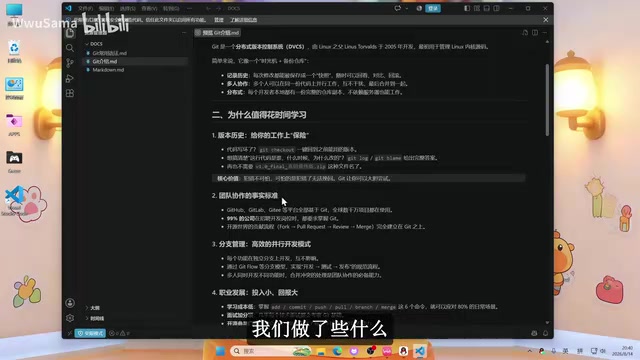
Git's Core Features Explained
Version Management and History Tracking
Git's most fundamental and essential capability is version management. Whether you're working in a team or as a solo developer, every code commit is fully recorded. Internally, Git achieves this through three core object types: blob (stores file content), tree (stores directory structure), and commit (stores commit metadata including author, timestamp, commit message, and parent commit pointer). This design enables Git to efficiently store incremental changes while maintaining fully recoverable snapshots of every version. This means:
- Roll back anytime: Code broke? A single command brings you back to the last stable version. Use
git logto view history, andgit checkoutorgit resetto restore any historical state. - Full traceability: Know exactly what each change did, who made it, and when.
git blamecan pinpoint the last person who modified each line of code. - Experiment without fear: Try bold new approaches freely — you can always undo them. Even if you accidentally delete a branch, Git's reflog mechanism can help you recover it within a certain time window.
Branch Management
Beyond version management, Git also provides powerful branch management capabilities. A Git branch is essentially a movable pointer to a specific commit. Creating a branch is nearly instantaneous (it only requires creating a 41-byte file), which stands in stark contrast to systems like SVN that need to copy entire directories. With branches, you can develop new features in parallel without affecting the main codebase, then merge them back into the trunk once they're mature.
The industry has developed several mature collaboration workflows based on Git branching: Git Flow is suited for projects with planned release cycles, featuring branch hierarchies including feature, develop, release, and hotfix; GitHub Flow is more streamlined, centering on the main branch with Pull Requests for code review; Trunk-Based Development emphasizes frequent small commits to the trunk, ideal for teams practicing continuous deployment. These workflows help teams maintain codebase stability during parallel development. As the old saying goes, "A craftsman must first sharpen his tools" — these capabilities will gradually prove their value in real-world development.
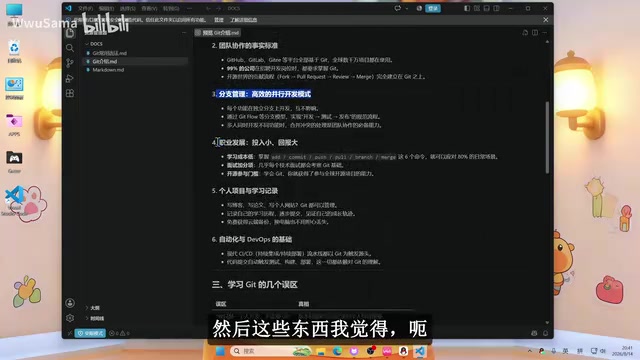
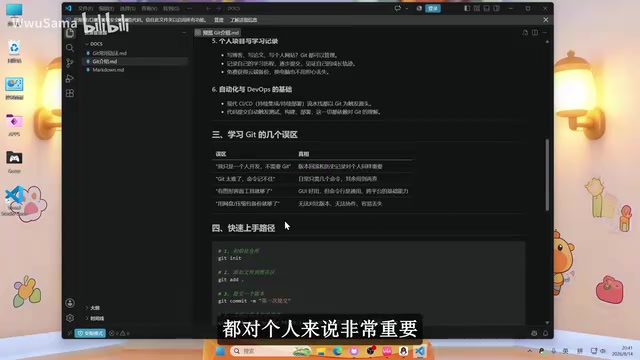
Common Misconceptions About Git — Debunked
Many beginners are intimidated by Git, mainly due to a few misconceptions. Let's address them one by one:
Misconception 1: "Git is too hard — I can't remember all the commands"
In reality, the commands you actually use frequently in daily development are just a handful — git add, git commit, git push, git pull, git branch, git merge — and they become second nature with practice. Moreover, in the AI era, you can simply ask an AI tool about any unfamiliar commands. You just need to know what Git can do; the specific command syntax can always be looked up on the fly. Git's design philosophy is to provide a rich set of low-level tools, but day-to-day usage only touches a very small subset.
Misconception 2: "I'm a solo developer — I don't need Git"
This is the biggest misconception. Even for solo developers, version rollback and history tracking are incredibly valuable. Everyone writes buggy code at some point, and with Git, you always have the right to undo your mistakes. Additionally, when you need to sync code across multiple devices, showcase project experience to potential employers, or bring collaborators into a project in the future, having used Git from the start makes everything seamless. A well-maintained Git commit history is itself a testament to your professionalism.
Misconception 3: "GUI tools are all I need"
Graphical tools certainly lower the barrier to entry. Popular Git GUI clients include GitKraken, Sourcetree, GitHub Desktop, and built-in Git integrations in major IDEs (like VS Code's Source Control panel). These tools offer clear advantages for visualizing branch graphs, resolving merge conflicts, and viewing line-by-line diffs. However, for complex operations like interactive rebase, cherry-pick, or using reflog to recover deleted branches, the command line provides more granular control. Understanding the underlying command-line operations helps you stay composed when facing complex situations. The two approaches aren't mutually exclusive — many senior developers use both in their daily practice. Mastering the command line provides a more solid foundation.
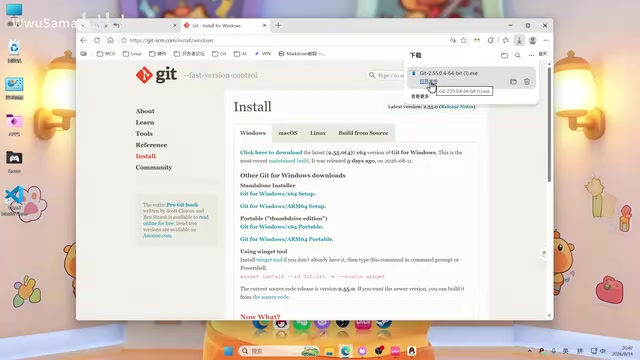
Git Download and Installation Steps (Windows)
Now that you understand Git's value, let's look at how to install it on Windows. The entire process is very straightforward.
Step 1: Visit the Git Official Website
Open your browser, search for "Git," and navigate to the official website git-scm.com. This is the official download source for Git — make sure you use the official site to avoid downloading tampered installation packages. Git is completely free and open-source software under the GPLv2 license, so you can use it without worrying about any costs.
Step 2: Choose a Version to Download
On the official site, click "Download for Windows," then on the download page select Git for Windows-x64 Setup. The vast majority of computers today run 64-bit systems. If you're using an older 32-bit device, you'll need to find a tutorial for the corresponding version. Git for Windows actually includes three components: the Git command-line tool itself, Git Bash (a command-line window that emulates a Linux terminal environment with a bash shell), and Git GUI (a simple graphical interface). Git Bash is especially useful for Windows users, as it lets you use Linux-style commands on Windows.
Step 3: Run the Installer
After the download is complete, open the installation file to launch the setup wizard:
- Click "Next" to begin installation.
- Choose an appropriate installation location (it's recommended to create a dedicated software directory, such as a software folder on the D drive, named git).
- For the subsequent configuration options, keep the defaults and click "Next" through each screen. The setup wizard will ask about the default editor (Vim by default; beginners can change it to VS Code later), PATH environment variable configuration (the recommended option is "Git from the command line and also from 3rd-party software" so Git can be used from any terminal), HTTPS transport backend, line-ending conversion settings, and more — the default values are suitable for the vast majority of users.
- Wait for the installation progress to complete.
- Click "Finish" to complete the installation (you can leave the launch options on the final page unchecked).
After installation, open Command Prompt or PowerShell and type git --version to verify the installation was successful. If it displays a version number (such as git version 2.45.0.windows.1), Git has been correctly installed and configured in your system path.
With that, Git is successfully installed on your computer.
Summary and Next Steps
Git is not nearly as intimidating as many people imagine. The barrier to entry is actually quite low, while the benefits span your entire development career. Before learning any programming language, it's recommended to first master the basics of Git. As AI-assisted programming becomes increasingly widespread, solid version management skills will become an important marker distinguishing professional developers.
In this article, we covered the basic introduction to Git and its installation. Going forward, you can continue learning these core operations:
- Commit: Record working directory changes as a version snapshot. Good commit messages are the foundation of team collaboration.
- Branch: Create independent development lines to achieve feature isolation and parallel development.
- Merge: Integrate work from different branches and handle potential code conflicts.
- Remote operations: Interact with platforms like GitHub to enable code backup and team collaboration.
The recommended learning path is: start by practicing basic operations in a local repository, then try pushing a project to GitHub, and finally solidify your branch management and conflict resolution skills by contributing to open-source projects or collaborating with a team. By taking this first step, you're already ahead of many of your peers.
Related articles

Amphibious Transforming Drone: Beyond 100x Power Savings, What Are the Real Needs?
Is the amphibious transforming drone just a gimmick? Starting from the 100x power difference of the M4 Morphobot, explore real application scenarios and thesis topic ideas, analyzing boundary conditions where pure drones and pure ground robots both fail.

Warhound Raises $200 Million: Genetically Engineered "War Dogs" Paired with Anduril Gear
Warhound raises $200M, backed by Ben Lamm and Palmer Luckey, to genetically engineer dogs for military and law enforcement use and equip them with Anduril gear. This article analyzes its technology direction, funding logic, and ethical controversy.

Claude API Comes to Google Cloud: IAM Integration and SDK Access Guide
Anthropic hosts the full Claude API on Google Cloud with IAM-controlled permissions and unified billing. This guide covers the Vertex AI and Anthropic-hosted entry points, IAM role configuration, and SDK access.