Google AI Studio + Firebase Integration Tutorial: Build Full-Stack Apps with Zero Configuration

Build and deploy full-stack apps with natural language using Google AI Studio and Firebase.
Google AI Studio's new Firebase integration lets developers describe their app in plain English — explicitly specifying Firebase as the backend — and have an Agent automatically generate Cloud Firestore, authentication, initialization config, and security rules. Developers can select a deployment region, link an existing Google Cloud project, and deploy to Cloud Run in one click. The only step requiring manual judgment is reviewing the AI-generated Firestore security rules before going live to prevent overly permissive data access.
Google AI Studio has recently strengthened its integration with Firebase, allowing developers to automatically get a complete backend solution — including database, authentication, and deployment — simply by describing their requirements in natural language. For teams looking to quickly prototype or validate product ideas, this "build a full-stack app with plain English" approach significantly lowers the barrier to entry. This article is based on a hands-on YouTube tutorial and walks through the complete workflow from creating an app to deploying it live, with additional notes on key details that are easy to overlook.
Start Building from a Single Sentence
The entire workflow begins with "describe your idea." After creating a new app in Google AI Studio, simply describe the functionality you need in natural language — especially for scenarios involving databases or user authentication.
The example prompt used in the tutorial is refreshingly straightforward: build a shared to-do list app using Firebase as a backend. This kind of requirement naturally calls for data storage and multi-user support, which is exactly what triggers the Firebase integration.
One practical tip: explicitly tell the Agent to use Firebase as the backend in your prompt. While AI Studio has some inference capability, being explicit ensures the generated output matches your expectations and prevents it from choosing a different solution or producing incomplete backend logic.
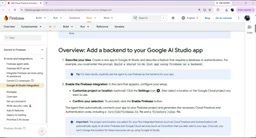
Enabling Firebase Integration and Project Configuration
When the Agent detects that your app requires backend capabilities, a configuration card appears in the UI to guide you through connecting Firebase.
This step offers optional customization. By clicking the settings icon, you can choose the geographic location where your app will be deployed and select the Google Cloud project to associate with. For teams with existing GCP projects, this means you can reuse existing resources without spinning up a new environment. For individual developers, the default settings are usually sufficient.
Once you've confirmed your selections, click the "Enable Firebase" button to proceed. This step essentially establishes an authorized connection between your app and the Firebase project — all subsequently generated code will point to this project.

Automatically Generated Backend Code
Once the integration is enabled, AI Studio's Agent automatically handles the most tedious parts — connecting your app to the Firebase project and generating all the necessary backend code.
Based on the tutorial demo, the generated output includes:
- Cloud Firestore code: for data storage and read/write operations, supporting persistent data needs like a to-do list;
- Authentication code: enabling multi-user login and sharing capabilities;
/src/lib/firebase.tsfile: centralizing Firebase initialization and configuration;- Firestore Rules file: defining security access rules for the database.
This means the Agent lays out the entire boilerplate in one go — from the frontend interface to database connectivity, from user authentication to security rules — so developers don't need to constantly switch back and forth between the Firebase console and a code editor.

Cloud Firestore is Firebase's NoSQL document database. Data is organized in a collection–document hierarchy and supports real-time listeners (onSnapshot) — meaning once a client subscribes to a collection, any data changes are instantly pushed to all listeners without polling. This is especially critical for multi-user collaboration scenarios like a shared to-do list, where any user's changes are immediately reflected in every other user's interface. Firestore Rules is a declarative access control language that defines which users can read or write to which document paths, directly in the Firebase console or in code files. Rules are enforced server-side by Firebase and cannot be bypassed by client code, making them the last line of defense in your backend security model. A typical rule looks like allow read, write: if request.auth != null;, meaning only authenticated users can perform operations — but whether the rules auto-generated by AI precisely match your business logic still requires manual review line by line.
Deploying to Cloud Run and Security Review
Once the code is ready, you can deploy the web app to Cloud Run via the "Share / Publish" option. The app is automatically deployed to the project you selected during the configuration phase, eliminating the need to manually bind a deployment target.
There is one critical step you should never skip: before sharing or deploying, always review the Firebase security rules generated by the AI.
While auto-generated Firestore Rules are enough to get your app running quickly, the default rules produced by AI may not align with your actual security requirements. Rules that are too permissive can allow arbitrary reads and writes; rules that are too restrictive can break functionality. For any app that handles user data, manually reviewing this step is directly tied to production security — you cannot skip it just because the app "works."

Cloud Run is Google Cloud's fully managed container execution platform. It uses a pay-per-request billing model and can scale instances down to zero when there's no traffic, making it ideal for prototype apps with unpredictable load. AI Studio packages the app into a container image and pushes it to Cloud Run, so developers don't need to configure servers, load balancers, or autoscaling policies. When reviewing Firestore Rules, focus on three common risk areas: first, fully open rules that allow anyone to read or write (allow read, write: if true;) — common during development but must be tightened before going live; second, missing authentication checks, i.e., allowing writes without verifying request.auth != null; and third, overly broad permissions, such as allowing users to modify documents that don't belong to them. You can use the Firebase console's built-in Rules Playground to simulate requests from different identities and verify that your rules behave as expected.
Summary
The core value of Google AI Studio's Firebase integration is compressing the "describe requirements → generate backend → deploy" pipeline into just a few clicks, making it especially well-suited for rapid prototyping and lightweight full-stack applications.
The complete workflow can be summarized in four steps: describe your requirements in natural language and explicitly specify Firebase as the backend; enable the integration and configure your project and location; let the Agent automatically generate Firestore and authentication code; deploy to Cloud Run and review the security rules. The one step that genuinely requires developer judgment is the final security rules review — and it's the one part of the automated workflow that human oversight cannot fully replace.
Related articles

From Photons to Production: An Open-Source Computer Vision Engineering Reading Path
Reddit user open-sources a computer vision engineering reading path with 16 chapters from image formation to production deployment, emphasizing primary sources, dependency order, and reproducible benchmarks to help engineers understand why models fail and build reliable vision systems.

Prompt Failures? The Truth About Why AI Agents Struggle in Production—and How to Fix It
A Reddit developer built Agents with Copilot and Gemini but faced unstable behavior. This article analyzes three gaps in prompt engineering for Agent scenarios and offers three practical paths to reliable Agent deployment, including structured prompts, workflow-first approaches, and building an evaluation loop.

Tesla Robotaxi to Open Private Vehicle Access Next Year: Promise or Pipe Dream?
At its Q3 earnings call, Tesla said owners can add their cars to the Robotaxi fleet next year. We analyze the technical basis, Musk's missed deadlines, business logic, and competition.