Grok Agent Beginner's Guide: Build Your Own AI Employee Team
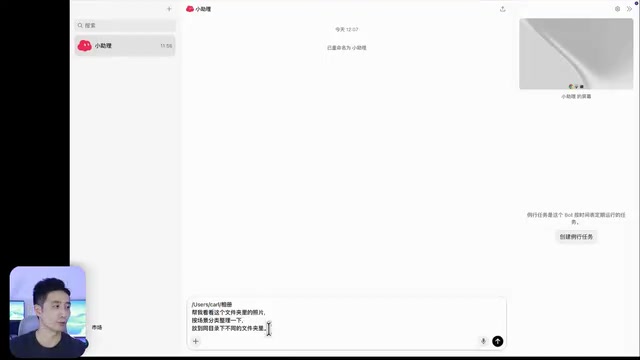
xAI's Grok Bud turns AI into role-based employees with a built-in cloud PC for end-to-end task automation.
Grok Bud is xAI's first general-purpose agent, framing AI as role-based virtual employees (assistant, designer, salesperson) backed by a 24/7 Linux cloud VM. Unlike Codex and Claude Code, it supports multi-model switching (GPT/Claude) and enables end-to-end task handoffs via multi-Bud group chats. Use cases range from photo sorting and content publishing to email monitoring, web change tracking, local development with Cursor, and cloud deployment. Repeatable workflows can be saved as Skills; external tools connect via plugins. Key limitations include 15–30 minute delays on scheduled tasks and account restrictions when logging into sensitive apps like WeChat on the cloud machine.
xAI (Elon Musk's AI company) has launched a general-purpose agent called Grok Bud, which turns AI tools into assignable "employees" you can delegate work to. This article is based on a hands-on beginner tutorial and covers everything from installation and task execution to multi-agent collaboration — helping you decide whether it's worth trying out.
What Is Grok Agent, and How Does It Differ from Codex and Claude Code?
Grok Bud is xAI's first general-purpose agent. Like other agents, it can directly operate your computer to handle files. However, it differs from tools like Codex and Claude Code in a few notable ways.
More flexible model selection. Grok Bud defaults to the Grok model, but in local task scenarios it can also be switched to GPT or Claude — unlike Codex and Claude Code, whose desktop clients currently only support their own respective models.
An organizational structure that mirrors a real company. Rather than "create a project, then assign tasks," Grok Bud frames AI as distinct roles: a research assistant for organizing materials, a designer for creating posters, a salesperson for prospecting clients. You go to the right "person" for the right job, and when collaboration is needed, you can pull them all into a group chat — just like delegating tasks to colleagues.
The most interesting feature is its built-in cloud computer running 24/7. Your local machine can be off, and tasks in the cloud keep running. That said, Codex and Claude Code still lead the industry in raw model capability — Grok Bud isn't a full replacement.
On pricing, the $20/month membership offers generous quota that holds up even with heavy use, and it's bundled with Cursor — one subscription covers both.
A "General Agent" is distinct from a chatbot in that it can perceive its environment, form plans, and execute a sequence of actions — reading and writing files, controlling a browser, calling external APIs, running code, and more. Codex is OpenAI's code agent aimed at software development; Claude Code is Anthropic's equivalent. Both are deeply integrated with their respective flagship models. The core technical challenge for these tools is "long-horizon task planning": the AI doesn't just answer a question — it breaks a complex goal into steps, handles errors mid-execution, makes decisions, and keeps going until the task is done. Grok Bud adds a multi-role collaboration layer on top of this, essentially exposing the scheduling logic of multiple independent agents to everyday users.
Quick Start: Creating Your First AI Employee
All you need is a Grok account — new users get a 7-day trial. Once you have an account, download the app from the official site, install it with a double-click, and log in.
The interface looks a lot like a typical messaging app: contacts on the left, a chat window in the center, and a settings panel on the right. The system automatically creates one Bud for you, but you can create more by clicking "New."
When creating a new Bud, a profile card appears on the right where you fill in a name, tags (optional), and a description. Think of it like onboarding a new employee — the description tells the Bud what it's responsible for and what's expected. No need to overcomplicate it; just be clear.
For example, to sort a beach trip photo collection: create a Bud called "Assistant," paste in the folder path containing 200+ photos, and describe the sorting requirements. The first time it accesses your computer, you'll need to grant permission. After that, it reads the local data and saves the organized results back to your machine.
From Organizing to Publishing: End-to-End Content Production
Photo sorting is just the beginning. You can have the Assistant combine scattered materials into a complete illustrated article: add a few lines of travel notes as a prompt, and it will weave the photos and text into a shareable post. If you're not happy with a section, just tell it to revise in the chat.
Cover image generation is also adjustable through conversation. If the color scheme doesn't feel right for a beach theme, ask for a blue-toned version — a few rounds of feedback and you'll have something you're happy with.
You can go further by having the Bud use the cloud computer to operate Feishu Docs and upload the finished content directly. The cloud desktop has its own interface, can open a browser, and run software. The first login to a website requires a mobile scan to confirm, after which control is handed back to the Bud — it creates the document, uploads the files in the background, and returns a shareable link.
Cloud Computer Capabilities: Installing Software and Transferring Files Across Devices
The cloud computer isn't just for web browsing — it can install software too. One demo showed installing Change Detection, a web monitoring tool that watches a specified page for updates. No need to touch the command line; just ask the Bud to handle it.
Worth noting: the cloud desktop runs on a classic Linux system. Some required components aren't pre-installed, so the Bud will resolve dependencies before launching the target application — the whole process can be left to it.
Cross-device file transfer is also handy. Log into the same Grok Bud account on two computers and keep them online — the Bud can use the cloud computer as a relay to copy a file from one machine to the other wirelessly, no third-party transfer tools needed.
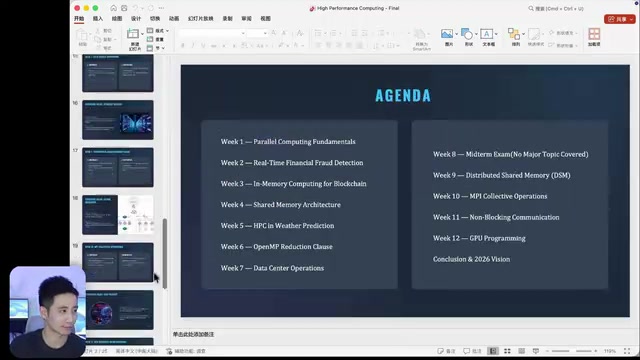
The cloud desktop in Grok Bud is essentially a remote virtual machine (VM) running on cloud servers. Linux is the standard choice in the industry — compared to Windows, it's more compatible with automation scripts and command-line operations, and its open-source ecosystem lets agents install almost any tool via a package manager like
apt, no GUI wizard needed. "Missing dependencies" is a common occurrence in Linux environments: applications often rely on multiple underlying libraries that a minimal system image won't include by default. Here, the Bud handles what developers would normally do manually withapt install. This also explains why the experience differs from using a Windows cloud desktop — it's better suited for automation tasks, but may have compatibility issues with apps that rely heavily on a graphical interface.
Skills and Plugins: Codifying Repeatable Workflows
When the same type of task comes up repeatedly, you can save the process as a Skill — essentially a documented method describing the steps and standards. Have the Bud summarize the workflow it just completed, and you can invoke it later by typing a slash command followed by the Skill name. Drop in new materials and it follows the same process.
It's worth clarifying the distinction: the employee card description defines "what role this Bud plays," while a Skill describes "how to approach this type of work." Once created, a Skill is available to all Buds.
Plugins connect external tools. For instance, you can link Gmail, Outlook, and other inboxes to Grok Bud, then ask it to scan all of them at once for important emails, what each sender wants, and whether any have deadlines — no more checking each inbox manually.
There's also a Bud marketplace with pre-configured Buds ready to add, such as Outbound Prospecting for sales or Figma Bud for design. Since these Buds are created in English, you can send a prompt after adding one to have it translate its name, description, and conversation interface into Chinese.
The Skill mechanism corresponds to what's often called a "Workflow" or "memory consolidation" in the agent space. Traditional RPA tools like UiPath and Zapier share a similar philosophy, but require users to manually define each step in a visual flowchart. Grok Bud's approach lets the AI automatically distill steps from actual execution logs, lowering the configuration barrier. The slash command invocation also borrows from the design conventions of collaboration tools like Slack, making it immediately intuitive for users already familiar with team software. It's worth noting that Skills are fundamentally natural-language process prompts — actual execution quality still depends on the underlying model's comprehension, and complex or ambiguous workflows may need multiple iterations to stabilize.
Automated Tasks: Keeping AI on Continuous Watch
For things that need ongoing monitoring, you can set up automated tasks. Two examples were demonstrated:
Scheduled email checks — Set a task name, specific requirements, and a trigger condition (e.g., run every hour) to have the Bud summarize important client emails and send you a digest.
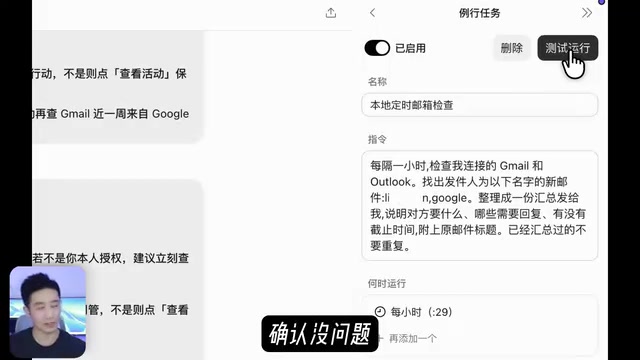
Web page monitoring — Use Change Detection (installed earlier) to periodically check a GitHub page; when changes are detected, the Bud notifies you and summarizes what's new. Critically, this task runs on the cloud computer, so it keeps running even when your local machine is off.
In testing, the email task successfully identified two test emails, and the web monitor accurately caught a newly added library. However, scheduled tasks showed a 15–30 minute delay, which has been attributed to AWS service behavior. Further observation revealed that Change Detection's own check logs were on time — the delay likely occurs at the step where the Bud reads the results and sends the notification.
The 15–30 minute delay in scheduled tasks is related to how cloud agents are triggered. Most cloud platforms' scheduling systems (like AWS EventBridge or Cron Jobs) use a "cold start" strategy when task frequency is low: containers are reclaimed during idle periods and must be restarted when triggered, a process that can take several minutes on its own. Change Detection runs as a persistent background process and logs on time; the Bud, woken on demand, responds later — a textbook example of this mechanism. For monitoring scenarios requiring second-level response times (stock prices, server alerts), this type of platform isn't suitable. But for tasks with higher latency tolerance — email summaries, competitor updates — a sub-30-minute delay is generally acceptable.
Multi-Agent Collaboration: Running a Full Business Operation in One Group Chat
The feature that best captures Grok Bud's vision is multi-Bud collaboration. One demo simulated a photography company receiving a beach shoot order: the Assistant, Sales, and Design Buds were added to a group chat, and a single instruction was sent — the Assistant drafts ad copy, Design creates a service poster, and Sales searches the inbox for clients with shooting needs and drafts a promotional email.
All three Buds got to work simultaneously. When uncertain, they'd ask in the group chat — about pricing tiers, or whether a particular email was a test. If a Bud was slow to respond, you could @mention them in the group to follow up.
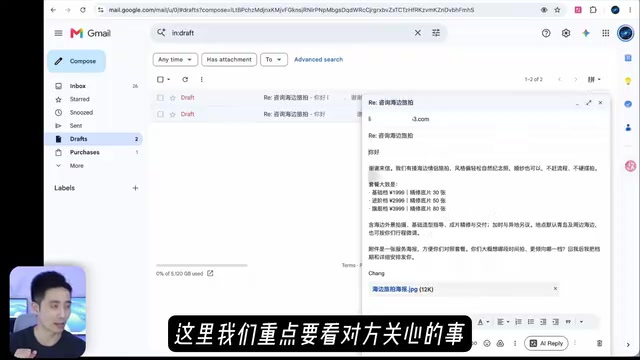
The key is that material handoffs happen automatically between the Buds — the Assistant passes the copy to Design, Design finishes the poster and passes it to Sales for the email. The user doesn't need to act as a middleman; you just provide the initial information and review the final output.
Connecting to Cursor for Development and Cloud Deployment
Grok Bud can also switch to GPT or Claude models for local development by connecting to Cursor. Create a "Dev Bud," describe its role as handling local project development via Cursor with a specified model, and you're set.
In one demo, the Bud built a blog to host previously created content. It connected to Cursor, created a local project, switched to Claude (verifiable in the Cursor backend), and adjusted the interface to a more polished glass effect based on feedback.
The real surprise: after setting up the local project, the Bud was casually asked to deploy the blog to its built-in cloud computer with a public link — and it actually worked, skipping the need for any third-party hosting platform.
Real-World Limitations: Pitfalls to Watch Out For
Two notable drawbacks were highlighted:
First, installing apps on the cloud computer carries risks. Even WeChat can be installed, but logging into your account may trigger restrictions — that account may be blocked from logging into new devices for a period of time. This is likely related to the cloud device's environment or network profile. Use caution with apps that are sensitive to device or network context.
Second, scheduled task delays are significant — typically 15–30 minutes — so it can't be relied on for precise timing. That said, all tasks in testing did eventually execute.
Overall, Grok Bud delivers on the concept of an "AI employee team" in a remarkably concrete way: from single-point tasks to codified workflows, multi-agent collaboration, and cloud deployment — covering content production, business development, software development, and more. For users who want AI to genuinely do things rather than just chat, it offers a clear and accessible entry point.
Related articles
Getting Started with Gemini 4 Argonne: A Hands-On Guide from Building Sites to Agents
Complete Gemini 4 Argonne tutorial: build a calorie tracker app with one prompt in Google AI Studio, review 10-page technical documents with long context, develop a browser game as a coding Agent in Anti-Gravity, plus API Key setup, pricing, and subscription requirements.
Cursor vs. Claude Code vs. Copilot: A Scenario-Based Selection Guide
Cursor, Claude Code, or GitHub Copilot? A scenario-based guide covering daily coding, large refactors and long tasks, and teams locked into existing IDEs—plus common pitfalls and combined-use advice.
DB Chat: Conversing with PostgreSQL in Natural Language, with AI Auto-Generating SQL
dbchat lets users converse with a PostgreSQL database in natural language, with an AI agent auto-generating SQL and returning live results. This article analyzes its MCP Server + Next.js + AWS full-stack architecture and anti-hallucination guardrail design.