Hands-On: Apple's First Touchscreen MacBook Pro with OLED Display and Dynamic Island
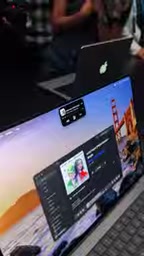
Hands-on with Apple's first touchscreen MacBook Pro: thinner and lighter, Dynamic Island-style design, OLED screen, but no Apple Pencil support.
Apple has launched its first touchscreen MacBook Pro, along with an OLED display called ProLED XDR. Hands-on experience shows the 16-inch version has shed weight to around 4 pounds, and the glowing logo on the screen lid has returned and syncs with screen brightness. For touch, macOS automatically enlarges small controls such as buttons and menus to improve hit rates, but pressing hard near the top of the screen causes slight hinge wobble. The Dynamic Island-style cutout at the top of the screen can host Live Activities and quick controls, and music playback status can be tapped open directly. Configuration-wise, it uses M5 Pro and M5 chips; the touchscreen OLED version carries a $400 premium over the current model and can exceed $14,000 fully maxed out. The main regret is the lack of Apple Pencil support, and the actual value of touch on macOS still awaits full review testing.
Apple has finally brought a touchscreen to the MacBook Pro. After years of insistence and public mockery, Apple has launched its first touchscreen MacBook Pro, along with an OLED display it calls ProLED XDR. From the actual hands-on experience on site, the changes this machine brings are not just about being "able to touch the screen"—it has made noteworthy adjustments in interaction, chassis feel, and design details.
Appearance and Feel: Thinner, Lighter, and the Glowing Logo Returns
The first impression comes from the chassis. The new touchscreen MacBook Pro is thinner and lighter than the current model, a change that is especially noticeable on the 16-inch version—weight has dropped to around 4 pounds, and you can clearly feel the difference when holding it. For users who have long commuted with a 16-inch MacBook Pro on their backs, this weight reduction is practically meaningful.
Another detail that will make veteran users smile is that the Apple logo on the screen lid lights up again. This design has been absent for quite a long time, and now that it has returned, the logo's brightness also syncs with screen brightness: when the screen brightens, the logo brightens; when the screen dims, the logo dims accordingly until it turns off completely. This system-wide syncing approach recalls the classic experience of the early glowing-logo era.
Touchscreen Interaction: Enlarged Tap Targets, but Also a Bit of Wobble
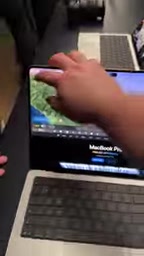
The addition of a touchscreen changes more than the input method—macOS's interface logic has also been adapted accordingly. When users tap small controls on the screen such as buttons, menus, or drop-down lists, the system automatically enlarges the tap targets of these elements, making them easier for fingers to hit. This is a pragmatic design trade-off—the control density of a desktop-class operating system was originally designed for mouse precision, and porting it directly to touch would result in a terrible experience; automatic enlargement is a direct way to alleviate this conflict.
However, touch operation also exposes the physical limitations of the traditional notebook form factor. If you press hard on the screen, or tap near the top of the screen, you will observe slight wobbling of the hinge. This is basically consistent with the behavior of most touchscreen notebooks on the market and is a structural phenomenon rather than an individual defect.
The so-called "tap target enlargement" is commonly known in interaction design as hit target expansion. Desktop operating systems are designed by default around the pixel-level precision of a mouse pointer, so buttons can be small and densely packed; the contact area of a finger is far larger than a pointer, and there is the "fat finger problem," which makes accidental taps on adjacent controls easy. Common mitigation methods include: enlarging the controls themselves, expanding their invisible clickable hot zones, or temporarily popping up a magnifier during touch. macOS adopts the strategy of automatically enlarging controls, at the cost that the interface layout changes momentarily during touch, which may affect visual stability—this is also a common dilemma faced when porting desktop systems to touch.
Dynamic Island Arrives: The Camera Area Becomes an Interaction Entry Point
The new MacBook Pro features a camera cutout at the top of the screen similar to the iPhone's Dynamic Island, and treats it as an entry point for information display and quick actions. Some apps and Live Activities can be housed in this area—for example, currently playing music will be displayed there, and tapping it directly brings up quick controls such as play, pause, and fast-forward.
Turning the "dead space" of the notch area into an interactive functional zone follows the same line of thinking as the Dynamic Island on iPhone. For users who frequently handle multiple tasks simultaneously on desktop, this approach of gathering real-time status into a fixed position at the top of the screen can reduce the frequency of switching between multiple windows.
The Dynamic Island is an interaction design introduced by Apple on the iPhone 14 Pro, turning the camera cutout area at the top of the screen into a dynamically expanding black capsule for displaying real-time status and quick actions. Its technical foundation is Live Activity, an API introduced in iOS 16 that allows apps to continuously display the status of ongoing tasks on the lock screen and in the Dynamic Island, such as music playback, food delivery progress, timers, and more. Unlike traditional push notifications, Live Activities emphasize "continuous presence" rather than "one-time reminders," making them suitable for being housed in a fixed position at the top of the screen. Replicating this idea on Mac is essentially transforming the notch/cutout from a visual obstacle into a permanent information and operation hub.
Configuration and Pricing: The Premium for Touch and OLED
In terms of core performance, this batch of touchscreen OLED MacBook Pros uses the existing M5 Pro and M5 chips, without bringing a new processor upgrade. In other words, the main selling points of this generation are concentrated in the experiential changes of the touchscreen and OLED display.
The price threshold is raised accordingly. The touchscreen OLED MacBook Pro starts at $28.99 (as stated in the original text, presumably an installment or specific pricing basis; the actual full-machine price should be far higher than this), a $400 premium compared with the current MacBook Pro. Fully maxed out, the price can exceed $14,000. For the vast majority of users, whether this extra cost for touch and OLED is worth it depends on specific usage scenarios.
OLED (organic light-emitting diode) differs in principle from the mini-LED backlit LCD that MacBook has long used: each pixel of OLED emits its own light, enabling true pure black and near-infinite contrast, and no backlight layer is needed, which helps make the chassis thinner. However, OLED also has issues such as weaker sustained brightness output and the possibility of image retention from long-term display of static content, which is an additional challenge for a desktop system that frequently displays a fixed menu bar and Dock. "ProLED XDR" in the text should be the brand name Apple has given this screen; XDR continues from its naming system for high-end displays and represents high dynamic range display capability.
Regrets and Open Questions: No Apple Pencil Support
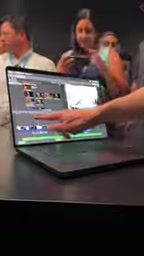
Although the touchscreen MacBook Pro experience as a whole feels fresh, there is one point that is slightly disappointing: this machine does not support Apple Pencil. Considering that the iPad product line has long established a mature pen-input ecosystem, a MacBook Pro with touchscreen capability that does not introduce stylus support leaves creative users somewhat wanting.
Apple has for years held a reserved, even mocking, attitude toward touchscreen Macs, and the shift in attitude itself is a signal. But how much value touch can deliver on macOS, and how mature Apple's implementation is, still need to be tested by full reviews. First-generation products often play the role of pathfinders, and the real answer will be left to actual use.
Apple Pencil is a stylus designed by Apple for iPad, relying on the screen's touch and pressure-sensing layer to achieve tilt recognition, pressure sensitivity, and low-latency writing. MacBook's lack of Apple Pencil support may involve several reasons: macOS's interface and cursor model were not designed for pen input and lack corresponding system-level handwriting and pressure-sensitivity APIs; at the same time, precise input via trackpad + mouse already covers most desktop creative scenarios. For drawing and annotation needs, Apple's current answer remains "use an iPad with Sidecar as a drawing tablet for the Mac," rather than introducing pen support into the Mac screen itself.
Related articles
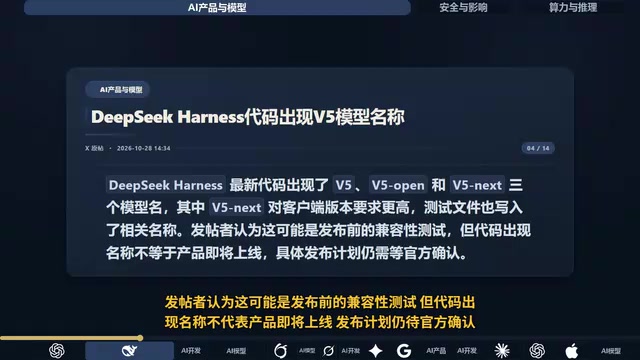
DeepSeek V5 Code Leak? It's Actually a Compatibility Test
AI Evening Report: DeepSeek Harness code shows V5 model names, deemed a compatibility test; Artificial Analysis V5 leaderboard released with DeepSeek tied for first among open-source models; Codex reset complete with news teased for tomorrow; coding agent security risks and OpenAI TPU procurement rumors analyzed.

The AI Coding Terminal Built for DeepSeek: A Deep Dive into the 38K-Star Open Source Project
A deep dive into the open source AI coding terminal built for DeepSeek: 38K stars, 20 parallel agents, three security modes, and OS-level sandbox isolation for fully automated file reading, code editing, and command execution from a single-sentence requirement.

Wuzhen Conference Signals: Open Source Becomes China's Key Card for Changing Lanes and Overtaking in AI
The Wuzhen Internet Conference put open source and openness at center stage, with domestic open-source models from Huawei, Kimi, MiniMax, and DeepSeek showcased together. This article analyzes why open source has become China's key card for changing lanes and overtaking in AI, as well as the ecosystem standards battle, security governance, and commercialization challenges behind open source.