Herder Multi-Agent Collaborative Coding in Practice: Configuration & Workflow Complete Guide

Herder is a terminal multiplexer built for multi-agent AI coding, unifying session management and enabling automated agent delegation.
Herder is a TMUX-like terminal multiplexer designed for managing multiple AI coding agents (Claude Code, Codex, Grok) simultaneously. It offers persistent session management and a unified interface, eliminating constant app-switching. Its standout feature is agent delegation: via a Skill File, one agent can schedule another to launch, review code, or exchange signals — enabling true multi-agent pipelines. Combined with Ghostty, config.toml, NeoVim, LazyGit, zoxide, and custom MCP servers, it forms a highly automated terminal development workflow where AI agents can handle all configuration and tuning.
Herder has recently gained rapid traction in the developer community, hailed as a new paradigm for working with coding agents. According to a Bilibili content creator who shared their experience, DHH even mentioned it on the Lex Fridman podcast and included it as a default tool in the Omakub Linux distribution. This article, based on seven days of hands-on experience, covers the complete path from installing and configuring Herder to building a multi-agent collaborative workflow.
What Is Herder: A Terminal Multiplexer for AI-Driven Development
The most fitting analogy for Herder is TMUX. It lets you manage multiple persistent terminal sessions in a single interface — even if you close the window, processes and state within the session are preserved, and everything picks up right where you left off when you reopen it. This is especially critical for CLI-based coding tools: no more juggling dozens of tabs and windows in a regular terminal, and no more scrambling to recover history after accidentally closing something.
Installation is straightforward — just run a single install command in any terminal or PowerShell. It supports Linux, Mac, and Windows. Then type herder to enter the service interface. The creator admits that while installation is easy, getting it tuned into a primary development environment requires a specific set of configurations and supporting tools.
The core pain point it addresses: when developers are working simultaneously with multiple coding frameworks and models — Claude Code, Codex, Grok, and others — constantly switching between different desktop applications becomes chaotic. Herder provides a unified terminal interface where multiple agents can work together on the same screen.
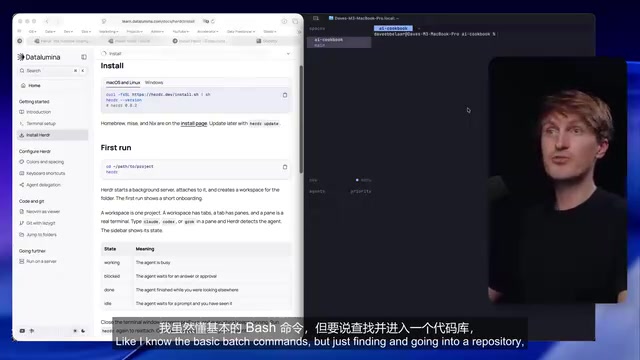
TMUX (Terminal Multiplexer) is a widely used terminal multiplexing tool for Linux/Mac that lets you create and manage multiple independent pseudo-terminal sessions within a single terminal window. Its core mechanism decouples sessions from terminal windows: sessions run in a server process, while the client (your window) only handles display and interaction — the server process keeps running in the background even after you disconnect. This is especially valuable for long-running tasks (like compiling, testing, or AI agent execution), since accidentally closing the terminal won't interrupt ongoing work. TMUX triggers all operations via a prefix key (Ctrl+B by default) and supports horizontal/vertical panel splits, switching between multiple windows, and sharing the same session across different terminal clients. Herder inherits these core concepts while adding deep customization specifically for AI coding agent workflows, with native capabilities for agent awareness, session naming and management, and CLI-based delegation scheduling.
Terminal Selection and Ghostty Configuration
Using Herder effectively starts with a capable terminal. The creator initially used iTerm, which blocked the mouse functionality Herder requires and interfered with keyboard shortcuts. His advice: if something isn't working, just ask Claude or Claude Code to check whether that terminal has any override settings that need adjusting.
His current choice is Ghostty (Mac and Linux only — not available on Windows). One of Ghostty's key advantages is that it's config-file driven: all settings are essentially a single file, covering color schemes, font sizes, and various options — making it easy to point an AI agent directly at that file to make changes.
When you first enter Herder, you get an empty shell. The starting point of any workflow is navigating to a project directory, which forms a "Space." The creator particularly praises Herder's design as a terminal GUI: right-clicking brings up a menu that supports panel splitting, creating multiple tabs, and more. For developers who aren't comfortable with pure keyboard-driven operation, this graphical interaction significantly lowers the barrier to entry.
Agent Integration and Session Management
Once a Space is configured, you can launch various coding agents within it. The creator demonstrated starting Codex, Claude Code, Grok, and other sessions within the same project — they automatically appear in the interface's "Agents" panel. Worth emphasizing: regular terminal sessions won't appear in this panel; only sessions configured as agents will show up there.
Recommended initial setup flow:
- Go to Settings and adjust themes, indicators, sounds, and other highly customizable options
- Go to the Integrations page to see all supported agent tools and install things like Grok and Claude Code
- You can also install via command line, e.g.
herder integration install claude-code
For session management, commonly used commands include: herder --session demo to switch to or create a session named "demo" (creates it if it doesn't exist, opens it if it does); herder session list to list all running sessions; and herder help to see all configurable options. The creator specifically points out — your AI agents can run these commands too — which sets the stage for automated delegation later on.

config.toml and Keyboard Shortcut Customization
Herder's core configuration file is config.toml, where you can specify everything from appearance and feel to keyboard shortcuts. The creator admits he rarely reads through it line by line — instead, he has AI coding agents read the file or official documentation and makes changes based on described requirements.
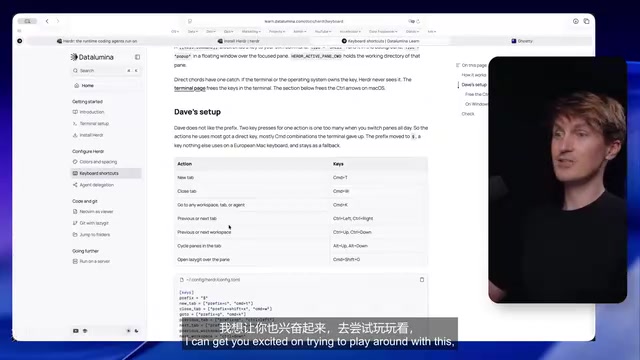
Keyboard shortcuts are the centerpiece. Herder defaults to a "prefix key" mode (Ctrl+B on Mac), where you press the prefix first and then a function key — similar to TMUX or Vim. The creator wasn't comfortable with this approach, so he reworked the shortcuts to match typical application behavior:
Cmd+Tto open a new tabCmd+Wto close a tab- Arrow keys with modifier keys to switch between projects and tabs
Cmd+Kto open the workspace jump panel, where typing/lets you search and jump precisely to a target project- Dedicated hotkeys to quickly switch to the relevant session when an agent completes a task
This configuration lets him navigate entirely by keyboard, moving quickly between multiple agents and projects. He emphasizes that while there's a learning curve coming from Codex or Claude Code, the efficiency gains become clear once you're used to it.
Agent Delegation: Herder's Most Powerful Feature
The creator considers "agent delegation" the most exciting capability Herder offers. Herder provides a "Skill File" — essentially a set of instructions for agents that tells them how to use the Herder CLI — through which they can launch new agents, open sessions, and create tabs.
For delegation to work, you need to globally install the Herder skill for every agent framework you want to use (Grok, Codex, Claude, etc.). Once installed, you can instruct one agent to schedule another.
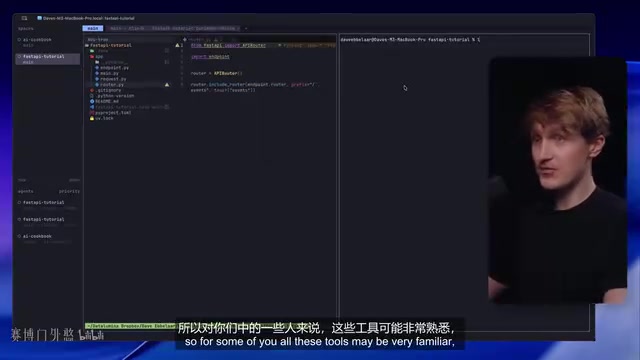
The scenario he demonstrated is illustrative: in a FastAPI tutorial project, he launched a Codex session using a GPT model as the "coordinator/reviewer," then issued a single natural language instruction — "Use the Herder skill to launch another agent in the right tab, using the Opus model to review this codebase" — and Codex read the skill file, automatically created a new tab via the Herder CLI, launched a Claude Code session, and entered the prompt.
The creator described the experience as feeling "like AGI": give it a task, and the agent navigates and executes on its own. Going further, these tabs can even communicate with each other through the Herder CLI — once a task is complete, a signal can be sent back to resume another session. You can transparently observe the progress of each session, enabling true multi-agent collaboration.
MCP (Model Context Protocol) is an open protocol proposed by Anthropic, designed to provide large language models with a standardized "tool-calling" interface, enabling models to interact structurally with external services, data sources, and applications. An MCP server is essentially a lightweight process that exposes a set of callable tools and resources, which models can invoke as needed during inference. The "Herder Skill File" mentioned in this article serves a similar function to MCP tool descriptions — it informs agents in structured text what CLI commands are available and what they mean, allowing models to correctly generate and execute Herder scheduling instructions. This "give the agent a manual" design philosophy is one of the dominant paradigms in current multi-agent orchestration, and is closely related to the Tool Use mechanisms in frameworks like LangChain and AutoGen.
Filling the Gaps: NeoVim and LazyGit
After migrating from Cursor and VS Code to a purely terminal-based environment, the creator felt a sense of "disconnection" — unclear about which branch he was on, what had changed, or what code was uncommitted. To address this, he added two additional terminal tools (note: these are unrelated to Herder, but complete the overall workflow):
- NeoVim: Configured as a file browser for directly browsing and searching the project file structure. He admits he's new to NeoVim, has done only basic configuration, and had the config file generated by AI.
- LazyGit: A terminal Git tool with its own config file, used to view branch status and perform commits, pushes, pulls, and other operations. He set up a dedicated hotkey to open LazyGit at any time to check the current branch and changes.
He also recommends zoxide (the zy/z command) — a fast directory-jumping tool where typing z followed by a project name auto-completes and jumps to the target working directory, eliminating the tedium of manually copying paths and running cd.
Advanced Usage: Custom MCP Servers
As a finale, the creator shared a custom MCP server he built in the dictation tool Wispr Flow to connect with Herder. With this integration, regardless of what page he's viewing or what Slack message he's received, he can copy-paste content and issue instructions directly — for example, "launch a Herder agent acting as an executive assistant." He selects the text, runs it, the custom MCP server executes in the background, and clicking Allow gets things started — all without opening any other application.
He stresses that this workflow is still experimental, having only used it for a week, but it's already made Herder nearly the only screen he needs during the day: say a few words to the AI, let the agents run the tasks, review the results yourself, then go focus on other things.
Wispr Flow is an AI dictation tool primarily for Mac users that supports voice input in any application and includes built-in connectivity to MCP servers. By binding a custom MCP server to the Herder CLI, Wispr Flow effectively acts as a "voice/text to agent dispatch" entry point: users don't need to open a terminal or switch applications — they simply describe their task intent via voice or copy-paste, and the MCP server translates it into concrete Herder CLI commands that execute in the background. The significance of this integration pattern is that it further eliminates the context-switching cost between "initiating a task" and "current context" — whether you're browsing the web, checking Slack, or reading documentation, you can trigger agent tasks right where you are, without returning to the development terminal.
Conclusion
Herder's value lies in consolidating scattered multi-agent coding work into a single, highly customizable terminal interface. Out of the box it's already powerful, but its true strength comes from combining config.toml, custom keyboard shortcuts, agent delegation skills, and supporting tools like NeoVim, LazyGit, and zoxide. As the creator repeatedly emphasized — one of the most interesting aspects is that all of this configuration and tuning can be done by your AI agents, with no need to grind through documentation. For developers juggling multiple models and frameworks simultaneously, this workflow is worth trying.
Related articles

Deploy Dify Privately in 5 Minutes: Build a RAG Knowledge Base and AI Game Assistant Step by Step
Based on a hands-on Bilibili tutorial, learn how to privately deploy Dify in 5 minutes, compare Dify vs Coze on data sovereignty, understand RAG knowledge bases, and build a Delta Force AI game assistant step by step—perfect for beginners.

WebMCP In-Depth: How AI Agents Are Reshaping Web Interaction
Chrome team explains WebMCP: letting websites proactively expose tool interfaces to AI agents, replacing screenshots and DOM parsing. Covers three pillars, permission design, Origin Trial progress, and ecosystem support from OpenAI, Cloudflare, and more.

Python PayPal Payment Integration in Practice: One-Time Payments and Subscriptions
Learn Python PayPal integration via two projects: one-time payments in Flask and webhook-driven SaaS subscriptions, covering order creation, capture, signature verification, and ngrok debugging.