How AI and Automation Work Together: Building Your First n8n Workflow from Scratch

AI is the comprehender, automation is the executor—together they form the When-Think-Do three building blocks.
The article distinguishes AI from automation: automation is the "hands" executing preset rules—it can recognize keywords but can't understand content; AI can comprehend messy unstructured information but needs to be triggered—neither is sufficient alone. The author proposes a three-building-block model for embedding AI into automation flows—When (trigger keeps watch) → Think (AI extracts structured information) → Do (executes actions)—and breaks it down step by step using "automated email bill processing" as an example: Gmail keyword trigger, AI extracts sender/amount/due date with a confidence judgment, and after confirmation automatically writes calendar reminders and budget spreadsheet entries, with payment still done by a human. The "are you sure" field serves as a fallback, routing uncertain cases to human confirmation. This pattern can migrate to scenarios like extracting to-dos from voice memos and receipt-photo bookkeeping. The core difficulty isn't in operating the tool—it's in whether you can clearly describe "what you want AI to do."
AI and Automation: A Pair of Easily Confused Concepts
Many people lump AI and automation together, but their underlying logic is fundamentally different.
Automation is a set of rules that runs autonomously through preset steps—"when this happens, do that." It can precisely recognize keywords, such as scanning for the word "bill" in an email, but it cannot understand what the bill actually says. In other words, automation is an executor, not a comprehender.
AI is the opposite. It can read a messy, poorly formatted email and extract key information like names, amounts, and dates. But when running on its own, it just sits quietly in a chat window waiting for you to speak.
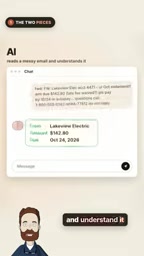
Neither of these is sufficient on its own, but combined, they can solve genuinely troublesome problems.
Three Building Blocks: When, Think, Do
Once AI is embedded into an automation flow, the entire workflow can be broken down into three core stages: When (trigger) → Think (understand) → Do (execute). Let's break this down using the "automated email bill processing" scenario.
When: The Trigger Keeps Watch
The first step is to set the trigger condition. Whenever Gmail receives a new email containing keywords like "invoice," "bill," or "payment due," the process starts automatically. This check runs once per minute, and you don't need to do anything.
This part is handled by n8n. n8n is an open-source workflow automation tool that connects the various apps you use daily—similar to Zapier but more flexible and self-hostable.
About n8n and Self-Hosting
At its core, n8n is a node-based visual orchestration tool: each node represents a data-fetching or processing action, and connections between nodes define the data flow—naturally suited to the linear "When → Think → Do" structure. Its biggest differences from Zapier come down to two points: first, it can be deployed on your own server or local machine, so data doesn't have to pass through a third-party server—this matters especially for scenarios involving sensitive information like bills and contracts. Second, it supports inserting custom code nodes into the flow, so operations like "calling an LLM API and parsing the returned JSON" can be done directly inside the workflow without external scripts.
One thing to note: "checking once per minute" is polling-based triggering, meaning the workflow gets woken up and consumes an execution quota even when there's no new email. Most platforms offer Webhook-based event push as an alternative, where the email service actively notifies the workflow when a new message arrives—better real-time performance and lower overhead. Additionally, n8n's community edition is free to self-host, while the cloud version charges by execution count, so you'll need to estimate costs based on your workflow's trigger frequency when choosing.
Think: AI Reads and Understands the Content
After the email triggers, it's sent to AI along with any PDF attachments, with a clear instruction: read this email and tell me who the sender is, how much is owed, when it's due, and—are you sure?
The key here is that AI outputs the same four fields every time. But real-world bills come in all shapes and sizes: the electric company's format, the dentist's format, the telecom carrier's format—they look completely different. Traditional automation requires writing a rule for each layout; AI just reads it—no matter what it looks like.
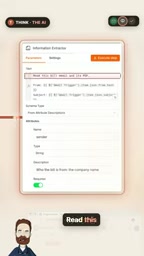
The "are you sure" field is the last line of defense. AI makes mistakes too—for example, misclassifying a discount promotion email as a bill. If AI flags it as "uncertain," or if the amount or date fields are missing, the workflow doesn't proceed—instead, it sends you a message: Is this a bill? You reply yes or no, or fill in the missing information.
Why "Fixed-Field Output" Is So Critical
AI's natural language output is free text by nature, while downstream apps like calendars and spreadsheets only accept structured data. What's at work here is the "structured output" capability—constraining the model through instructions or API parameters so it only returns a fixed format with predefined fields (usually JSON), such as the four keys sender, amount, due_date, and confidence. Once the output format is locked in, subsequent nodes can directly read values like database fields without any further text parsing.
The "confidence" field is a self-assessment mechanism built on this foundation: the model generates an answer while also giving a reliability estimate of its own judgment. It's not a mathematically precise probability, but a useful risk signal—low confidence often corresponds to vague email content, missing attachments, or multiple possible interpretations. Combining it with "whether fields are empty" as a gating condition can block most misjudgments at the workflow level, routing uncertain cases to humans—this is the key design that makes the AI stage controllable in production environments.
Do: Calendar and Spreadsheet Update Automatically
Once AI confirms, the execution stage does just two things: create a reminder in Google Calendar three days before the due date; add a row to the budget spreadsheet recording the sender, amount, and date.

Note that the act of payment is always done by you. What the workflow does for you is "don't miss it, don't overlook it"—not spend your money for you.
The Same Pattern Applies to Many Scenarios
The combination of these three building blocks isn't limited to email bills. The same structure can migrate to virtually any scenario where "information comes in → needs understanding → produces action":
- Voice memos: Receive a voice recording, AI extracts the to-dos from it, and automatically writes them to your task management app.
- Receipt photos: Take a photo of a receipt, AI reads the total amount, and automatically creates an expense entry in your accounting app.
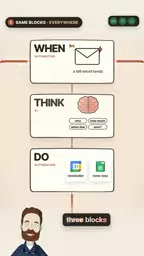
This is what "automation is the hands, AI is the brain" means. Automation handles reaching various apps on schedule and executing specific operations; AI handles understanding unstructured content and making judgments. And your job is to define when to trigger and write a clear enough instruction telling AI what to extract.
Building Your First Workflow—Where to Start
If you're starting completely from scratch, I suggest proceeding in this order: first get the basic automation logic working (triggers, conditional judgments, execution actions), then learn how to embed AI nodes in the middle of the flow, and finally handle the fallback logic for exception cases.
Tools like n8n lower the barrier to getting started, but to truly get a stable workflow running, the core difficulty isn't in operating the tool—it's in whether you can clearly describe "what you want AI to do." The more specific the instruction, the more reliable the output.
AI can compress a five-minute manual task down to zero operations, but only if you first think through the "When" and "Think" steps clearly.
Background Note
From a Single Workflow to a Reusable Template
The "email bill" example in this article is just one instance of the three building blocks. What's truly valuable is abstracting When, Think, Do into a transferable template. When migrating, you only need to answer three questions: Where does the trigger signal come from (email, form, voice, photo, message push)? Which fixed fields need to be extracted from the raw content? Which system does the extracted result get written to, and what action does it trigger?
In practice, I recommend managing "instructions" and "workflows" separately: store prompts independently with version history, so that adjusting field definitions doesn't require modifying the entire workflow. At the same time, you should leave room for exception paths early on—unparseable inputs, missing fields, low confidence—all should have clear landing spots, such as entering a pending-confirmation queue or being sent to a human. Most workflows perform well in the demo stage but fail after launch due to poor handling of edge cases—that's usually where the difference lies.
Related articles

Agent Skills Beginner's Guide: From Concepts to Multi-Agent Collaboration in Practice
A comprehensive guide to Agent Skills: core concepts, components, the importance of Description, standardization, beginner learning paths, and multi-agent collaboration.

One Neuron Detects Both Cats and Cars? We Reproduced It and Found a New Explanation
The cat-car neuron reinterpreted: researcher Cammarata argues it distinguishes pointy from round, not cats from cars. We reproduced the experiment and found the new explanation holds on most inputs—but cars are the exception. The interpretability debate continues on language models.

MCP Server + Python Assistant: A MicroStation Design Efficiency Revolution
Explore the early preview of the MCP Server and Python Assistant in MicroStation 2026: custom tools in five minutes, intelligent sheet index checks, and how AI is reshaping drawing workflows to unleash design creativity.