How to Connect Two Pairs of AirPods to One iPhone: Audio Sharing Setup Guide

Use Apple's Audio Sharing to connect two pairs of AirPods to one iPhone simultaneously.
Apple's Audio Sharing feature lets one iPhone stream audio to two pairs of AirPods or compatible Beats headphones at the same time. This guide walks you through the simple setup process via Control Center, explains the technology behind it, and covers practical tips like independent volume control and minimal latency.
Have you ever been in a situation where you and a friend wanted to listen to the same song or watch the same video, but had to share one earbud each? Apple actually solved this problem long ago with an elegant solution — Share Audio, a feature that lets one iPhone connect to two pairs of AirPods simultaneously. Both people can wear a complete set of stereo earbuds and share the same audio content.
What Is AirPods Audio Sharing?
Audio Sharing is a practical feature Apple introduced in iOS 13, allowing an iPhone, iPad, or iPod touch to output audio to two pairs of AirPods or compatible Beats headphones at the same time. iOS 13 was a major system release announced at Apple's 2019 WWDC, which also brought Dark Mode, Sign in with Apple, and many other new features. The introduction of Audio Sharing reflects Apple's "hardware + software + services" integrated ecosystem strategy — it requires not only iOS-level support but also relies on dedicated chips inside AirPods hardware, while being deeply tied to service scenarios like Apple Music. This creates a differentiated experience that competitors find hard to replicate.
This means you and your friend can independently control your own volume while enjoying full stereo sound quality — whether you're listening to music, watching a movie, or tuning into a podcast, the experience far surpasses the old "one earbud each" approach.
From a technical perspective, Audio Sharing relies on Apple's proprietary W1/H1/H2 series wireless chips. Traditional Bluetooth protocols (such as the classic A2DP audio transfer protocol) were originally designed to support only point-to-point connections, meaning one audio source could only transmit high-quality stereo audio to a single receiving device. By integrating dedicated chips into AirPods and deeply optimizing at the iOS level, Apple broke through this limitation to enable one-to-many audio broadcasting. It's worth noting that the Bluetooth 5.0 specification later introduced LE Audio and the Auracast broadcast audio standard, which natively support one-to-many audio transmission at the protocol level. However, Apple's Audio Sharing feature predated the widespread adoption of these standards and is a proprietary implementation.
The feature supports the following devices:
- AirPods (1st generation and later)
- AirPods Pro (all versions)
- AirPods Max
- Select Beats headphones (such as Powerbeats Pro, Beats Solo Pro, etc.)
Regarding Beats headphone compatibility, this traces back to Apple's acquisition of Beats Electronics in 2014 for $3 billion — one of the largest acquisitions in Apple's history. After the acquisition, Beats headphones gradually integrated Apple's W1 and H1 chips, gaining the same quick pairing, device switching, and Audio Sharing ecosystem features as AirPods. As a result, Audio Sharing isn't limited to the AirPods product line — Beats headphones equipped with Apple wireless chips can also participate in sharing, significantly expanding the feature's reach.
Step-by-Step Instructions to Connect Two Pairs of AirPods to an iPhone
Step 1: Open Control Center
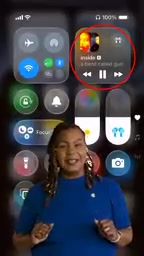
First, make sure your AirPods are already connected to your iPhone. Then swipe down from the top-right corner of the screen (or swipe up from the bottom on models with a Home button) to open Control Center. Find and tap the Now Playing module.

Step 2: Tap the Share Audio Icon
In the Now Playing interface, you'll see a Share Audio icon (usually displayed as an AirPods icon with a small plus sign next to it). Tap the icon, then bring your friend's AirPods charging case close to your iPhone.
Step 3: Confirm the Sharing Connection
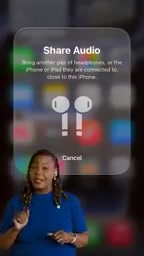
When your iPhone detects the second pair of AirPods nearby, a prompt will appear on screen. Tap the Share Audio button to confirm the connection.
Step 4: Complete Pairing
Follow the on-screen instructions — typically you'll need to double-tap the button on your friend's AirPods charging case and make sure the case is open. Once complete, both pairs of AirPods will simultaneously receive audio from the same iPhone.

Practical Scenarios for Audio Sharing
- Commuting: Listen to podcasts or music together with a friend
- On a plane: Watch a movie with your travel companion without disturbing others with speakers
- At the gym: Share your workout playlist and stay in rhythm together
- Studying: Listen to the same educational audio or online course together
Tips and Things to Know About Audio Sharing
- Independent volume control: After connecting, each pair of earbuds can adjust volume separately without affecting the other
- Latency performance: Due to the nature of Bluetooth transmission, there may be an extremely slight delay between the two pairs of earbuds, but it's virtually imperceptible in everyday use. From a technical standpoint, Bluetooth audio transmission inevitably involves encoding/decoding latency — traditional Bluetooth audio using the SBC codec typically has 150–250 milliseconds of latency, while the AAC codec used by Apple AirPods has approximately 120–180 milliseconds. When two pairs of earbuds receive audio simultaneously, minor differences in their respective Bluetooth signal paths and decoding times can theoretically introduce additional synchronization offset. However, Apple uses synchronization algorithms built into the H1/H2 chips to keep the time difference between the two pairs of earbuds within a range that's nearly imperceptible to the human ear (typically less than a few milliseconds), ensuring lip-sync consistency when watching video.
- Battery consumption: Driving two pairs of earbuds simultaneously will slightly increase the iPhone's Bluetooth power consumption, but the impact is minimal
- How to disconnect: Simply uncheck the second pair of earbuds in the audio output interface within Control Center
Conclusion
Audio Sharing is one of the most underrated features in the Apple ecosystem. It's simple and intuitive to use, requires virtually no learning curve, yet delivers a significant experience upgrade in social situations. Next time you're out with a friend, give this feature a try — say goodbye to the awkward "one earbud each" setup and enjoy a complete music experience together.
Related articles

AlphaGenome 2 Released: Predicting Variant Effects by Cell Type
Google DeepMind releases AlphaGenome 2, a conditional DNA sequence model predicting regulatory activity and variant effects by cell type, open via AlphaGenome API for non-commercial research. This article examines the significance of conditional modeling, API distribution trade-offs, and validation challenges.

Microsoft Patent: Train AI on Your Idle GPU for Points—Is It Worth the Electricity Bill?
A Microsoft patent proposes splitting AI training tasks across users' idle GPUs with points as rewards. This article analyzes its incentive design, network latency bottlenecks, and differences from existing distributed training, exploring whether the model can be deployed.

Reddit User Shares Free Fable Credits, Sparking Discussion
A Reddit user claims to have received 3 free Fable credits, sparking debate over whether AI tool freebies are universal. This article reviews the post and common operational logic, reminding users to rely on official statements.