How to Install Gemini CLI on Windows: A Complete Step-by-Step Guide

Install and launch Google Gemini CLI on Windows in three steps: Node.js, npm install, and gemini.
This article covers the complete process of installing and launching Google Gemini CLI on Windows from scratch. The workflow has three steps: install Node.js as a prerequisite, run `npm install -g @google/gemini-cli` to install the CLI globally, then type `gemini` in the terminal to start the interactive interface. The article also addresses common errors including permission issues, "command not found" messages, and the account authorization flow required on first use. Compared to the web interface, the CLI's key advantage is seamless integration into scripts and automated development workflows.
Google Gemini CLI brings powerful AI capabilities directly into the command-line environment, letting developers and enthusiasts call Gemini models straight from their terminal. For anyone who lives in the command line, this is far more efficient than constantly switching browser windows. This article walks through the complete process of installing and launching Gemini CLI on Windows from scratch — based on a YouTube tutorial — so that even if you've never touched Node.js or terminal tools before, you can follow along and get everything running.
Why You Need to Install Node.js First
Gemini CLI is fundamentally a package that runs on Node.js, which means your Windows system must have a Node.js environment in place before you can install the CLI. In other words, Node.js is a prerequisite for the entire process — without it, subsequent commands will fail immediately.
Checking for Node.js is straightforward: open your browser, search for "Node.js," visit the official website, and download the Windows installer. Once downloaded, double-click the installer and follow the setup wizard. In most cases, the default settings are perfectly fine — no need to tweak any parameters. Just keep clicking through until the installation is complete.
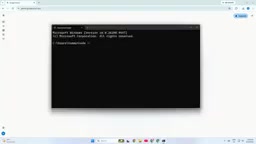
If you're not sure whether Node.js is already installed on your system, open a terminal and type node -v. If it returns a version number, your environment is ready and you can skip this step.
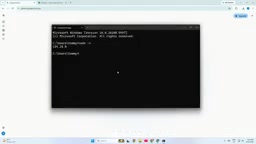
Node.js is a JavaScript runtime built on Chrome's V8 engine, allowing JavaScript code to run outside the browser — on servers or local systems. npm (Node Package Manager) is installed alongside Node.js and hosts the world's largest open-source package ecosystem. Gemini CLI itself is distributed as a command-line package through npm. When installing Node.js, it's recommended to choose the LTS (Long-Term Support) version rather than the latest release — LTS versions are more thoroughly tested and offer greater stability for everyday development use. Once installation is complete, you can verify both tools are ready with node -v and npm -v.
Open a Terminal and Install Gemini CLI Globally
With Node.js in place, the next step is to open a command-line tool. Click the Start menu, type "Command Prompt" or "PowerShell" — either will work fine for this task. Choose whichever you're more comfortable with.
Once the terminal window is open, enter the following command and press Enter:
npm install -g @google/gemini-cli
The -g flag here means a global installation, so once it's done you can invoke Gemini CLI from any directory in the terminal — you're not restricted to a specific folder. After pressing Enter, Windows will begin downloading and installing the necessary packages. How long this takes depends on your internet speed, but typically it's anywhere from a few seconds to around ten or fifteen seconds. Just wait for the process to finish.
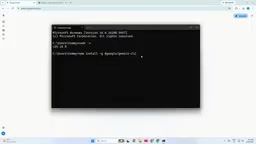
If you encounter permission-related errors during installation, try reopening the terminal as an administrator and running the command again. If the download fails due to network issues, retrying or checking your connection usually resolves it.
Launch Gemini CLI and Start Using It
Once installation succeeds, you're on to the final step. In the same Command Prompt or PowerShell window, type:
gemini
Press Enter, and Google Gemini CLI will launch, dropping you straight into its interactive command-line interface where you can start using it right away. If the interface loads normally, it means the entire installation process is complete — you've successfully gotten Gemini CLI up and running on Windows.
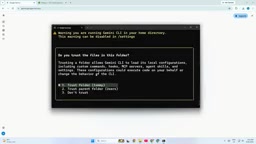
From here, you can explore the various commands and features the CLI offers and gradually integrate it into your daily development or content creation workflow.
Common Issues and Tips for Going Further
The entire installation process involves just three core steps: install Node.js, run the npm global install, and type gemini to launch. The process itself isn't complicated — the friction usually comes from environment configuration.
If you type gemini and get a "command not found" error, the most likely cause is that the global installation path hasn't been added to your system's environment variables. Try restarting the terminal, or confirm that npm's global bin directory is included in your PATH. On first use, the CLI will also typically require account authorization or API key configuration — simply follow the on-screen prompts to log in with your Google account and complete authentication.
Once you're comfortable with the command-line version, the advantages of Gemini CLI over the web interface become increasingly clear: it integrates far more easily into scripts, automation tasks, and development environments, making AI a genuine part of your terminal workflow.
When launching Gemini CLI for the first time, you'll need to complete authentication. The CLI supports two methods: one is OAuth authorization via a browser popup where you log in with your Google account — ideal for individuals looking to get started quickly; the other is manually configuring a Gemini API Key, which is better suited for server environments without a graphical interface or for use in automated scripts. API Keys can be obtained for free at Google AI Studio (aistudio.google.com), and the free tier provides a daily usage quota that is generally sufficient for light use. If you plan to integrate Gemini CLI into CI/CD pipelines or scheduled tasks, using an API Key is the recommended approach, as it avoids the interactive authorization flow that can disrupt automated scripts.
Related articles

Random Pruning of the DPO Computation Graph: 1.4x Training Speedup and Lower Peak Memory
DPO training too slow and memory-hungry? This paper proposes a random pruning framework for the DPO computation graph, sampling independently across position, sequence, and branch dimensions; branch pruning achieves a 1.426x step-time speedup and cuts training time by about 30%, with in-depth attribution of memory and time gains.

Why Does JEPA Underperform MLM in Longitudinal EHR Representation Learning?
New study compares JEPA and MLM for longitudinal EHR representation learning on MIMIC-IV: three JEPA variants train stably without collapse but underperform MLM; target size, not heterogeneity, drives prediction error.

Transfer Learning + Visible Light Communication: A New Approach to Energy-Efficient Indoor Positioning
A study proposes a transfer learning-based visible light communication indoor positioning method, achieving 47% accuracy improvement on the BOSCH factory dataset, 67.5% model efficiency under high noise, and introducing the ME composite metric for energy-efficient positioning in energy-constrained industrial IoT scenarios.