HTML & CSS Beginner's Guide: Core Concepts and Hands-On Walkthrough

A beginner-friendly guide to HTML5 structure, common tags, CSS selectors, box model, and Flexbox layout.
This article offers a systematic introduction to HTML and CSS for beginners. It covers HTML5 page structure, common tags (headings, links, images, div/span), three ways to apply CSS, core selectors, the box model, and Flexbox layout basics. Throughout, it emphasizes structured thinking — skeleton first with HTML, then CSS styling, then JavaScript interactivity — and provides practical learning path advice.
Introduction: Why Learn HTML and CSS
For beginners, HTML and CSS are often the first hurdle in web front-end development. Many people freeze up at the sight of code, but in reality, the barrier to entry for these two technologies is quite low — browsers are inherently fault-tolerant, meaning even poorly written HTML rarely causes a page to "crash." HTML is a markup language, not a programming language, so there's no such thing as a syntax error that breaks everything.
Understanding the division of responsibilities is the first step: HTML is the skeleton, responsible for building the page structure; CSS is the clothing, responsible for styling and visual presentation; JavaScript is the behavior, handling interactive logic (like tab switching, carousels, and other dynamic effects). This article systematically covers the core concepts of HTML and CSS along this main thread.
Standard Structure of an HTML5 Page
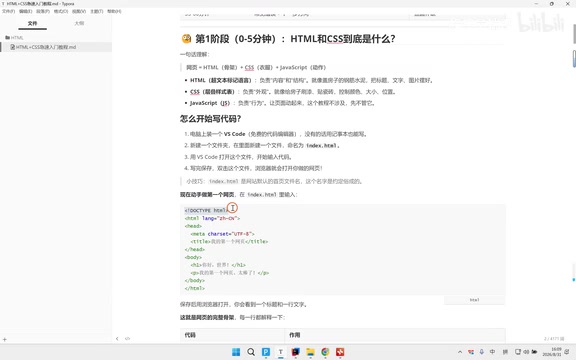
A well-formed HTML5 page is built on a fixed skeleton. Understanding the role of each part is foundational to writing good pages.
<!DOCTYPE html>
<html lang="zh-CN">
<head>
  <meta charset="UTF-8">
  <title>我的第一个网页</title>
</head>
<body>
  <h1>Hello World</h1>
  <p>这是一个段落。</p>
</body>
</html>
<!DOCTYPE html>: Declares the document type as HTML5, telling the browser to render in standards mode<html lang="zh-CN">: Thelang="zh-CN"attribute identifies this as a Chinese-language page, helping search engines and screen readers detect the language<meta charset="UTF-8">: Specifies UTF-8 character encoding to prevent garbled text<head>: Holds page metadata such as the title and style references — nothing here is directly displayed on the page<body>: All content visible to users goes here
The content inside the <title> tag appears on the browser tab, not in the main page area — a common point of confusion for beginners.
Quick Reference: Common HTML Tags
Heading and Paragraph Tags
HTML provides six levels of heading tags, from H1 to H6 — the smaller the number, the larger the font size and the higher the semantic weight. H1 is typically used for the main page title, while H2 and H3 are used for section headings. The <p> tag defines a paragraph; each <p> element occupies its own line and comes with default top and bottom spacing. The <br> tag is a line break — a self-closing tag (no closing tag needed) used to force a line break within a paragraph.
Anchor and Image Tags
<a href="URL">text</a> is the hyperlink tag, with the href attribute specifying the destination. Navigation between pages within a site and references to external resources both rely on this tag. The image tag <img src="path" alt="description"> is also self-closing. The src attribute specifies the image path, and alt provides fallback text when the image fails to load — it's also an important attribute for accessibility.
List Tags
<ul> is an unordered list and <ol> is an ordered list; list items are wrapped in <li> tags. This is a commonly used structure for navigation menus and itemized content.
Non-Semantic Containers: div and span
<div> and <span> are two container tags with no semantic meaning, yet they are among the most frequently used tags in page layout. On a typical major website, the number of <div> elements on a single page can easily exceed 600. <div> is a block-level container that occupies its own line and is primarily used for large layout sections; <span> is an inline container that doesn't break onto a new line and is mainly used to wrap portions of text for styling purposes. Both support nesting and together form the basic structural hierarchy of HTML pages.

Three Ways to Apply CSS Styles
CSS (Cascading Style Sheets) controls the visual presentation of HTML elements. There are three ways to apply CSS, each with different scopes and maintainability trade-offs:
Inline Styles
CSS is written directly in the style attribute of an HTML tag, applying only to that specific element.
<p style="color: red; font-size: 16px;">This text is red</p>
The advantage is the highest specificity; the downside is zero reusability and high maintenance cost. Generally not recommended for large-scale use in projects.
Internal Styles
CSS is written inside a <style> tag within <head>, scoped to the current page.
<head>
  <style>
    h1 { color: red; }
    p { font-size: 14px; }
  </style>
</head>
Suitable for single-page projects or quick debugging. Shared styles cannot be reused across multiple pages.
External Stylesheet
CSS is written in a separate .css file and linked via the <link> tag — the standard approach for production projects.
<head>
  <link rel="stylesheet" href="style.css">
</head>
Multiple pages can share the same stylesheet; a single change takes effect globally, making this the most maintainable approach. In IDEs like IntelliJ IDEA or VS Code, you can hold Ctrl and click a file path to jump directly to that file, making it easy to verify that paths are correct.

CSS Selectors and Common Properties
Four Core Selector Types
CSS selectors determine which elements a style rule applies to. Mastering the following four types covers the vast majority of use cases:
| Selector Type | Syntax Example | Description |
|---|---|---|
| Tag Selector | h1 { } | Matches all elements of that tag type |
| Class Selector | .card { } | Matches elements whose class includes that name |
| ID Selector | #header { } | Matches the element with that unique ID |
| Descendant Selector | div p { } | Matches all p elements inside a div |
The descendant selector reflects the hierarchical nature of HTML: div p means "div is the parent, p is the child" — p only has context when div exists. This understanding of parent-child relationships is also crucial when you later learn JavaScript DOM manipulation.
Common CSS Properties
Font and text-related properties are the most frequently used:
color: Text colorfont-size: Font sizefont-weight: Font weight (bold/normal)text-align: Text alignment (left/center/right)line-height: Line height, affects vertical spacing between linesborder-radius: Rounded corners — can transform a rectangle into a rounded card or circular avatar
The Box Model: The Core Concept of CSS Layout
Every HTML element occupies a rectangular area on the page. That area consists of four layers — this is the Box Model:
- content: The content area, controlled by
widthandheight - padding: Inner spacing between the content and the border
- border: The border itself
- margin: Outer spacing between the element and surrounding elements
In the browser DevTools (right-click → Inspect), you can see a visual diagram of the box model in the lower-right corner of the Elements panel — one of the most practical tools for debugging layouts.
Understanding the difference between block-level and inline elements is equally important: block-level elements (such as <div>, <p>, <h1>) occupy their own line and accept width/height settings; inline elements (such as <span>, <a>) flow on the same line, and setting width/height has no effect on them.
Flexbox Layout in Practice
Flex (Flexbox) is the go-to layout solution in modern CSS and is nearly ubiquitous in projects built with frameworks like Vue and React. The core usage is declaring display: flex on a parent container, after which child elements automatically arrange themselves according to flex rules.
.container {
  display: flex;
  justify-content: center;  /* Main axis alignment: horizontal center */
  align-items: center;      /* Cross axis alignment: vertical center */
}
justify-content controls alignment along the main axis (horizontal by default), while align-items controls alignment along the cross axis (vertical by default). Combining these two properties makes it trivial to center content both horizontally and vertically — something that required several lines of hacky CSS in the traditional approach.

Learning Path Recommendations for HTML & CSS
From a beginner's perspective, the key to learning HTML and CSS isn't memorizing every property — it's developing structured thinking: first build the skeleton with HTML, then add styling with CSS, and finally add interactivity with JavaScript. Here are some practical tips:
- Hands-on first: Type out every code example yourself and see the result in the browser — this is far more effective than reading documentation repeatedly
- Use DevTools: Press F12 to open DevTools, tweak styles in real time, and watch the box model change
- Start by cloning: Pick a simple static page (like a personal bio page) and recreate it using tags like H2, P, IMG, and A
- External stylesheets are the standard: Get into the habit of managing styles in a separate
.cssfile from day one — this sets you up well for future engineering practices
Once you've mastered these fundamentals, you'll be ready to start building real dynamic web applications with frameworks like Vue 3 or React.
Related articles

Zero-Cost Local Jarvis: Open-Source Voice Cloning and Task Automation in Practice
AI Workshop shows how to build a zero-cost local Jarvis with Ollama and Voice Studio: local model switching, open-source voice cloning, file retrieval, and tool-calling tests, with setup steps and hardware trade-offs.

Mistral Large 4 Released: 1T-Parameter MoE Tops Western Open-Source Leaderboard
Mistral releases its flagship Mistral Large 4: a 1T-parameter MoE architecture activating only 49B parameters at inference, trained from scratch on 3,800 Grace Blackwell GPUs, topping the Western open-weight leaderboard with third-party endorsements in law, finance, and cybersecurity.

Mistral Large 4 Review: Can Europe's Strongest Open-Source Model Challenge the US and China?
Mistral Large 4 (L-Charm) review: trillion-parameter MoE, standout cybersecurity benchmarks but behind Kimi K3 in software engineering, 3,800 GPUs, a key step for European sovereign AI.