Install OpenCode for Free in Cursor IDE and Build a Website

Install OpenCode in the Cursor terminal and use a free model—one prompt generates a cartoon website.
The article breaks down a free workflow for building a website with AI inside Cursor IDE: install OpenCode via npm in the terminal, switch between build and plan modes, and use \models to pick a free model (the tutorial used Big Pickle). After creating a project folder and entering a one-sentence English prompt, a cartoon animation website with a mini-game is generated in about three minutes—double-click index.html to preview. The author considers it low-barrier, fast-feedback, and environment-consistent, suited for rapid prototyping, teaching demos, and small personal projects, but the code still falls short of production-grade, requiring manual review of structure, maintainability, and security—better as a tool for validating ideas than replacing the full development workflow.
Build a website with AI in Cursor without an expensive subscription
If there were a way to build a complete website using AI directly inside the Cursor IDE—completely free—would you try it? A YouTube tutorial demonstrated exactly this workflow: install OpenCode, run it in the Cursor terminal, and generate a playable cartoon animation website with a single prompt. No manual coding, and no extra AI subscription required.
This article breaks down the key steps of this workflow and analyzes which scenarios it suits and where its limitations lie.
What is OpenCode, and why put it in Cursor
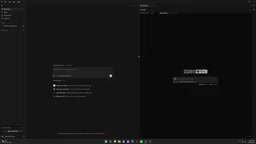
OpenCode is an AI coding tool that runs in the terminal. Its core value is embedding AI code-generation capability directly into the development environment you already know, rather than forcing you to switch back and forth between a browser, a chat window, and your editor.
The idea of using OpenCode inside Cursor is straightforward—Cursor is the code editor, and OpenCode acts as an AI agent in the terminal, responsible for interpreting prompts and generating project files. Combined, you can complete the loop of "describe the requirement → generate code → preview the result" within a single window.
For those who don't want to pay a monthly fee for an AI programming assistant, OpenCode offers free model options, which is one of its biggest draws.
Terminal AI Agent refers to an AI program running in a command-line environment that can read and write files, execute commands, and complete multi-step tasks based on natural language instructions, rather than just passively answering questions. Unlike chatbots in a browser, a terminal agent directly operates on your local project directory, so the generated code is actually written to disk as files. OpenCode is precisely this type of tool, distributed through the npm package manager—npm is the package management tool of the Node.js ecosystem, and installing OpenCode requires Node.js to be set up on your machine beforehand. This point is important to understand: "free" means OpenCode itself is open source and can connect to free models, but the Node.js runtime and the Cursor editor it depends on still need to be prepared by you.
Installation and initialization: up and running in a few steps
The installation process isn't complicated. The core steps are as follows:
- Open Cursor, go to Terminal from the View menu, and you'll see a PowerShell terminal.
- Search for OpenCode AI in your browser, go to the official website, choose the npm installation method, and copy the install command.
- Paste the command into the Cursor terminal and wait for the installation to complete.
- Type
opencodein the terminal and press Enter. On first run, it will prompt for installation confirmation—click OK to continue.
Once installed, OpenCode runs inside Cursor. This process doesn't require configuring complex environment variables, making it relatively beginner-friendly.
npm (Node Package Manager) is the package management and distribution tool that comes with Node.js. Developers install tools into the global environment using commands like npm install -g package-name, after which the tool can be called directly from any terminal directory. So the step in the tutorial of "copying the npm install command and pasting it into the terminal" is essentially registering OpenCode as a system-recognized command. If the terminal says npm is not recognized as an internal or external command, it usually means Node.js hasn't been installed or hasn't been added to the system environment variables—you'll need to go to the Node.js official website and install the LTS version first. PowerShell is the command-line shell that comes with Windows, and Cursor calls it by default on Windows, which is why the terminal in the tutorial displays as PowerShell.
Key features: mode switching and model selection
Before starting to build the website, the tutorial covers several practical operations:
- Ctrl+Tab: Switch between build mode and plan mode. Build mode generates code directly, while plan mode is better for laying out an approach first.
- Typing
\models: View the list of available AI models. Some of them are free, and pressing Ctrl+A reveals even more models, including paid options. - The tutorial chose the Big Pickle model, which the author considered well-suited for website-building tasks.
One point worth noting here: the availability and capability of free models change over time. If you follow the tutorial and find that a particular model isn't available, you can try other free options in the list.
The distinction between plan mode and build mode is a common design approach in AI coding tools. In plan mode, the AI only outputs an implementation approach, file structure, and step breakdown without directly modifying code on disk—ideal for aligning on the direction when requirements aren't yet clear. Build mode, on the other hand, actually creates and modifies files. For tasks like "generate a website with one sentence," using build mode directly is more efficient, but if the project is more complex, planning first and then building can reduce rework. As for model selection, the models listed by \models come from different vendors, with varying capabilities, context lengths, and billing methods; free models often have limitations in response speed, code quality, or number of calls, which is why the same workflow can produce different results at different times.
Hands-on: generating a cartoon website with a single prompt
Before officially building the site, you need to create a project folder first. In the tutorial, the approach is: click the create file icon on the right side of Cursor, select the desktop, create a new folder named "Cartoon Website," and then open it as the project directory.
Next, open the terminal again and type opencode to start it. This step is crucial—OpenCode generates files in the currently selected folder, so choosing the right directory means you won't have trouble finding files later.
The prompt is simple:
build a cartoon animation website for kids using javascript and css
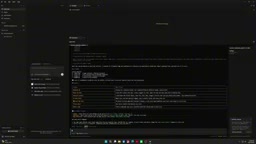
Press Enter and wait for generation. According to the tutorial author's record, the whole process took about 3 minutes and 7 seconds. Once generation is complete, the files needed for the website will appear in the folder on the desktop.
Previewing the result: double-click index.html
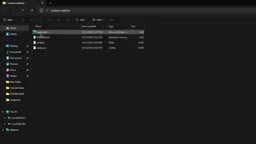
After the website is generated, find index.html in the folder and double-click it to open it in your browser. The cartoon website in the tutorial ran successfully and even included an interactive mini-game—click "Start Game" to begin playing.
This means that from zero to a runnable website, the user did only one thing: describe the requirement in natural language. No handwritten HTML, CSS, or JavaScript, and no separate project scaffolding configuration.
Who is this workflow for, and where are the limitations
Based on the tutorial demonstration, this method suits rapid prototyping, teaching demos, small personal projects, and people who want to try AI programming without paying. Its advantages are a low barrier to entry, fast feedback, and a unified environment.
But the limitations are also worth noting. The original tutorial text shows obvious speech-to-text confusion when describing the post-generation operations, making some sentences hard to accurately reconstruct—which suggests the video demonstration itself may have gaps in explaining the steps. Additionally, a website generated from a single prompt is usually suitable for demonstration purposes, but still far from a production-grade application—code structure, maintainability, and security all require manual review.
A more reasonable positioning is: treat OpenCode + Cursor as a tool for rapidly validating ideas, not as a replacement for the complete development workflow. For experienced developers, it can accelerate the prototyping stage; for beginners, it's an intuitive entry point for understanding "how a prompt becomes project files."
There is a clear gap between "runnable" and "production-grade", and this point deserves particular emphasis when using AI to generate websites. Production-grade applications typically need attention to: whether the code is modular, whether there is error handling, whether dependencies are version-locked, whether there are security risks like XSS or injection, whether responsiveness and accessibility are considered, and whether there are testing and deployment processes. A site generated from a single prompt, however, often stuffs all logic into a few files, with arbitrary naming, missing comments, and no tests at all. It's perfectly adequate as a demo or prototype, but if you want to launch it for real users, the developer still needs to review line by line, refactor, and add engineering configurations. Positioning AI as "accelerating the start" rather than "getting it done in one step" is a more pragmatic approach.
Conclusion
Installing OpenCode in the Cursor IDE and using it to generate a cartoon animation website can be condensed into the following flow: install the tool, choose a model, create a directory, write a prompt, and open the browser to preview. The existence of free models lowers the cost of trying it out, while running in the terminal maintains continuity in the development environment. If you have Cursor on hand, it's worth trying this path with a small project.
One-line Summary
Install OpenCode in the Cursor terminal and use a free model—one prompt is all it takes to generate a cartoon website.
Paragraph Summary
The article breaks down a workflow for using AI to build a website for free inside the Cursor IDE: first install OpenCode via npm in the terminal, then switch between build mode and plan mode after running it, and use the \models command to pick a free model (the tutorial chose Big Pickle). Then create a new project folder, enter a one-sentence English prompt, and in about three minutes a cartoon animation website complete with a mini-game is generated—double-click index.html to preview it. The author believes this method has a low barrier to entry, fast feedback, and a unified environment, making it suitable for rapid prototyping, teaching demos, and small personal projects. However, the generated code still falls short of production-grade applications, and code structure, maintainability, and security all require manual review. A more reasonable positioning is a tool for rapidly validating ideas rather than a replacement for the complete development workflow.
Related articles

Random Pruning of the DPO Computation Graph: 1.4x Training Speedup and Lower Peak Memory
DPO training too slow and memory-hungry? This paper proposes a random pruning framework for the DPO computation graph, sampling independently across position, sequence, and branch dimensions; branch pruning achieves a 1.426x step-time speedup and cuts training time by about 30%, with in-depth attribution of memory and time gains.

Why Does JEPA Underperform MLM in Longitudinal EHR Representation Learning?
New study compares JEPA and MLM for longitudinal EHR representation learning on MIMIC-IV: three JEPA variants train stably without collapse but underperform MLM; target size, not heterogeneity, drives prediction error.

Transfer Learning + Visible Light Communication: A New Approach to Energy-Efficient Indoor Positioning
A study proposes a transfer learning-based visible light communication indoor positioning method, achieving 47% accuracy improvement on the BOSCH factory dataset, 67.5% model efficiency under high noise, and introducing the ME composite metric for energy-efficient positioning in energy-constrained industrial IoT scenarios.