Kaggle Kernel Restart Data Loss? A Pitfall Guide After 3.5 Hours of Wasted Feature Engineering
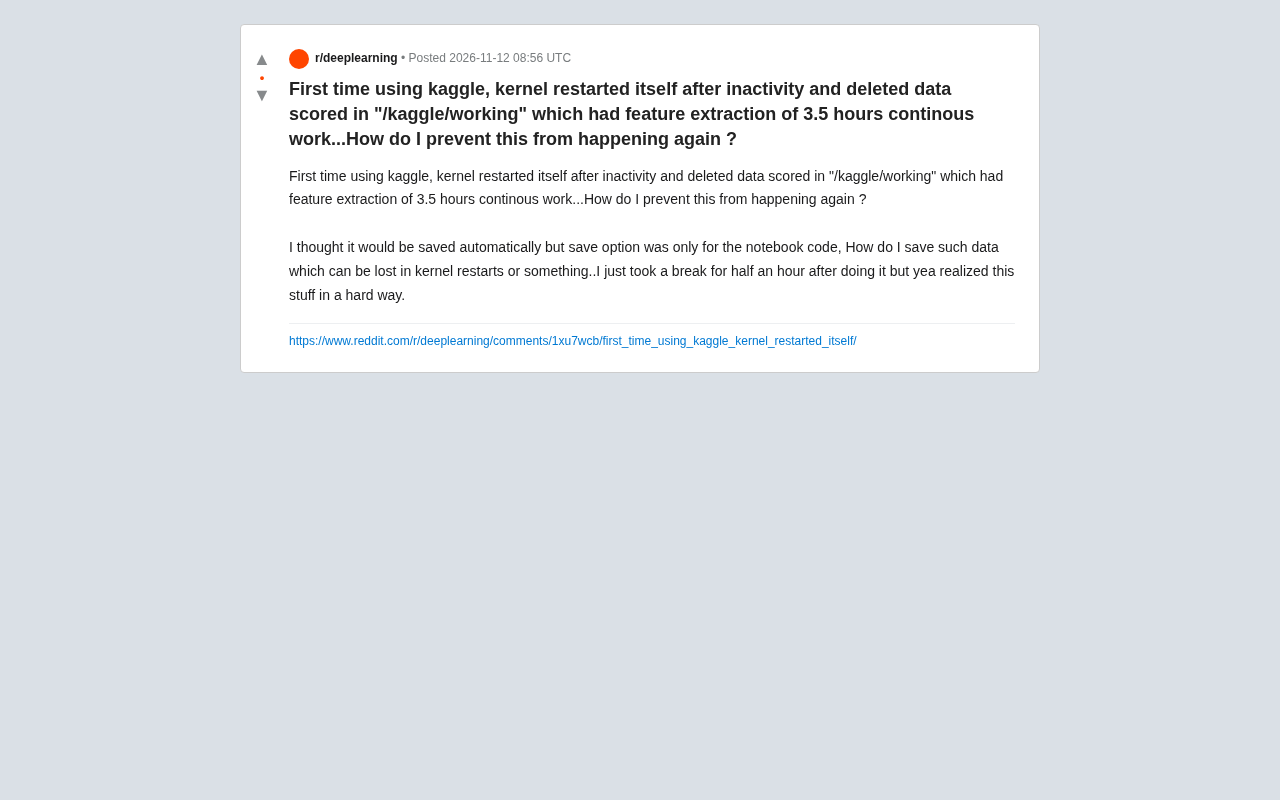
Kaggle's /kaggle/working is temporary storage; data is lost on kernel restart, so you must actively persist data.
A developer using Kaggle for the first time spent 3.5 hours completing feature extraction, with data saved in the /kaggle/working directory. After leaving for half an hour, the kernel automatically restarted due to inactivity timeout, and all intermediate data was wiped. He mistakenly thought the Save button would back up data, but it only saves notebook code. The article explains that Kaggle Notebook runs in a temporary container, and after the kernel stops, the contents of /kaggle/working and /kaggle/temp are reset. To prevent data loss, the article proposes four strategies: upload intermediate results as a Kaggle Dataset, regularly Save Version and check output files, use external cloud storage, and split tasks to enable checkpoint resume. Community experience also suggests that long preprocessing should be done locally or on a dedicated server, and that the kernel lifecycle documentation should be read in advance.
An Expensive Lesson: Kaggle's /kaggle/working Is Not a Safe Deposit Box
A developer using Kaggle for the first time recently shared a painful experience on Reddit: he spent 3.5 hours working continuously to complete feature extraction, with data saved in the /kaggle/working directory. After leaving for just half an hour, the kernel automatically restarted due to inactivity, and all intermediate data was wiped. He thought the save option would automatically back up data, but in reality, Kaggle's "Save" button only saves notebook code, not the files generated at runtime.
This problem is not an isolated case. Many beginners assume that the "working directory" is persistent, but Kaggle's interactive notebook environment is essentially a temporary container. Once the kernel restarts (whether due to timeout, manual restart, or resource limits), the contents under /kaggle/working and /kaggle/temp are reset. Understanding this is the first step to avoiding repeated work.
Why Does Data Disappear? The Lifecycle of a Kaggle Kernel
The Difference Between Temporary Containers and Persistent Storage
Kaggle Notebook runs in a temporary container. The files you write to /kaggle/working exist only in the current kernel session. When the kernel stops (inactivity timeout, crash, or proactive restart), the container is destroyed, and these files are lost with it. Only the notebook's code cells and outputs (if you manually save a version) are retained.
Container is a lightweight virtualization technology that packages an application and its dependencies together to run in isolation from the host machine and other containers. Each kernel session of Kaggle Notebook runs in an independent container instance, which is created when the session begins and destroyed when it ends. The file system inside the container is usually ephemeral; unless a persistent volume is explicitly mounted, written data will not survive beyond the container's lifecycle. This differs from traditional virtual machines—a VM's disk can persist, while the design philosophy of containers is "stateless" and "replaceable." Understanding this underlying mechanism helps clarify that /kaggle/working is essentially just an ordinary directory inside the container, with no special persistence guarantee.
Inactivity Timeout Mechanism
Kaggle imposes an inactivity timeout limit on interactive notebooks. Although the official interface does not explicitly warn about this, the kernel automatically shuts down after you leave for a period of time. In the original post, a half-hour break triggered this mechanism, causing hours of feature extraction results to evaporate instantly.
Idle Timeout is a common resource management strategy in cloud platforms and interactive computing environments. When the system detects that the user has not interacted with the kernel for a period of time (for example, no new code cells executed, no input operations), it determines the session to be "idle" and automatically terminates it to release computing resources such as CPU, memory, and GPU for other users. Kaggle's specific timeout threshold is not prominently displayed in the interface, but community experience suggests that the idle limit for interactive sessions is typically on the order of 20 to 30 minutes. It is worth noting that the timeout judges "user interaction" rather than "whether code is running"—even if a long-running process exists in the background, as long as there are no new interactive operations, the kernel may still be reclaimed. This mechanism is similar to Google Colab's idle timeout and is a common means for free computing platforms to control costs.
How to Prevent Data Loss? Four Practical Strategies
1. Use Kaggle Datasets to Upload Intermediate Results
The most direct method is to save intermediate data as a Kaggle Dataset. After completing feature extraction in the notebook, write the output files to /kaggle/working, then publish the entire directory as a new dataset via the Kaggle API or the interface. In the next session, simply mount that dataset to restore the data.
The advantage of this method is that the data is persisted in the cloud and is not affected by kernel restarts. The disadvantages are that uploading and downloading take time, and dataset version management requires extra attention.
2. Regularly "Save Version" and Check the Output Files Option
Kaggle's "Save Version" feature can save the notebook code and outputs. When saving, make sure to check the "Save output files" option (if available), so that files under /kaggle/working are retained as part of the version output. Later, you can download or mount these files through the "Output" tab.
However, this operation is not automatic, and you need to develop the habit of manually saving versions. For long-running tasks, it is recommended to save at intervals.
3. Use External Storage: Google Drive or Cloud Storage
Mount Google Drive in the notebook (feasible in Colab via the drive module of google.colab; in Kaggle, you need to use the Kaggle API or third-party libraries such as gcsfs to access Google Cloud Storage). Writing key intermediate files to external storage in real time can completely escape the constraints of the kernel lifecycle.
For Kaggle users, a simpler solution is to use Kaggle's private dataset feature combined with automatic upload via the API. Some developers in the community have shared scripts that regularly back up via the kaggle datasets create command.
gcsfs is a file system interface library in Python for accessing Google Cloud Storage (GCS). It follows the fsspec specification and allows reading and writing objects on GCS in a way similar to local file operations. In the Kaggle environment, since Google Drive cannot be mounted directly (that is a capability unique to Colab), gcsfs provides an alternative path: as long as the user has a GCS bucket and the corresponding service account credentials, intermediate files can be written directly to the cloud storage bucket from the notebook, achieving cross-session persistence. Similarly, s3fs can be used for AWS S3, and adlfs can be used for Azure Blob Storage. The common advantage of such libraries is support for streaming writes and chunked uploads, making them suitable for large files; the disadvantage is the need for additional cloud account configuration and possible network latency.
4. Split Tasks and Resume from Checkpoints
If feature extraction takes hours, consider splitting it into multiple steps, with the output of each step saved as a file. Using a checkpoint mechanism, even if the kernel restarts, you can continue from the most recent save point instead of starting over.
In addition, you can encapsulate the feature extraction code as an independent script and run it through Kaggle's "Batch" mode (non-interactive), so the kernel will not time out due to inactivity. But note that Batch mode also has a runtime limit.
Community Experience and Additional Tips
In the Reddit discussion, experienced users advised beginners to read Kaggle's documentation on the kernel lifecycle before starting long tasks. In addition, use %cd and !pwd to confirm the current working directory and avoid accidentally writing data to a temporary directory.
For time-consuming operations such as feature engineering, a better approach is to complete them locally or on a dedicated server, and then upload the results as a dataset. Kaggle is more suitable for rapid experimentation and model training than for long data preprocessing.
Summary: Develop Persistence Habits
Kaggle's temporary container design is intended for fair resource allocation, but it also requires users to actively manage data persistence. Whether uploading datasets, saving versions, or using external storage, the core principle is: do not assume that /kaggle/working will exist for the long term.
For users who are just getting started, it is recommended to start with simple "Save Version" and gradually build your own data backup process. After all, the lesson learned from a 3.5-hour wait is enough once.
Related articles
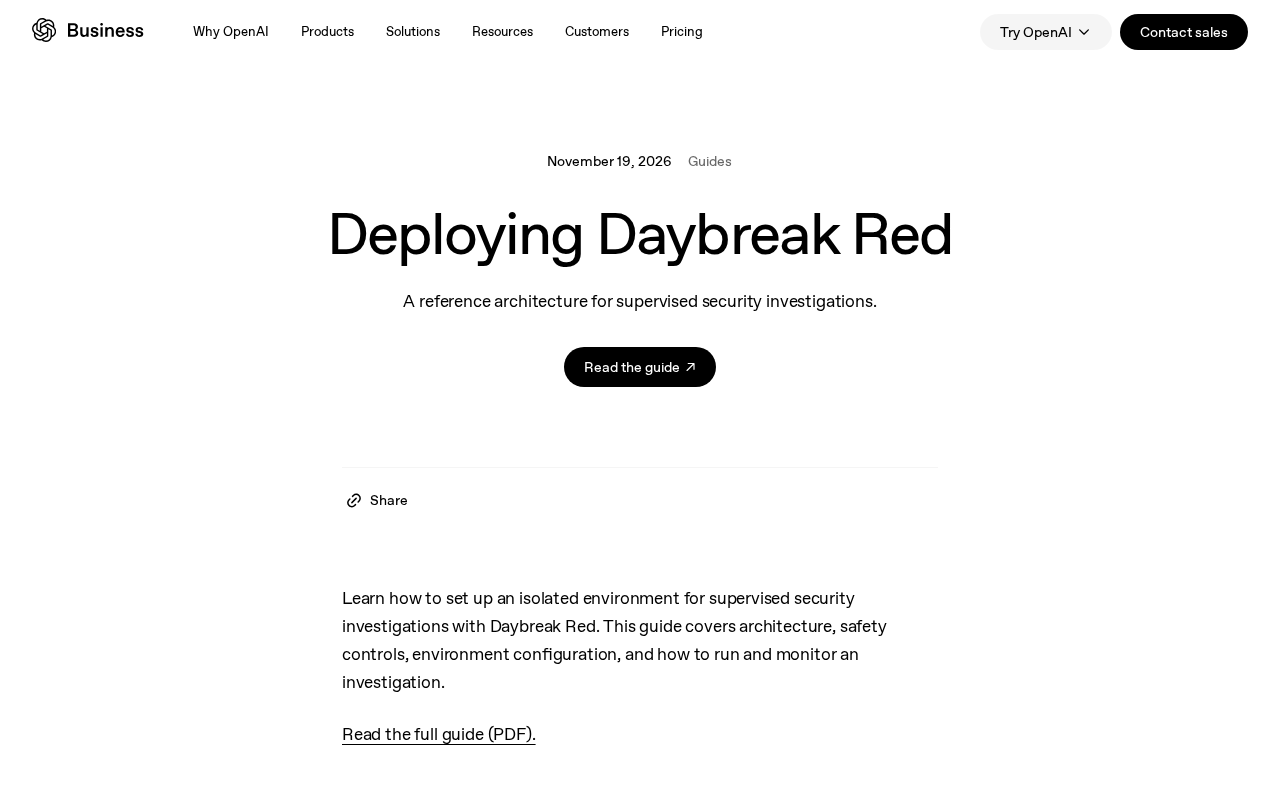
Daybreak Red Deployment Guide: A Reference Architecture for Supervised Security Investigation
A breakdown of the Daybreak Red reference architecture: security control design, deployment configuration process, and runtime monitoring for supervised security investigation.
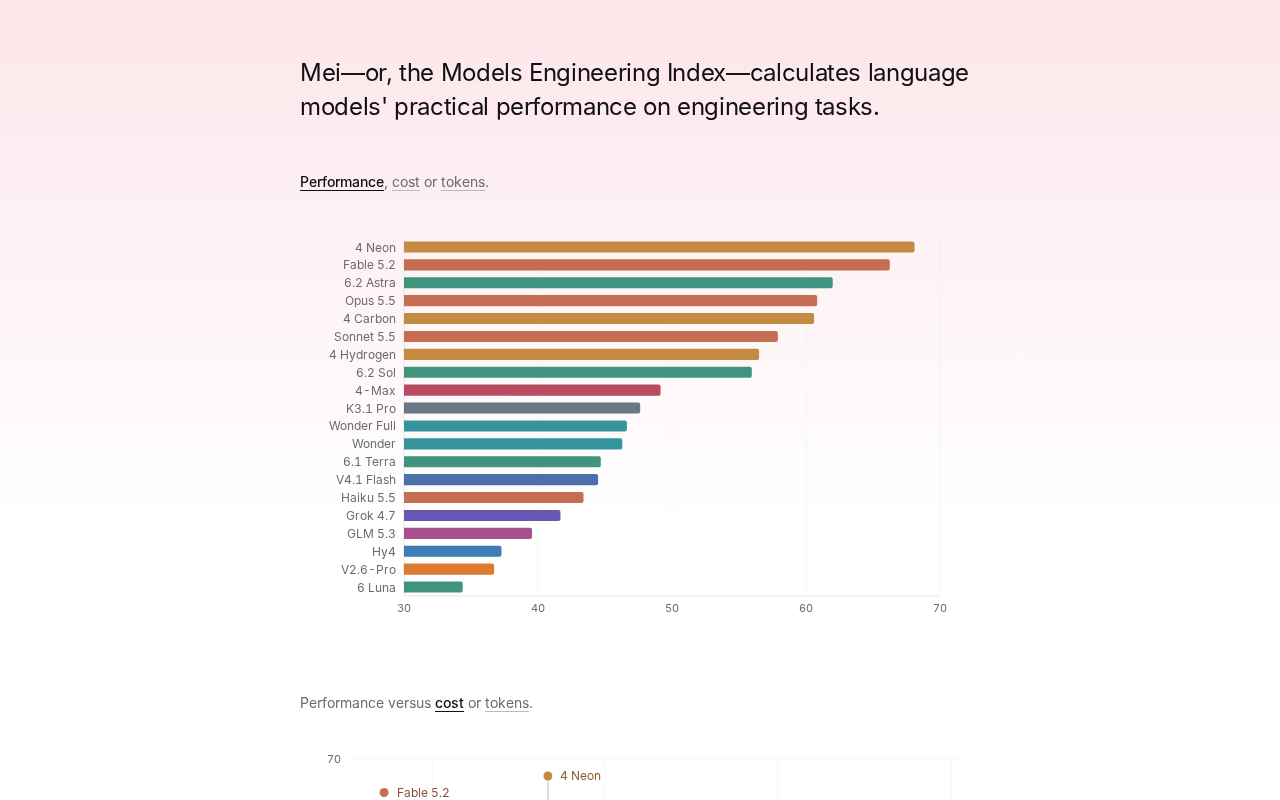
Gemini 4 Neon Tops the Models Engineering Index
Gemini 4 Neon tops the Models Engineering Index, sparking Hacker News debate over ranking credibility and evaluation methods. Here's what it means for developers.

Apple's Self-Developed AI Agent: An Agent That Can Operate Your Mac Is Coming
Apple is reportedly developing an AI agent that can operate a Mac, targeting Meta Muse, Claude, OpenAI Dots, and others. This article analyzes Apple's system-level advantages, the competitive landscape, and likely rollout paths in the agent race.