Mac mini M4 in Practice: Deploying Qwen 3.5 Locally with Ollama and Connecting It to a Chat Tool

A complete walkthrough of deploying Qwen 3.5 9B on a Mac mini M4 with Ollama and connecting it to a third-party chat tool
Based on a hands-on Bilibili video, this article walks through running a local large model on a 32GB unified-memory Mac mini M4: installing Ollama, pulling the ~6.6GB Qwen 3.5 9B model with `ollama run 千问3.5:9b`, disabling thinking mode with `--force`, and connecting the local Ollama in a third-party chat tool via Local mode and Node type with the port `127.0.0.1:11434` plus the mandatory `/v1` suffix. The author notes a 9B model covers about 90% of daily needs and the whole setup takes under 30 minutes, while warning that the port and path suffix are the most common causes of connection failures.
Article Content
Running large models on local hardware is no longer the exclusive domain of geeks. Thanks to its unified memory architecture, the Mac mini M4 lets the CPU and GPU share the same memory pool, which in theory allows it to tap into far more VRAM capacity than a traditional discrete GPU. In this hands-on tutorial shared by a Bilibili creator, the entire process is demonstrated end to end—from installing Ollama and pulling the Qwen 3.5 9B model to connecting it to a third-party chat tool. This article is based on that video and walks through the key steps and real-world findings, with the necessary technical background filled in.
Why the Mac mini M4 Is a Good Fit for Local Models
The Mac mini in the video is equipped with 32GB of unified memory. The creator notes that on M-series chips the CPU and GPU share memory, so in theory the machine can run models that would need 32GB of VRAM, and in practice running a model in the 9B parameter range is "no problem at all."
This point deserves elaboration: the benefit of unified memory is that model weights only need to be loaded once and the GPU can access them directly, avoiding the data-shuffling overhead that occurs on traditional discrete GPUs when VRAM runs short. For a model in the 9B range, running on a Mac mini with 32GB of memory is a fairly safe bet. The creator puts it plainly: a 9B model is "already capable of solving 90% of problems—the performance is absolutely sufficient."
Unified Memory Architecture and Local Large Models
On a traditional PC, the CPU uses system memory (DDR) while the GPU uses dedicated VRAM (GDDR/HBM), and the two exchange data over the PCIe bus. When running a large model, the model weights usually need to be loaded entirely into VRAM; once VRAM is insufficient, some layers have to remain in system memory and be shuttled back and forth repeatedly, causing throughput to fall off a cliff. Apple Silicon's "Unified Memory" places the CPU, GPU, and Neural Engine on a shared memory pool within the same package, so the GPU can directly address the full memory capacity without explicit copies. This means a Mac mini with 32GB of memory can load a model much like a GPU with 32GB of VRAM—and while its memory bandwidth and compute power fall short of a high-end discrete GPU, "being able to fit it" is itself the first hurdle for local inference. This is also why the available VRAM on a Mac is not a fixed value: the system reserves a portion for the GPU (about 75% of total memory by default), and the upper limit can be adjusted via sudo sysctl iogpu.wired_limit_mb. That is exactly why a 32GB machine can reliably run a 9B model but may not comfortably accommodate a larger one.
Installing Ollama: One Command Does It
The first step is installing Ollama. The creator opens ollama.com, clicks download in the top-right corner, selects the macOS version, copies the command, and pastes it into the terminal. The installation runs in the background and takes about three to five minutes.
There aren't many pitfalls here—Ollama's install script automatically handles dependencies and the background service. Once installation is complete, the ollama command is available directly in the terminal.
Where Ollama Fits in the Local Inference Stack
Ollama is essentially a local large-model runtime and manager that bundles model downloads, quantization format conversion, the inference engine (built on llama.cpp), and an HTTP API service. After installation it keeps a service process running in the background, listening by default on 127.0.0.1:11434—which is exactly the port you'll need to enter later when configuring a third-party tool. The ollama run command automatically performs three steps: "pull the model → load it into memory → start an interactive conversation." Models are stored in the GGUF quantized format, and the roughly 6.6GB size of a 9B model indicates it uses 4-bit-level quantization, substantially compressing memory usage while keeping accuracy loss manageable. Ollama listens only on the local loopback address by default and is not exposed to the internet, so local use requires no additional authentication configuration—though if you want other devices on the LAN to access it, you'll need to set the OLLAMA_HOST environment variable.
Pulling and Running the Qwen 3.5 9B Model
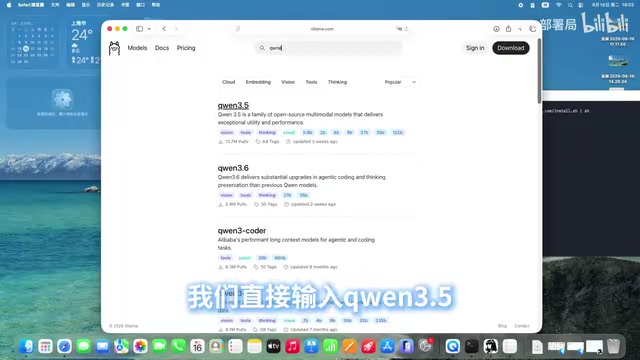
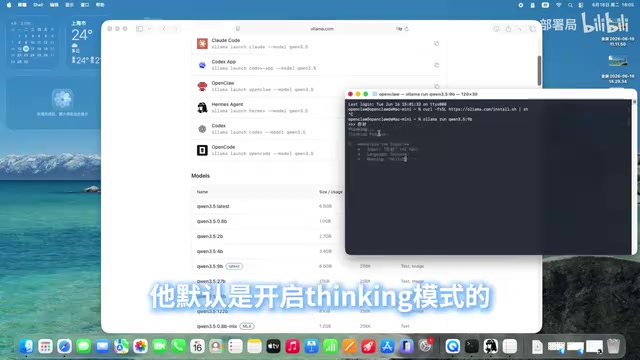
After installing Ollama, go to the models page and search for "Qwen 3.5," then select the 9B version. The creator copies the corresponding command and enters ollama run 千问3.5:9b in the terminal. The model is 6.6GB and downloads automatically on first run.
Once the download finishes, you enter the chat interface and can type "hello" to test it. The video highlights one detail: Qwen 3.5 may have "thinking mode" (sync mode) enabled by default, and the creator chooses to turn it off and restart with the --force parameter so the model doesn't output its reasoning before answering.
For everyday Q&A and tool-calling scenarios, disabling thinking mode can significantly reduce response latency and produce cleaner output. Whether to enable it depends on how much reasoning depth a given task requires.
Connecting to a Third-Party Chat Tool: Key Configuration Points
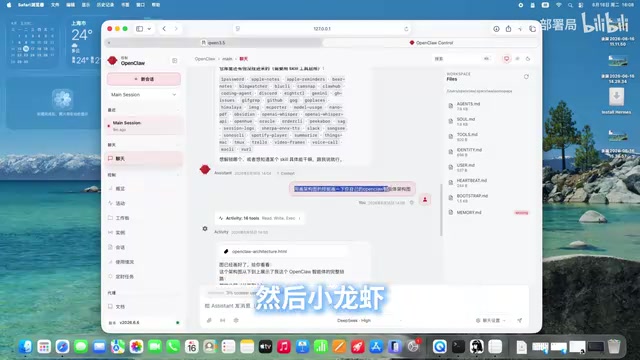
Getting the model running in the terminal is only the first step. The creator next demonstrates how to connect Ollama's local model to a chat tool (referred to in the video as "Xiaolongjia," which from the description is a conversational app that supports skill invocation). The tool had previously been connected to the DeepSeekAd model and already has the ability to draw architecture diagrams.
The configuration entry point is a configuration command run in the terminal: select Local mode, then select Node as the type, find Ollama in the list of model providers, and check only the local Ollama (not the remote one). Enter 127.0.0.1:11434 as the port.
Here's an easy pitfall: the creator stresses that /v1 must be appended to the address, or the connection may fail.
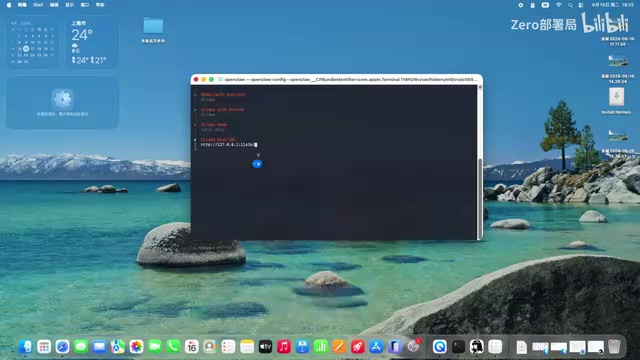
With /v1 appended, the interface shows a list of locally downloaded models; select Qwen 3.5 9B, save the configuration, and refresh the page to switch the chat tool to that model. In the video, a test "hello" gets a normal reply, and asking "what large model are you?" correctly identifies it as Qwen 3.5 9B.
The creator mentions that the context length may be set relatively small—this is a configuration-level tweak that doesn't affect the overall setup.
Why the Ollama Address Needs /v1
Ollama natively provides two sets of interfaces: its own /api/chat and /api/generate, plus an OpenAI-compatible interface at /v1/chat/completions and /v1/models. Many third-party chat clients and agent frameworks implement only the OpenAI protocol, and they default to appending /v1/... to the configured base URL or requesting /models directly. If you enter only 127.0.0.1:11434, the client may request a path that doesn't exist and report a connection failure; with /v1 added, requests land exactly on Ollama's OpenAI-compatible endpoints, and model listing and chat work properly. This is also the most frequent troubleshooting point when connecting local models to third-party applications—the port is right and the service is running, yet it keeps failing to connect because a path suffix is missing.
The Practical Value and Boundaries of Local Deployment
As this tutorial shows, the combination of a Mac mini M4 and Ollama has lowered the barrier to local large-model deployment to the level of "copy and paste commands." The whole process involves no compilation and no container orchestration; for anyone with some terminal experience, it can be done in under half an hour.
In terms of use cases, a 9B-class model is well suited to everyday Q&A, document summarization, coding assistance, and simple tool calls. The architecture diagram generation shown in the video is a typical example of a model working together with application-layer skills. If a task demands stronger reasoning, you'll need to consider a larger model—but memory requirements rise accordingly.
One thing to note: the chat tool's name and some terminology in the video follow the creator's narration, so the actual software interface should be your reference when configuring. Details like the port address and the /v1 suffix are the most common causes of connection failures when hooking local models into third-party apps, and are worth writing down separately.
The Positioning of 9B Models and "Thinking Mode"
9B is a medium-to-small dense model scale—the sweet spot for "capability versus cost" on consumer hardware. It's more than capable of summarization, rewriting, code completion, and structured output, but it is noticeably weaker than models of 30B and above at multi-step complex reasoning, long-document understanding, and rigorous factual accuracy. The "thinking mode" mentioned in the article refers to reasoning models generating a chain of thought before producing an answer, similar to the reasoning process in DeepSeek-R1. When enabled, answer quality improves on math and logic tasks, but time-to-first-token and token consumption multiply; when disabled, the model answers directly, which is better suited to chit-chat, retrieval, and tool calling—scenarios sensitive to real-time responsiveness. Whether to enable it is essentially a trade-off between latency and reasoning depth.
One-line Summary
A complete walkthrough of deploying Qwen 3.5 9B on a Mac mini M4 with Ollama and connecting it to a third-party chat tool
Paragraph Summary
Based on a hands-on video from a Bilibili creator, this article walks through the full process of running a local large model on a 32GB unified-memory Mac mini M4: downloading and installing Ollama from ollama.com, pulling the roughly 6.6GB model via ollama run 千问3.5:9b, using --force to disable the default thinking mode and reduce latency, then connecting the local Ollama in a third-party chat tool using Local mode and Node type with the port set to 127.0.0.1:11434 and the /v1 suffix added. The author believes a 9B model already covers about 90% of everyday needs, that the whole deployment requires no compilation or container orchestration and can be completed in under half an hour by users with terminal basics, and reminds readers that the port and path suffix are the most common causes of connection failures.
Related articles

World's First Humanoid Robot Company Agility Lists on Nasdaq: Buy or Not?
Agility becomes the world's first pure-play humanoid robot company to list on Nasdaq. This article analyzes what the landmark event means for the industry and investors, unpacking the commercialization test and investment framework for the pure humanoid robot sector.

Agent-Browser: A Browser Automation CLI for AI Agents
Vercel Labs open-sources agent-browser, a Rust-built browser automation CLI designed for AI agents, with over 45,000 GitHub stars and command-line-first browser control.

LZ4: The Open-Source Benchmark for Blazing-Fast Compression
Explore the LZ4 blazing-fast compression algorithm: its design philosophy, performance advantages, and wide use in the Linux kernel, databases, and more. How a 12k+ star open-source project became the speed benchmark.