MiniMax H3 Long Video Workflow Tested: Generating 2-Minute HD Animation on 6GB VRAM

MiniMax H3 ComfyUI workflow generates 2-minute HD video locally on 6GB VRAM via tiling and Motion Context.
This ComfyUI workflow overcomes MiniMax H3's ~15-second single-generation limit through segmented continuation rather than forced extension, enabling coherent 30–40 second videos. The core is the Motion Context module, which inherits the final second of latent-space state — not just a pixel frame — ensuring seamless motion, camera, and audio continuity across segments. Tiled processing nodes let 6GB/8GB/12GB GPUs participate by trading generation time for lower peak VRAM. The three-step process: generate the first segment with latent saved, load it and enable Motion Context to continue with a second segment, and optionally use the first/last frame module plus an LLM-powered prompt skill doc for easier prompt writing.
If you don't have a 4090 or 5090 but still want to generate long videos locally, the ComfyUI workflow built around MiniMax H3 is worth exploring. Its core value comes down to two things: breaking through the model's built-in duration limit, and making long video generation accessible to users with limited VRAM.
MiniMax H3's Duration Bottleneck — and How to Work Around It
MiniMax H3 has a hard ceiling on video generation length. Around 15 seconds, quality starts degrading noticeably, and pushing beyond that often results in visual breakdown. This is a common limitation across most video generation models — the context length used during training defines the stable window for a single generation pass.
This workflow is adapted from an earlier "dual-ten mid-sampling" pipeline, with the explicit goal of pushing that 15-second ceiling to 30 seconds, 40 seconds, or longer. Rather than forcing a single long generation, it achieves this through segmented continuation — and that's precisely why output quality stays stable.
Low-VRAM Optimization: Trading Time for Memory with Tiled Processing
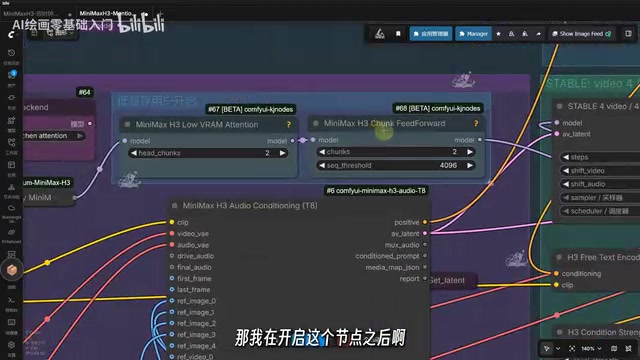
For users running tight on VRAM — think 8GB or 12GB cards — the workflow includes two dedicated nodes built around tiled processing.
The benchmark numbers are telling: at 0.7 megapixels (700K px) over 10 seconds, generation without tiling simply fails. Enable tiled processing with 2 tiles, however, and you can push to 800K pixels at 10 seconds. Tile count can be set to 2, 4, or 8 — the more tiles, the lower the VRAM requirement, but the longer the processing time. It's fundamentally a trade-off: you're spending time to save memory.
The author recommends 2 tiles when VRAM allows, as it strikes the best balance between speed and memory use. There's also a node specifically for clearing CLIP model memory, which frees up additional VRAM headroom for lower-end machines. This is the actual basis for the "runs on 6GB" claim in the title — between tiled processing and VRAM cleanup, the resource floor drops to consumer-grade and even entry-level GPUs.
A note on tiled processing: Tiling is a classic VRAM optimization technique in image generation, widely used in Stable Diffusion for high-resolution upscaling. The idea is to split the full feature map along the spatial dimension into sub-tiles, run convolution or attention operations on each tile independently, then stitch the results back together. Since only one tile (plus its neighborhood) needs to be in VRAM at a time, peak memory usage scales down linearly as tile count increases. The cost: overlap sampling at tile boundaries is required to avoid seam artifacts, and total compute increases slightly, so overall time is longer than non-tiled runs. In video generation, tiling extends naturally to the time axis — the video is split into frame-group chunks processed sequentially, compressing peak VRAM from "entire video" to "single chunk." That's the fundamental reason a 6GB card can participate at all.
Motion Context: The Core Mechanism Behind Seamless Long Video
The most critical component of this workflow is the motion context module — it determines whether segmented video generations actually connect coherently.
Its logic isn't simply using the last frame of one segment as the first frame of the next. According to the author, Motion Context carries the model's internal state from approximately the final one second of the previous segment directly into the opening of the next. In other words, the second segment doesn't restart from scratch — it continues from where the first segment left off.
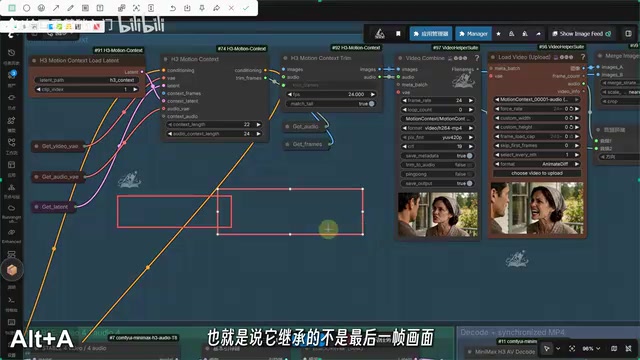
What gets inherited isn't just the visual frame — it's a package of data from that brief window: motion direction, camera velocity, character movement, environmental sound, and pacing. All of this is absorbed by the second generation pass, ensuring continuity in both motion and audio-visual rhythm across segments. Mechanically, this resembles preserving latent space state rather than just pixel frames, which effectively prevents abrupt visual jumps or structural discontinuities at the splice point.
Technical context: "Model internal state" refers to the latent space tensors maintained by the diffusion model during generation — not decoded pixel images. Conventional "last-frame continuation" approaches only preserve the final frame's RGB pixels as a conditioning input for the next segment, which forces the model to re-infer motion trends from scratch, often causing velocity jumps or jarring cuts. Motion Context instead preserves intermediate representations from the final diffusion steps, so the second segment starts from a state that already carries motion momentum rather than re-deriving everything from random noise. Mechanically, this is analogous to a language model's KV Cache or an RNN's hidden state handoff — rather than discarding computed context, it carries it forward into the next inference step. This also explains why audio rhythm stays coherent at the transition: sound features are encoded in the temporal dimension of the latent space, and they get inherited along with everything else.
Step-by-Step Workflow Walkthrough
The workflow follows a clear sequence of steps. Here's how it plays out using the "Lamborghini at high speed" image-to-video demo:
Step 1: Generate the First Segment
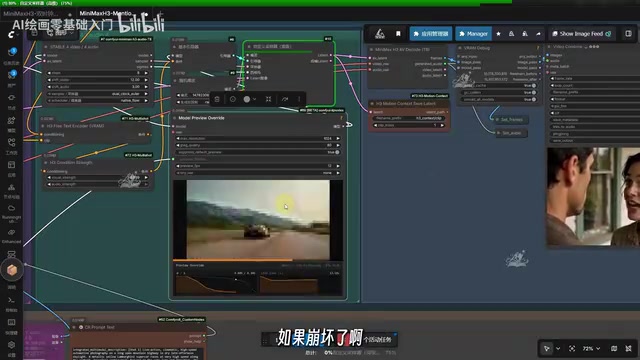
The first segment doesn't need any extension logic, so start by disconnecting and disabling the Motion Context module. For image-to-video, select a model with the FL prefix. Set the save latent node number to 1 for easy reference later. Fill in your prompt and run. You can monitor the sampling process node in real time to get a rough preview of the output — if you spot visual breakdown, cancel immediately and adjust parameters rather than waiting for the full generation to complete. This alone can save significant wasted time.
Step 2: Extend with the Second Segment
Once the first segment is done, enable the Motion Context module and load the first segment's video. The critical detail is matching save latent node numbers: the first generation saved latent data under index 1, so when extending you load that index-1 data. The second generation's output is then assigned index 2. Fill in a new prompt and run — the second segment will continue directly from the motion and audio-visual state established by the first.
Step 3: First/Last Frame Generation
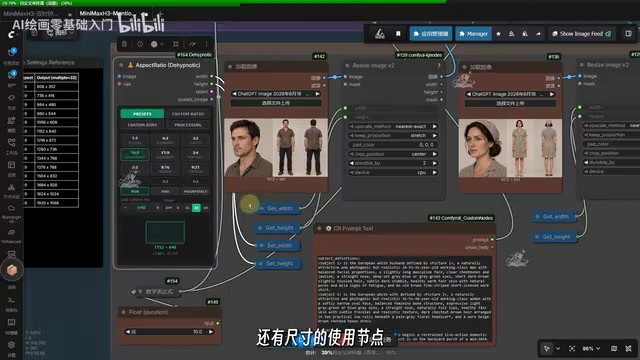
The workflow also includes a standalone first/last frame module. If you only want to condition on the first frame, disable the last-frame input; enable both if you want to specify both endpoints. A convenient resolution and dimension node lets you pick your target size directly, with a built-in size reference table for when you're unsure of exact values. Both the shortest edge and target duration in seconds can be configured here.
Official Prompt Skills Document
The author includes an official prompt skill reference document. The practical workflow is simple: feed this skill document to any LLM agent — Doubao, for example — describe your scene or story, and the agent will generate prompts formatted to the model's preferred structure. Copy the result back into the workflow and run. This effectively solves the "I don't know how to write prompts" problem for many users by delegating structured prompt engineering to an LLM.
Based on the final demo output, the two-segment join holds up well — no structural discontinuities in the visuals, and audio stays coherent throughout. For users who want to try long video generation locally on mid-range or lower-end hardware, this workflow offers a genuinely viable approach. One caveat: the tiling-for-VRAM trade-off means low-VRAM users should budget extra time — more tiles means longer waits.
Related articles

Amphibious Transforming Drone: Beyond 100x Power Savings, What Are the Real Needs?
Is the amphibious transforming drone just a gimmick? Starting from the 100x power difference of the M4 Morphobot, explore real application scenarios and thesis topic ideas, analyzing boundary conditions where pure drones and pure ground robots both fail.

Warhound Raises $200 Million: Genetically Engineered "War Dogs" Paired with Anduril Gear
Warhound raises $200M, backed by Ben Lamm and Palmer Luckey, to genetically engineer dogs for military and law enforcement use and equip them with Anduril gear. This article analyzes its technology direction, funding logic, and ethical controversy.

Claude API Comes to Google Cloud: IAM Integration and SDK Access Guide
Anthropic hosts the full Claude API on Google Cloud with IAM-controlled permissions and unified billing. This guide covers the Vertex AI and Anthropic-hosted entry points, IAM role configuration, and SDK access.