n8n Beginner Tutorial: Build an AI Agent Automation Workflow from Scratch

n8n self-hosting enables unlimited workflow automation and AI customer service at a low fixed cost.
Based on a YouTube creator's tutorial, the article argues that self-hosted n8n is the most pragmatic automation solution. Unlike the official cloud version's execution limits, self-hosting offers no cap, keeps data in your hands, and costs less long-term, deployable in one click via a Hostinger VPS. It covers two foundational concepts—triggers (manual, scheduled, form, chat, app event, Webhook) and dynamic fields for data flow and bulk personalized output—then demonstrates three workflows: form-triggered auto-replies, an AI customer service Agent built on GPT-5 Mini + Simple Memory + system prompt, and a Webhook that writes landing page data into Google Sheets. Key practical points include HTTP method consistency, replacing test URLs with production URLs, and configuring error workflow alerts. The core takeaway: triggers and processing logic are independent, so the same Agent can be attached to chat, email, or WhatsApp entry points—all three cases share the universal "trigger—node chain—dynamic fields" pattern.
Why Choose Self-Hosted n8n for Automation
Faced with feature-heavy AI Agents like Hermes and OpenClawAd, many users actually just need a simple tool that quietly handles repetitive work. According to a tutorial analysis by a YouTube tech channel creator, n8n remains the most pragmatic choice today thanks to its visual wiring and no-code nature—each node represents a task execution unit, such as an email arriving, AI reading the content, or data being written to a spreadsheet. Connect them in order and the entire chain runs automatically.
Before getting started, the most critical decision is the deployment method. n8n's official cloud service is great for quick trials, but the lowest tier caps at 2,500 executions per month, after which you need to upgrade and pay. Self-hosting has no execution limit, keeps your data fully in your hands, and costs less over the long term. Deploying via Hostinger's VPS takes just a few clicks—choose the KVM2 plan (dual-core, 8GB RAM, under $10/month on annual billing), check n8n in the application options, and the installation is done. You can also use a promo code at checkout for an extra discount.
What is n8n: n8n is an open-source workflow automation tool that uses "node-based" visual orchestration and is often compared to Zapier and Make. Its key differentiators: it can be fully self-hosted (deployed on your own server), the code is open-source, data never leaves your premises, and you can write JavaScript/Python code directly inside nodes to handle complex logic. n8n uses a "fair-code" license model—source code is public and free to use and modify, but reselling it as a commercial service is restricted.
The essential difference between self-hosting and cloud service: The official cloud version bills by "execution count"—one workflow running from start to finish counts as one execution—so high-frequency polling or large-batch data processing quickly consumes your quota. The self-hosted version runs n8n as a persistent service on a VPS, and execution count is only limited by server performance. The cost is mainly a fixed monthly VPS fee, so the more traffic you handle, the more cost-effective it becomes. This is also why the tutorial recommends a dual-core 8GB configuration like KVM2—it's enough to handle multiple workflows and AI calls simultaneously.
Two Foundational Concepts: Triggers and Dynamic Fields
The entire n8n system is built on two core concepts. Once you understand them, the rest is just arranging and combining nodes.
Triggers: The Starting Point of a Workflow
A trigger is the event that starts a workflow. Manual triggers suit one-off tasks; scheduled triggers can run at fixed times daily or weekly; form submissions generate an n8n-hosted form link; chat message triggers embed a chat window on your website; app event triggers connect to hundreds of apps like Gmail, Stripe, and Google Drive; Webhook triggers are the most flexible—any service that can send a request can start a workflow.
Dynamic Fields: Data Flow Between Nodes
Each node's output becomes the next node's input. In a Gmail send-email node, you don't need to manually type the recipient address—instead, you drag the email field from the form in the left input panel, and it becomes a tag that automatically fills in each submitter's real address. The same two nodes can send a guide to a thousand people in exactly the same way.
The first workflow demonstrated in the tutorial is based on this logic: a form collects name and email, Gmail automatically sends a free guide, and a notification email is sent to the creator at the same time. Note that n8n appends a signature at the bottom of emails by default—you can remove it by turning off the "append n8n attribution" option in the Gmail node.
About n8n's data structure: What's passed between nodes in n8n isn't a single record but an "items array"—each item is a JSON object like { json: { name: "John", email: "[email protected]" } }. Understanding this is crucial: when you drag a dynamic field, n8n automatically generates an expression like {{ $json.email }}. When processing a hundred records, it pulls values one by one, achieving "configure once, send in bulk." If a node outputs multiple items, subsequent nodes by default execute once for each.
Expressions vs. fixed values: In a node's parameter box, you can either enter fixed text or switch to Expression mode to write expressions. Dynamic fields are essentially a visual expression builder. Mastering two variables—$json (current item data) and $node["Node Name"].json (any upstream node's data)—lets you handle the vast majority of data reference scenarios.
Building an AI Customer Service Agent: Memory and System Prompt
The second workflow showcases n8n's AI capabilities. After creating a chat message trigger, add an AI Agent node and configure the chat model underneath it. The tutorial chose OpenAI's GPT-5 Mini, billed by usage via API key. A $5 top-up supports a large number of conversations, with each reply costing less than a cent.
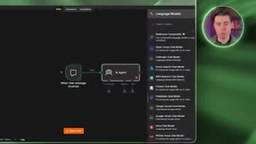
A common problem is that the Agent lacks contextual memory. When a user first mentions "a trip to Lisbon in October" and then asks about the weather, an Agent without memory can't connect the two. Adding a Simple Memory node makes the system automatically carry the last five messages of history.
The system prompt is the key to making an Agent truly usable. The tutorial configured a customer service Agent for a web design studio, listing five allowed facts in the prompt (such as single-page website pricing and delivery time) and explicitly instructing: if the answer isn't on the list, tell the customer someone will follow up rather than making things up. Test results showed the Agent could accurately cite a two-week delivery time and honestly admit when a question fell outside its knowledge.
By swapping the trigger from a chat window to a Gmail receive trigger, the same Agent can be used to auto-reply to customer emails—the reply stays in the same email thread and includes the accurate pricing from the prompt.
AI Agent architecture in n8n: n8n's AI Agent node uses a "main node + sub-nodes" attachment structure. The AI Agent is the body, and three types of attachments are mounted below it via connection ports: Chat Model (e.g., OpenAI, Anthropic, Ollama), Memory (memory storage), and Tools (callable tools like search, database queries, HTTP requests). All three are essential—without a Model it can't generate replies, without Memory every conversation starts fresh, and without Tools the Agent can only answer based on existing knowledge and the prompt.
The role of the system prompt: The system prompt is a "hidden instruction" sent to the model with every turn of conversation, used to set the role, tone, knowledge boundaries, and response rules. It's different from what the user types in the chat box and has higher priority. The tutorial's rule "if the answer isn't on the list, escalate to a human" is a typical fallback strategy that effectively suppresses the large model's tendency to fabricate facts (hallucinations).
Webhook in Practice: Collecting Users from a Landing Page to Google Sheets
The third workflow handles external data intake. A Webhook is essentially a special URL that n8n listens on—any service that sends data to it can start a workflow.
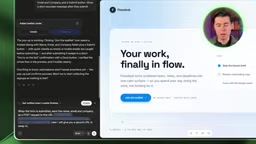
The tutorial used an AI website builder to generate a product landing page with an "Join the Waitlist" popup form. The key is that the HTTP method must be consistent on both ends—after setting the Webhook node to POST, you must tell the website builder to send data via a POST request. For testing, click "Listen for test event" first; after submitting the form, the data appears in the body field, including name, email, and company information.
Subsequent nodes use Google Sheets' "append row" operation, provided the sheet already has a header row (name, email, company), which n8n uses to map fields. Before going live, be sure to replace the test URL with the production URL—this is the step beginners most often miss. Additionally, configuring an error workflow in settings lets you automatically send alert emails when the main workflow fails.
For apps without native n8n nodes, the HTTP Request node can connect to any service that offers an API. The tutorial suggests using an AI assistant to read the target app's API documentation and generate a step-by-step guide covering the request method, URL, authentication, and request body, greatly lowering the configuration barrier.
How Webhooks work: A Webhook is a kind of "reverse API"—instead of n8n actively requesting others, it gives the outside world a dedicated URL. When any service sends an HTTP request to that address, n8n wakes up and starts executing. It supports HTTP methods like GET, POST, and PUT, with POST most commonly used for passing form data. The data carried by the request is divided by location into body, query (URL parameters), and headers, all of which n8n automatically parses for subsequent nodes to reference.
Test URL vs. production URL: The Webhook node provides two links. The test URL is only valid for a short time after manually clicking "Listen for test event" and is used for debugging; the production URL listens persistently as long as the workflow is active. So after debugging, you must replace the address configured in external services (website builders, third-party platforms) with the production URL—otherwise, once you leave the editor, data can no longer get in. This is the most common cause of the "workflow won't trigger" issue for beginners.
The Unified Logic Behind All Three Workflows
From form auto-replies to AI customer service to Webhook data pipelines, the three cases demonstrate the same pattern: a trigger receives an event, a chain of nodes processes the data, and dynamic fields produce personalized output. The Agent's trigger and processing logic are independent of each other—the same Agent can run behind a chat window, an email inbox, or WhatsApp; you only need to change the first node.
The whole setup runs on a self-hosted server with no execution limits, and multiple workflows can run simultaneously without interfering with each other. For users who want to automate work at the lowest cost, n8n offers a clear path from zero to production-ready.
One-line Summary
n8n self-hosting lets users achieve unlimited workflow automation and AI customer service at a low fixed cost.
Paragraph Summary
Based on a YouTube creator's tutorial, the article argues that self-hosted n8n is currently the most pragmatic automation solution. Compared to the official cloud version's execution limits, self-hosting offers no cap, keeps data in your hands, and costs less long-term—deployable in one click via a Hostinger VPS. The piece revolves around two foundational concepts: triggers are the event starting point of a workflow (manual, scheduled, form, chat, app event, Webhook), and dynamic fields handle data flow between nodes and bulk personalized output. It then demonstrates three workflows—form-triggered auto-replies, an AI customer service Agent based on GPT-5 Mini + Simple Memory + system prompt, and a Webhook that writes landing page data into Google Sheets—while emphasizing practical points like HTTP method consistency, replacing test URLs with production URLs, and configuring error workflow alerts. The core takeaway: triggers and processing logic are independent, the same Agent can be attached to chat, email, or WhatsApp entry points, and all three cases share the same universal "trigger—node chain—dynamic fields" pattern.
Related articles

How Big Can Stars Really Get? The Physical Limits of the Largest Stars
Red supergiants are the largest stars by volume, with radii up to 2,000 times the Sun, engulfing the inner solar system. But there is no precise upper limit on stellar size—models predict up to 15,000 solar radii. The most massive blue stars are far smaller than red supergiants—biggest and heaviest are two different things.

Apple HomeView Smart Display Full Feature Breakdown: Wall-Mount or Desktop, $299
Apple launches HomeView, a $299 smart display with wall-mount and desktop options, 12MP camera for facial recognition, smart home control, music playback, and recipe step-by-step cooking. Full breakdown of watch faces, apps, privacy, and cooking integration.

Where Did the Promised New Studio Go? Craft Computing Answers After Five Years
Craft Computing's host responds to viewer questions: the new studio promised five years ago was shelved as construction costs soared from $30,000 to $75,000, and was replaced by a 168-square-foot garage conversion.