n8n + Gemini: Build a Smart Gmail Classification Automation Workflow
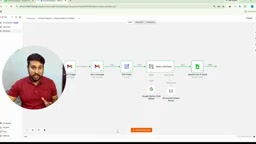
Automate Gmail sorting with n8n and Gemini AI, logging categorized summaries into Google Sheets.
This article outlines how to build a Gmail auto-classification workflow using n8n and Google Gemini AI. The workflow extracts sender, subject, body, and receive time from each email, cleans the data, then passes it to Gemini to generate a summary, assign a category (Important/Sales/Support), and set a priority level — writing structured results row by row into Google Sheets. Compared to keyword-based filters, the LLM-powered approach genuinely understands email intent. The setup requires minimal engineering effort, with the key prerequisite being OAuth authorization to connect Gmail to n8n.
Stop Manually Sorting Emails: Let AI Automatically Categorize Your Gmail
If your Gmail inbox receives 20, 50, or even hundreds of emails every day, opening each one to determine which are important, which are sales pitches, and which are customer support requests is practically an impossible task. This YouTube tutorial demonstrates how to use the automation tool n8n combined with Google's Gemini AI to build a workflow that can automatically read, understand, and categorize your emails.
The concept is straightforward: let the system handle the repetitive cycle of "read → understand → classify → record" on your behalf, while you simply check the results in a summary spreadsheet.
Overall Workflow Design
Before diving into configuration, the tutorial walks viewers through the complete logic of the workflow. It needs to extract several key pieces of information from each email:
- Sender
- Subject
- Email Body
- Receive Time
This raw data is first cleaned, then handed off to Gemini AI for analysis. The AI's job is to generate an email summary, determine its category (e.g., Important / Sales / Support), and assign a priority level — ultimately producing a structured result.
The entire pipeline can be summarized as: Gmail → Data Cleaning → Gemini Analysis → Structured Output → Google Sheet. Each processed result is written as a new row in Google Sheets, effectively creating an automatically maintained, searchable email database.
Why the n8n + Gemini Combination Works
The value of this setup lies in combining the strengths of two types of tools. n8n, as an open-source automation orchestration platform, handles connecting Gmail, Google Sheets, and other services while chaining all the nodes into a visual pipeline. Gemini handles the parts that genuinely require "comprehension" — reading email content, extracting key points, and making classification decisions.
Traditional email filtering rules can only do hard matching based on keywords or sender addresses, and struggle to understand the true intent of an email. By introducing a large language model, the system can read an email the way a human would — determining whether it's about a purchase, a support request, or a sales pitch — and produce more accurate classifications and priority levels.
n8n is an open-source workflow automation platform built around the concept of "low-code visual orchestration." Users define data flow paths by dragging and connecting nodes, without writing full programs from scratch. It comes with hundreds of pre-built integrations (including Gmail, Google Sheets, Slack, HTTP requests, and more), each abstracting the API call details for the corresponding service so users only need to provide credentials and parameters. n8n can be deployed on your own server (self-hosted) or used as a cloud-hosted service. Compared to commercial alternatives like Zapier or Make (formerly Integromat), its key advantages are being open-source and auditable, keeping data within your own environment, and offering more flexible support for complex branching logic. In this workflow, n8n acts as the "dispatch center" — determining when to trigger, how data passes between nodes, and how to handle errors at any step.
Key Configuration: Connecting Your Gmail Account
The first configuration step is connecting a Gmail account to n8n. The tutorial demonstrates initiating the connection from the Credentials section, then selecting and authorizing your Gmail account.
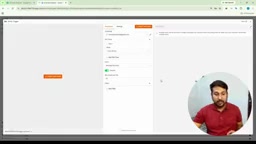
Account authorization is the prerequisite for the entire workflow to function — only after obtaining permission to read emails can the subsequent steps of information extraction, AI analysis, and spreadsheet writing be triggered in sequence. Once configured, the Gmail node will fetch new emails based on the defined trigger conditions and feed the raw data into downstream nodes.
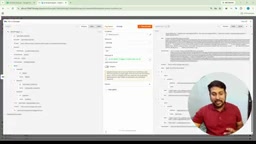
Connecting Gmail in n8n typically relies on Google's OAuth 2.0 authorization mechanism. OAuth 2.0 is an industry-standard authorization protocol that allows a third-party application (n8n in this case) to access a user's Google account resources in a restricted manner after the user grants permission — without requiring the account password. The authorization flow works roughly as follows: the user clicks Authorize → is redirected to the Google login page to confirm permission scopes → Google returns an Access Token to n8n → n8n uses that token to call the Gmail API and read emails. It's worth noting that Google provides fine-grained control over Gmail API permission scopes — read-only access and write/delete access are distinct permission levels. In security-sensitive scenarios, it's recommended to request only the read-only permission (
gmail.readonly) to minimize the risk of credential exposure.
What This Workflow Solves
As demonstrated, this automated pipeline ultimately delivers a continuously updated Google Sheet where each email corresponds to one row, containing fields like summary, category, and priority. For individuals or teams dealing with high email volumes, this means:
- No more opening each email individually to assess its nature
- Important emails and low-priority messages are automatically separated
- All emails are distilled into structured data, making them easier to analyze and search later
In short, it transforms "reading emails" from a reactive chore into a batch-processable background task.
Summary
This tutorial showcases a highly practical lightweight AI automation scenario: n8n for orchestration, Gemini for comprehension, and Google Sheets for persistent storage. There's no complex engineering barrier — the core idea is simply delegating the fixed, repetitive actions of email processing to a machine. For anyone drowning in daily emails, this type of workflow offers a genuinely useful approach: rather than classifying emails by hand, let AI do a first pass for you.
One caveat worth noting: the source material provides limited detail on the specific field configurations within each node, the prompt design for Gemini, and trigger frequency settings. You'll still need to refer to the full video or official documentation for debugging during actual implementation.
Related articles

Googlebook In-Depth Review: Can Google's New Laptop Replace the Chromebook?
In-depth Googlebook review: Google Book OS on Android 17, Pixel ecosystem integration, Gemini semantic search, and how it stacks up against Chromebook and MacBook Air on price and apps.

Python in Practice: Build an MCP Server from Scratch to Give LLMs Real-Time Web Data
Step-by-step guide to building an MCP server with Python and FastMCP, connecting it to Claude Code and Claude Desktop, and enabling LLMs to answer questions with live web data.

The Battle for ICANN's New Top-Level Domains: Meta and OpenAI Race to Claim .agent and .agi
Meta and OpenAI compete for .agent and .agi in ICANN's new TLD round; GTA VI nears launch amid leaks; Joe Rogan signs ~$250M Spotify renewal.