n8n in Practice: Zero-Cost Automated Certificate Issuance and Employee Onboarding Workflows

Two n8n workflows that automate certificate delivery and employee onboarding with zero AI cost.
This article covers the final session of an n8n webinar series, showcasing two automation workflows that require no AI models and run at near-zero cost: automatic training certificate issuance and new employee onboarding material delivery. The certificate workflow uses a Webhook trigger, Google Sheets validation, HTML template variable substitution, and Gmail sending — all in about 7 nodes and 14 seconds. The onboarding workflow adds a Loop node for serial processing and uses Download, Merge, and Aggregate nodes to handle multiple file attachments. The core argument: automation doesn't require AI, and template-driven rule-based workflows offer enormous practical value for budget-conscious SMEs and training organizations.
In the final session of this n8n webinar series, the presenter demonstrated two highly practical automation scenarios: automatically issuing completion certificates to training participants, and automatically sending onboarding materials to new employees. The standout feature of both workflows is that they run entirely without any AI models — at absolutely zero cost — while delivering a significant boost to operational efficiency.
Why These Two Workflows Are Worth Your Attention
When most people think about n8n or automation, their first instinct is to plug in an AI model. But the presenter offered a perspective that often gets overlooked: automation is fundamentally a mechanical process orchestration system, and not every workflow needs to rely on AI.
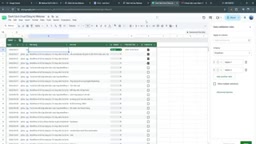
The entire certificate issuance workflow has only about 7 nodes and runs in roughly 14 seconds — with zero AI model involvement. This means organizations can automatically deliver completion certificates to learners, log send status and timestamps, all without incurring a single API call cost. For training institutions and offline education organizations, this is a plug-and-play solution with near-zero overhead.
Breaking Down the Certificate Issuance Workflow
The Core Trigger: Webhook
This workflow introduces a key trigger not covered in the previous two sessions — the Webhook. The presenter described it as "a link running on n8n": whenever a specific event occurs on an external platform, it pushes the relevant information in JSON format to this link.
Webhooks have an enormous range of use cases: chatbots (users messaging on Facebook, Instagram, or LinkedIn), real-time e-commerce order status sync (e.g., a phone notification the moment a shipping status changes), automatic confirmation emails after a successful payment on a landing page — essentially any scenario that requires real-time response depends on them. In this case, once a user submits a feedback form, the platform immediately pushes their email and name to the Webhook.
From a technical standpoint, a Webhook is a "reverse API" mechanism. Traditional API calls have the client actively polling the server ("Any new data? Any new data?"), whereas a Webhook has the server proactively push data to a specified URL the instant an event occurs — hence the term "event-driven" architecture. Once a workflow is activated, n8n generates a unique Webhook URL that can be registered with virtually any SaaS platform supporting Webhooks, such as Typeform, Stripe, or Shopify. When the target event fires, the platform sends the event data via an HTTP POST request (typically JSON) to that URL, and n8n wakes up and executes the subsequent nodes. It's worth noting that a Webhook workflow must be in Active (Published) state to continuously listen for events. During testing, n8n provides a temporary Test URL; when going live, you need to switch to the Production URL — the two addresses differ, so make sure you register the correct one with external platforms.
Reading and Filtering Data from Google Sheets
Once data is received, the workflow uses a Google Sheets Get Row node to read the spreadsheet and verify whether the submitter's email exists in the registered participants list. If the email is invalid or not found, the workflow simply stops — this also serves as an anti-abuse mechanism.
Next comes a critical Filter node: it checks the send status for that email. If the status is already marked as "Sent," the workflow halts immediately to prevent duplicate certificate delivery. Execution only continues when the status field is empty (not yet sent).
Using AI to Generate the Certificate Template
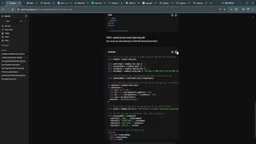
Although the workflow itself doesn't run any AI, you can use AI during the preparation phase to generate an HTML certificate template. The presenter provided a prompt template where users simply fill in the company name, logo (a PNG with transparent background is recommended), signatory, brand primary color (include the hex code for accurate HTML rendering), and the honor or achievement text. The AI then outputs two things:
- An HTML certificate structure
- A JavaScript snippet that replaces placeholder variables like
nameandcourse_namewith real data
It's recommended to use underscore-style naming for variables (e.g., full_name, course_name) and ensure the names are consistent across all nodes.
Sending the Email and Writing Back Status
The certificate is sent via the Gmail node. One practical detail: use the trim function to strip any extra spaces a user may have accidentally typed, preventing send failures caused by a trailing space in an email address — this function works just like its counterpart in Excel. You can also disable the "Append n8n" option under the node's Options to remove the "Sent via n8n" footer from emails.
After a successful send, the workflow automatically writes the send status and a timestamp back to Google Sheets. Once published, the workflow runs 24/7 and listens for events automatically.
Employee Onboarding Materials Auto-Send Workflow
Trigger Condition and Loop Processing
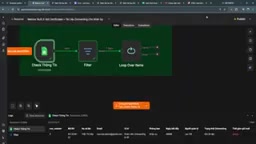
This second scenario is designed for HR: when a new employee joins, onboarding materials — company policies, culture docs, work schedules, etc. — are automatically sent to them. The trigger uses Google Sheets' On Row Update event, which fires when a row's status is changed to "Send Materials." A Filter node then performs a double check on both the status field and the send-time field.
This workflow introduces another important node — the Loop node. If, say, ten to twenty new employees need to receive materials on the same day, the Loop node doesn't send everything at once (which could easily hit API rate limits or cause system lag). Instead, it processes each recipient one at a time: it finishes sending to the first person and updates their status, then moves on to the next. This is especially important for heavy workloads like batch image or video generation.
API rate limits refer to the maximum number of requests a third-party service allows within a given time window. Exceed that, and the service returns a 429 Too Many Requests error and rejects further requests. For Gmail, for example, standard accounts can send up to about 500 emails per day, while Google Workspace enterprise accounts can send up to 2,000. If a workflow sends dozens of emails in rapid succession, it can easily hit the instantaneous rate cap. The Loop node mitigates this risk by serializing the processing — it writes back the status for each record before fetching the next, creating a natural gap between requests. For larger batch sends (like the 150-employee payslip scenario mentioned later), you can also add a Wait node inside the Loop to introduce a fixed delay (e.g., 1–2 seconds between each email), further reducing the risk of hitting rate limits and making it easier to pinpoint exactly where the workflow failed if it's interrupted.
Downloading, Merging, and Attaching Multiple Files
Onboarding materials are uploaded to Google Drive in advance. The workflow uses a Download node to fetch each file by URL. It's critical to assign a different output field name to each file in the node's Options (e.g., data1, data2), because if left as default, every file will be named data, causing conflicts.
A Merge node then combines the multiple files, followed by an Aggregate node that consolidates multiple items into one. Make sure to enable the Include Binary option (binary data refers to non-text files like images, Word documents, PDFs, and videos) so that the files are properly carried into the email node as attachments.
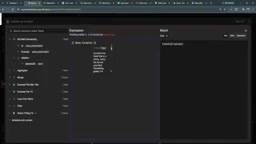
n8n distinguishes between two types of data: JSON data (structured key-value pairs like names, emails, and status fields) and Binary data (binary files such as PDFs, Word docs, images, and videos). By default, items passed between nodes only carry the JSON portion; binary files need to be attached to an item via a dedicated field (typically named data). When handling multiple attachments, each Download node produces an item carrying one Binary field. The Merge node combines them into a single item (which then has multiple Binary fields: data1, data2, etc.), and the Aggregate node collapses multiple items into a single item list so everything can be passed into the email node at once. If you skip the Aggregate node or forget to check Include Binary, the Gmail node will only see the JSON portion — the attachment fields will be empty, and the email will be sent without any attachments and without throwing an error. This is one of the most common silent failure modes in this type of workflow.
Email Sending Details
The email subject line can dynamically include the employee's name (sourced from the current record being processed by the Loop node), and the body uses a pre-prepared HTML template. If company policy requires CC'ing an HR manager, you can enable CC/BCC in the node's Options — separate multiple email addresses with commas. The attachment fields should reference data1, data2, etc. Once sent, the workflow writes back the status as "Materials Sent" and records the current timestamp using the now function.
Extending These Use Cases
The presenter emphasized that the logic behind these two workflows can be extended indefinitely:
- E-commerce orders: Automatically generate an e-invoice or send a purchase confirmation when a new order is placed
- CRM contacts: Automatically trigger a notification when a new client is added
- Payslip distribution: The presenter once built an automated payslip system for a company of around 150 people, filling in attendance days, total salary, taxes, social insurance contributions, commissions, bonuses, and deductions into HTML template variables and sending them in bulk
Once a workflow is published and live, day-to-day operators only need to make simple selections in Google Sheets — no need to ever log back into n8n unless an error occurs (such as an expired credential), at which point AI can help quickly locate and fix the issue.
An Underrated Automation Mindset
The most valuable insight from this session is: automation does not equal AI. In the era of large language model hype, it's easy to overlook the enormous value of pure rule-based automation. Tasks like certificate issuance and onboarding delivery — high-frequency, repetitive, and template-driven — can be solved perfectly with a "template + variable substitution" approach: fast, efficient, and nearly free. For small and medium-sized businesses and training organizations with limited budgets but a strong desire to improve efficiency, this is an extremely pragmatic path to implementation.
Related articles

Amphibious Transforming Drone: Beyond 100x Power Savings, What Are the Real Needs?
Is the amphibious transforming drone just a gimmick? Starting from the 100x power difference of the M4 Morphobot, explore real application scenarios and thesis topic ideas, analyzing boundary conditions where pure drones and pure ground robots both fail.

Warhound Raises $200 Million: Genetically Engineered "War Dogs" Paired with Anduril Gear
Warhound raises $200M, backed by Ben Lamm and Palmer Luckey, to genetically engineer dogs for military and law enforcement use and equip them with Anduril gear. This article analyzes its technology direction, funding logic, and ethical controversy.

Claude API Comes to Google Cloud: IAM Integration and SDK Access Guide
Anthropic hosts the full Claude API on Google Cloud with IAM-controlled permissions and unified billing. This guide covers the Vertex AI and Anthropic-hosted entry points, IAM role configuration, and SDK access.