No Write Access? No Problem: Understand the Fork-to-PR Open Source Contribution Workflow in 5 Minutes

From Fork to first PR: the complete path to contributing to open source without write access.
Based on Episode 10 of *AI Girl's Git Class*, this article lays out a complete path for contributing to open source without write access: read the license and contribution guidelines first, find and claim a good first issue to avoid collisions, fork the project and add an upstream remote with regular syncing to prevent PR conflicts, submit the PR from your fork branch to the original project's main branch (mind the base and compare arrow direction) and link the issue with "Closes #42", and update by continuing to push to the same branch when asked for changes. No step requires write access to the original repository.
Many people use open source projects every day. When they spot a typo in the docs or a small bug, their first reaction is, "I don't have write access, so I can't fix it." In reality, open source collaboration has long been designed for exactly this situation: you don't need to be added as a project member to submit your changes. Episode 10 of AI Girl's Git Class by Bilibili creator "Heilan Niang Yekko" breaks down the complete workflow from Fork to your first PR using a "rice cooker timer README typo" example. This article draws on that video to lay out a reusable open source contribution path.
Read the Rules First, Then Act
The video repeatedly stresses one sequence: read the rules before you do anything. An open source project isn't just code dumped in a repo — there are usually several key files that determine what you can and cannot do.
The License Defines the Boundaries of Use
The license spells out how others may use the code. Permissive licenses like Apache allow free use and modification as long as copyright notices are retained. But note: no license does not mean free for all — by default, copyright belongs to the author, and others cannot freely copy and redistribute it. Many newcomers stumble here, assuming a public repo is public property.
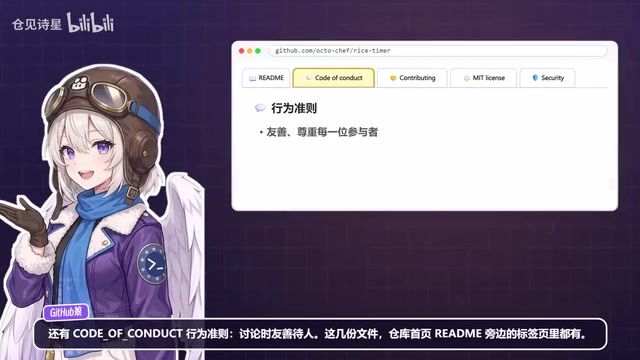
Contribution Guidelines and Code of Conduct
Contribution guidelines specify how branches should be named, how commit messages should be written, whether tests are required, and other details; the code of conduct requires friendly treatment of others in discussions. These files are usually in tabs right next to the README on the repo homepage. The video's author mentions having read through all 400+ issues in one project. You don't have to go that far, but at minimum, read the rules before you act.
Find the Right Entry Point: Beginner-Friendly Labels and Issue Claiming
Once you've read the rules, the next step is finding work. On GitHub, you can filter issues using the "good first issue" and "help wanted" labels to find tasks the project explicitly welcomes outsiders to help with. The example in the video is issue #42: a README typo, already claimed.
Here's an etiquette point that's easy to overlook: leave a comment on the issue saying "I'd like to try this" and wait for the maintainer to reply before starting, so two people don't collide on the same task. If you discovered the problem yourself, you should also open an issue first, explaining what's wrong, how to reproduce it, and how you plan to fix it.
Fork + Upstream: Push Code Without Write Access
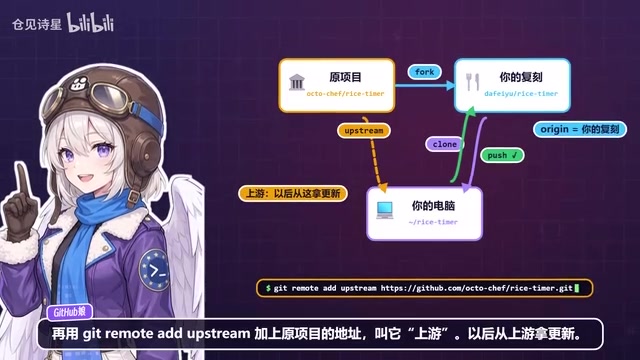
This is the real turning point. If you don't have write access and you clone the original repo directly, make changes, and try to push, you'll get a 403 rejection — it's someone else's repo, and you can't push to it. The correct approach is to click Fork in the top-right corner, creating a copy of the project under your own account that you can modify freely.
After cloning your fork locally, the remote address is origin, pointing to your own fork, so pushing works fine. Then use git remote add upstream to add the original project's address, named upstream, so you can pull updates from upstream later.
Don't Work on the Main Branch
The video reminds you to follow the old rules and create a new branch rather than committing directly to the main branch. You can do whatever you like in your own fork, but clean branching makes for cleaner PRs.
Sync Upstream to Avoid Conflicts
One commonly overlooked issue: upstream may have merged 20 more commits last night, and your fork is already behind. Fall too far behind and your PR is likely to conflict. The simplest fix is to click Sync fork on your fork's page, then Update branch. From the command line: fetch upstream, switch to the main branch, merge upstream's main branch, then push back to your fork. Your feature branch needs to keep up too — use rebase to replay it on top of the latest main branch. Sync up with zero commits behind, and your PR will go much more smoothly.
Fork vs. Clone: The Essential Difference: A Fork copies an entire repository on GitHub's servers into your own account, creating an independent remote repository; a Clone merely downloads a remote repository to your local machine. After forking, you have full write access to that copy under your account and can push branches freely, but your changes don't automatically affect the original project. The original project is called "upstream," and your copy is called "origin." This mechanism lets anyone work based on the original project while the maintainers retain the final say on whether to merge your changes.
What a 403 Error Means: When you try to git push to a repository you don't have write access to, GitHub returns an HTTP 403 error. This isn't an authentication failure but an authorization failure — your identity is valid, but you're not on that repository's permission list. Forking is the standard way around this limitation: you're pushing to your own copy, so you naturally have permission.
Rebase vs. Merge: The video mentions using rebase to replay your feature branch on top of the latest main branch. Rebase "picks off" the commits on your feature branch one by one and reapplies them after the target branch's latest commit, producing a linear commit history; merge instead creates a new merge commit, resulting in a branching history. When preparing a PR, rebase makes your commit history cleaner and easier to read, reducing confusion during maintainer review. Note, however: rebase rewrites commit hashes, so if the branch has already been pushed and multiple people are collaborating on it, avoid rebasing shared branches.
What Causes PR Conflicts: When your branch and the upstream main branch modify the same region of the same file, Git can't automatically decide which version to keep, and a conflict arises. The further behind upstream you are, the higher the chance of conflict. Regularly syncing upstream and making sure your branch is based on the latest main branch both before you start and before you submit a PR is the key habit for reducing conflict costs.
Submit the PR: Don't Get the Arrow Direction Backwards
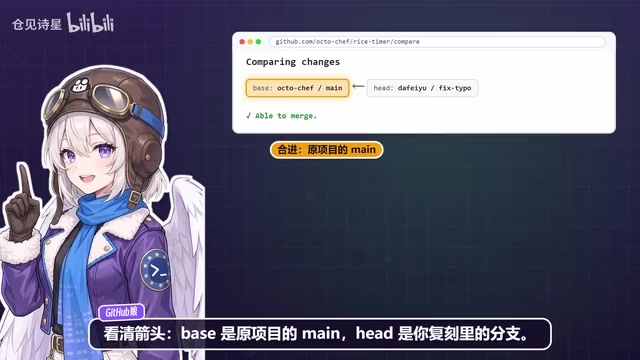
Once you've pushed your changes to your fork, how do you send a PR to their project? After pushing, a Compare and Pull Request button appears on your fork's page; you can also click Contribute, then Open Pull Request. The key is to check the arrows carefully: base should be the original project's main branch, and compare should be the branch in your fork — don't get the direction backwards.
Include "Closes #42" in the description so the issue closes automatically when the PR is merged into the main branch. Then check "Allow edits by maintainers" so they can directly fix a small thing or two for you, saving a round of back-and-forth.
How "Closes #42" Works: GitHub parses specific keywords in a PR description (such as closes, fixes, resolves) followed by an issue number to link the PR with the issue. When the PR is merged into the default branch, the system automatically closes the corresponding issue and leaves a reference record. This saves the manual closing step and ties the issue's discussion history directly to the code change. Note that the keyword must be on the same line as the number or connected via a colon, and the issue must be in the same repository (or referenced across repositories via a full URL).
The "Allow edits by maintainers" Option: When checked, maintainers with write access can add commits directly to your PR branch, typically for minor fixes like formatting or wording adjustments. This saves a round of "you change—I review," provided you trust the maintainers and no branch protection rules block external pushes.
Asked to Make Changes? Don't Close the PR
If a maintainer says two things need fixing, do you have to close the PR and open a new one? No. Keep making changes on the same branch, commit, and push — the PR updates automatically. Reply to each comment after addressing it, click Resolve Conversation, and when everything's done, ask the maintainer to re-review.
One line from the video is worth remembering: being asked to make changes is completely normal and not personal — maintainers are often helping out in their spare time, so be patient and polite. Fix it, push it up, and the PR updates itself. Once merged, your avatar will appear in the project's contributor list.
How PRs Update Automatically: A PR is essentially a merge request pointing at a branch, not a one-time code snapshot. As long as you don't delete that branch, any new push is reflected in real time in the PR's "Commits" and "Files changed" tabs, so reviewers always see the latest state. So after receiving feedback, just keep committing and pushing on the same local branch — no need to close and reopen. Closing and reopening actually loses the original comment context and review history, adding burden on maintainers.
What Resolve Conversation Does: In a PR's review comments, each comment has a "Resolve conversation" button next to it. Clicking it collapses the thread and marks it as resolved, helping reviewers quickly identify which comments have been addressed. It doesn't change any code — it just tidies up the discussion state, and it's a polite, efficient collaboration habit.
A Reusable Contribution Path
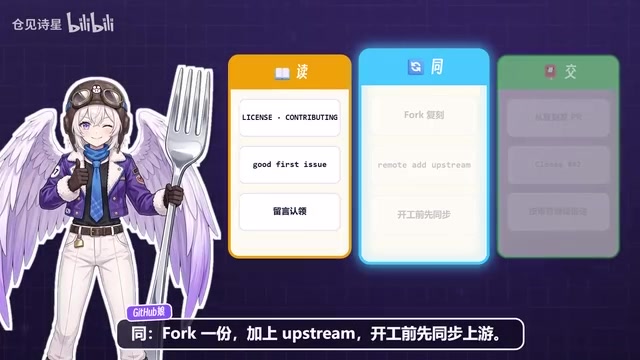
Compressing the video into steps: read the license and contribution guidelines → find a beginner-friendly issue → comment to claim it → fork the repo → add the upstream address → sync upstream before starting → submit a PR from your fork to the original project → include Closes → keep pushing based on review feedback. Nowhere in this entire chain do you need write access to the original repository.
The video ends with a preview of the next episode: as repositories grow larger, beware of pushing passwords, large file storage, and leak first aid — essentially a health check for your repo. For anyone who has just completed their first PR, that's probably the next lesson to catch up on.
Related articles

Malicious Claude Code Extension Infiltrates Cursor: Version 2.1.313 Self-Check and Cleanup Guide
A malicious Claude Code build 2.1.313 appeared in the Cursor extension marketplace for about 11 hours, affecting up to 5,000 users. StepSecurity disclosed that it stole system information, git email, and environment variable names, and attempted to implant SSH keys and reverse tunnels. This article covers the incident, malicious behavior, and complete self-check and cleanup steps.

15 Essential Prompts for Vibe Coding: Keep AI from Wrecking Your Code
Vibe Coding often tempts AI to break your code. These 15 prompts—from PRD, architecture, and database to testing and debugging—chain each output as the source of truth, turning AI coding from casual chat into a controllable engineering process.

Cursor vs Windsurf: Code Review or Direct Apply — Which Fits You Better?
Cursor shows a diff for review before changing code; Windsurf applies changes directly. We analyze how each mode affects your workflow and cover Cursor 2.0's multi-agent mode.