ODS Local AI Server Setup Guide: Run Chat, Image, and Video Models in One Place

ODS is a Docker-based open-source tool that turns your PC into a private AI server for chat, images, video, and more.
ODS (OSMantic) is an open-source local AI platform that uses Docker containerization to consolidate chat models, image/video generation (ComfyUI), live web research (Perplexer), voice recognition and synthesis, and coding assistance into a single dashboard running on your own hardware. Data never leaves your machine, there are no subscription fees, and you have full control over models and usage. Installation requires Docker Desktop and Git, deployed via a single official command in about an hour. The main barrier is hardware — the full installation recommends 48GB RAM and the demo used an RTX 5090, so heavy tasks like video generation will be limited on typical home setups.
Want to turn your own computer into a fully private AI server — running chat models, image generation, video generation, and even deep research agents all in one place? An open-source tool called ODS (OSMantic) is making this easier than ever. This article breaks down its installation process and core features based on a tutorial, helping you decide whether it's worth trying.
What Is ODS: A Local Private AI Command Center
The core philosophy behind ODS is simple: use your own hardware to run a completely private AI server. It integrates multiple open-source models, letting users locally run AI agents, private chatbots, N8N automation projects, and more. As the tutorial author puts it, "basically anything you can think of, and all of this is local, private, running on your own hardware."
The value of tools like this lies in privacy and cost: data never gets sent to large cloud providers, no subscription fees are required, and you have complete control over how everything is used. For users who care about data sovereignty or want to run uncensored open-source models, this is a genuinely compelling direction.
Installation: Docker + Git in Three Steps
The entire deployment is built on containerization, and the steps are fairly standardized:
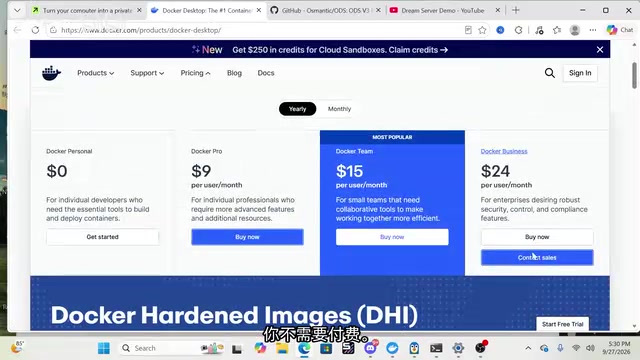
Step 1: Install Docker Desktop
Head to the Docker website and download Docker Desktop — it's completely free for personal use. The author specifically notes: "I know it looks like it's going to cost money, you don't need to pay." Download it, run it, and confirm the interface launches normally.
Step 2: Confirm Git Is Installed
Check whether Git is already installed on your machine, and install it first if not. This is a prerequisite for pulling the release code.
Step 3: Run the Installation Command
Copy and run the official command to download and install the ODS release. During installation, a configuration selection screen will appear:
- Full installation: Installs all components
- Core components only: Lightweight deployment
- Custom configuration: Choose what you need
The tutorial author chose the full installation. Worth noting: the third-tier configuration recommends 48GB of RAM, while the demo machine only had 32GB — the system will warn you that requirements aren't fully met, but you can still force the installation. The whole process takes about an hour, after which the dashboard opens at localhost:3001.
Docker is a containerization technology that packages applications and all their dependencies into standardized "containers," allowing them to run in nearly identical ways across different operating systems. For complex systems like ODS that integrate multiple AI components, containerization means users don't have to manually deal with Python version conflicts, CUDA driver compatibility, or library dependency issues between components — all of that is encapsulated inside the image. Docker Desktop is the graphical management interface for Windows and macOS, built on top of WSL2 (Windows Subsystem for Linux) or HyperKit virtualization. The first launch requires downloading images for each component, which is why the full installation takes about an hour — the time is spent mostly on network downloads rather than the installation itself.
Feature Overview: What's Inside the Dashboard
Once you enter the dashboard, the system overview displays hardware information. The demo machine features an RTX 5090 with approximately 32GB of VRAM and 32GB of RAM, with a lightweight Qwen series model loaded by default.
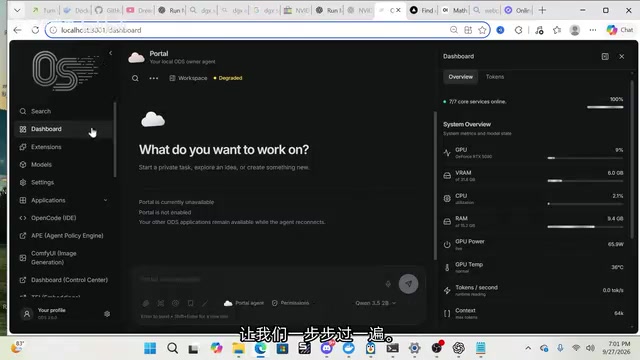
The real highlight is how it consolidates an entire suite of AI capabilities into a single interface:
Image and Video Generation (ComfyUI)
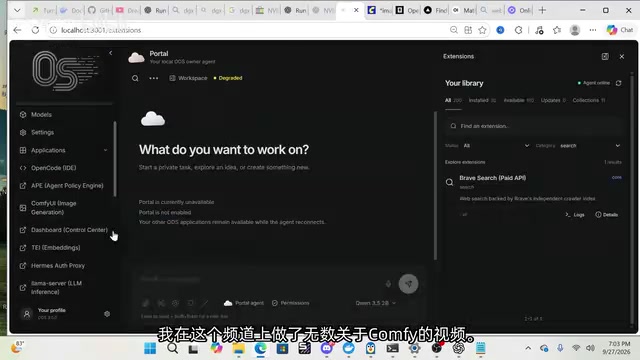
The applications area has ComfyUI built in, where you can configure image models, video models, and more. The author describes this as the primary entry point for image and video generation, and recommends that users unfamiliar with ComfyUI refer to dedicated tutorials on it.
ComfyUI is currently the most mainstream open-source image/video generation workflow editor, using a Node Graph interface where users can visually connect steps like model loading, samplers, prompt encoding, and image decoding to flexibly build complete pipelines — from text-to-image and image-to-image to video frame generation. Compared to Stable Diffusion WebUI, ComfyUI is more VRAM-friendly, more execution-efficient, and the community provides a large number of ready-to-import workflow JSON files. Within the ODS framework, ComfyUI runs as an independent container, accepts calls through an internal API, and users can either access it through the ODS dashboard or directly visit its local port for more detailed node debugging.
Large Language Model Chat
A Llama server is integrated as the core LLM interface, where you can select models, view parameters, and chat just like you would with ChatGPT. It also supports configuring MCP servers to extend capabilities.
Perplexer: Deep Research Modeled After Perplexity
A component called Perplexer can perform live web-based deep research. In the demo, the author asks for "the latest price targets for Nvidia stock," and the system accesses sites like Investing and Google in real time to scrape and summarize data — meaning local models can also have web search capabilities.
Perplexity AI is an AI search product whose core value proposition is "real-time web search + large model summarization." It works by breaking a user's question into multiple search queries, scraping webpage content, and having an LLM distill and cite sources to produce a comprehensive answer with references. ODS's built-in Perplexer component replicates this workflow locally: a locally running LLM (such as the Qwen series) handles understanding and summarization, while the web search portion relies on extensions like Brave Search to provide results. The key significance of this architecture is that query content and search results never pass through third-party AI platforms — only the final HTTP requests to webpages are exposed externally, dramatically narrowing the privacy footprint compared to using a Perplexity subscription directly.
Voice Capabilities
Built-in text-to-speech (TTS) and speech-to-text (STT) allow you to generate AI voices and transcribe uploaded audio — all processed entirely on local hardware.
Coding and Extensions
The applications area also provides OpenCode IDE for local coding. The extension marketplace includes plugins across categories like development and privacy — for example, Brave Search for web search functionality.
Value and Barriers: Who Should Use This
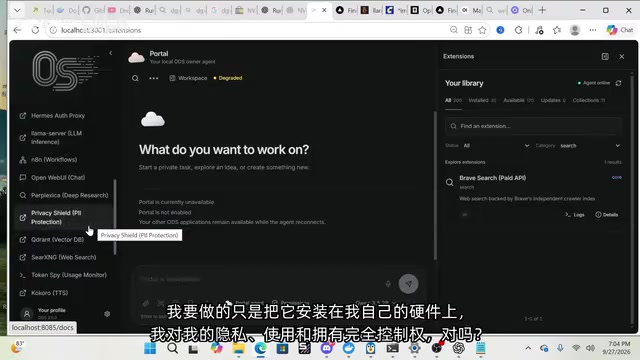
What makes ODS most compelling is how it gathers a scattered open-source AI toolchain — chat, image, video, voice, research, coding — into a single dashboard, lowering the barrier for everyday users to set up a local AI environment. The core selling point the author emphasizes repeatedly is privacy and ownership: data stays local, no subscription fees, complete control.
That said, the barriers are worth acknowledging clearly:
- Hardware requirements are significant: The full installation recommends 48GB of RAM, and the demo machine had an RTX 5090-class GPU — ordinary home computers will struggle to run heavy-load tasks like video generation smoothly.
- Installation takes time: Initial deployment takes about an hour, dependent on Docker container downloads.
- The project is still evolving: The author himself admits he hasn't dug deeply into all the extensions, and the tool is in a phase of rapid iteration.
The RTX 5090 is NVIDIA's flagship consumer GPU released in 2025, with 32GB of GDDR7 VRAM — one of the highest VRAM capacities available in a single consumer card today. For local AI tasks, VRAM capacity directly determines the scale of models that can be loaded: running a 70B parameter LLM typically requires 40GB or more of VRAM (assuming 4-bit quantization), and video generation models (such as Wan and CogVideoX) also require 20GB or more at higher resolutions. For mainstream consumer GPUs with 8GB or 16GB of VRAM, the heavy-load tasks in the full installation (video generation, large-parameter LLMs) won't run smoothly, but lightweight LLM chat (models under 7B) and basic image generation remain feasible. Choosing the "core components only" deployment is a more practical starting point.
Closing Thoughts
ODS represents an interesting direction in local open-source AI — packaging an "AI all-in-one" as a private server so that privacy and capability are no longer a trade-off. For users with reasonable hardware who care about data sovereignty, it's worth paying attention to and trying out. For those with more limited hardware, starting with core components or individual tools (like ComfyUI or a local LLM) is a better entry point. Progress in this space is worth following closely.
Related articles

Gaussian Process Bandit Optimization: Exploration Strategies and Inference Regret Guarantees
Cumulative regret guarantees in Bayesian optimization fail to reflect final recommendation quality. This article examines a new study that provides inference regret guarantees for Gaussian process bandit optimization through exploration query strategies and fill distance analysis, validated on hyperparameter optimization and control tasks.
The Most Detailed Codex Guide on Bilibili: From Installation to Real-World Practice
The most detailed Codex guide on Bilibili: from app store installation to daily work mode configuration, with a real coffee shop project demonstrating file organization, data extraction, dashboard creation, and other practical tasks. Learn to use Plan Mode and desktop pets to leverage Codex efficiently.

Appearance Compensation in Volume Rendering: Why RGB Accuracy Cannot Guarantee Density Correctness
Volume rendering research reveals that volumetric data perfectly reproducing external RGB views may still contain density errors: appearance compensation can double central density and keep external rays unchanged even when L2 error exceeds 14.52%. Density recovery depends on appearance capacity, spatial resolution, and measurement design.