Ollama Custom Install Path Guide: Stop It from Filling Up Your C Drive
Install Ollama to a custom drive using CLI arguments and configure PATH for global access.
This guide addresses Ollama's default behavior of installing to the C drive by showing how to run the installer from the command line with a custom target path argument — for example, pointing it to a D drive directory. After installing to a non-default location, the `ollama` command won't be globally accessible until you manually add the install directory to the system PATH environment variable. The article also covers the `where` command as a quick way to locate the install path of any command-line program. These techniques apply broadly to most Windows software that supports CLI-based installation.
Local LLM deployment continues to gain popularity, and Ollama — one of the most widely used tools for running models locally — is relatively easy to set up. However, it has one behavior that frustrates many users: it installs directly to the C drive by default. For anyone with a tight system drive, that's far from ideal. This guide summarizes a practical method shared by a Bilibili creator, walking through how to install Ollama to a custom directory and fix the follow-up issue of the command not being globally accessible.
The Problem: Ollama Defaults to C Drive
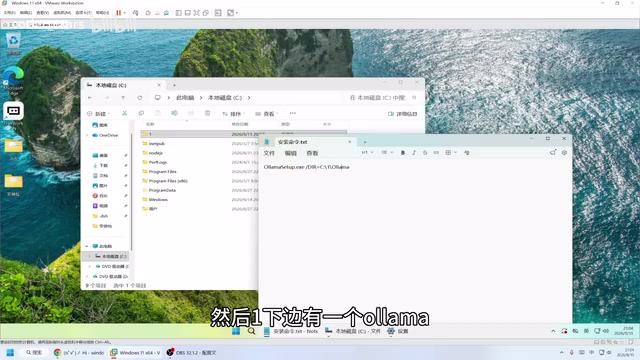
When you double-click the Ollama install package on Windows, it writes the program to the current user's directory on the C drive. The creator confirmed this in their demo: the launcher sits in the user directory, while the actual program files end up in one of two common locations on the system drive.
The thing is, Ollama doesn't have to live on the C drive. For users with "system drive anxiety" — especially those with limited SSD capacity — stuffing a tool that will later download large model files onto the C drive is clearly not a great idea.
Fortunately, Ollama does support custom install paths — it's just buried in command-line arguments and easy to miss if you only use the GUI.
Specifying an Install Path via the Command Line
The key idea is simple: instead of double-clicking the installer, run it from the command line with a path argument that points to your target directory.
Here's how to do it step by step:
Step 1: Uninstall Any Existing Installation
If you've already installed Ollama, uninstall it first. During uninstallation, you'll be asked whether to remove downloaded models — choose based on your needs. Once uninstalled, manually check the relevant folders to confirm no leftover files remain.
Step 2: Run the Installer with a Path Argument
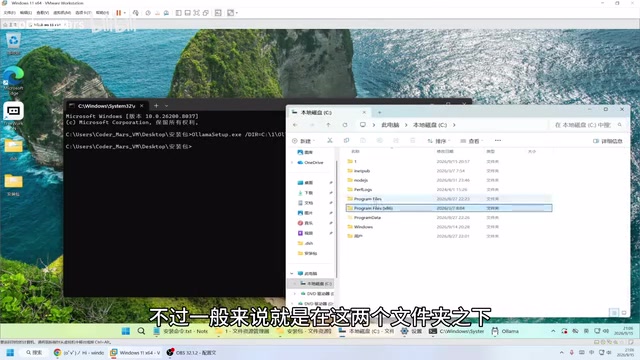
Navigate to the folder containing the Ollama installer. Open a command prompt in that directory (you can type cmd in the address bar and press Enter for a quick shortcut), then run the install command with your desired target path as an argument.
In the demo, the creator used C:\1\ollama as the target path (since the demo machine only had one partition). In practice, just change the path to wherever you want — for example, D:\ollama. After running the command, the installer UI will appear. Click install, and the program will be placed in your specified directory instead of the default location.
The key point here is straightforward: change the target directory in the command to wherever you want Ollama installed. Want it on the D drive? Use a D drive path. Simple as that.
Configuring Environment Variables for Global Command Access
Installing to a custom path introduces a side effect — because the program is no longer in its default location, typing ollama in a terminal from an arbitrary directory may fail to find it. The creator ran into exactly this during the demo: the command worked fine when the terminal was opened inside the install directory, but failed elsewhere.
This happens because the terminal only searches the current directory and directories listed in the system PATH environment variable. The fix is to add Ollama's install directory to PATH:
- Copy the full path to the folder where Ollama is installed
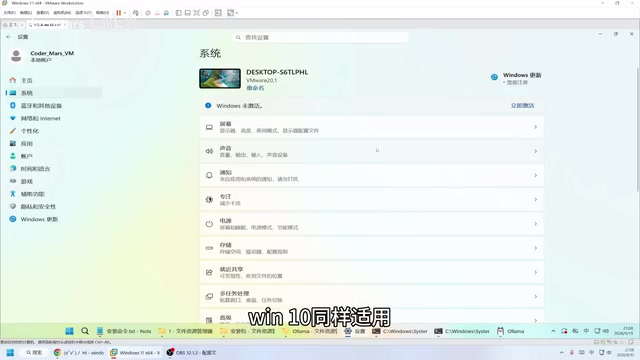
- Open Settings → System → About (on Windows 10, look for "About this PC" or "System Info")
- Go to Advanced system settings → Environment Variables
- Under System variables, double-click
Path - Click New, paste the path you copied, then click OK through all the dialogs to save
Once configured, PATH tells the system: "executables in this directory can be called from anywhere." Environment variables are sometimes cached, so if the command still doesn't work after saving, a restart should do the trick. After rebooting, the creator was able to run ollama from any directory.
Bonus Tip: Use where to Locate Any Installed Program
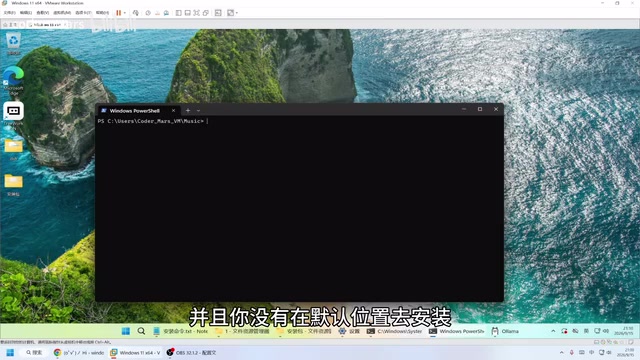
The video also includes a handy general-purpose tip: for any program that can be run from the command line, you can use the where command to find its actual install path.
Usage is straightforward — just type where followed by the command name:
where node(find Node.js install location)where npm(find npm install location)where ollama(find Ollama install location)
Note: use the command name without the .exe extension, since you're looking for the path, not the file. Whenever you've installed something and can't remember where it ended up — and don't want to dig through folders manually — this command will get you there instantly. Far more efficient than browsing your file system one folder at a time.
Summary
This approach addresses three interconnected problems: installing to a custom path to avoid filling up the C drive, configuring environment variables for global command access, and using where to quickly locate installed programs. All three techniques apply not just to Ollama, but to virtually any Windows software that supports command-line installation.
If you plan to spend serious time running local models, starting with Ollama on a data drive — and setting up PATH correctly from the beginning — will save you from the headache of model files eventually overwhelming your system drive. It's a few minutes well spent.
Related articles

Deleted Reddit Post Sparks Debate Over AI Content Moderation
A Reddit post removed with only a 'Removed by Reddit' notice highlights AI content moderation's transparency gaps, misjudgment risks, and appeal challenges for platforms and creators.

DSH + Ollama Local LLM Deployment in Practice: Free Chat with Da Fei Yu
Bilibili creator tests DSH + Ollama local LLM deployment end to end: Ollama install, Xunlei-accelerated downloads, ModelScope GGUF model import, DSH custom API address setup, and a comparison of Qwen 3.5 4B, 8B, Gemma, and other models on 8GB VRAM, with advice on choosing local deployment vs. API calls.

Tested: A $899 Mac Mini vs. a $200/Month AI Subscription
Real-world test of whether an M4 Mac mini can replace a $200 AI subscription: 16GB can't fit large models, and both speed and quality fall short—but privacy, no caps, and near-zero running costs make it an ideal host for an always-on agent. Includes buying advice per configuration and money-saving strategies.