DSH + Ollama Local LLM Deployment in Practice: Free Chat with Da Fei Yu

8GB VRAM laptop test of local LLMs: Ollama-deployed Qwen 3.5 4B is the most balanced; speed-sensitive users should just call the API.
The article documents the complete process of deploying LLMs locally on an 8GB VRAM RTX 4060 laptop. Using Ollama as the local service, the author tested Qwen 3.5 series (2B, 4B, 8B), Gemma 4 12B, and DeepSeek, finding that Qwen 3.5 4B balances capability and speed best; 2B only outputs reasoning without responding, while 8B and 12B slow down notably due to insufficient VRAM. The deployment section focuses on solving pitfalls such as slow downloads from Ollama's official site (accelerated via Xunlei), migrating the model storage path, downloading GGUF-format models from ModelScope and creating a Modelfile to import them. Finally, through DSH's custom model configuration, the API address is pointed to Ollama's local service (with the /v1 path) to achieve free chat. The conclusion: local deployment suits privacy, offline, and zero call-cost needs, but for speed, DeepSeek API's two-second response is more hassle-free.
Why Run LLMs Locally?
Chatting with LLMs through cloud APIs is convenient, but token consumption is a real cost. In his video, Bilibili creator "Weiba Chang" (尾巴长) explained that his motivation for tinkering with local deployment was simple: he wanted to spend fewer tokens when chatting with Da Fei Yu, so he tried routing conversation requests to a local model. This need is actually quite common — privacy sensitivity, high-frequency calls, and offline scenarios all point in the same direction: moving the model onto your own machine.
But local deployment isn't as simple as "download it and it works." The creator tested multiple models — some ran smoothly, while others got stuck due to insufficient VRAM. This article combines his screen recording to walk through the entire process and the pitfalls he encountered, focusing on "how to install, how to configure, and how to choose a model."
Hands-on Test: How Different Models Perform on an 8GB VRAM Laptop
The creator's hardware is an RTX 4060 laptop GPU with 8GB VRAM. This configuration is mid-range among consumer setups — fine for small-parameter models, but strained by larger ones. The models he tested included the Qwen 3.5 series (2B, 4B, 8B, etc.), the DeepSeekAd series, and open-source models downloaded from ModelScope.
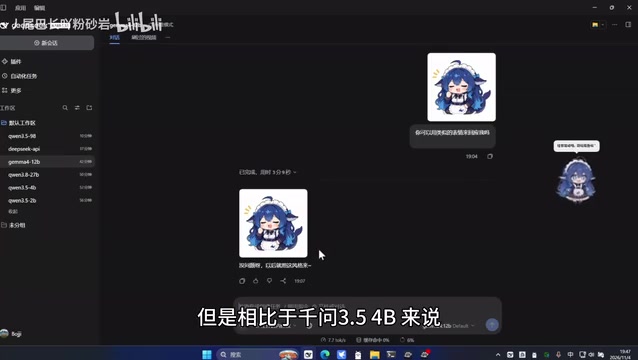
The screen recording shows clear differences: after receiving an emoji input, Qwen 3.5 2B only output its reasoning process without giving an actual response; Qwen 3.5 4B did much better, able to call tools and reply with both text and images, approaching a usable experience. The larger Qwen 3.5 8B produced better response quality, but its runtime on 8GB VRAM was noticeably longer — the creator's exact words were "it takes a very long time to reply." Gemma 4 12B also produced results, but was slower than Qwen 3.5 4B. The creator's advice was straightforward: if you're not too concerned about speed, Qwen 3.5 4B is a well-balanced choice; which one to pick depends on your GPU size. As for DeepSeek's API approach, responses take only about two seconds — if you have no particular attachment to local deployment, calling the API directly is actually more hassle-free.
This comparison reveals a reality: the core tension in local deployment is the tug-of-war between "model capability" and "hardware ceiling." Larger parameters mean smarter models, but when VRAM and compute can't keep up, waiting time erodes the willingness to use them.
The relationship between VRAM and model parameters: LLM weights must be fully or partially loaded into VRAM for inference, and more parameters mean more VRAM consumed. As a rough estimate, at FP16 precision each billion parameters requires about 2GB of VRAM, while quantization (e.g., 4-bit) can compress this to about 0.5–1GB per billion parameters. With 8GB VRAM, about 6–7GB is actually available, so a 4B model at 4-bit quantization runs smoothly, while an 8B model is near the limit and requires partial offloading to RAM, causing a sharp drop in speed. The 8B model's "very long time" in the article is a typical symptom of insufficient VRAM triggering memory swapping.
Ollama Installation: Avoiding the Slow-Download Pitfall
The creator used Ollama as the local model service. Its advantages are simple configuration and a rich model library — once installed, you can pull models directly from the chat interface.
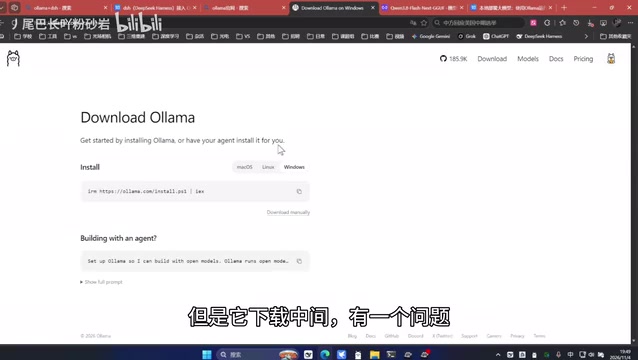
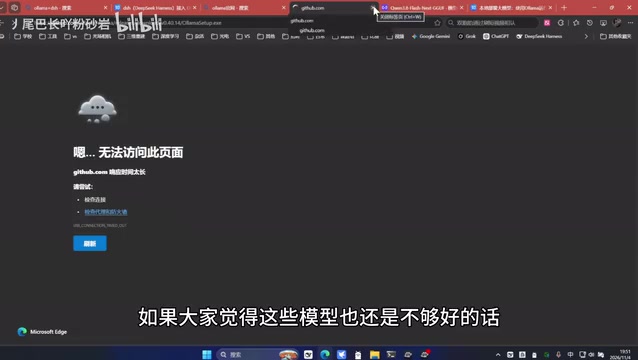
The only thing to watch during installation is download speed. Ollama's official website installer goes through overseas servers, and the creator measured that it could take about an hour depending on network conditions. His solution was to copy the download link and throw it into Xunlei, completing it in about a minute. The installation itself is just clicking "Next" all the way through, with no complicated options.
After installation, go into settings — the default model storage path is on the C drive. If C drive space is tight, you can change it to another drive in settings. It's recommended to do this before downloading models to avoid migrating later.
Pulling and Running Models in Ollama
After entering the chat interface, Ollama offers quite a few models available for direct download — Qwen 3.5 4B, Gemma 4 2B, Qwen 3.5 8B, and Qwen 3.5 2B are all in the list. The operation is lightweight: enter the model name, select the corresponding entry, and the download begins with no extra configuration.
If the built-in list isn't enough, you can find open-source models on ModelScope. The creator demonstrated the process using DeepSeek as an example: go to the model file page, make sure to choose the GGUF format when selecting the framework, then download the model file and save it to the local model directory.
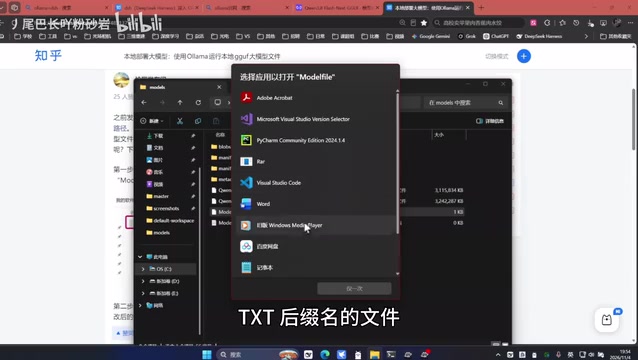
The key step is creating a Modelfile. The creator emphasized creating a new txt file in the current path, naming it Modelfile, with content written according to the official template. When saving, be careful to remove the .txt suffix — his approach was to delete the suffix and add a space when saving as, ensuring the filename is Modelfile rather than Modelfile.txt.
Once the file is in place, type cmd in the file path bar and press Enter to open the command line, then execute commands in sequence to import the model into a format Ollama can read. The creator re-demonstrated on the spot: space, model file name, another space, paste the path — after execution, the model is taken over by Ollama.
What is the GGUF format: GGUF is a model file format introduced by the llama.cpp project, designed specifically for efficient inference on consumer-grade hardware. It packs model weights, tokenizer configuration, and quantization information into a single binary file, supports multiple quantization levels from 2-bit to 8-bit, and can be loaded directly on CPU or GPU without additional conversion steps. Ollama is built on llama.cpp at its core, so it natively supports GGUF. Choosing GGUF first when downloading models from ModelScope means the file can be read directly by Ollama, saving the hassle of format conversion.
Connecting to DSH: Custom Model and API Address Configuration
Once the model is running, the final step is enabling DSH (DeepSig Highlights) to call it. Go into DSH settings, find the model configuration, select "Custom Model," enter a custom name, and fill in the API address with Ollama's local service address.
There's an easily overlooked detail here: the address must include the /v1 path — this is the convention for Ollama's OpenAI-compatible interface. After filling it in, click "Fetch Available Models" and the previously downloaded model will appear in the list; select and add it.
When adding the provider ID, the creator reminded that the ID must start with a lowercase letter. Afterward, you can adjust parameters such as input type under "More," and the rest of the configuration is basically the same as the default model. With this done, DSH can forward conversation requests to local Ollama, achieving free chat.
Modelfile and the /v1 interface convention: Modelfile is the configuration file Ollama uses to define model runtime parameters, similar to a Dockerfile — it can specify the base model path, chat template, temperature, and other parameters. When importing a custom model, Ollama reads the Modelfile and generates an internal model entry. The /v1 path comes from OpenAI's API specification — endpoints like /v1/chat/completions. To be compatible with a large number of existing tools, Ollama emulates this interface on its local service port (default 11434), so any client that supports the OpenAI API (including DSH) can directly call local models by pointing the address to http://localhost:11434/v1, with no additional adaptation needed.
Local Deployment or API Calls?
Going through the whole process, it's clear that the barriers to local deployment are mainly at two ends: first, the patience for downloading and installing; second, whether the hardware can support the model. Ollama has already simplified operations to the point of "select a model, click download, fill in the address" — the real bottleneck is VRAM.
The creator's own conclusion is also pragmatic: if you feel that running locally for a minute is still too long, you might as well spend a little money on the DeepSeek API, which responds in about two seconds at a low cost. Local deployment suits those with clear needs for privacy, offline use, and zero call cost; if you only chat occasionally, the overall experience of cloud solutions is actually better.
For users with an 8GB VRAM GPU, Qwen 3.5 4B is currently a relatively safe starting point. If you want to push further, you'll have to accept longer waiting times or consider upgrading your hardware.
Related articles

Is a Neural Network Essentially Linear Regression? Huawei's 300-Episode AI Course Instructor Explains Deep Learning with TensorFlow Playground
In Huawei's 300-episode AI deep learning tutorial, the instructor uses TensorFlow Playground to demonstrate that neural networks are essentially linear regression, explaining the core difference between machine learning and deep learning in feature engineering, and why 2012 became the watershed for deep learning's rise in the big data era.

Full AI Comic Drama Workflow with WorkBuddy: 8 Steps from Zero to Final Cut
A complete eight-step WorkBuddy workflow for making AI comic dramas: topic planning, script and storyboard, image assets, video generation, voiceover, editing, and publishing, plus WorkBuddy's expert-skill mechanism and tips for summoning experts one by one. Suitable for beginners.

Codex Practical Tutorial: From Installation to Multi-Agent Collaboration
Based on a Bilibili Codex practical tutorial, this article systematically covers installation and configuration, CLI interaction, slash commands, AGENTS.md architecture, the MCP protocol, multi-agent collaboration, and enterprise plugin development, helping developers understand engineering usage of AI Agents.