Ollama+DeepSeek+Page Assist: A Practical Guide to Local LLM Deployment

Build an offline-capable local AI Q&A and knowledge base on Windows with Ollama, DeepSeek-R1, and Page Assist.
The article presents a complete solution for running large models locally on a Windows PC, built from three components: Ollama handles model download and execution, DeepSeek-R1 1.5B serves as the reasoning model, and the Page Assist browser extension provides a visual interface and knowledge base management. The tutorial covers everything from using Thunder to bypass download throttling on the official site, moving the model directory to the D drive via system environment variables to avoid filling the C drive, pulling models from the command line and verifying them, to installing a text embedding model and importing local documents to build a knowledge base. Offline tests show that both Q&A and retrieval-augmented Q&A over private documents work normally, with data never leaving the machine. The solution is zero-cost and low-barrier, but the 1.5B small model has limited reasoning ability, making it suitable for sensitive document handling and low-cost experimentation.
Running large models locally is shifting from a geek hobby to an everyday tool that even ordinary users can pick up. A tutorial on Bilibili demonstrates how to build a fully offline AI Q&A environment on a Windows PC using just three components—Ollama, DeepSeek-R1, and Page Assist. The whole process relies on no cloud API, works with the network disconnected, and even gets local knowledge base retrieval up and running.
What Each of the Three Components Does
Ollama acts as the model manager, handling the download, storage, and execution of various open-source models—a single command brings the service up. DeepSeekAd-R1 is the model being run; the tutorial chooses the 1.5B parameter version because the author's machine is just an ordinary PC, and this size takes up the least space with the lowest hardware barrier. Page Assist is a browser extension that wraps a visual interface around Ollama, turning conversation, model switching, and knowledge base management into point-and-click operations so you don't have to keep typing command-line instructions.
Understanding this division of labor matters: Ollama is the foundation, DeepSeek is the brain, and Page Assist is the face. Together, the three form a local AI workstation that's friendly to ordinary users.
Parameter scale (B) and VRAM/RAM requirements: The "1.5B" in a model name refers to roughly 1.5 billion trainable parameters. As a rough rule of thumb, at FP16 precision each billion parameters takes about 2GB of VRAM, which drops to about 0.5GB per billion parameters when quantized to 4bit—so a 1.5B model can run on an ordinary PC even with pure CPU inference. The more parameters, the stronger the language understanding and reasoning ability generally is, but the demands on VRAM, memory bandwidth, and loading time rise in tandem. When choosing a model, look at model size, quantization format, and your machine's available memory together—not just the parameter count.
Embedding models and vectorization: An embedding model doesn't directly generate text; instead, it compresses a piece of text into a high-dimensional vector, where texts with similar semantics end up with vectors that are close together. When importing a knowledge base, documents are split into chunks and converted one by one into vectors stored in a local index; when you ask a question, the question is first converted into a vector too, and then the most relevant chunks are recalled by similarity. This is why Page Assist requires a separately installed embedding model—it's the "eyes" of the retrieval step, with a different role from DeepSeek, which is responsible for generating answers.
Installing Ollama and Working Around Slow Downloads
When downloading the Windows version from the Ollama website, the tutorial specifically flags a real pain point: clicking the download link directly gives you very slow speeds—only a few hundred K—so the installer takes a long time. The author's approach is to right-click and copy the download link, then drop it into a download tool like Thunder (Xunlei), which noticeably improves the speed.
Once installed, you can type ollama -V in cmd to verify the version; the environment demonstrated in the tutorial is 0.40.6. This step looks simple, but it's the first checkpoint for confirming a successful installation.
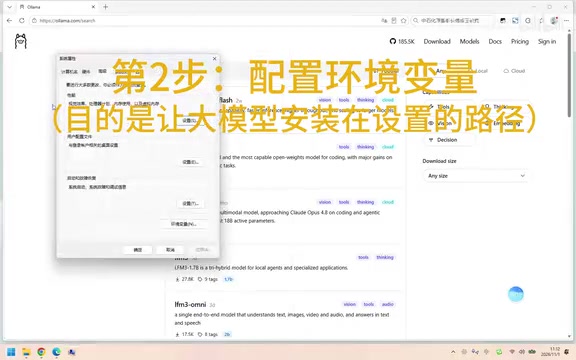
Another easily overlooked detail is the model storage path. Ollama stores models on the system drive by default, and large model files are not small—over time they eat into C drive space. The tutorial creates a new OLLAMA-related path variable via "Edit system environment variables" to move the model directory to the D drive; a computer restart is required for the change to take effect. This is especially practical for laptop users who are tight on storage.
Pulling the Model and Verifying It
After the environment variable takes effect, go back to the model page on the Ollama website, select the 1.5B version of DeepSeek-R1, copy the installation command given on the page, and paste it into cmd and press Enter to start the download and installation.
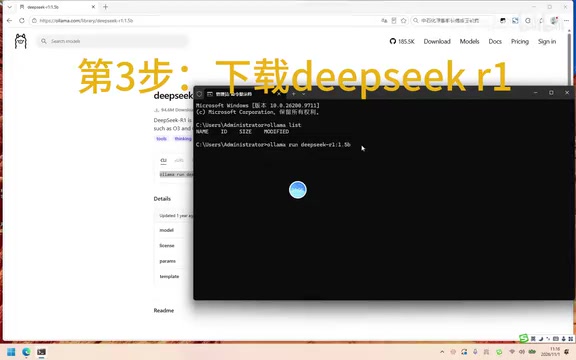
After the download completes, use ollama list to view the installed models, and you'll see DeepSeek is in place. You can also right-click the model file to check its properties and confirm it really landed in the D drive directory you set earlier, rather than the system drive.
Model parameter scale and hardware requirements are positively correlated: the more parameters, the stronger the reasoning ability, but the higher the demands on VRAM and RAM. 1.5B is the pragmatic choice for an ordinary PC; if you have a more powerful GPU, you can consider a larger version.
Making the Experience Friendly with Page Assist
In the Edge browser, go to the extension store, search for Page Assist, and add the extension. Pin it to the toolbar, and clicking it opens the main interface. In the settings in the upper right, first switch the language to Chinese, then handle two key configurations.
The first is installing a text embedding model. The tutorial suggests searching for an embedding model on the Ollama website, then copying the installation command into cmd to pull it. Embedding models are small in size, but their role is to let the tool understand the text users input more accurately, which improves answer quality. Once installed, go back to the Page Assist settings, select this embedding model, and save.
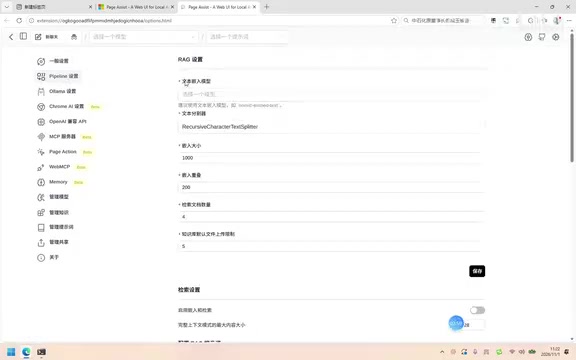
The second is building a local knowledge base. Under "Manage Knowledge" on the left, add new knowledge, choose a local text file to import, and after naming and submitting it, the system performs vectorization. If the file is small, processing is quick, and after that you have the ability to do Q&A based on your private documents.
Offline Testing and Knowledge Base Q&A
When creating a new chat, select the DeepSeek model and ask a question like the temperature, and you can see the answer is generated entirely by the local model. The author then directly disconnects the network, refreshes the page, and asks again—the feature works as usual. This is the most direct proof of the value of local deployment: it depends on no external service, and private data never leaves the machine.
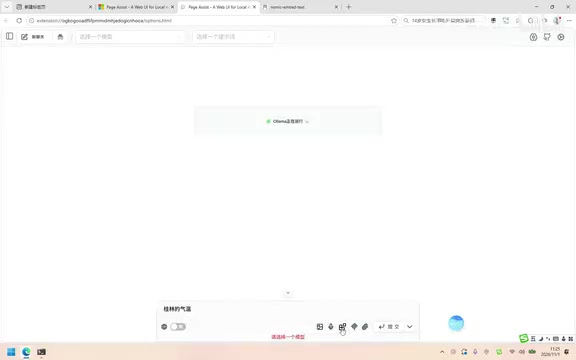
The knowledge base test is even more convincing. The author asks "Knowledge Base 1"—the imported knowledge base—about when a notice was published, and the model's answer after thinking matches the document content, showing that the retrieval-augmented (RAG) pipeline works locally: first find the relevant chunks from the knowledge base, then hand them to the model to organize an answer.
Retrieval-Augmented Generation (RAG): RAG means that before the model generates an answer, it first retrieves relevant chunks from an external knowledge base, then stitches those chunks into the prompt as context for the model. It solves the problems of large models' knowledge cutoff, inability to access private documents, and tendency to fabricate facts. The complete pipeline usually includes document splitting, vectorization and indexing, query vectorization, similarity recall, context stitching, and answer generation. Since both retrieval and generation happen on the local machine, the entire RAG pipeline can run offline—which is exactly why local knowledge base Q&A can protect privacy.
Who This Solution Is For
Its advantages are clear: zero API cost, data never leaves the machine, works offline, and all components are open source or free. Its limitations are equally obvious—small models at the 1.5B level have limited reasoning ability, with a considerable gap versus cloud-based large models on complex tasks; knowledge base retrieval quality also depends on the embedding model and document quality.
For users who want to experience local AI at low cost, handle sensitive documents, or need AI assistance in network-restricted environments, this Ollama + DeepSeek + Page Assist combination is a low-barrier, reproducible starting point. Just remember the main sequence for setup: first install Ollama and fix the model path, then pull the model, and finally use the browser extension to complete the interaction and knowledge base.
Related articles

AI Tools Quietly Altering Settings: Postman Silently Installs Plugin, Codex Sharing Option Auto-Resets
AI Daily reports: Postman silently installs a Mac plugin and self-approves startup hooks, logged as auto-existing upgrade; Hacker News developers say Codex data-sharing opt-out flips back. Plus Simon Willison's raw float weight experiment with QEN 3.8-27B.

AI Learns to Rewrite AI: MIT's "Weightspace Programming" Redraws the Path to Recursive Self-Improvement
MIT team proposes weightspace programming: GPT-6 Astra reads and edits AI model weights directly. Math scores jump several-fold, hand-written networks beat trained models. Eight experiments analyzed, plus Anthropic's same-day warning and the real boundaries of recursive self-improvement.

Running Qwen 3.8 on a Laptop to Read Raw Weights: 46 Minutes Per Answer
Simon Willison reproduced weight space programming with Qwen 3.8 27B on a laptop: a 17GB model file, 46 minutes per answer, 43,506 reasoning tokens, Pong over an hour, Freeway failed. Suited for interpretability researchers.