Ollama, LM Studio, or Chatbox — Which Should You Install? A Clear Guide

Ollama is the engine, LM Studio is the full car, Chatbox is the dashboard — pick what fits your needs.
Ollama, LM Studio, and Chatbox serve different roles in local LLM workflows. Ollama runs models as a backend service with an OpenAI-compatible API. LM Studio provides an all-in-one GUI for downloading, running, and chatting with models. Chatbox is a chat client that connects to either backend. Most users need just one setup: LM Studio alone for simplicity, or Ollama + Chatbox for extensibility.
Newcomers to local LLMs often dive into various tutorials and quickly encounter three names that keep popping up in the community: Ollama, LM Studio, and Chatbox. They all seem capable of chatting and connecting to local models, so many people just install all three. But here's the truth — installing more tools won't make your model smarter; it'll only confuse you.
This article clarifies the positioning, relationships, and use cases of these three tools once and for all, then gives you clear recommendations.
First, Remember This: They're Not Competitors
Many people mistakenly think Ollama, LM Studio, and Chatbox are three competing products with overlapping features. In reality, they serve completely different roles. Here's a simplified but intuitive analogy:
- The model file is the "expert": The model itself (e.g., Qwen) is what actually answers questions, but model files can't run on their own — software needs to load them into memory or VRAM for inference.
- Ollama is the "engine": It loads and runs models in the background and exposes a service endpoint.
- LM Studio is a "complete car with its own engine and dashboard": It can both load and run models AND provides a graphical interface for chatting directly.
- Chatbox is the "cockpit": In local model scenarios, it doesn't load models itself. Instead, it connects to Ollama's or LM Studio's service and handles conversation display and management.
Supplementary: The Relationship Between Model Files and Inference Engines
An LLM is essentially a set of mathematical parameters (weights) obtained through training on massive text datasets, typically stored in specific formats (such as GGUF, SafeTensors, etc.). These files are just static data and cannot perform inference on their own — like an encyclopedia sitting on a shelf that can't actively answer your questions. To make the model "think," an inference engine must load the weights into memory or VRAM, progressively compute the probability distribution of each token, and generate responses. This process involves matrix multiplication, attention mechanism calculations, and other compute-intensive operations, placing high demands on hardware (especially memory bandwidth and GPU compute power). Understanding this helps explain why the core job of Ollama and LM Studio is "getting the model running" — not just providing a chat window.
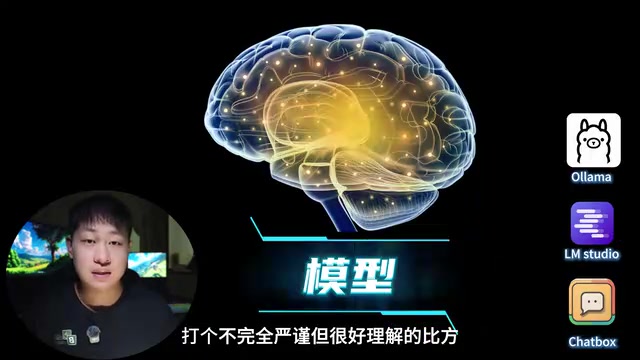
So instead of installing every component you can find, choose a combination that actually suits your needs.
Ollama: The Best Starting Point for Backend Services
Ollama's core value is often misunderstood by beginners as "a command-line chat tool." Its more important role is actually providing local model inference as a background service on your computer.
After installation, a single command downloads and runs a model (such as the Qwen series), with no need to re-download on subsequent launches. Once running, Ollama opens an endpoint on port 11434 locally.
Why This Endpoint Matters
Once running, Ollama starts an HTTP service locally, listening on localhost:11434 by default. Its API is compatible with OpenAI's Chat Completions format (/v1/chat/completions), meaning any tool originally designed for the OpenAI API — as long as it supports custom endpoint addresses — can switch to a local model with virtually zero modifications. This design philosophy stems from the "Unix pipe" mindset: each program does one thing well, then collaborates with others through standardized interfaces.
This unified interface means Ollama can be reused by numerous tools:
- Code tools (e.g., VSCode's Continue plugin, Cursor, and other AI coding assistants)
- Automation scripts (e.g., LangChain, AutoGen, and similar frameworks)
- Your own custom applications
- Chat clients like Chatbox
In other words, Ollama is especially suited for using local models as backend capabilities that other software can call. You can also use ollama ps to check which models are currently running and whether they're running primarily on CPU or in CPU/GPU hybrid mode.
The Difference Between CPU and GPU Inference
When Ollama shows a model "running on CPU" or "CPU/GPU hybrid," this reflects the hardware allocation strategy for inference computation. GPUs (especially NVIDIA CUDA cards) have thousands of parallel compute cores naturally suited for matrix operations, typically delivering inference speeds 5-20x faster than pure CPU. However, GPU VRAM is limited (consumer cards usually have 6-24GB), and when a model is too large to fit entirely in VRAM, some layers get "offloaded" to system memory for CPU processing — this is the so-called hybrid/partial offload mode. Apple Silicon (M1/M2/M3/M4) has a unique advantage with its unified memory architecture: CPU and GPU share the same high-bandwidth memory pool without data transfer overhead, making large model inference on Macs relatively efficient.
Pros: Straightforward deployment, lightweight overall, unified API, easy integration with other tools. Cons: First-time users facing command lines, model names, and endpoint addresses can understandably feel overwhelmed.
Verdict: If you want to use a local model as a backend service and plan to integrate it with tools, write code, or build automation later, Ollama is typically the better starting point.
LM Studio: Point-and-Click Simplicity
If the sight of a command line makes you want to close the window, LM Studio will be much easier to get started with. It puts model search, file sizes, downloading, loading, chatting, and parameter settings all inside a graphical interface.
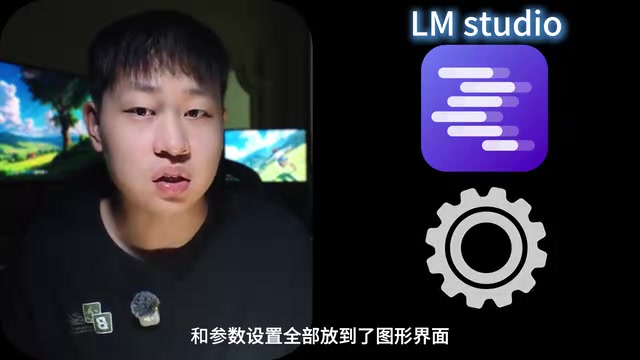
You can search for models directly, view different quantization versions, and click to download.
Understanding "Quantization" While We're At It
Quantization is essentially a compression method for models: the higher the compression, the smaller the file and the lower the hardware requirements — but with some loss in output quality.
Technically speaking, original LLM parameters are typically stored in FP16 (16-bit floating point) or even FP32. A 7B parameter model requires about 14GB of memory for weights alone. Quantization maps these high-precision values to lower-bit representations (such as 8-bit, 4-bit, or even 2-bit integers), dramatically reducing file size and runtime memory usage. Common quantization methods include GPTQ (requires GPU), AWQ, and GGUF format quantization from the llama.cpp ecosystem. In GGUF naming conventions, Q4_K_M means 4-bit quantization using the K-Quant method at medium precision — "K" stands for the grouped quantization strategy, and "M" stands for Medium, preserving more precision in important layers at the same bit level. Generally, Q4 quantization reduces model output quality by about 3%-5% (depending on the task) while nearly halving memory requirements — extremely friendly for consumer hardware.
For many newcomers, Q4_K_M is typically a balanced starting point between file size, speed, and quality.
The Relationship Between Parameter Count and Memory Requirements
One important reminder: don't just see Q4 and download blindly — first check whether the model's parameter count matches your available memory.
Rough estimate: at Q4 quantization, every 1 billion parameters (1B) requires approximately 0.6-0.7GB of memory/VRAM. So a quantized 7B model needs about 4-5GB, 14B needs about 8-10GB, and 70B requires 35-40GB or more. This covers just the model loading overhead; actual runtime also needs additional space for KV Cache (context cache), with longer context windows consuming more. If your computer has only 8GB of RAM and no dedicated GPU, start with Q4 quantized versions of 3B-7B models; 16GB RAM can comfortably run 7B-14B; 32GB or more is recommended before attempting larger models.
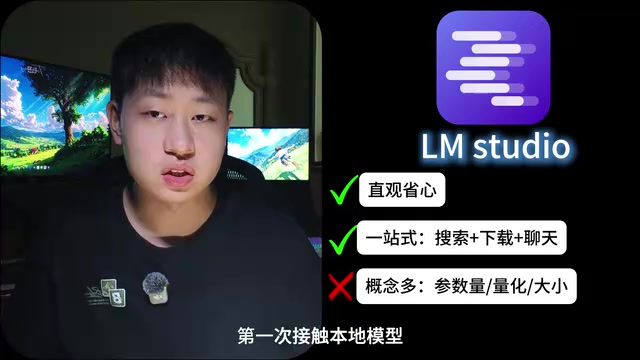
LM Studio Can Also Serve as a Backend
LM Studio isn't just chat software. In the Developer page, you can enable a local server that allows Chatbox or other programs to call it. Once models and necessary components are downloaded, core features like chatting and local server functionality work offline (downloading and updating the software still requires internet).
All inference computation happens entirely locally — conversation data is never sent to any external server. This is crucial for privacy-sensitive scenarios (such as processing company internal documents, personal diaries, medical records, etc.). This fundamentally differs from cloud services like ChatGPT or Claude, where every conversation must be sent to remote servers for processing.
Pros: Intuitive, hassle-free — search/download/load/chat/developer services all in one application. Cons: Feature-rich interface means first-time users need to understand parameter counts, quantization versions, and file sizes.
Verdict: If this is your first time with local models and you just want to quickly download a small model and start chatting, LM Studio is typically the most hassle-free choice.
Chatbox: The Most Misunderstood of the Three
In the local model workflow, Chatbox does not load or run models itself — it needs to connect to a running Ollama, LM Studio, or other model service.
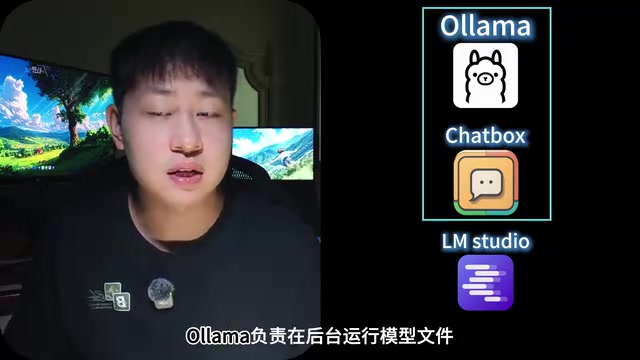
For example, after selecting Ollama as the model provider, as long as Ollama is running in the background, Chatbox can read the list of installed models and start chatting. But if Ollama isn't running in the background, Chatbox cannot invoke local models — once again demonstrating that the backend is always what's responsible for inference.
Chatbox primarily handles conversation display, session management, prompt management, and switching between multiple model providers. Its advantage is consolidating local models and various online models (such as OpenAI, Claude, Gemini, and other cloud APIs) into a single client, creating a unified conversation management hub. The downside is that in local model scenarios, installing Chatbox alone won't get a model running.
Verdict: If you're already using Ollama or LM Studio and genuinely need more comprehensive session management and chat experience, then consider Chatbox; otherwise, the backend's built-in interface may already be sufficient.
Two Most Common Practical Combinations
Based on the above analysis, here are two typical combinations for using Chatbox with local models:
Combination 1: Ollama + Chatbox
Ollama runs model files in the background; Chatbox handles the chat interface. This combination suits people who plan to integrate models with code tools, automation programs, or other applications later. Since Ollama's API is OpenAI-compatible, you can have multiple clients connect to the same Ollama instance simultaneously — for example, chatting with Chatbox on one side while a coding plugin calls the same model for code completion on the other.
Combination 2: LM Studio + Chatbox
First load a model in LM Studio and start the local server, then enter the displayed API address into Chatbox. But ask yourself first: if LM Studio's built-in chat page is already sufficient, do you really need another layer of Chatbox? Without needs for unified multi-model management, session organization, or cross-platform support, there's no need to add an extra layer.
Match Your Needs: How to Choose
More tools don't mean stronger local AI capabilities. What truly determines response quality is still the model itself, quantization version, context settings, and your computer hardware. Tools are just vehicles — don't get your priorities backwards.
Match your needs directly:
- No command-line experience, just want to download a small model and chat → Choose LM Studio
- Want to integrate with code tools, automation scripts, or develop your own apps → Choose Ollama
- Already running Ollama or LM Studio, just want a better chat client → Choose Chatbox
- Advanced user frequently testing different backends, models, and APIs → Install all three if you want
The advice to "not install all three" is aimed at beginners who haven't figured out their needs yet. The most common setups are really just two: either LM Studio standalone (simple and hassle-free), or Ollama + Chatbox (balancing extensibility with chat experience). Figure out your needs first, then install — that's how you avoid getting confused.
Key Takeaways
Related articles

Chain of Thought Isn't Just for AI: How Humans Can Use CoT to Improve Thinking Quality
Chain of Thought isn't just a prompt trick for large models. Starting from a Hacker News discussion, this article analyzes why CoT works for human thinking too, breaks down actionable ways to transfer it, and highlights the key differences between human CoT and machine CoT.
Cloudflare Teams Up with OpenAI: Closi…
Cloudflare Teams Up with OpenAI: Closing the Loop from Vulnerability Discovery to Defense with AI
Cloudflare uses OpenAI Daybreak to investigate security vulnerabilities and generate reviewable remediation plans, while developers use Codex to boost coding efficiency and quality.

Orca Multi-Agent Orchestration in Practice: A Guide to Parallel Collaboration with Claude and Codex
Orca is Stable AI's free open-source agent workbench supporting 34 agents like Claude Code and Codex in parallel. Learn its Git worktree isolation, multi-model orchestration, and mobile management.