Ollama Local LLM Deployment Guide: Run Models on Just 6GB VRAM

Deploy LLMs locally with Ollama in 4 steps — matching the model to your VRAM is the key.
This article debunks a common misconception about "local DeepSeek deployment" — what personal computers actually run are distilled or quantized smaller models, not the full version requiring hundreds of gigabytes of VRAM. Using Ollama as the tool, it walks through a complete 4-step workflow: download and install, set storage path, pull a model via terminal, and start chatting. It also provides a tiered model selection guide by VRAM: entry-level (0.6B–2B) needs just a few hundred MB, the sweet spot (8B–14B) sits at 6–10GB, and 24GB VRAM can handle 32B models. The demo uses Qwen3 VL 2B for its multimodal capability and low VRAM footprint. The core value of local deployment lies in privacy and offline use — not chasing the largest model.
Want to run a large language model on your own machine but get scared off by VRAM requirements? This tutorial — based on a hands-on walkthrough from a Bilibili creator — breaks down the complete process of deploying LLMs locally with Ollama, and clears up a common misconception: what's running on your PC is never the full version of DeepSeek.
The Truth About "Local DeepSeek Deployment"
After DeepSeekAd exploded in popularity, "local deployment" became a hot topic — but most people have the wrong idea about what that actually means. The full DeepSeek model simply cannot fit on a personal computer. Running it properly requires hundreds of gigabytes of VRAM — we're talking server-grade hardware. Some people tried using system RAM to compensate, only to find the speed completely unusable.
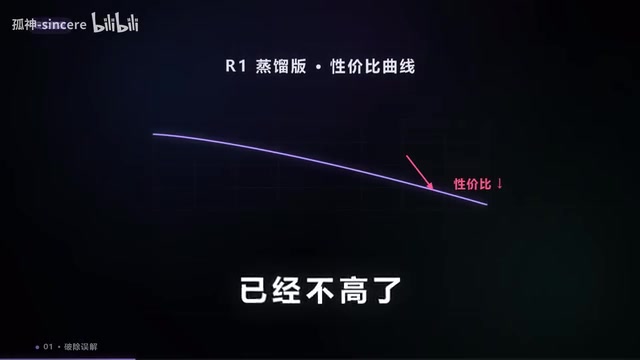
What people actually run when they "deploy DeepSeek locally" is a distilled, smaller version — specifically the R1 distilled models. And at this point, the R1 distilled models aren't even the best bang for your buck anymore, for two reasons: the DeepSeek team has stopped releasing new distilled models, and the community's quantized and distilled models have advanced rapidly, far surpassing those early distilled versions in capability. In other words, rather than fixating on "deploying DeepSeek," you're better off just picking the most suitable open-source model available today.
Knowledge Distillation is a technique for transferring the "knowledge" of a large model into a smaller one. Simply put, a small model (the student) learns to mimic the output behavior of a large model (the teacher), retaining as much capability as possible while drastically reducing parameter count. DeepSeek's R1 distilled versions use exactly this approach — extracting smaller models at scales like 7B and 14B from the full R1, making them runnable on consumer-grade GPUs.
Quantization is a separate compression technique: model weights are converted from high-precision floating-point numbers (e.g., FP16, 2 bytes per parameter) to low-precision integers (e.g., INT4, just 4 bits per parameter), reducing storage size by 4–8× and improving inference speed, at the cost of a slight loss in precision. Most community models in the popular GGUF format have been quantized — which is why a "14B model" might only need around 8GB of VRAM to run.
Choosing a Model by VRAM: From a Few Hundred MB to 24GB
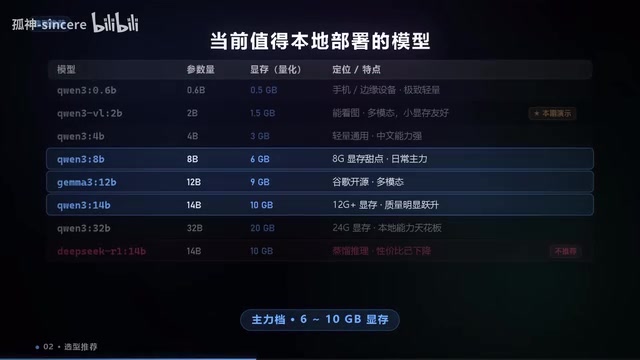
The most important step before deployment is matching your model to your hardware. Here's a tiered guide based on the creator's recommendations, with the core principle being: work within your means.
Entry Tier: Runs on Just a Few Hundred MB
Qwen3's 0.6B and 2B models require only a few hundred megabytes of VRAM and are perfect for older machines or users who just want to try out the workflow.
Main Tier: 6–10GB VRAM
Models with 8B to 14B parameters run comfortably on 6–10GB of VRAM and deliver a solid experience. This is the sweet spot for most mainstream GPU users — a good balance of capability and performance.
High-End Tier: 24GB VRAM
32B models on 24GB VRAM represent close to the ceiling of local deployment performance — ideal for high-end GPU owners chasing maximum capability.
For this tutorial's demo, the model of choice is Qwen3 VL 2B, for two reasons: it's a multimodal model capable of understanding images, and at just 2B parameters, it runs smoothly on low-VRAM machines — making it a great fit for demonstrating the full workflow.
The B in model names stands for "Billion" parameters — so 2B means 2 billion parameters, and 14B means 14 billion. More parameters generally means more knowledge and stronger reasoning, but VRAM and RAM requirements scale up proportionally. Note that when VRAM is insufficient, Ollama will automatically offload part or all of the model to system RAM or even disk, which allows it to run but drastically reduces speed — RAM has far less bandwidth than GPU VRAM, and disk is even slower. The performance gap is very noticeable. When selecting a model, try to ensure the quantized file size doesn't exceed about 85% of your available VRAM, leaving some headroom.
The Complete Ollama Deployment Walkthrough
Ollama is one of the easiest tools for running LLMs locally. The entire process breaks down into a few clear steps.
Step 1: Download and Install Ollama
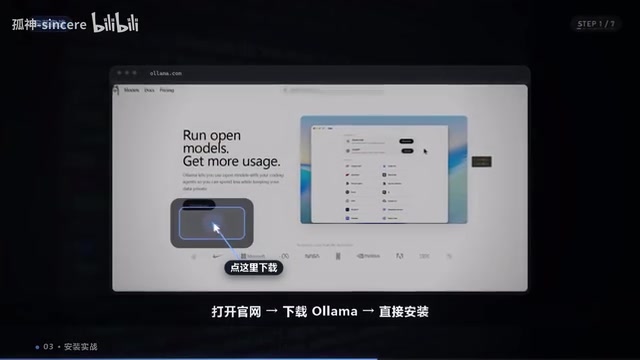
Head to the Ollama official website, download the installer, and run it. No extra configuration needed during installation.
Step 2: Set Your Model Storage Location
After installation, right-click the Ollama icon in the system tray and open Settings. Here you can customize where models are stored. Avoid saving to your C drive — once you accumulate a few models, your system drive will fill up fast. Settings are saved automatically; just close the window. This step is easy to overlook but makes a big difference for long-term use.
Step 3: Pull a Model
Right-click the Windows Start button and open Terminal. Type the appropriate pull command and press Enter, then wait for the model to download. Download time depends on model size — entry-tier models take just a few minutes, while larger ones will take longer.
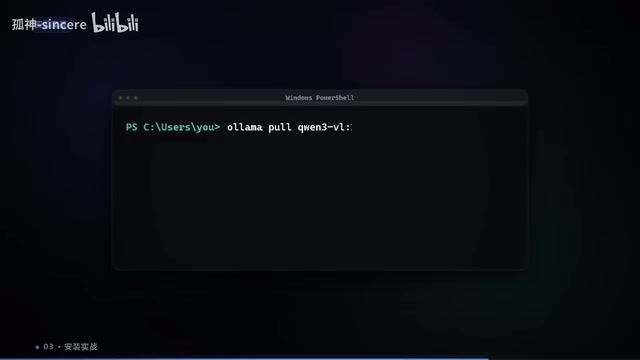
The Ollama pull command format is
ollama pull <model-name>— for example,ollama pull qwen3:2b. Model names and tags can be found on the Models page of the Ollama website; different tags correspond to different quantization levels or parameter sizes. Once downloaded, useollama listto see all locally installed models, andollama rm <model-name>to delete models you no longer need and free up disk space. If you want to chat directly in the terminal without opening a GUI, you can also useollama run <model-name>to launch an interactive session.
Step 4: Start Chatting
Once the model is downloaded, right-click the Ollama icon and click Open Ollama. Select Chat from the left sidebar, choose Qwen3 VL 2B from the dropdown, and you're ready to go. The local interface looks almost identical to the DeepSeek web app — and it works offline, with all your data staying on your own machine. Privacy is one of the biggest advantages of local deployment.
Is Local Deployment Worth It?
Looking at this workflow, Ollama has dramatically lowered the barrier to local LLM deployment — most users can follow these steps without getting stuck. Its real value isn't about "running the biggest model" — it's about data privacy, offline availability, and the freedom to tinker.
If you just want casual conversation, online models through a web interface will generally give you a better experience. But if you care about keeping your data local, or want to connect a model to your own applications via API for more advanced development, local deployment becomes uniquely valuable. Picking the right model for your hardware is the essential prerequisite for a smooth local experience.
Related articles

Chain of Thought Isn't Just for AI: How Humans Can Use CoT to Improve Thinking Quality
Chain of Thought isn't just a prompt trick for large models. Starting from a Hacker News discussion, this article analyzes why CoT works for human thinking too, breaks down actionable ways to transfer it, and highlights the key differences between human CoT and machine CoT.
Cloudflare Teams Up with OpenAI: Closi…
Cloudflare Teams Up with OpenAI: Closing the Loop from Vulnerability Discovery to Defense with AI
Cloudflare uses OpenAI Daybreak to investigate security vulnerabilities and generate reviewable remediation plans, while developers use Codex to boost coding efficiency and quality.

Orca Multi-Agent Orchestration in Practice: A Guide to Parallel Collaboration with Claude and Codex
Orca is Stable AI's free open-source agent workbench supporting 34 agents like Claude Code and Codex in parallel. Learn its Git worktree isolation, multi-model orchestration, and mobile management.