Ollama Local LLM Deployment Tutorial: From Installation to GUI Client

Ollama is the easiest-to-use local LLM running tool, but has shortcomings in model management and new tech adoption.
The article systematically covers the complete process and hands-on experience of running local LLMs with Ollama. Installation is one command on all three platforms, with GUI clients on Mac and Windows. Models come via three paths: official library pulls, one-command single-file GGUF import, and manual Model File creation plus ollama create for sharded GGUF or SafeTensors. The GUI connects to tools like OpenCode via presets, and WebSearch enables internet retrieval. Windows users must change the default storage location to avoid filling C drive. Ollama wins on simplicity and privacy, but has weak model management and conservative tech adoption—turn to llama.cpp or vLLM for flexibility.
Title
Ollama Local LLM Deployment Tutorial: From Installation to GUI Client
Meta Description
A complete tutorial for deploying local LLMs with Ollama: installation on three platforms, importing GGUF and SafeTensors models, connecting GUI clients to OpenCode and WebSearch with hands-on testing, plus key settings like model storage paths and selection advice.
Article Content
The demand for running LLMs locally is growing fast, but many people get stuck at the very first step: how do you actually get a model running? Ollama is currently one of the lowest-barrier options—a single command spins up a local inference environment on Mac, Windows, and Linux.
But simple doesn't mean hassle-free. Where models come from, how to import them, what the GUI can and can't do—these issues surface gradually in use. Below is a complete breakdown based on hands-on testing experience.
Installation and Environment Setup
Ollama's installation process is extremely straightforward: run the corresponding command for your operating system, and all three major platforms—Mac, Windows, and Linux—are supported. Once the command finishes, you have a complete Ollama environment on your machine, ready to run local models with no additional configuration.
Mac and Windows users can also use the official GUI client in addition to the command line. This means even people with no programming background can get started—which is a core reason Ollama is so widely recommended.
But one boundary needs to be clear: the framework and the model are two different things. Ollama is only responsible for running the model; which model to run is up to you.
Three Paths to Getting Models and Their Pitfalls
Option 1: Pulling Directly from the Official Model Library
The simplest approach is to go to the Ollama official model page, select a model, and run ollama run model-name, which automatically downloads the weights and enters inference.
The problem: most high-quality models that consumer hardware can run are quantized, and official support for quantized versions lags noticeably—some quantized versions aren't even listed.
Quantization is the technique of compressing model weights from high precision (e.g., FP16) to lower precision (e.g., 4-bit, 8-bit), with the goal of reducing VRAM and memory usage by several times while preserving model capability as much as possible, so that consumer GPUs or even pure CPU can run large models. Common GGUF quantization formats include Q4_K_M, Q5_K_M, Q8_0, etc.—the smaller the number, the smaller the file size and the greater the precision loss. The official model library usually prioritizes full-precision or officially recommended quantized versions; community-quantized versions update faster and offer more choices, but users need to manually obtain them from platforms like Hugging Face and import them—this is the context behind the article's mention of "official support for quantized versions lagging."
Option 2: Single-File GGUF Import with One Command
If the model you want to run is a single-file GGUF format, you can still use one ollama run command on Hugging Face or ModelScope to complete download and inference—a smooth experience.
Option 3: Sharded GGUF or SafeTensors Requires Manual Import
Importing sharded GGUF models or SafeTensors models isn't as convenient—you first need to create a Model File specifying the model path, then run ollama create to complete the import.
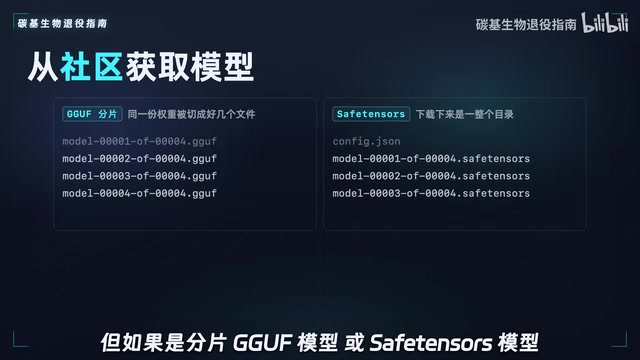
What draws even more criticism: as of 2026, Ollama's GUI still doesn't support importing local models. Weak model management is one of its most obvious shortcomings: manually creating Model Files is cumbersome and unfriendly to users unfamiliar with the command line.
GGUF is a single-file model format introduced by the llama.cpp project that packs weights, tokenizer configuration, quantization parameters, and more together for easy distribution and loading; when a model is large, it gets split into multiple .gguf shards (e.g., model-00001-of-00004.gguf), which need to be merged in order or all pointed to for correct loading. SafeTensors is a tensor storage format led by Hugging Face that stores only data without executing code—safer than traditional PyTorch .bin files and currently the mainstream format for open-source model releases. Neither is directly compatible with the Modelfile system Ollama uses internally, so you need to first write a Modelfile declaring the FROM path, template, and parameters, then use ollama create to convert it into a model Ollama can recognize—which is why importing sharded models and SafeTensors can't be done with a single command.
Hands-On Testing the GUI Client: From Apps to Chat
The official GUI client was created to lower the barrier for ordinary users. The client's Apps page lists a large number of common AI tools, and Ollama provides preset integration methods for these tools so you can call local models directly from other tools.
Take OpenCode as an example: click OpenCode, copy the command, paste and execute it in the terminal, then select one of your existing local models—the test used Qwen3.5 0.8B, a model of this size that can run on pure CPU on the vast majority of Windows and Mac devices even without a discrete GPU.
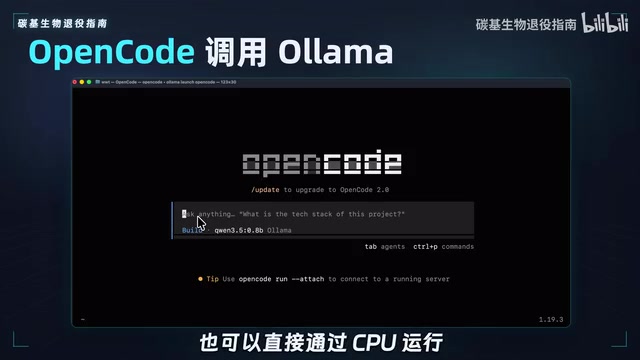
Reaching the interactive interface means OpenCode has successfully connected to Ollama; the model name will be tagged with the Ollama logo.
How OpenCode Connects to Ollama
The integration principle isn't complicated. Find the OpenCode process ID and check the Config Content in its environment variables—you'll see the JSON configuration has Provider pointing to Ollama and BaseURL set to Ollama's default local service address.
If you want to use the same configuration in your own project, save this JSON as opencode.json in the project root directory, and the client will automatically read it each time you enter the project.
BaseURL is the base address field in the OpenAI-compatible API specification; clients append paths like /v1/chat/completions to it when making requests. Ollama provides an OpenAI-compatible interface on local port 11434 by default, so by pointing Provider to Ollama and setting BaseURL to the local address, any client supporting custom Providers can reuse the same protocol to access local models. This is also the core value of the Ollama ecosystem: it's not just an inference runtime but also a standard gateway between local models and upper-layer tools—OpenCode, Continue, and various IDE plugins all connect through this layer.
WebSearch: Internet Access for Local Models
Back on the Ollama client's Chat page, this is a conventional AI chat interface, but the WebSearch feature deserves separate mention.
The test was straightforward: with WebSearch off, asking about the weather, the model said it couldn't get real-time data; with it on, asking the same question again, the model recognized the websearch_search tool and actively called it, completing the web search.

Model switching is also done on the Chat page. Models not yet downloaded in the list are automatically downloaded; those with a cloud icon on the right are cloud models that require logging into an Ollama account to use.
A Setting You Must Check: Model Storage Location
Open the Settings page—Model Location is something Windows users must confirm.
Ollama stores models by default in the C drive user directory, and large model weight files are at least several GB, sometimes tens of GB. After downloading a few models, filling up C drive space is almost inevitable. It's recommended to migrate the path before batch-downloading models.
Pros, Cons, and Scope of Application

Ollama's core advantage is very clear: ollama run runs large models locally with a single command, zero-config installation, three-platform coverage—it's currently one of the simplest and most mature options. All inference happens locally, data never leaves the device, and both privacy and offline availability are guaranteed.
The drawbacks are equally clear:
- Weak model management: manually creating Model Files is troublesome, and the GUI doesn't support local model import
- Conservative adoption of new technologies: take Apple GPU-optimized MLX framework as an example—Ollama took a long time to begin supporting related technologies
- Not a fully independent project: relies heavily on contributions from open-source projects like llama.cpp
Selection advice can be summed up in one sentence: if you just want to run models locally or set up a simple API service and don't plan to tinker with advanced features, Ollama is sufficient; if you need richer features, more flexible configuration, or want to try the latest models first, frameworks like llama.cpp and vLLM are more suitable.
The local inference framework ecosystem is still rapidly differentiating—llama.cpp, OMLX, MLXServe, vLLM, and SGLang each have their own focus, and each deserves a separate breakdown later.
llama.cpp is a low-level inference engine written in C/C++; the GGUF format and many quantization algorithms originate from this project. It's characterized by being lightweight, portable, and broadly supportive of hardware backends (CPU, CUDA, Metal, Vulkan), but requires self-compilation or parameter configuration, with a higher barrier than Ollama. vLLM targets high-concurrency server-side scenarios, with PagedAttention VRAM management and continuous batching at its core; throughput is far higher than single-machine inference frameworks, making it suitable for deploying API services, but it has higher VRAM requirements and mainly targets NVIDIA GPUs. MLX is an array computation framework designed by Apple for Apple Silicon that can fully leverage the unified memory architecture, and tools like MLXServe provide inference services on top of it. Understanding these positioning differences makes it clear that Ollama's "simplicity" comes at the cost of low-level tunability.
One-line Summary
Ollama is the easiest-to-use local LLM running tool, but it has shortcomings in model management and adoption of new technologies.
Paragraph Summary
The article systematically walks through the complete process and hands-on experience of running local LLMs with Ollama. Installation is a single command on all three platforms, and Mac and Windows also offer GUI clients. There are three paths to getting models: pulling directly from the official library, one-command import of single-file GGUF, and manual Model File creation plus ollama create for sharded GGUF or SafeTensors. The GUI client can connect to tools like OpenCode via preset configurations, and WebSearch gives local models internet search capability. Windows users must change the default model storage location in advance to avoid filling the C drive with weight files. The author notes that Ollama wins on simplicity and privacy protection, but has weak model management, conservative adoption of new technologies, and dependence on llama.cpp—those seeking flexible configuration should turn to llama.cpp or vLLM.
Related articles

Chain of Thought Isn't Just for AI: How Humans Can Use CoT to Improve Thinking Quality
Chain of Thought isn't just a prompt trick for large models. Starting from a Hacker News discussion, this article analyzes why CoT works for human thinking too, breaks down actionable ways to transfer it, and highlights the key differences between human CoT and machine CoT.
Cloudflare Teams Up with OpenAI: Closi…
Cloudflare Teams Up with OpenAI: Closing the Loop from Vulnerability Discovery to Defense with AI
Cloudflare uses OpenAI Daybreak to investigate security vulnerabilities and generate reviewable remediation plans, while developers use Codex to boost coding efficiency and quality.

Orca Multi-Agent Orchestration in Practice: A Guide to Parallel Collaboration with Claude and Codex
Orca is Stable AI's free open-source agent workbench supporting 34 agents like Claude Code and Codex in parallel. Learn its Git worktree isolation, multi-model orchestration, and mobile management.