Open-Source Plugin DSH Notify Song Plus: Let AI Call You Back When It's Done

DSH Notify Song Plus uses sounds and system notifications to free you from watching AI tasks run.
DSH Notify Song Plus is an open-source plugin for DeepSeek Harness (MIT license) that eliminates the need to watch the screen during long AI tasks. It plays four tonally distinct alerts — synthesized via Web Audio API with no audio files bundled — for task complete, needs answer, needs authorization, and error events. Sound and system notifications operate as independent channels, with per-event configuration, custom audio upload, smart deference to other plugins, and a UI that mirrors DSH's native design.
Why You Need a Plugin That "Calls You Back"
Anyone who uses AI to write code has probably experienced this: once a task starts running, you're glued to the screen. If it takes a few minutes, you keep switching back to check whether it's done; if you try to do something else in the meantime, you risk missing a question the AI throws at you — and if you don't answer, the whole task just sits there waiting.
DSH Notify Song Plus is a plugin built to solve exactly that problem. It adds notification sounds and system notifications to DeepSeekAd Harness (DSH): when a task finishes, when it needs your input, or when it needs your authorization, it actively calls you back. Even if you've switched to another app, the notifications still come through. The plugin is open-sourced on GitHub under the MIT license and works on both web and desktop.
The core idea is straightforward: replace "staring at the screen waiting for results" with "step in only when it's your turn," freeing human attention from pointless polling.
Four Event Types, Four Distinct Sounds
The plugin's most essential feature is using sound to distinguish between task states. The author designed four tonally distinct alert sounds — one listen is enough to know what's happening:
- Task complete: A descending two-tone chime — crisp and clean;
- Needs your answer: An ascending three-tone sequence — the pitch rises, like it's prompting you;
- Needs authorization: A low triple tone — with a knock-on-the-door urgency;
- Error occurred: A low, falling tone — you know immediately something went wrong.
Several alternate sounds (ding-dong, chime, soft tone, etc.) are also available. Notably, all sounds are synthesized in real time using the Web Audio API — no audio files are bundled in the package, keeping the install size extremely small. This is an engineering detail that's easy to overlook but shows real craftsmanship.
The Web Audio API is a native browser interface for audio processing. It lets developers describe oscillator waveforms, frequencies, and envelopes directly in JavaScript, generating sounds dynamically at runtime without any pre-recorded or stored audio files. Compared to the traditional approach of bundling MP3/WAV assets, real-time synthesis offers more than just a smaller footprint — sound parameters can be precisely programmed. For example, "ascending three-tone" means the code hard-codes three increasing frequency nodes and time intervals, ensuring the tonal progression is identical every time it fires, with no risk of silence due to failed file loads or format incompatibility. This is also why the plugin can reliably deliver four sounds you can tell apart at a glance — each sound's pitch direction, duration, and timbre are carefully designed parameter combinations, not randomly chosen ringtone clips.
Sound and System Notifications: Two Independent Channels
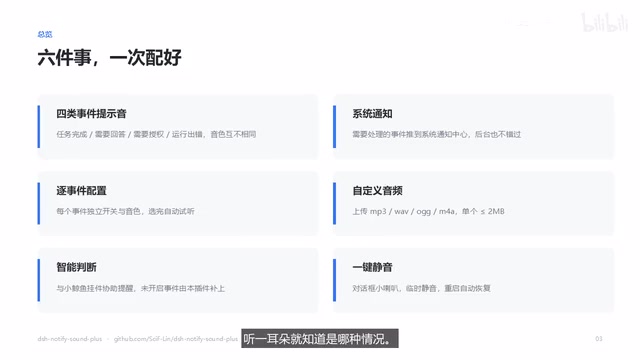
Among the six things the plugin does, system notifications are the second — events that require your attention are pushed to the system notification center, so you receive them even if you've switched to another app.
There's a key design decision here: sound and system notifications are two completely independent channels. The sound channel has per-event toggles and a volume control, and can be temporarily muted via the speaker icon. The system notification channel has its own master switch and is unaffected by muting.
The author explains the reasoning: muting means "I'm right here at my computer, no need to make noise"; but if you've already switched away and aren't looking at the screen, system notifications become more important. To reduce noise, only actionable events are pushed by default — needs your answer and needs authorization; task complete and error are not pushed. This distinction between use cases is far more nuanced than a simple global toggle.
System notifications rely on the Notifications API provided by the browser or operating system. On the web, the browser requests user permission and then pushes messages to the OS notification center via new Notification(); on the desktop (Electron wrappers, etc.), it can call the native system notification interface directly. This means even if the user switches to another app, minimizes the window, or locks the screen, messages will still appear as long as the system notification center hasn't been manually disabled. On first use, the browser will prompt for permission — users need to click "Allow" for notifications to work. If permission was previously denied, it must be re-enabled in the browser's site permission settings.
Per-Event Configuration
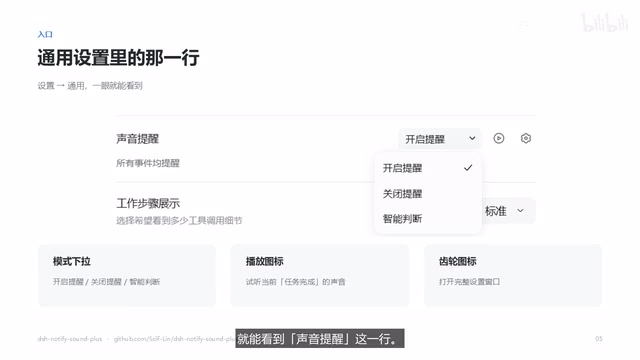
The settings entry is found under Settings → General, in the "Sound Alerts" row. On the left is a mode dropdown to enable or disable alerts; the play icon in the middle lets you preview sounds; the gear icon on the right opens the full settings window.
The full settings window is organized into several groups: the first group, "Alerts," gives each of the four events its own toggle, sound dropdown, and preview button, along with a volume slider and a "Do not alert when in foreground" option. The second group is the master system notification toggle. The third group handles custom audio, supporting uploads in MP3, WAV, OGG, and M4A formats, up to 2MB per file.
Per-event configuration means you can, for example, have only "needs authorization" make a sound while everything else stays silent — a very fine level of granularity. If a custom audio file is deleted, any events using it automatically fall back to the default sound instead of going silent. That fallback handling is a thoughtful touch.
Quick Mute and Smart Conflict Avoidance
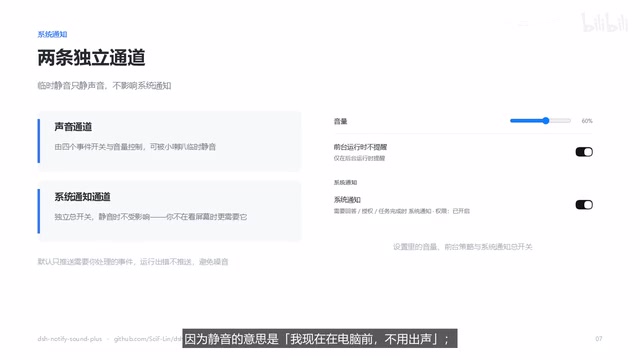
The quick mute toggle is the speaker icon in the lower-left corner of the chat input area. One click silences the sounds; another click restores them. Note that it only silences sounds — system notifications continue as normal. Even more considerate: the toggle automatically resets after a restart, so you don't have to worry about accidentally leaving it muted and missing alerts for days.
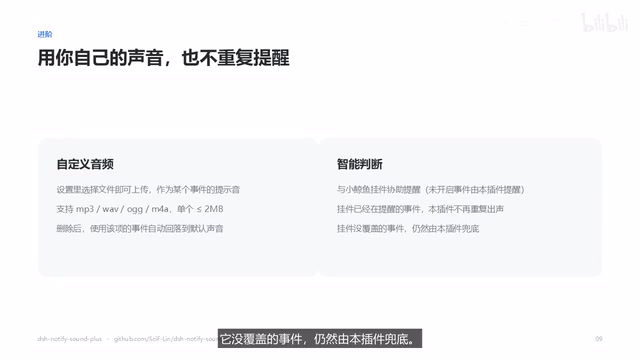
Another advanced feature is smart detection: if you have the Whale Balance widget installed and it's already alerting for a given event, this plugin won't fire for that same event — but it will still cover events the other plugin doesn't handle. The two plugins won't sound off simultaneously. This kind of active deference to other plugins in the ecosystem reflects a rare restraint in plugin design.
An Interface That Looks Like It Belongs
The author spends dedicated time in the demo video discussing the UI design — and it's one of the things that sets this plugin apart from most add-ons that are obviously third-party at a glance. Many plugins use raw browser-native dropdowns and boxy checkboxes that immediately look unofficial.
DSH Notify Song Plus takes a different approach, aligning with the official implementation: dropdown menus match the official card-style menu with consistent option row heights, using a checkmark on selected items rather than a color change; toggles match the official switch component with a 36×20 track, a 16px rounded slider, and a 16px shift on activation; icons are reused directly from the official artwork; the settings window is 600px wide, with corner radii and shadows pulled from the official design variables. The result looks like a built-in DSH feature.
This level of attention to detail is rare in third-party plugins, and reflects the author's commitment to a non-intrusive, native-feeling experience.
Installation
Installation is straightforward — a single command does it: use the web version command for the browser, or swap web for desktop for the desktop client. Restart DSH after installing and it's ready to go. If you'd rather not use the command line, you can download the installer from Releases, or simply pass the repository URL to an AI and let it handle the install. Once installed, you can enable or disable the plugin directly from the plugin manager.
The plugin is open-sourced on GitHub under the MIT license. The author welcomes stars and issues.
Summary
DSH Notify Song Plus fundamentally addresses "waiting anxiety" in AI workflows — it uses sound and notifications to free users from passive polling, so you can confidently switch away and do something else. What's truly compelling isn't the feature list itself, but the details: sound and notifications on separate channels, quick mute that auto-resets on restart, smart deference to other plugins, and a UI that closely mirrors the official design spec. For users who frequently run long tasks in DSH, this is a lightweight productivity tool worth trying.
Related articles

Gaussian Process Bandit Optimization: Exploration Strategies and Inference Regret Guarantees
Cumulative regret guarantees in Bayesian optimization fail to reflect final recommendation quality. This article examines a new study that provides inference regret guarantees for Gaussian process bandit optimization through exploration query strategies and fill distance analysis, validated on hyperparameter optimization and control tasks.
The Most Detailed Codex Guide on Bilibili: From Installation to Real-World Practice
The most detailed Codex guide on Bilibili: from app store installation to daily work mode configuration, with a real coffee shop project demonstrating file organization, data extraction, dashboard creation, and other practical tasks. Learn to use Plan Mode and desktop pets to leverage Codex efficiently.

Appearance Compensation in Volume Rendering: Why RGB Accuracy Cannot Guarantee Density Correctness
Volume rendering research reveals that volumetric data perfectly reproducing external RGB views may still contain density errors: appearance compensation can double central density and keep external rays unchanged even when L2 error exceeds 14.52%. Density recovery depends on appearance capacity, spatial resolution, and measurement design.