OpenAI Agents SDK in Practice: Runner, Tools, and Your First AI Agent

A hands-on OpenAI Agents SDK tutorial: from API key setup to Runner execution, the tool system, and cost management.
This article provides a systematic introduction to OpenAI's official Agents SDK. The SDK is provider-agnostic, supports over 100 LLMs, and offers both Python and JavaScript versions. It covers API key acquisition (requiring separate credit purchase on the platform, as regular ChatGPT accounts don't work) and secure configuration (.env + .gitignore), virtual environment setup, one-line Agent creation, Runner's three execution modes (run_sync, run+await, run_stream), and the RunResult object's role in token cost tracking and architecture visualization. The tools section distinguishes Hosted Tools from custom function_tool, culminating in a hands-on TODO task assistant that walks through the complete flow of adding/listing tasks and local task.json persistence. The core conclusion: this SDK's real value lies in embedding enterprise-grade agent observability, orchestration, cost, and governance directly into the framework.
From Multiple Agent Frameworks to the OpenAI Agents SDK
Over the past few weeks of learning, we've built AI agents using core Python, local LLMs (Llama + Ollama), and Google's SDK. Now it's OpenAI's turn with their official Agents SDK — designed as a relatively lightweight yet fully-featured framework aimed squarely at enterprise-grade agent applications.
According to the tutorial, the OpenAI Agents SDK has several noteworthy features. It's primarily built on OpenAI's completion methods, but doesn't lock itself into OpenAI: it supports over 100 different LLM models and is designed to be provider-agnostic, so third-party APIs like Claude, Gemini, and Grok can all be integrated. It also includes a fairly powerful multi-agent orchestration architecture, which serves as the foundation for more advanced content later on.
The SDK is available in both Python and JavaScript versions. The tutorial explicitly recommends prioritizing official documentation and the official GitHub repository over third-party tutorials when learning — because official sources are more reliable, and the vast majority of concepts covered in this series come from official documentation.
Getting an API Key: A ChatGPT Account Isn't Enough
To use the Agents SDK, you must first obtain an OpenAI API Key. There's an easily overlooked pitfall here: a regular ChatGPT account cannot directly obtain an API Key. You need to separately log into the OpenAI API platform (the platform interface) and purchase at least $5 in credits before you can start making calls and experimenting. The tutorial author considers $5 quite sufficient for experimental purposes.
The API Keys panel can be found in the left menu of the platform, where all created keys are listed. There are several key options when creating a new key:
- Key name: It's recommended to use a semantically clear name (e.g., learning key) for easy identification and cleanup later
- Project: You can assign it to a custom project or leave it in the default project
- Expiration: This is required, with options of 1 day, 7 days, 30 days, or custom, including never. The tutorial author strongly recommends not choosing never, but instead setting a reasonable expiration to avoid misuse if the key is lost
- Permission restrictions: You can disable tracing, voice, and other features as needed, or set it to read-only
Once created, the key is only displayed once and must be copied and saved immediately — it cannot be viewed again afterward.
Installation and Environment Setup
Environment isolation is the first step. The tutorial demonstrates creating a virtual environment with python -m venv openai_env, then activating it and running:
pip install openai-agents
This command installs all dependencies required by the Agents SDK. The tutorial also installs a viz package for visualization (optional).
Managing Secrets with .env
A key engineering habit: never write API keys into code or commit them to GitHub. The standard practice is to use a .env file with the variable name strictly as OPENAI_API_KEY — if the name is wrong, the SDK won't recognize it. You must also ensure .gitignore is properly configured to prevent keys from being pushed out.
All code reads the key by loading the environment, with no plaintext keys appearing anywhere in the code.
Creating Your First Agent with One Line of Code
The code to create an Agent is extremely concise:
from agents import Agent, Runner
agent = Agent(
    name="teacher",
    instructions="You are an experienced Python teacher",
    model="gpt-4o-mini"
)
That's everything needed to create an Agent — just specify the name, role instructions, and model. The tutorial chose gpt-4o-mini because it's cheap enough for experiments while still being reasonably capable.
When choosing a model, the official documentation provides a clear comparison table including context window, input/output token pricing, and supported data types. The tutorial specifically reminds: output capabilities are not the same across all models — for example, gpt-4o-mini supports text and image input, but output is text-only. If your project needs to generate images, video, or audio, you'll need to choose a different model.
Running the Agent with Runner
After creating the Agent, execute it via Runner.run:
result = await Runner.run(agent, "How does async work in Python?")
print(result.final_output)
The SDK connects to OpenAI's servers and returns the result, with result.final_output giving you the final answer.
The Three Execution Modes of Runner
Understanding Runner's execution modes is key to using this SDK. The tutorial does a comparative analysis using synchronous calls.
Synchronous Call: run_sync
A synchronous call means that after sending a request, you must wait for the Agent to return a result, during which all other operations are blocked. If multiple agents are running, the others can only wait until the first one finishes.
Call it with Runner.run_sync, which returns a response immediately. Note that synchronous calls cannot run in Jupyter Notebook, because the Notebook lacks the necessary event loop. It must be executed in a terminal using a regular Python file. The tutorial demonstrates running python sync_call.py in the terminal and successfully getting output.
Asynchronous Call: run + await
Asynchronous calls use Runner.run, but must be paired with the await keyword. If you write just Runner.run(...) without await, you get only a coroutine object — a coroutine that hasn't been executed. Only with await does the coroutine actually run.
The advantage of asynchronous calls is that they don't block other tasks. Underneath there's an event loop mechanism, and multiple agents can work in parallel — whichever agent has available bandwidth or memory gets executed, without any queuing between them.
Streaming Async: run_stream
Streaming mode outputs responses character by character, like typing:
async for event in Runner.run_stream(agent, question):
    # Handle text delta and print immediately
As soon as the LLM recognizes a small chunk of content, it immediately pushes it to the buffer and prints it to the terminal, rather than waiting for the entire response to be generated before displaying it all at once. This is the implementation principle behind the character-by-character generation effect we see in ChatGPT.
The event loop is the runtime engine of asynchronous programming. In Python, the asyncio library provides an event loop mechanism: it maintains a task queue, continuously checking which coroutines are ready and which are still waiting for I/O. When a coroutine makes a network request, it hands control back to the event loop, letting it execute other ready tasks; when the request returns, the coroutine is resumed. This is exactly the underlying principle that enables asynchronous agents to work concurrently.
The reason synchronous calls can't run in Jupyter Notebook is that the Notebook itself is already running an event loop (for handling interactive cell execution). If you then call run_sync, it tries to nest a new loop inside the existing one, and Python will immediately throw a "This event loop is already running" error. The solution is either to run it in a regular .py file or to switch to await Runner.run(...) in the Notebook. Understanding this is the first step in troubleshooting agent execution environment issues.
The RunResult Object: The Core of Debugging and Cost Control
When building enterprise-grade applications, you must deeply understand the RunResult object. It contains all the details of this run: the original input, final output, the last responding agent, which tools were used, the number of connected agents, and most importantly — token consumption statistics.
Why is token tracking so critical? The tutorial gives a blunt assessment: many AI startups fail precisely because they can't track the cost of LLM calls. People have unknowingly paid thousands of dollars within hours without identifying where the token consumption leak is. It's like a leaky pipe — without fixing the leak, you'll never fill the pool.
Visualization tools can generate an architecture diagram of the agent:
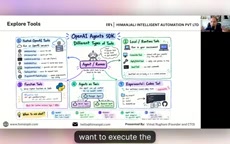
In the example, since only a single teacher agent is called with no tools, the architecture diagram is very simple: session starts → teacher executes API call → ends. But when multi-agent collaboration and tool calls are involved, this diagram clearly presents the entire system architecture, helping new developers quickly understand how the system operates.
The Tool System: Hosted Tools and Custom Tools
An agent without tools has limited capabilities. The LLM itself is just like a brain that can only answer questions based on its training-time memory, while external tools are the key to extending capabilities. The tutorial divides tools into several categories.
Hosted Tools
These tools are provided by OpenAI's servers, built into the SDK, and can be called directly without writing implementation code. They include:
- Web Search: Online retrieval with source citations
- File Search: File retrieval
- Code Interpreter: Code execution
- Hosted MCP: Model Context Protocol
- Image Generation: Image generation
- Tool Search and Programmatic Tool
The tutorial tested Web Search: gpt-4o-mini's training data ends in July 2024, so it knows nothing about the latest news. When asked about the latest developments in India's UPI payment gateway MDR charges, the model can't answer based on its own knowledge and must rely on Web Search. After running, the Agent not only gave the answer but also cited sources one by one (Business Standard, NDTV, etc.).
Model Context Protocol (MCP) is an open protocol proposed by Anthropic at the end of 2024 and quickly adopted by the industry, aiming to standardize communication between LLMs and external tools and data sources. You can think of it as "the USB-C interface of the AI world": in the past, every tool required custom glue code, but MCP defines a unified server/client contract, so any tool server following the protocol can be called directly by any MCP-supporting Agent.
Hosted MCP means OpenAI hosts these MCP servers, so developers only need to declare which MCP Server to connect to in the SDK, without deploying and maintaining them themselves. The benefits are: you can reuse a large number of existing community MCP Servers (filesystem, database, GitHub, etc.) while enjoying the stability and security isolation provided by the host. For enterprise-grade agents, MCP is becoming the de facto standard for the tool ecosystem, and understanding it is crucial for building complex multi-agent systems later.
Local/Runtime Tools
These tools give agents operating-system-level capabilities — creating, deleting files, running shell commands, and even operating applications. The tutorial draws an analogy to Claude's computer use capability — these tools provide support when an agent needs to interact with the local system.
Custom Function Tools
If we want to write our own Python functions and have the Agent call them, we only need a decorator:
from agents import function_tool

@function_tool
def my_tool():
    """Description of the tool's functionality"""
    ...
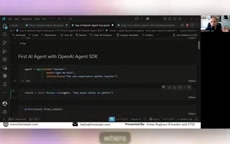
Without the decorator, my_tool is just an ordinary Python function. With @function_tool added, it becomes a tool the Agent can use, and the SDK extracts the name, description, and JSON schema to help the Agent understand the tool's purpose and how to call it.
JSON Schema is a specification for describing JSON data structures and is the core bridge for the function calling mechanism. When you decorate a Python function with @function_tool, the SDK automatically reads the function's parameter names, type annotations, and docstring through introspection, then generates a "tool manual" conforming to JSON Schema to send to the LLM along with the request.
The LLM itself doesn't execute any code — it only uses this schema to determine whether the user's request needs to call a tool and which parameters should be passed. After the model returns a structured call intent, the SDK actually executes your Python function locally, then passes the result back to the model to generate the final answer. This is the complete loop of "function tools." Therefore, writing good docstrings and type annotations is extremely important — they are the only clues the model uses to determine when and how to call tools; vague descriptions lead to the model missing or mis-calling tools, which is the most common debugging pain point for custom tools.
Hands-On: A TODO Task Assistant Agent
The tutorial ties all the previous concepts together with a TODO assistant at the end. The code reuses task management logic previously written with the local Llama version, except this time it's converted into an OpenAI Agents SDK function tool:
- add_task: Add a task with title, priority (default medium), and an optional detail parameter
- list_task: List all current tasks
The Agent's role is defined as a "professional schedule assistant" to help professionals organize their daily tasks, requiring concise, clear responses without extra suggestions.
Test result: telling the Agent "I need to write a letter to a client," it automatically recognizes this as a to-do item and locally generates a task.json file recording the task, priority, and completion status. Afterward, asking "list all my tasks" lets the Agent accurately read and return the previously recorded content.
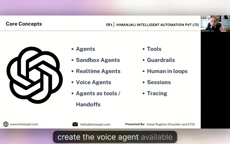
Upcoming course content includes: Session (conversation memory), Tracing (centralized observability and debugging), and multi-agent systems — with the goal of building a social media content manager, and even integrating a Hindi language conversion Agent.
Key Takeaways
The real value of this SDK isn't in "getting it running," but in bringing observability, orchestration, cost, and governance — everything enterprise-grade agents need — into the framework. For developers wanting to move from toy demos to production systems, RunResult's cost visibility, Tracing's centralized debugging, and Guardrail's boundary control are the parts that require focused mastery.
One-line Summary
A hands-on OpenAI Agents SDK tutorial: a complete introduction from API key setup to Runner execution, the tool system, and cost management.
Paragraph Summary
This article provides a systematic introduction to using OpenAI's official Agents SDK. The SDK is provider-agnostic, supports over 100 LLMs, and is available in both Python and JavaScript. The article covers API key acquisition (requiring separate credit purchase on the platform, as regular ChatGPT accounts don't work) and secure configuration (.env + .gitignore), virtual environment installation, creating an Agent in one line, Runner's three execution modes (run_sync synchronous blocking, run+await asynchronous concurrency, run_stream streaming output), and the critical role of the RunResult object in token cost tracking and architecture visualization. The tools section distinguishes Hosted Tools (Web Search, Code Interpreter, etc.) from custom function_tool, and through a hands-on TODO task assistant, walks through the complete flow of adding/listing tasks and local task.json persistence. The core conclusion: the real value of this SDK lies in embedding enterprise-grade agent observability, orchestration, cost, and governance capabilities directly into the framework.
Related articles

Amphibious Transforming Drone: Beyond 100x Power Savings, What Are the Real Needs?
Is the amphibious transforming drone just a gimmick? Starting from the 100x power difference of the M4 Morphobot, explore real application scenarios and thesis topic ideas, analyzing boundary conditions where pure drones and pure ground robots both fail.

Warhound Raises $200 Million: Genetically Engineered "War Dogs" Paired with Anduril Gear
Warhound raises $200M, backed by Ben Lamm and Palmer Luckey, to genetically engineer dogs for military and law enforcement use and equip them with Anduril gear. This article analyzes its technology direction, funding logic, and ethical controversy.

Claude API Comes to Google Cloud: IAM Integration and SDK Access Guide
Anthropic hosts the full Claude API on Google Cloud with IAM-controlled permissions and unified billing. This guide covers the Vertex AI and Anthropic-hosted entry points, IAM role configuration, and SDK access.