OpenClaw Local Deployment in Practice: From Installation to Telegram Integration

Based on lesson one of the five-lesson Bilibili OpenClaw tutorial, covering the complete local deployment process from environment setup to Telegram integration.
This article is based on the first of five OpenClaw (nicknamed "crayfish") lessons on Bilibili, systematically covering the complete deployment process from environment preparation to Telegram integration. It first corrects the perception — OpenClaw isn't an ordinary chatbot, but a locally deployable AI assistant team that remembers, gets work done, and supports multi-Agent collaboration, using a "cultivation" perspective to explain how it grows stronger the more you use it. It then walks through the steps: prepare Node.js, a terminal, Telegram, and an API Key; install with a single npm command; during configuration, recommend OpenAI and always pick the highest version; create a Telegram Bot via BotFather to get the Token; configure Brave Search for real-time search; and install Skills like ClawHub. Finally, it provides daily operations commands such as gateway status/stop/start/restart, and emphasizes always deferring to the official documentation.
OpenClaw (nicknamed "crayfish") has been generating quite a bit of buzz in the AI community lately, but many people still understand it as just "another chatbot." In reality, it's an AI assistant team that can be deployed locally, remembers your information, gets work done, and stays on standby 24/7. There's a five-lesson OpenClaw tutorial series on Bilibili, and this article is based on the first lesson, walking through the complete process from environment preparation to Telegram integration, with some hands-on analysis added along the way.
What Exactly Is OpenClaw, and Why Is It Worth Deploying
The tutorial opens by emphasizing a core idea: never treat OpenClawAd as just a chatbot. What it can do includes searching for information and automatically summarizing it, organizing notes or documents, writing and testing code, executing scheduled tasks, and having multiple AI Agents collaborate.
The reasons to choose OpenClaw boil down to a few points. It's open-source, and all data is stored on your own computer, so there's no worry about privacy leaks to a service provider. It supports installing various skills to extend its capabilities — the more you install, the more it can do. It's online 24/7 and can be invoked anytime through IM tools like Telegram, Feishu, QQ, or WhatsApp.
Here's a perspective that's easy to overlook: raising a crayfish is essentially a cultivation process, much like raising a pet or growing a team member. The more you use it, and the more tools and context you give it, the more powerful it becomes. Specifically, cultivation goes in three directions — installing task-relevant skills, gradually building your own Agent team (say, one sub-Agent handles product requirement analysis, one writes code, another handles testing), and packaging repetitive workflows into skills or scheduled tasks.
Environment Preparation and Installation
Before getting started, you'll need several things ready: Node.js, a terminal (Terminal on Mac, PowerShell on Windows), Telegram, and an AI API Key. Just download the appropriate Node.js version from the official website and install it. Telegram requires a VPN to install and register, but it supports Chinese phone numbers.
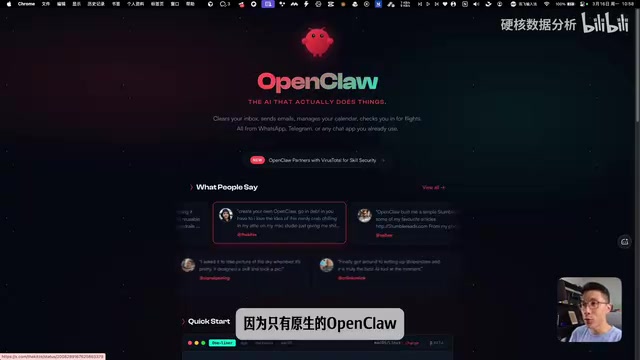
Installing OpenClaw itself is just one command: npm install -g openclaw. The tutorial specifically points out that there are derivative versions online like the OpenClaw from 360 and the one from Baidu, but the course only teaches the native version, because only the native one is guaranteed to be usable long-term and iterates quickly.
There's one point during installation that trips up beginners: on Mac, when you type in a password, the terminal won't display any characters — no asterisks, no dots. Just type it and press Enter. This is a characteristic of Unix systems, not a freeze.
Node.js is the JavaScript runtime environment that OpenClaw depends on to run. OpenClaw itself is a command-line tool developed with Node.js, so you must install Node.js first before you can install and run it via npm (Node Package Manager, the package manager that comes with Node.js). When installing, it's recommended to choose the LTS (Long-Term Support) version rather than the latest bleeding-edge release, because LTS is more stable and has better compatibility, avoiding a lot of dependency errors. After installation, you can type node -v and npm -v in the terminal to verify success — if both print version numbers, the environment is ready. For beginners who've never touched the command line, this step is the easiest place to get stuck, but as long as you download from the official site and accept the defaults throughout, it usually goes smoothly.
Model Selection and Channel Configuration
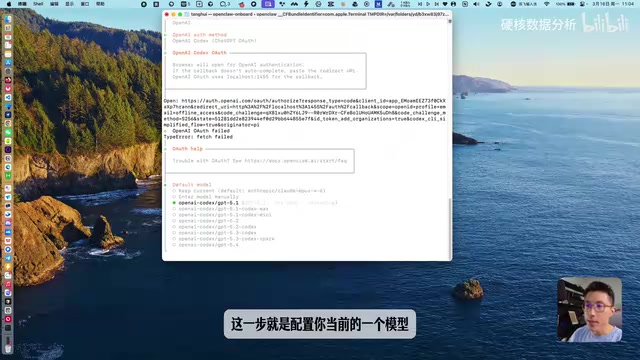
After installation, running the configuration command will take you into a guided flow. The most critical step is model selection. OpenClaw supports models like MiniMax, Kimi (Moonshot AI), and OpenAI. The tutorial recommends OpenAI, reasoning that OpenClaw has been acquired by OpenAI, so future integration between the two will be the strongest.
The principle for choosing a model version is straightforward: always pick the highest current version. At the time of recording, it was GPT-5.4, but the emphasis is that as later versions roll out, just follow along and pick the highest.
Next, configure the Channel — that is, which IM tool you'll use to talk to OpenClaw. OpenClaw officially recommends Telegram as the beginner-friendly option, and it's also the simplest to configure. You need to find BotFather in Telegram, create a new Bot, get the Bot Token, and paste it into the terminal. When creating a Bot, the name must end with "Bot" and be globally unique — if it's taken, you'll need to pick another one.
You'll also be asked to configure a search Provider. The tutorial recommends Brave Search, priced at $5 for 1000 requests. After registering, get the API Key and OpenClaw gains real-time search capability.
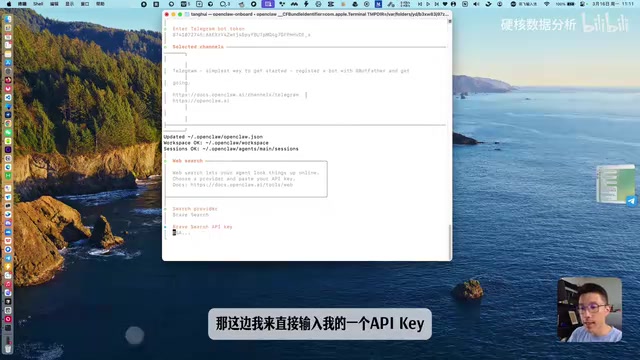
API Key is the credential for calling large model services — essentially a secret string that only you know. Model vendors use it to identify "who is making the call" and bill accordingly, so it must be safeguarded like a password and never publicly shared or committed to a public code repository. You need to register an account on your chosen model vendor's developer console (such as OpenAI), bind a payment method, then generate an API Key and paste it into OpenClaw's configuration flow. Once leaked, others can use your quota and rack up charges at your expense. If you suspect your Key has leaked, the safest move is to immediately revoke it in the console and generate a new one.
Skill Installation and Startup
During configuration, you'll be asked whether to install Skills. The tutorial recommends at least checking ClawHub, and installing others later as needed. Choose npm as the installation method, then just confirm all the way through.
During startup, you'll be asked how you want to connect to the Bot. Besides Telegram, you can also configure TUI (terminal interface) to talk to OpenClaw directly in the terminal. On first launch, there's a guide page where you set your name, its name, its style, and other basic info.
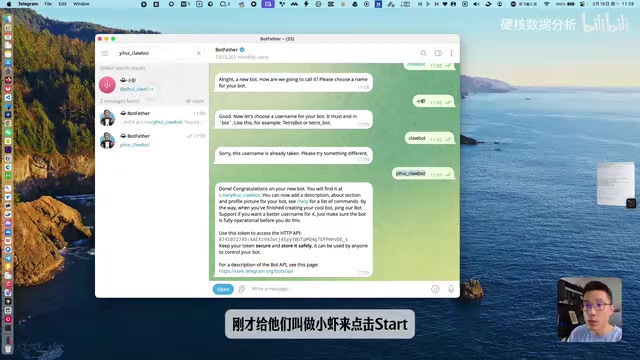
To actually get Telegram connected, you need to open another terminal window and run the openclaw gateway and openclaw pair telegram commands. The Pairing Code needs to be obtained from the Bot you created in Telegram — open the Bot, click Start, and it'll give you a Code. Paste that back into the terminal to complete pairing.
Once paired successfully, sending a message to the Bot in Telegram will work normally. The tutorial demonstrates asking OpenClaw to search for a website called makeanime, and because Brave's API was configured earlier, it did indeed return accurate search results, showing that real-time search capability is now working.
ClawHub can be understood as OpenClaw's official Skill marketplace or plugin store. A Skill is a packaged capability module — once installed, OpenClaw gains a new ability, such as searching, operating a certain app, calling a specific API, etc. As an officially maintained Skill source, ClawHub's collected Skills have relatively guaranteed quality and security. The tutorial recommends checking it first during initial setup precisely so OpenClaw has a batch of basic capabilities out of the box. Later, whatever functionality you need, you can come back to ClawHub and install as needed. By contrast, installing Skills directly from unknown sources carries security risks, because they could read your local data or consume your API quota, so prioritizing official channels is the safer habit.
TUI stands for Text User Interface — an interactive interface where you operate with text and keyboard shortcuts directly in the terminal window, as opposed to a graphical interface (GUI) like a browser or App. Configuring TUI in OpenClaw means you can talk to it and issue commands directly in your local terminal without relying on external IM like Telegram. This is especially useful in two scenarios: first, debugging or testing, where you can quickly verify whether OpenClaw is working properly in the terminal without going through a messaging app; second, local operations, where tasks involving sensitive data or that you'd rather not route through a third-party IM are more reassuring to handle directly in the local terminal. It doesn't conflict with Channels like Telegram — you can configure both and switch as needed.
Daily Operations Commands
The tutorial ends with several commands you must remember. openclaw gateway status checks the crayfish's running state — Running means it's normal. openclaw gateway stop and openclaw gateway start are for stopping and starting, respectively. The most commonly used is openclaw gateway restart — when you send a message in Telegram and it doesn't reply, or it feels stuck, a restart basically solves the problem.
Looking at the whole deployment process, OpenClaw's installation barrier isn't high; the core difficulty lies in understanding each option in the guided flow. One point the tutorial repeatedly emphasizes is worth remembering: always follow the official documentation, because AI products iterate quickly — the steps at the time the tutorial was recorded may change within a few months, and the documentation is always the most up-to-date and accurate reference.
One-line Summary
Based on the first of five OpenClaw lessons on Bilibili, this walks through the complete local deployment process from environment preparation to Telegram integration.
Paragraph Summary
This article is based on the first of five OpenClaw (nicknamed "crayfish") lessons on Bilibili, systematically covering the complete deployment process from environment preparation to Telegram integration. It first corrects the perception — OpenClaw isn't an ordinary chatbot, but an AI assistant team that can be deployed locally, remembers, gets work done, and supports multi-Agent collaboration, using a "cultivation" perspective to explain how it grows stronger the more you use it. It then walks through the steps: prepare Node.js, a terminal, Telegram, and an API Key; install with a single npm command; during configuration, recommend OpenAI and always pick the highest version; create a Telegram Bot via BotFather to get the Token; configure Brave Search for real-time search capability; and install Skills like ClawHub. Finally, it provides daily operations commands such as gateway status/stop/start/restart, and emphasizes always deferring to the official documentation.
Related articles

Random Pruning of the DPO Computation Graph: 1.4x Training Speedup and Lower Peak Memory
DPO training too slow and memory-hungry? This paper proposes a random pruning framework for the DPO computation graph, sampling independently across position, sequence, and branch dimensions; branch pruning achieves a 1.426x step-time speedup and cuts training time by about 30%, with in-depth attribution of memory and time gains.

Why Does JEPA Underperform MLM in Longitudinal EHR Representation Learning?
New study compares JEPA and MLM for longitudinal EHR representation learning on MIMIC-IV: three JEPA variants train stably without collapse but underperform MLM; target size, not heterogeneity, drives prediction error.

Transfer Learning + Visible Light Communication: A New Approach to Energy-Efficient Indoor Positioning
A study proposes a transfer learning-based visible light communication indoor positioning method, achieving 47% accuracy improvement on the BOSCH factory dataset, 67.5% model efficiency under high noise, and introducing the ME composite metric for energy-efficient positioning in energy-constrained industrial IoT scenarios.