OpenCode Complete Beginner's Guide: From Installation to Hands-On Practice

OpenCode is an active open-source AI Agent coding assistant, but it works better as a chat assistant.
This article walks through the onboarding path and real-world experience of the open-source AI Agent coding assistant OpenCode. The author notes that OpenCode is quite active in the AI programming space, but its coding flow isn't as smooth as tools like Cursor and Trae; its real strength is invoking a large number of tools and skills, making it more like a chat assistant. Installation comes in desktop, Windows CMD, and WSL variants, with WSL officially recommended. The tutorial's pragmatic conclusion: don't mythologize OpenCode—use the desktop version for a quick trial, and consider Trae first for coding.
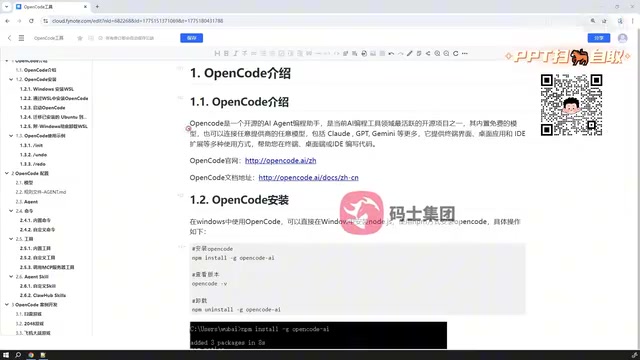
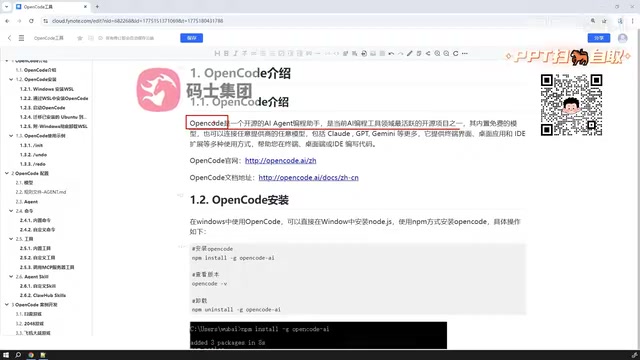
OpenCode is one of the more active open-source Agent coding assistant projects in the AI programming space today. In a recent tutorial, a Bilibili creator gave a complete breakdown of its installation methods, core features, and real-world experience, along with a somewhat surprising verdict: OpenCode may not be as useful as advertised, but as a chat assistant it's remarkably powerful. This article, based on that tutorial, walks through OpenCode's onboarding path and genuine user impressions.
What Is OpenCode: An Agent Coding Assistant, or a Chat Assistant?
OpenCode positions itself as an open-source AI Agent coding assistant. The creator notes that it's currently one of the more active projects in the AI programming space, but in practice you'll find it's not as powerful as the marketing suggests. Compared to Cursor, Trae, and various Copilot plugins, OpenCode falls noticeably short in terms of smooth coding flow.
So where does OpenCode's value lie? The creator's assessment: you can view it as a coding assistant, but a more accurate description is a chat assistant. Since it supports a large number of tools and skills, it can accomplish whatever tasks correspond to the tools and skills available. This capability stems from the essence of an Agent—compared to large models that only handle single-turn conversations and lack memory, an Agent has memory capability and can invoke tools to fill in information gaps beyond the large model's knowledge cutoff.
In other words, an Agent can connect to enterprise data, autonomously decide which tools to call, and determine whether to continue calling tools or respond directly to the user. The creator summarizes: about Agents, you only need to remember one thing—they can invoke skills and tools, and with that capability, there's a great deal they can do.
The difference between MCP and skills: The original text mentions multiple times that OpenCode can invoke "tools" and "skills," and these two terms involve two different mechanisms in the Agent ecosystem. Skills typically refer to capability units built into or customized within an Agent, such as reading files, executing commands, searching code repositories, or calling specific business processes; they're more like the Agent's "built-in toolbox," with the Agent itself deciding when to use them. MCP (Model Context Protocol), on the other hand, is an open protocol promoted by Anthropic and others, designed to let models or Agents connect to external services, databases, and third-party APIs in a standardized way. In other words, skills lean toward local and built-in, while MCP leans toward cross-system and external integration. Understanding this clarifies why the creator says "it can accomplish whatever tasks correspond to the tools and skills available"—the key to extensibility isn't how powerful the model itself is, but how many callable tools it's connected to.
Three Installation Methods: Desktop, Command Line, and WSL
OpenCode installation essentially falls into two categories, which the creator further breaks down into three paths.
Desktop Version: Simplest, but Limited
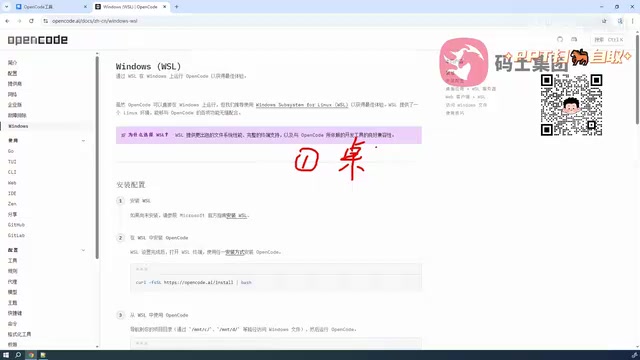
You can download the desktop app directly from the OpenCode official website. The site clearly states that the desktop app beta has been released, supporting Windows, macOS, and Linux. After downloading, just double-click the exe file to install and run it; macOS users can download the corresponding software and drag it into the applications directory. The creator notes that the desktop version isn't quite mature yet and can't handle low-level configuration file operations, making it suitable for users who just want a quick trial.
Command-Line Installation: Windows CMD Method
OpenCode supports installation via multiple commands, including npm commands. Taking npm as an example, you copy the command from the official website and execute it on your computer, provided you have Node.js installed. This method runs directly in Windows CMD.
WSL Installation: The Officially Recommended Best Experience
The creator particularly recommends installation based on WSL (Windows Subsystem for Linux), which is also the officially suggested approach. WSL is essentially running a lightweight Linux virtual system inside Windows, and OpenCode is installed within this Linux system.
Why does the official recommendation favor WSL? The creator explains: subsequent OpenCode operations require configuration file setup and extensive command-line work, and these commands are typically based on the Linux environment. Most enterprise servers run Linux systems, and seasoned programmers are more accustomed to Linux commands than Windows CMD. Many commands aren't interchangeable between the two systems, and operations that are complex to write in Windows may be very simple in Linux.
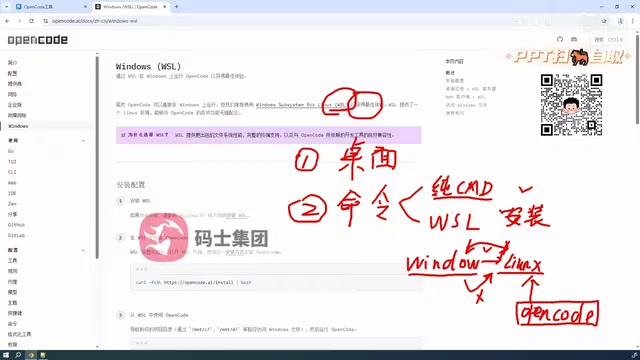
Regarding data access, the creator points out: in Linux you can access Windows content, but Windows may not be able to access Linux content—this direction is worth noting.
How WSL works and the direction of access: WSL is not traditional virtual machine software, but rather a compatibility layer Microsoft provides at the Windows kernel level, allowing Linux binaries to run directly. WSL2 uses lightweight virtualization technology to run a genuine Linux kernel, making it highly similar to a native Linux environment. By default, the Windows file system is mounted on the Linux side under paths like /mnt/c, so Linux can smoothly read and write Windows files; conversely, Windows accessing WSL's internal files requires network paths (like \\wsl$) or migrating files, which is relatively cumbersome and more prone to permission issues. This is precisely why the original text reminds us that "in Linux you can access Windows content, but Windows may not be able to access Linux content." For scenarios requiring frequent configuration file setup and command execution for OpenCode, placing projects on the Linux side and operating through the WSL terminal is often more reliable than shuffling files back and forth between Windows and Linux.
Core Configuration and Advanced Capabilities
After installation, OpenCode's configuration and usage are the focus of the tutorial. The creator's list includes: model configuration, rule file configuration, Agent categorization, custom commands, custom tools, invoking tools published by external MCP services, and customizing Agent SQL along with importing external SQL.
Regarding models, OpenCode comes with quite a few free models built in, and also offers numerous model providers for users to configure the models they need. This configuration system determines OpenCode's flexibility—it doesn't lock you into a single model, and users can switch based on their needs.
The tutorial concludes with simple case demonstrations of the actual development workflow, helping to understand OpenCode's performance in real scenarios.
The role of rule files and Agent categorization: A rule file is typically a descriptive document placed in the project directory or configuration directory, used to tell the Agent about the project's tech stack, code style, directory structure, prohibitions, and common commands. During each conversation, the Agent first reads the rule file, which reduces repetitive explanations and prevents generating code that doesn't conform to team standards—it's essentially a "project manual" for the Agent. Agent categorization, meanwhile, splits different roles: some Agents specialize in planning, some in writing code, and some only do code review or testing, each able to bind different models, rules, and tool permissions. This design allows complex tasks to be decomposed across multiple specialized Agents rather than having one general-purpose assistant handle everything. Custom commands and custom tools further solidify common operations into reusable instructions, reducing the cost of typing prompts each time. It's the combination of these configurations that constitutes the "flexibility" mentioned in the original text.
Real Experience: No Need to Mythologize, Good Enough Is Good Enough
The creator expressed a pragmatic evaluation of OpenCode multiple times throughout the tutorial. He admits that if you're just trying OpenCode out, choosing the desktop version for a simple install is fine—no need to agonize over whether WSL will install properly. The core goal is just to get it running and see how it works.
As for choosing AI programming tools, the creator more strongly recommends Trae from China, considering its performance excellent and very easy to use. This kind of candid comparison is rare in tutorial content, and it reminds developers: tool selection should be based on actual experience, not marketing claims.
Overall, OpenCode is suitable as an entry point for exploring Agent capabilities and as a chat assistant, but in coding scenarios it may not be the optimal solution. Understanding its positioning boundaries is more valuable than blindly following trends.
Why WSL is officially recommended: The vast majority of enterprise servers run Linux, and CI/CD pipelines, container images, and deployment scripts all target Linux environments. If you operate in Windows CMD during development, command syntax, path separators, environment variables, and script behavior may all be inconsistent with the final deployment environment, easily causing "works locally, fails in production." Developing in WSL means the editor, terminal, dependency installation, and runtime approach are essentially aligned with the production environment, reducing the probability of problems. Additionally, many of OpenCode's configuration processes rely on shell scripts and Unix-like commands, which often take a single line in Linux but may require extra tool installations or syntax conversions in Windows. So the official WSL recommendation isn't essentially a matter of preference, but of reducing friction caused by environment differences, letting developers focus their energy on Agent configuration and usage.
One-line Summary
OpenCode is an active open-source AI Agent coding assistant, but it works better as a chat assistant.
Paragraph Summary
This article walks through the onboarding path and real-world experience of the open-source AI Agent coding assistant OpenCode. The author notes that OpenCode is quite active in the AI programming space, but its coding flow isn't as smooth as Cursor, Trae, and similar tools; its real strength lies in being able to invoke a large number of tools and skills, making it more like a chat assistant. Installation comes in three forms: desktop, Windows CMD command line, and WSL. The official recommendation is WSL, because subsequent configuration and command operations are based on the Linux environment, and Linux can access Windows files while the reverse is inconvenient. Core configuration covers model selection, rule files, Agent categorization, custom commands and tools, MCP external service invocation, and SQL-related capabilities. The tutorial ultimately delivers a pragmatic conclusion: don't mythologize OpenCode—use the desktop version for a quick trial, and for coding scenarios, consider Trae first.
Related articles

Felix Rieseberg Personal Homepage
Felix Rieseberg's personal homepage sparks attention on Hacker News. This article covers the Slack engineer's technical background, the rise and fall of nativefier, and the value of a developer homepage as a tech calling card.

@ai-sdk/vue 3.0.306 Patch Release Syncs with [email protected] Update
@ai-sdk/vue 3.0.306 released, synced with [email protected]. A routine patch release for the Vercel AI SDK ecosystem with no public API changes; the Vue adapter layer stays version-aligned with the core package.

Gemini 4 Argon API Launches: The Era of Million-Token Output Begins
Google launches Gemini 4 Argon with sparse MoE architecture, up to 1M output tokens, and a 68.90% Vals Index score, available across API, AI Studio, and the Gemini app.