Python for Absolute Beginners: From Installation to Your First print Statement
A hands-on Python beginner guide covering installation, print, comments, and indentation rules.
Based on a Bilibili beginner Python tutorial, this article walks absolute beginners through setting up a Windows development environment, getting started with IDLE, and writing their first program. Key topics include the two ways to use print (numbers vs. quoted strings), single-line comments with #, and Python's mandatory indentation syntax — a hard rule, not just a style convention. A three-line welcome message ties everything together, with a 5×5 asterisk square as a closing exercise.
For those encountering programming for the first time, Python is often called the most beginner-friendly language out there. Its syntax is clean, the learning curve is gentle, and it's widely used across fields like artificial intelligence, data analysis, and web development. This article is based on a beginner tutorial by Bilibili creator Xiaoman, walking you through setting up a Python environment and writing your very first program — printing text to the screen.
Installing and Running Python
The first step is setting up your development environment. Using a 64-bit Windows 10 system as an example, the process is straightforward:
- Visit the official Python website, find the Windows 64-bit installer, and download it.
- Run the installer and choose the default Install Now option.
- Wait for the installation to complete, then click Close to exit the installer.
Once Python is installed, you'll need somewhere to write your code. The approach shown in the tutorial is: create a new text document, rename it to hello.py, then right-click the file and open it with IDLE — and you're ready to start writing Python. The .py extension is the standard suffix for Python source files, and IDLE is Python's built-in lightweight editor, making it perfect for beginners.
IDLE stands for Integrated Development and Learning Environment. It comes bundled with the official Python installer and provides basic syntax highlighting, code completion, and an interactive Shell — all beginner-friendly, with no extra tools required. As you progress, many developers move on to more feature-rich editors like VS Code or PyCharm, but IDLE is more than sufficient for getting started. Also worth noting: the official Python website can be slow to access from China. You can search for a "Python mirror site" or download the installer from a domestic mirror. When choosing a version, go with the current Stable Release.
Printing Information with the print Function
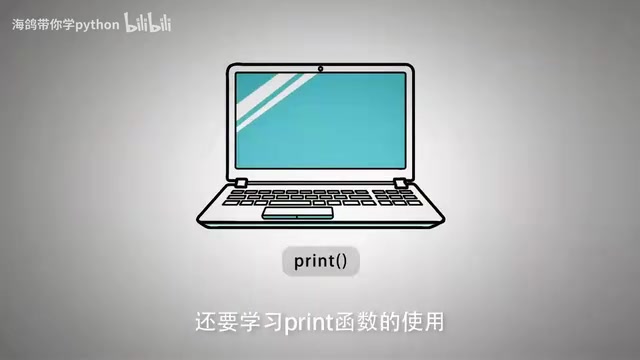
To display information on the screen, you use the print function. You don't need to understand how functions work under the hood just yet — for now, simply think of them as tools that perform specific tasks. The job of print is to output information to the screen.
There are two ways to pass content into print:
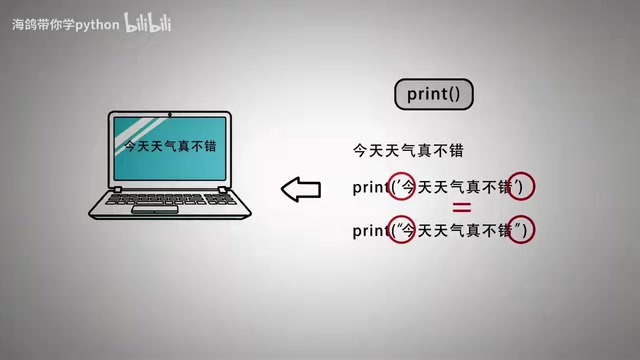
- Numbers can be written directly inside the parentheses — for example,
print(1234)will print1234to the screen. - Text must be wrapped in single or double quotes before being passed in — for example,
print('What a nice day'). Single and double quotes work exactly the same way.
One common pitfall to watch out for: the quotes must be in English (half-width) format. Using Chinese (full-width) quotation marks will cause your program to throw an error. This is one of the most frequent mistakes beginners make, so always pay attention to your input method.
Code Comments: Making Your Code More Readable
In real-world development, adding comments to explain your code improves readability and reduces the cost of future maintenance. Comments are ignored by the Python interpreter and won't appear in the program's output.
Python uses the hash symbol # for single-line comments. Everything from # to the end of the line is treated as a comment. For example:
print('What a nice day') # This line prints a sentence
Comments can follow a line of code or occupy their own line entirely. Getting into the habit of writing comments will pay dividends when you revisit your code later.
Indentation: The Soul of Python Syntax
Unlike many languages that use curly braces to define code blocks, Python uses indentation to represent hierarchical relationships between lines of code. Typically, four spaces or one Tab is used as a single indentation level.
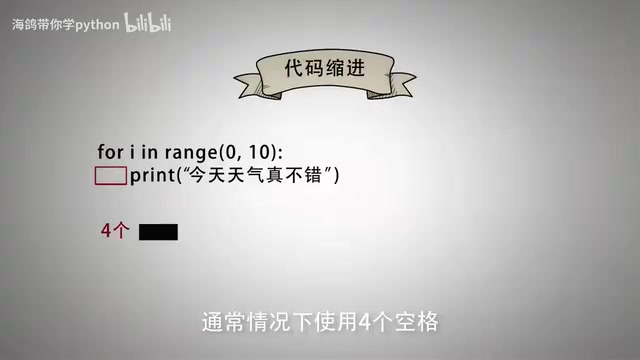
For sequentially executed code, the first character of each line must be aligned — otherwise the code won't compile. In conditional branches, loops, functions, and other structures, indentation is how you indicate which lines of code belong to the same block. In Python, indentation isn't an optional formatting preference — it's an enforced syntax rule. This is often the biggest adjustment for developers coming from other languages.
The philosophy behind Python's mandatory indentation traces back to its creator, Guido van Rossum, and his belief in code readability — he argued that code is read far more often than it is written. In languages like C or Java, indentation is just a stylistic convention; curly braces
{}are what actually define code blocks. In Python, indentation is the syntax — the interpreter uses indentation levels to determine code structure. Mixing spaces and Tabs is a common beginner trap: doing so in the same file will trigger anIndentationError. The best practice is to pick one and stick with it — most editors recommend using four spaces, and can be configured to automatically convert Tab key presses into four spaces.
Hands-On: Printing a Multi-Line Welcome Message
With these concepts under your belt, it's time to write your first complete program. The goal is to print three lines of output. Since print automatically appends a newline character after each call, three print statements will produce three lines of output.
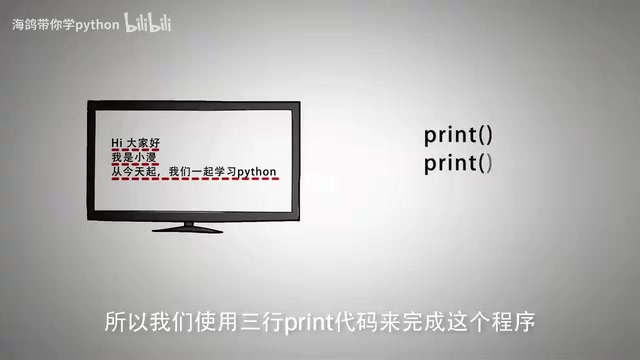
Open the hello.py file you created earlier and enter the following code:
print('Hi everyone')           # First line of welcome message
print('I am Xiaoman')          # Second line
print('Starting today, let us learn Python together')  # Third line
Notice that the first character p in each of the three lines is at the first column of the editor — all aligned with each other. Once you've typed it out, select Run Module from the menu and the program will print all three lines to the screen.
It's worth clarifying: the "screen" here refers to output displayed in the Python interpreter (Shell), not a native Windows application window.
Practice Exercise
The tutorial wraps up with a homework assignment to reinforce your understanding of print: Use print statements to output a 5×5 square made of asterisks on the screen.
Try it yourself first — think about how you can use multiple print calls to build this shape. Simple exercises like this are the best way to get comfortable with strings, line breaks, and output logic.
Summary
This lesson covered the core concepts every Python beginner needs: setting up the environment, the print function, comment conventions, and indentation rules. The content may be foundational, but each piece is a building block for everything that comes next — conditionals, loops, and functions. For beginners, getting hello.py to run successfully is more rewarding than reading a dozen pages of theory.
Related articles
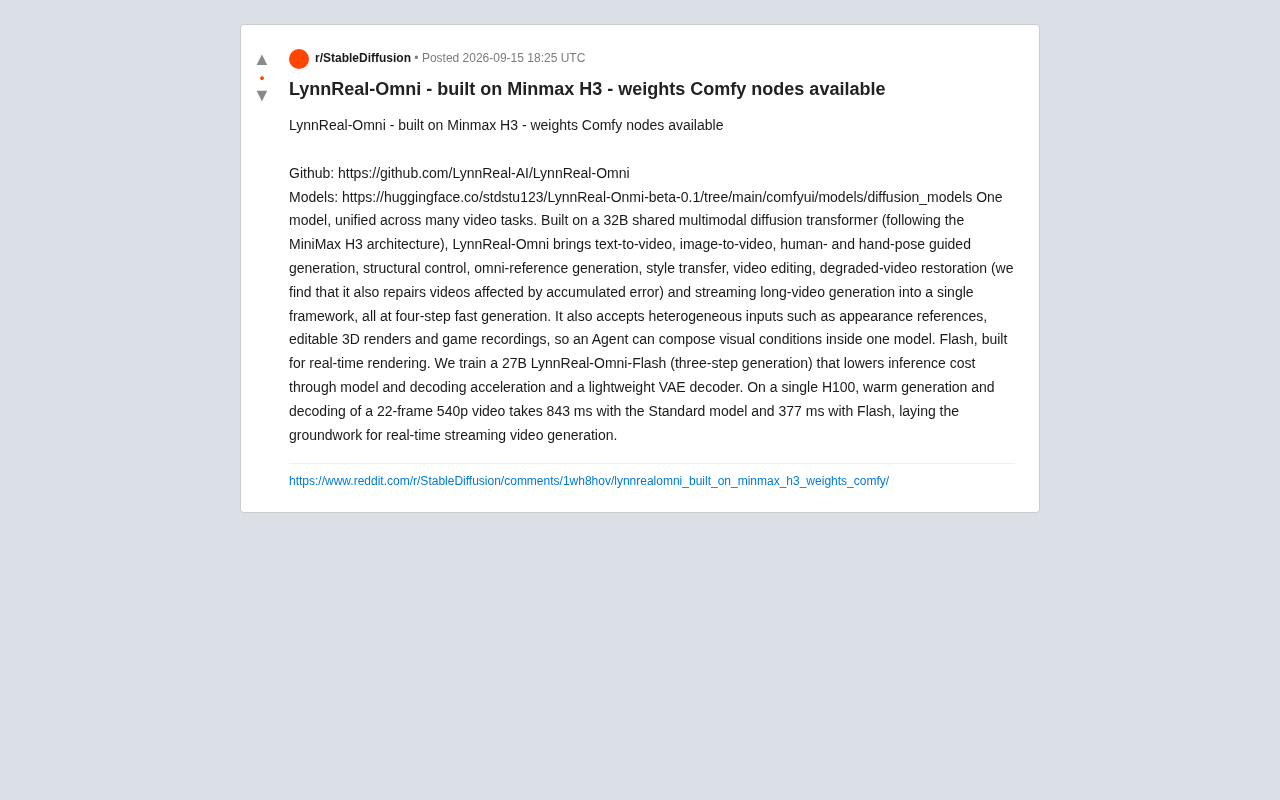
LynnReal-Omni: 32B Unified Video Diffusion Model Goes Open Source with Multi-Task Coverage in Four Steps
LynnReal-Omni is a 32B unified video diffusion model on MiniMax H3, covering text-to-video, pose guidance, style transfer, restoration in 4 steps. Flash version generates 540p video in 377ms on one H100.

Anthropic Co-Founder: AI 'Kill Switch' May Need to Be Mandatory by Law
Anthropic's co-founder tells the BBC that AI 'kill switches' may need to be legally mandated. We analyze the industry logic, technical challenges, and the tension between regulation and innovation.

The AI Data Center Boom Is Colliding With Cities Scarred by Heavy Industry
The AI data center boom is clashing with post-industrial communities. Philadelphia's case reveals structural conflicts between AI growth, energy use, water, and environmental justice.