R.E.P.O Chinese Localization Guide: Install the Patch in Three Simple Steps
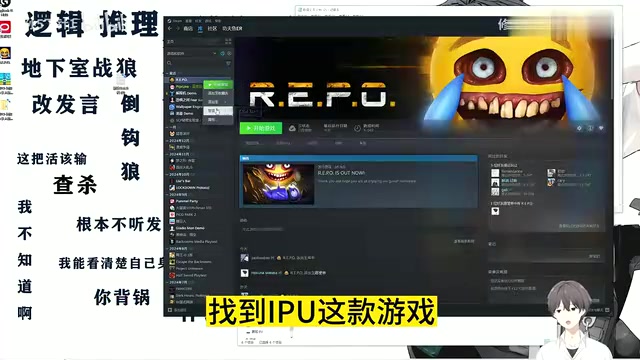
A three-step guide to installing a community Chinese patch for R.E.P.O via simple file replacement.
This beginner-friendly guide walks you through localizing R.E.P.O into Chinese after the author struggled to find a working patch. The process has three steps: use Steam's "Browse local files" to find the installation directory, paste the patch files with Ctrl+V, and launch the game to verify. The guide also covers common failure scenarios, the importance of backing up original files, patch source safety, and the need to re-apply the patch after major game updates.
Why You Need This Localization Guide
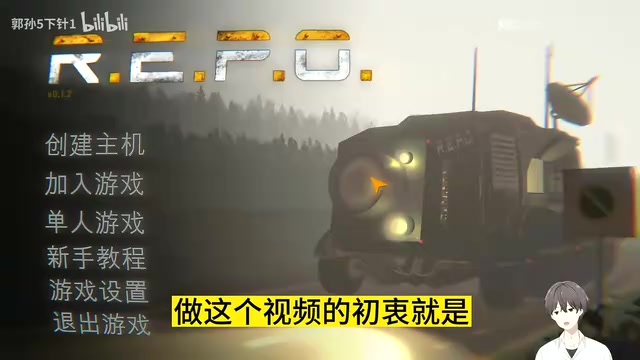
R.E.P.O is a recently popular multiplayer co-op horror game that doesn't include a Chinese language pack out of the box, which has turned away quite a few players who aren't comfortable navigating an English interface. This guide was born out of a very real frustration — the author spent a lot of time hunting for a Chinese patch with no luck, searching everywhere and coming up empty-handed. That experience sparked the idea to put together a complete walkthrough so other players dealing with the same problem wouldn't have to struggle as much.
For players who have never installed a Mod before, localizing a game typically involves tracking down file paths, replacing files, and verifying that the changes took effect — and any mistake along the way can cause the whole thing to fall apart. That's exactly why a step-by-step beginner guide like this one is useful: it breaks a seemingly complex process down into the smallest possible actions you can just follow along with.
The Core Steps for Applying the Patch
The entire localization process really comes down to a few straightforward actions. The core idea is: get the patch file → locate the game's local file directory → paste and replace → launch the game to verify.
Step 1: Browse the Game's Local Files
Once you have the patch, the first thing to do is find the game's installation directory. You can usually do this by right-clicking the game in your Steam library, selecting Manage → Browse local files, and Steam will open the game's folder directly. This step is the foundation for everything that follows — you need to have the right directory before you can put the patch in the right place.
Step 2: Paste the Patch in One Go
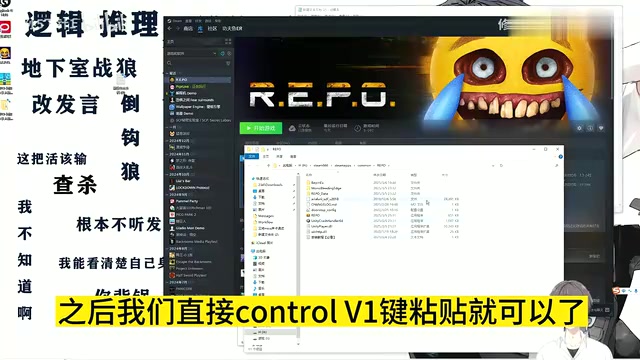
Once you've navigated to the local files directory, simply press Ctrl + V to paste the copied patch files into that folder. If the system asks whether you want to overwrite files with the same name, choose to replace them. The whole process requires no code editing or complex configuration — at its core, you're just swapping out the original resource files with localized versions, which makes the barrier to entry extremely low.
R.E.P.O's Chinese patch is essentially a "resource file replacement" Mod. Unlike plugin-style Mods that require a Mod loader such as BepInEx, this type of patch doesn't touch the game's core logic at all — it simply overwrites the original language files with translated versions. These patches typically come in formats like .json, .xml, or engine-specific formats (such as Unity's .assets files). The patch creator has already done the translation and repackaged everything, reducing what you need to do on your end to a simple copy-and-paste. Understanding this principle also helps you troubleshoot if the patch stops working: if a game update replaces the original files, your localized files will get overwritten and you'll need to paste the patch again.
Verifying That the Localization Worked
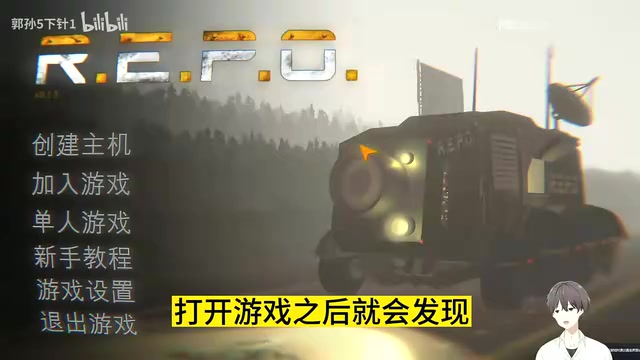
Once the patch is pasted, just launch the game to check whether it worked. As shown in the tutorial, opening the game should reveal that the interface has switched to Chinese — at that point, the localization is complete.
If the game still shows English after you start it, there are a few things to check: first, confirm that the patch was pasted into the correct directory; second, check whether you need to manually switch the language in the in-game settings; third, keep in mind that a game update may have overwritten your patch files, in which case you'll need to paste them again.
Things to Keep in Mind When Using a Localization Patch
While this kind of file-replacement localization is simple and straightforward, there are a few things worth paying attention to.
Version compatibility: Localization patches are usually made for a specific version of the game. After a major update, an existing patch may stop working or even prevent the game from launching properly. If that happens, replacing the patch files with the originals — or waiting for an updated patch — is the typical fix.
Back up your original files: Before pasting and replacing anything, it's a good idea to make a backup copy of the files you're about to overwrite. That way, if something goes wrong with the patch, you can quickly revert to the original state without having to re-download the entire game.
Source reliability: When downloading patches from unofficial sources, try to stick to well-regarded sources within the player community and pay attention to file safety.
Steam's built-in "Verify integrity of game files" feature (right-click the game → Properties → Local Files → Verify) will restore any modified or replaced files back to their official versions, which means your localization patch will stop working afterward. Before running a Steam file verification, make sure you actually need to do it — or plan to re-paste the patch once it's done. Additionally, some anti-cheat systems (such as EAC) monitor file changes in the game directory. Simply replacing language resource files typically won't trigger a ban, but downloading "patches" from unofficial sources that include executable files carries significantly higher risk, so be especially careful about where you get your files.
Final Thoughts
The real value of this guide isn't in its technical complexity — it's in clearly explaining something that "seems simple but often trips up new players." For games like R.E.P.O that don't have official Chinese support, community-organized localization workflows are often what make the difference between a frustrating experience and a smooth one. Follow the three steps — browse local files, paste the patch, launch and verify — and the vast majority of players should be able to complete the localization without any trouble and get straight to enjoying the game.
Related articles
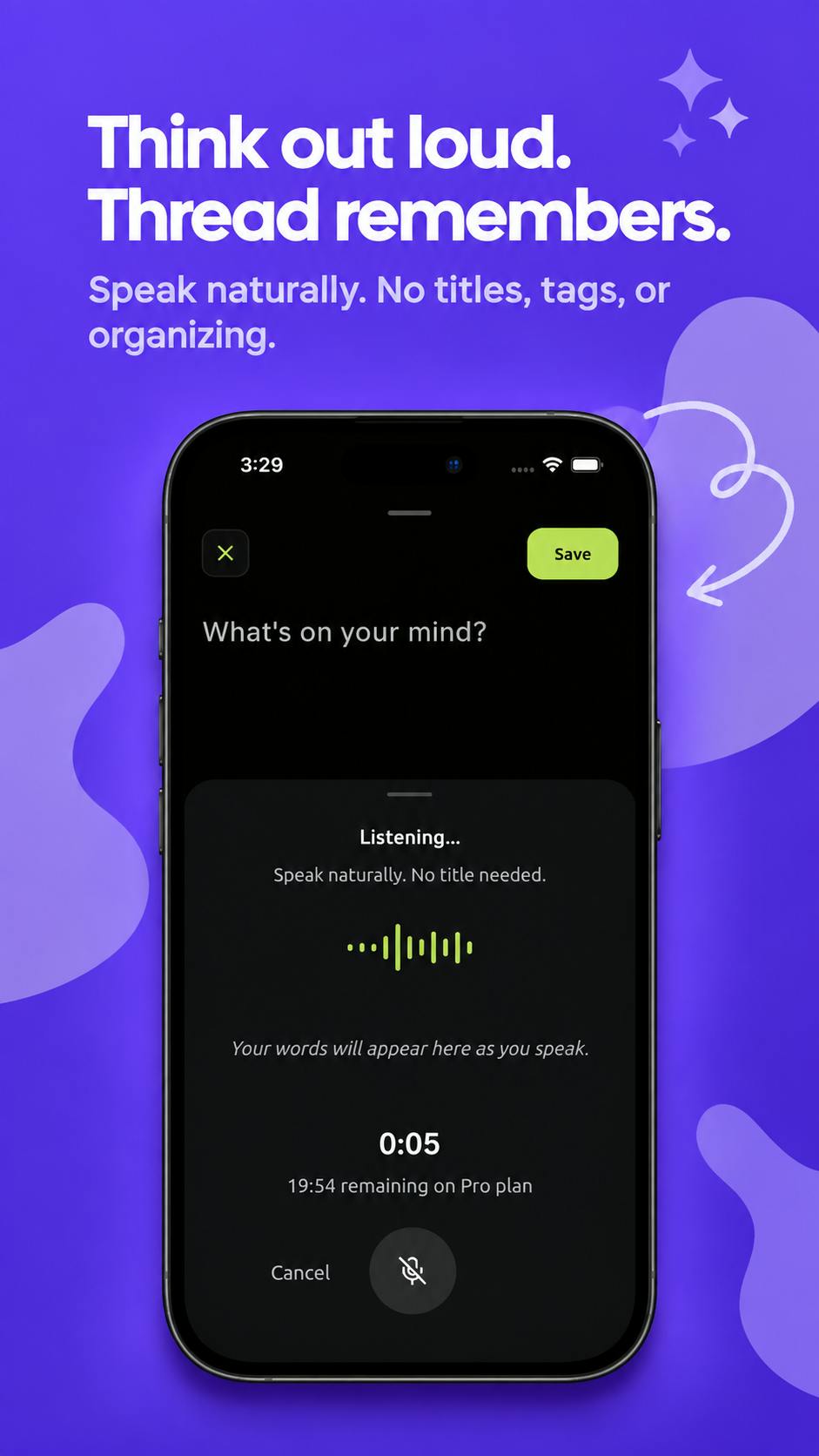
Thread: An AI-Powered 'Second Brain' Journal That Connects Your Scattered Thoughts
Thread is an AI journal and 'second brain' app on Product Hunt that auto-connects fragmented thoughts, voice notes, and ideas into meaningful patterns and actions.
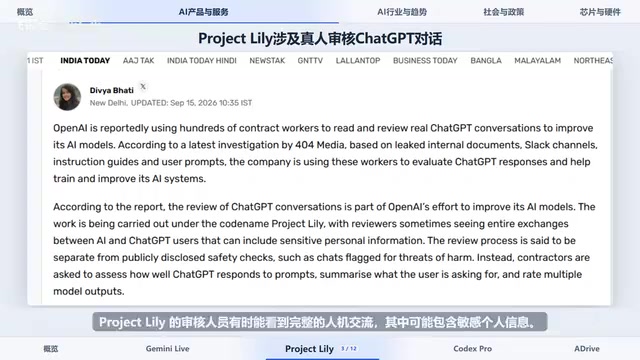
Gemini 3.8 Live Launches; Google Adopts Claude Internally for Coding
Gemini 3.8 Live launches with low-cost multimodal features; OpenAI's Project Lily sparks privacy debate; Google adopts Anthropic's Claude Opus 5 internally.
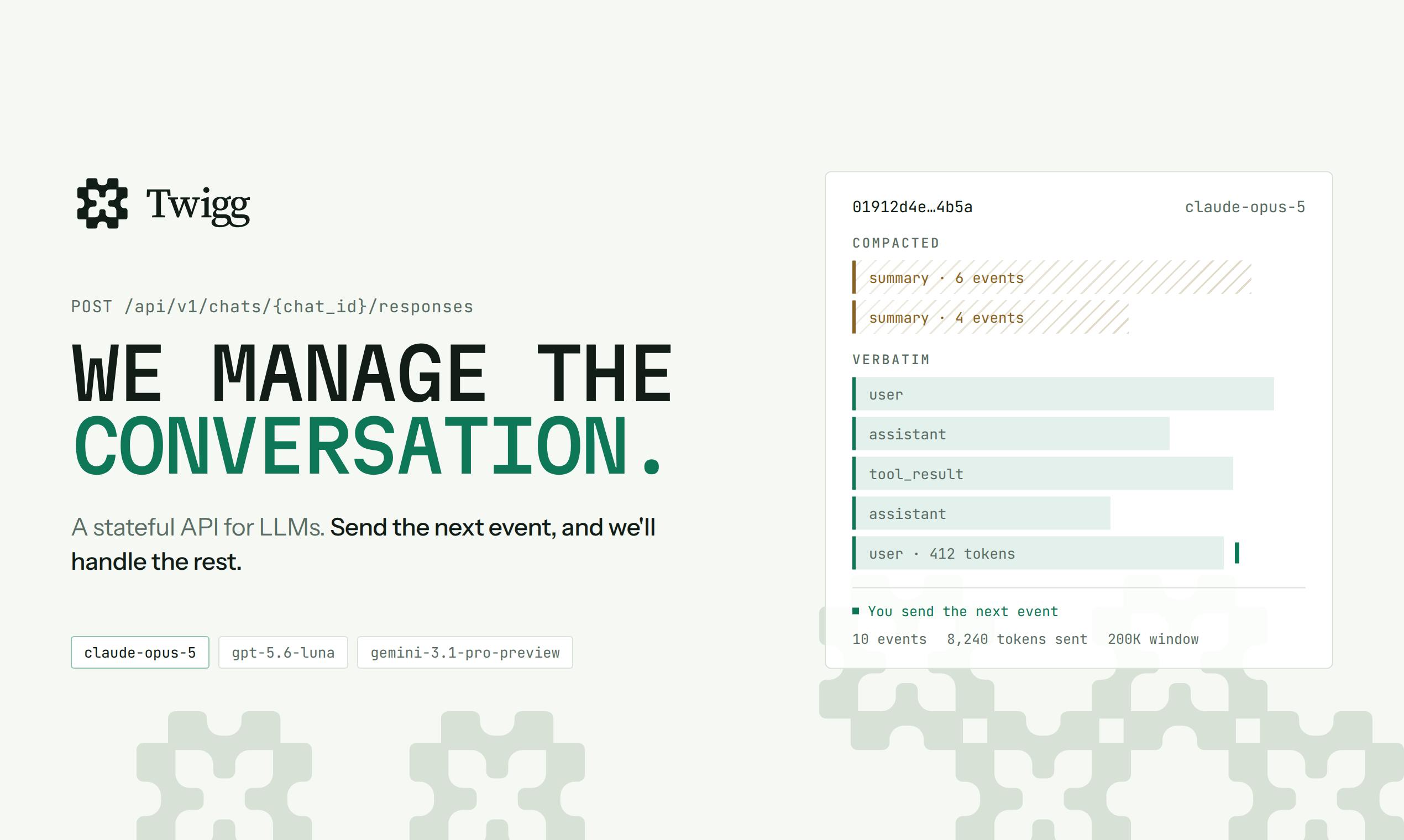
Twigg: A Stateful API That Automates LLM Context Management
Twigg is a stateful LLM API that automates context management — handling model schema adaptation, smart compression, truncation, and routing, with a dashboard for managing tool schemas, system prompts, and billing.