Scraping Data from Google Sheets with n8n: A Complete Tutorial for AI-Powered Social Media Automation

Use n8n to read a Google Sheets content table, filter unpublished items with Filter, publish them, and write back status to form an automated publishing loop.
Based on a Bengali teaching video, the article explains how to build a Google Sheets-driven social media content publishing pipeline with n8n. The overall idea is to treat the spreadsheet as both the content source and the state machine: first use the Google Sheets node to read the publishing plan spreadsheet in bulk or by single row, then use the Filter node to screen out unpublished content where the "status" column is empty, then generate captions and map fields to downstream publishing nodes, and finally use Update Row to write the status back as "published," so the workflow can run repeatedly without duplicate publishing. The article also points out common pitfalls such as empty lists after credential authorization, case-sensitive field names, and incorrect row matching during updates, and analyzes the applicability and boundaries of this solution in medium-content-volume scenarios.
This tutorial explains how to use n8n to read data from Google Sheets and build an automated social media content publishing pipeline. The content is based on a Bengali YouTube teaching video. The original video uses "social media automation" as a real-world scenario and demonstrates the complete loop from fetching data from a spreadsheet, filtering content to be published, to writing back status markers.
Scenario Setup: Driving a Social Media Publishing Plan with a Spreadsheet
The tutorial begins by clarifying the business goal: to create social media content for multiple target regions and to automate the publishing of "engagement content." To this end, the author sets up a publishing plan spreadsheet in Google Sheets with fields including title, content type, content, distribution channel (organic traffic), etc., forming a "content calendar" of posts to be published.

This spreadsheet is both the content source and the state machine—each row represents a post to be published, and all subsequent automation nodes read from and write to it. This "spreadsheet as database" approach is extremely low-cost for lightweight content teams and makes it easy for people to add and modify materials at any time.
Step 1: Pull Multiple Rows of Data from Google Sheets
The core operation is to add a Google Sheets node in n8n and choose the read operation. The tutorial demonstrates two ways to fetch data: one is to read multiple rows in bulk, suitable for pulling the entire content table at once; the other is to read a single row, suitable for precisely retrieving one record based on conditions.
When configuring the node, you first need to complete credential authorization, then select the target spreadsheet and worksheet. The video highlights a detail that is easy to get wrong: when entering the node for the first time, the list may be empty, and you need to manually click refresh or reselect to load the spreadsheet and worksheet lists; if the target spreadsheet is newly created, you also need to confirm on the spreadsheet side that the worksheet name matches what is displayed in the node.
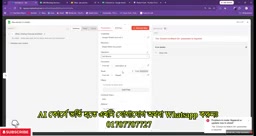
After fetching data, the node returns all rows as an array. The tutorial points out that you should preview the data in the execution steps to confirm that the field names correspond exactly to the spreadsheet column names—this is a prerequisite for error-free filtering and write-back later.
Deep Dive
The n8n Google Sheets node communicates with spreadsheets through the Google Sheets API v4, so credential authorization essentially means creating an OAuth2 client or using a service account and granting access with the
https://www.googleapis.com/auth/spreadsheetsscope. The "Spreadsheet" and "Sheet" dropdowns in the node are loaded in cascade: only after selecting a spreadsheet will it request the list of worksheets under that spreadsheet, which is also why the list may be empty when first entering the node—the request has not yet completed or the credentials have not yet taken effect. If using a service account, you also need to share the target spreadsheet with the service account's email address; otherwise, the node will return a 403 permission error. Understanding this layer of API call relationships helps you quickly determine whether the issue is credentials, sharing permissions, or caching when list loading fails.
Step 2: Use the Filter Node to Screen Out Unpublished Content
After obtaining the full dataset, not every row should be published immediately. The tutorial's approach is to add a "status" column to the spreadsheet and use a Filter node to keep only rows whose status is empty—that is, posts that have not yet been published.
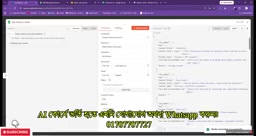
During the demonstration, a typical error occurred: the field name in the filter condition had incorrect capitalization, causing the condition not to take effect and returning abnormal results. After correction, the node correctly output one unpublished record. This small incident shows that field names returned by the Google Sheets node are case-sensitive, and when configuring filter conditions it is best to select fields from the dropdown list rather than typing them manually.
The author also adds a practical design: if you want to publish only one item at a time and advance in order, you can enable an option such as "return only one item per execution" in the node parameters, so that the workflow consumes content one by one like a queue instead of sending everything at once.
Deep Dive
The Filter node is a built-in conditional filtering node in n8n. It receives the array of items passed from upstream, evaluates the condition expression for each item, and passes only the items whose result is true to downstream. Unlike the IF node, the Filter node does not split data into two outputs of true/false; instead, it directly discards items that do not meet the condition, making it more suitable for cleaning scenarios such as "keep only data that meets the condition." Its conditions support multiple types such as strings, numbers, dates, booleans, and arrays, and can combine AND/OR logic. Note that the Filter node references fields based on the JSON structure of upstream items, and the field path must exactly match the upstream output; when the upstream is an array returned by Google Sheets, the condition should reference the property names of each row object, not the displayed column headers of the spreadsheet.
Step 3: Generate Copy and Publish in Subsequent Nodes
The filtered records then enter the content processing stage. The tutorial mentions generating captions for the content and mapping fields such as title, body, and channel to downstream publishing nodes.
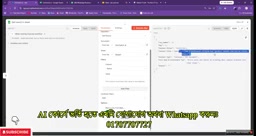
The key to this step is accurate field mapping: the column names of the upstream spreadsheet, the field names output by the Filter node, and the parameter names required by the downstream publishing node must all align. The video does not go deep into the specific publishing platform configuration, but instead focuses on the general capability of "how to correctly pass spreadsheet data to the next node," so this approach can be transferred to any social media platform that supports APIs.
Step 4: Write Back Status to Form an Automated Loop
After publishing is complete, the workflow needs to update the spreadsheet to avoid republishing the same content. The tutorial uses the Google Sheets Update Row operation to change the status column to "published" while keeping the other fields unchanged.
The author specifically reminds that the update operation must locate the correct row, usually by matching on row number or a unique identifier; if the wrong matching field is selected, it may overwrite data in other rows. After completing the write-back, rerun the entire process and you can see that previously published rows are automatically skipped by the Filter node, and the workflow moves on to the next item to be published—thus a sustainable publishing queue is formed.
Deep Dive
The Update Row operation relies on a "Key Column" to locate the row to update, usually choosing the row number or a unique field (such as ID or title). n8n first searches the target spreadsheet for the corresponding row based on the value in that column, then writes the new value; if the key column contains duplicate values, it may update only the first match or even overwrite unexpected rows. Therefore, the content table should ideally ensure that each row has a stable and unique identifier. In addition, the Google Sheets node by default updates only explicitly specified columns and leaves unspecified columns unchanged—this is different from "overwriting the entire row," so you can safely pass only the status field when configuring. If the workflow is triggered concurrently, two executions may read the same unpublished row at the same time and each write back; it is recommended to use scheduled triggers or locking mechanisms to control execution frequency.
Practical Recommendations and Applicable Boundaries
The advantage of this solution is its simple structure and strong maintainability: the content team only needs to maintain one spreadsheet, and the technical side only needs to maintain one workflow, with clear responsibilities on both sides. It is suitable for scenarios with medium content volume and a fixed publishing rhythm, such as publishing several social media posts on a daily or weekly schedule.
The boundaries to note are also obvious. Using a spreadsheet as state storage can easily lead to race conditions under high concurrency or when multiple workflows read and write simultaneously; filtering and write-back rely on exact field name matching, so if the spreadsheet structure changes, the workflow may fail silently. It is recommended to add an error-handling branch before formal use and to perform an end-to-end test after every spreadsheet structure adjustment. The original video is narrated in Bengali, and some node details are mainly shown through on-screen operations; if you need to reproduce it, it is recommended to check the latest parameter names of each node against the official n8n documentation.
Related articles

Amphibious Transforming Drone: Beyond 100x Power Savings, What Are the Real Needs?
Is the amphibious transforming drone just a gimmick? Starting from the 100x power difference of the M4 Morphobot, explore real application scenarios and thesis topic ideas, analyzing boundary conditions where pure drones and pure ground robots both fail.

Warhound Raises $200 Million: Genetically Engineered "War Dogs" Paired with Anduril Gear
Warhound raises $200M, backed by Ben Lamm and Palmer Luckey, to genetically engineer dogs for military and law enforcement use and equip them with Anduril gear. This article analyzes its technology direction, funding logic, and ethical controversy.

Claude API Comes to Google Cloud: IAM Integration and SDK Access Guide
Anthropic hosts the full Claude API on Google Cloud with IAM-controlled permissions and unified billing. This guide covers the Vertex AI and Anthropic-hosted entry points, IAM role configuration, and SDK access.