The Complete Codex Guide: A Hands-On Manual from Basics to Advanced
A comprehensive hands-on guide covering every feature of the new Codex AI Agent platform.
This guide systematically covers the new Codex after its integration with the ChatGPT desktop app. It walks through project folder management, office file processing (Excel, PPT, Word), multi-agent parallel execution, image generation and annotation editing, persistent memory via agents.md, the Skill system, plugin ecosystem, automation workflows, and advanced programming features like Goals Mode, Worktrees, and Hooks.
OpenAI recently rolled out a major update to Codex, merging it with the ChatGPT desktop app into a single application while introducing more robust multi-agent collaboration, a richer plugin ecosystem, image annotation editing, and persistent memory capabilities. Based on a comprehensive hands-on tutorial from a Bilibili creator, this article systematically covers everything about the new Codex—from basic usage to advanced development—helping you truly master this tool.
Codex Basics: Interface & Project Folders
Interface Layout & Model Selection
The new Codex has been merged with the ChatGPT desktop app. You can freely switch between ChatGPT and Codex at the top of the interface. ChatGPT leans more toward chat and office tasks, while Codex offers richer functionality better suited for code development and project execution. At its core, Codex is positioned as an AI Agent platform—an AI Agent is an AI system capable of autonomously perceiving its environment, making plans, invoking tools, and executing tasks, distinguishing it from traditional "question-and-answer" chatbots. Multi-Agent Collaboration means having multiple agents, each with their own responsibilities, working in parallel or sequentially to complete complex tasks. This paradigm became a core trend in AI applications during 2024-2025. The underlying logic is to break large tasks into subtasks, assign them to agents with different tool permissions and specialized capabilities, and then aggregate the results—thereby overcoming the context window limitations and capability bottlenecks of a single model.
For model selection, the tutorial offers clear advice: Use GPT-5.x (High tier) for development or difficult tasks, and lightweight models for smaller tasks. Setting the model to a higher tier and writing clear prompts for the first execution helps ensure better output quality on the first try.
Using Project Folders the Right Way
Project folders are the core of the desktop AI Agent experience. They can store documents, spreadsheets, images, code, and task rules. Codex can not only read and analyze these files but also directly create, modify, and organize them.
When creating a project, you can add multiple source folders:
- Main folder: The default workspace, typically used to store task rules and final generated outputs;
- Supplementary folders: Serve as a personal knowledge base, storing brand guidelines, historical plans, reference data, research notes, etc.
As a real-world example, the tutorial creator organizes LLM papers, technical reports, and research notes into a supplementary knowledge base. When researching DeepSeekAd Harness, he created a dedicated research folder, set it as the main folder, and had Codex conduct deep research—collecting official documentation, project repositories, and release notes, comparing approaches from different authors, and ultimately generating an in-depth research report with source links, accompanied by 13 analysis cards covering different authors' usage methods.
Plan Mode & Permission Settings
Codex offers a Plan Mode that generates a proposed plan for your confirmation before execution. Permissions are divided into three tiers:
- Request approval: Asks for confirmation before every risky operation;
- Auto-approve (recommended): AI handles low-risk operations independently, only asking for confirmation on high-risk ones;
- Full access: AI has complete control—generally not recommended.
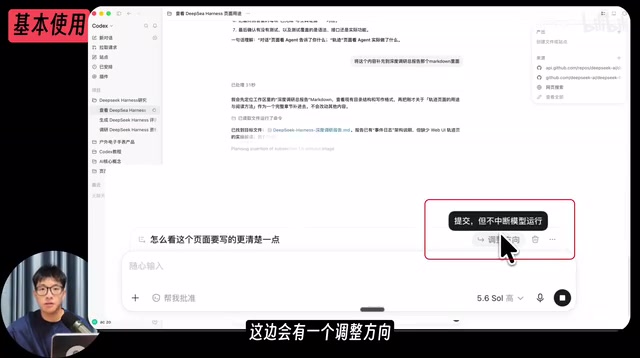
Also worth mentioning is the snapshot feature: pressing both Command keys simultaneously sends a page snapshot to the AI. The snapshot includes the URL link, allowing the AI to clearly see your desktop content—much more effective than a regular screenshot. Additionally, during execution, you can interrupt and add context using the "Adjust Direction" button.
Local Office File Processing
In real office scenarios, we mostly deal with local files like Excel, PPT, and Word. The new Codex performs impressively in this area.
End-to-End Data Analysis & Document Generation
Take the example of "creating a business report based on four months of mobile accessories sales data." Codex can complete the entire pipeline using plugins:
- Use the spreadsheet plugin to apply templates and generate an Excel analysis sheet;
- Use the data analytics plugin to follow a "data quality check → build charts → validate results" workflow, avoiding the pitfall of working with blank templates;
- Use the document plugin with custom templates to generate a Word business report;
- Use the presentation plugin to extract key points from the Word document and generate a PPT;
- It can even generate HTML web pages.
More importantly, the editing experience is excellent: in Word, PPT, and HTML, you can directly select specific content or add annotation comments, sending modification requests to the chat—very close to how humans collaborate. PPT can even invoke image generation to add illustrations.
Multi-Task Parallel Execution
The new multi-agent capabilities are more stable. You can arrange multiple tasks in a single instruction, and Codex will automatically create multiple independent conversations to handle them in parallel—for example, simultaneously researching DeepSeek Harness and analyzing e-commerce data. Both tasks progress in parallel, and upon completion, Codex provides a unified report of conclusions and file locations. This "one instruction, multiple parallel conversations" design dramatically improves efficiency when handling complex workloads.
Image Generation & Annotation Editing
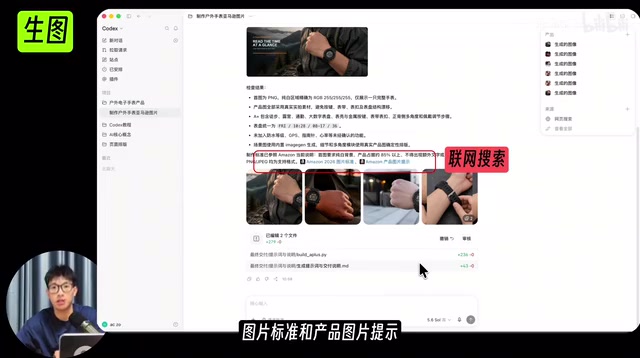
Image generation is another major Codex capability. Using the example of an Amazon US outdoor electronic watch seller, Codex can read product images, verify Amazon image specifications online, and generate product images and A+ content images that meet size requirements.
For image editing, Codex has added image annotation editing capabilities, allowing you to add comments, erase elements, and resize directly on images. To address the pain point of fine-grained edits that are hard to describe in text, the tutorial recommends Covered, an open-source, free plugin on GitHub—drag an image onto the canvas, circle the area to modify, and annotate it (e.g., "change the watch number to 9.14" or "remove the sunlight"). Then send the annotated screenshot to Codex for precise communication of your editing intent.
A practical tip: communicate more with AI when creating images. For example, for a children's t-shirt's "moisture-wicking and quick-drying" selling point, the AI might suggest rewriting it as "dries quickly after exercise, reducing the risk of catching a cold"—giving consumers a more tangible, relatable impression.
Persistent Memory & CLI Integration
Two-Level agents.md Configuration
Claude Code has CLAUDE.md; Codex's counterpart is agents.md, configured at two levels:
- Global configuration: Set in Settings > Personalization, where you write personal preferences, coding style, and commonly used tools;
- Project-level configuration: Located in the workspace root directory, providing specific project tech stacks and architecture documentation.
agents.md and CLAUDE.md represent an emerging "AI engineering practice"—using structured text to declare project constraints, coding styles, tech stack preferences, and workflow standards to AI. This approach borrows from software engineering configuration files like .editorconfig and .eslintrc, but the "executor" has shifted from IDEs and linters to AI. The layered configuration design (global → project → subdirectory) references Git's configuration priority mechanism, ensuring that universal standards and project-specific requirements can coexist without conflicts. As AI programming tools become widespread, maintaining these configuration files is becoming a new essential skill for developers.
In terms of priority, the closer to the current working directory, the higher the priority. Codex automatically merges configurations from all layers, following a "later overrides earlier" logic. For example, you might place general conventions at the top level, with dedicated agents.md files in frontend and backend folders—layered progressively without conflicts.
CLI Integration for Business Workflows
Codex can directly operate the terminal, enabling it to invoke tools like Feishu CLI, DingTalk CLI, GitHub CLI, and more. The tutorial demonstrated two typical scenarios:
- Having Codex read article links and comments, invoke Feishu CLI to modify documents, and mark AI changes in red;
- A PC assembly workshop automatically populating order Excel data from various platforms into Feishu multidimensional tables, automatically skipping duplicates, achieving cross-department information connectivity between the sales department and the technical assembly team.
These methods are equally applicable to scenarios like e-commerce product research, customer follow-ups, and sales lead management—making scattered data truly flow.
Plugins, Skills & Automation
Plugin Ecosystem: Skills + MCP + CLI Combined
The new plugins essentially bundle the tools needed for a category of work, and they support custom-built plugins. It's worth noting that MCP (Model Context Protocol) is an open protocol proposed by Anthropic in late 2024, designed to provide standardized tool invocation and context injection interfaces for AI models—similar to "the USB port of the AI world." Before MCP, each platform implemented plugins differently, requiring developers to adapt separately for each platform. MCP drove standardization in the plugin ecosystem, but as platforms like Codex deeply integrate Skills, CLI invocation, and native plugins, MCP's practical necessity has diminished—the platform's built-in capabilities already cover most of the problems MCP was originally designed to solve.
Here are several categories of plugins worth noting:
- Video: remotion (React) and hyperframes (HTML/CSS) for code-based video creation; chatter card is a conversational AI editing plugin, exceptionally smooth for editing talking-head videos;
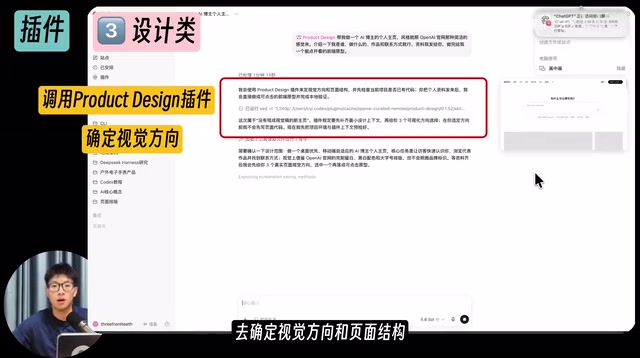
- Design: Product Design (OpenAI's design plugin) can automatically invoke multiple sub-agents to collaboratively develop pages, with visual results that closely match reference styles;
- Browser: Chrome automation controls your currently logged-in browser, ideal for operating admin panels and reimbursement systems; ChatGPT's built-in browser opens on the right side, suitable for quick research or filling out surveys;
- System: Computer Use can take over mouse and keyboard across platforms to complete desktop tasks, but consumes quota quickly; the Record Skill feature can capture manually demonstrated workflows as reusable custom skill packages.
Computer Use refers to AI's ability to operate desktop applications by simulating mouse clicks, keyboard inputs, and screenshot recognition. This technology was first publicly demonstrated by Anthropic in October 2024. The technical principle involves the AI periodically capturing screen images, using visual understanding to identify the position and state of interface elements, then generating corresponding mouse coordinates and keyboard commands to complete operations. The advantage is that it can operate any GUI application without API adaptation, but screenshot recognition and coordinate calculation consume large amounts of tokens, making it far slower than direct API calls. It's also prone to errors with dense or dynamically changing interface elements, making it better suited as a supplement to other automation methods for handling legacy software that lacks CLI or API access.
Skills: A Knowledge Base That Learns the More You Use It
A Skill is a specialized capability assigned to the AI. The tutorial demonstrated the complete process of creating an AI animation Skill: input reference images → use the Skill Creator to iteratively confirm details → generate test images → invoke hyperframes to render video. After completion, you can write lessons learned and pitfalls encountered back into the Skill, making it increasingly tailored to your needs over time.
The most useful Skills are those customized for your own workflow—teachers create lesson prep Skills, e-commerce sellers create product listing Skills, content creators create script storyboard Skills, and office workers create weekly report or meeting minutes Skills. By comparison, MCP is already being used much less frequently.
Automation: The Culmination of Everything
Automation is covered last because it comprehensively leverages all the previously discussed capabilities. The concept is simple: schedule work that you would normally send manually to execute automatically at fixed times. For example, set up a daily 9 AM automation that invokes AI news and GitHub trending Skills, compiles the results, and sends them as a Feishu document—delivering the latest news to you on schedule every day.

Advanced AI Programming Techniques
Finally, let's look at advanced features for code development. The tutorial demonstrated these through the complete process of developing an AI workbench and deploying it live.
Goals Mode
When requirements documentation is very detailed (including tech stack, design direction, architecture diagrams, and feature specifications), you can use Goals Mode to have the AI execute everything in one go. But note: if the task description is unclear, the AI will easily go off track—be thorough upfront.
Branches vs. Worktrees
The difference can be summarized in one line:
- Branch to new chat: Conversations are separated, but files are not—preserves context while exploring a new direction, but operates on the same files. Best for plan discussions;
- Worktree: Both conversations and project directories are separated—creates an independent working area based on git, with no overlap. Best for developing two features simultaneously.
Note that Worktree depends on git; the project must be initialized and have at least one commit.
From a technical perspective, Git Worktree is a feature introduced in Git 2.5 that allows multiple working directories to be checked out simultaneously within the same repository, each corresponding to a different branch. In traditional Git workflows, switching branches means all files in the working directory get replaced, and uncommitted changes may be lost or cause conflicts. Worktree solves this: you can develop feature-A in path-A while simultaneously developing feature-B in path-B—both sharing the same .git repository but with completely independent files. In AI programming scenarios, Worktree's value is even more pronounced—it allows AI to experiment boldly in an isolated workspace, and even if the generated code has issues, it won't affect the stable code on the main branch.
Hooks: Safety Valves for Your Workflow
Hooks are scripts that automatically trigger at designated points in the workflow—particularly useful for things that need to be done every time but are easy to forget. The Hook mechanism has a long history in software engineering; Git itself has over a dozen built-in hooks like pre-commit and post-merge for automatically running check scripts before and after specific operations. Introducing Hook mechanisms in AI programming tools is an extension of DevOps security practices: when AI has direct permission to read/write files and execute commands, the risk of accidental errors increases significantly—for example, AI might write API keys into public files during debugging or accidentally modify production database configurations.
The tutorial demonstrated a security Hook: when AI attempts to modify .env files, database files, or core code, a high-risk warning pops up first, waiting for user confirmation before proceeding—effectively preventing risks like API key leaks. By setting Hooks at critical operation points, you essentially install "safety valves" on AI's autonomous behavior, achieving a balance between "AI autonomous execution" and "human final approval."
One-Click Site Deployment
After development is complete, you can deploy your project to a live site with one click through plugins. Codex automatically handles the migration from traditional Next.js server-side architecture to cloud-compatible architecture, with support for access permissions, custom domains, pageview analytics, and database table content viewing—eliminating tedious DevOps work.
Conclusion
The new Codex has evolved from a coding tool into a comprehensive AI Agent platform covering office productivity, design, knowledge management, automation, and full-stack development. Its core value lies in: using project folders to manage context, agents.md to persist preferences, Skills to accumulate experience, plugins to extend capabilities, and automation to free your hands. For individuals and teams looking to deeply leverage AI for productivity gains, this toolchain is well worth the investment in learning and customization.
Related articles

Vibe Coding Full-Stack in Practice: AI Programming from Beginner to Enterprise Deployment
From Cursor to Claude Code, this Bilibili AI programming course uses four progressive projects to cover full-stack development, open-source secondary development, and team collaboration. The article analyzes the shock to frontend roles, the efficiency shift from 50 people to 5, and the methodology required for enterprise-grade projects.

David Blaine's Global Quest for Real Magic: From South Africa to Japan and India
David Blaine travels to South Africa, Japan, and India in his Do Not Attempt special, documenting Spinning drivers, black mamba rescuers, iaijutsu masters, and ascetics—exploring the boundary between magic and real human极限 challenges.

Is a Touchscreen MacBook Coming? Vergecast Reveals Apple Executive's Response
Vergecast podcast reveals a conversation between a reporter and Apple executive John Ternus about a touchscreen MacBook and Apple Pencil support. Ternus says iPad is the best device for a stylus, while the reporter bets MacBook will eventually support Apple Pencil.