The Complete Codex Guide: From Installation to Real-World Practice

A complete beginner-to-advanced guide to OpenAI Codex, from installation to real-world workflows.
This guide explains how OpenAI Codex has evolved from a coding tool into an all-around AI agent. It covers the core difference between Codex and ChatGPT, the four available versions, interface structure, permission modes, skills and plugins, browser and computer automation, worktrees, agents.md, and six practical best practices for getting the most out of Codex.
The Complete Guide to OpenAI Codex: From Zero to an All-Around AI Assistant
OpenAI's Codex has evolved from an AI coding tool into an all-around AI agent capable of operating your computer, generating documents, and deploying websites. This article is based on a beginner-friendly tutorial and aims to help newcomers quickly grasp the core concepts and hands-on usage of Codex.
What Exactly Is Codex: From "Consultant" to "Worker"
Many people tend to confuse Codex with ChatGPT, but there's a fundamental difference between the two. The tutorial uses a vivid home renovation analogy: ChatGPT is like a consultant—you show it a photo of your kitchen, and it can tell you to move the stove 20 cm to the left and switch the wall cabinets to cream white, sounding perfectly authoritative, but it won't lift a finger. Codex, on the other hand, is like a worker—you just say "redo the kitchen," and it measures the dimensions, draws the blueprints, moves the stove, applies the paint, and even takes photos for your approval when it's done.
In actual work, ChatGPT can only tell you "what you should do," whereas Codex can directly open folders on your computer, create files, run programs, search for information online, and operate browsers. After making changes, it can even automatically commit to the code repository and deploy the project live. This is why everyone calls Codex an agent—an AI that can roll up its sleeves and get things done, rather than just a Q&A bot.
What Is an AI Agent? A traditional large language model (LLM) is essentially an "input-output" system: give it a piece of text, and it returns a piece of text—the interaction ends there. An Agent architecture, however, layers a "perceive-plan-act" loop on top of the LLM: the model can not only generate text, but also call external tools (Tool Use), maintain multi-step reasoning chains (Chain of Thought), observe the results of actions, and adjust its strategy accordingly. This architecture is known as ReAct (Reasoning + Acting), formally proposed by a Google research team in 2022. The core idea is to have the model output an explicit reasoning process before each action, thereby dramatically reducing hallucination rates.
The logic of ReAct can be understood through a concrete example: when you ask Codex to "analyze a competitor's website and generate a report," it won't directly output the report. Instead, it first thinks—breaking the task into four sub-steps: scraping the web page, extracting key information, comparative analysis, and formatting the output. Then it acts—calling the Browser Use plugin to visit the target site. Then it observes—verifying whether the scraped results are complete. If a step fails (for example, if the target site has anti-scraping mechanisms), it returns to the "thinking" stage to adjust its strategy, switching to screenshot analysis instead of direct scraping. The entire loop runs automatically, almost imperceptibly to the user. It's worth noting that the boundaries of an Agent's capabilities depend largely on the richness of the tools it can call—which is precisely the fundamental driver behind OpenAI's continuous expansion of the Codex plugin ecosystem.
Even more powerful is its ability to spawn multiple "workers" that tackle different tasks simultaneously, running in parallel in the background without interfering with each other. This parallelism relies on a "sandbox isolation" mechanism at its core—each conversation (task) runs in an independent execution environment with its own file system view, process space, and network request queue, so no race conditions arise between them.
The Technical Principles of Sandbox Isolation The sandbox here essentially borrows the isolation approach of containerization technology (such as Docker): each AI task instance has its own independent namespace, including file system mount points, network interfaces, and process trees, with resource access between them subject to kernel-level hard limits. This aligns with the concept of process isolation in operating systems—just as two different processes cannot directly read or write each other's memory space, two parallel Codex tasks cannot accidentally overwrite files the other is modifying, thereby ensuring the safety and predictability of concurrent execution.
From an engineering implementation standpoint, the reason Docker containers can achieve lightweight isolation lies in their reuse of two native Linux kernel features:
cgroups(control groups, responsible for limiting resource quotas such as CPU and memory) andnamespaces(responsible for isolating process views, network stacks, file system mount points, and more). Processes inside a container "see" a private file system and network environment, yet actually share the same kernel as the host machine, with startup speed and resource overhead far lower than traditional virtual machines (VMs). Codex's multi-task parallelism stands on the shoulders of this mature infrastructure, enabling industrial-grade task isolation within a consumer-grade subscription service.

Four Versions and Account Preparation
Codex offers four ways to use it: the CLI command-line, the VS Code plugin, the desktop client, and the web version. All four have identical performance and mostly overlapping features, but considering overall difficulty of use, feature completeness, and beginner-friendliness, the desktop client is the top choice, and this article focuses primarily on it.
Before getting started, you'll need a ChatGPT account, and it's recommended to subscribe to Plus or Pro. Although free accounts can now use Codex too, the quota is very limited and won't last more than a few uses. Plus users can send 30 to 150 messages every 5 hours, which is plenty for daily use; heavy users or teams may want to consider Pro.
Notably, compared to the similar tool Claude Code, Codex has more generous quotas, more frequent resets, fewer account restrictions, and a lower risk of being banned. There are two ways to log in: with a ChatGPT account (recommended—directly uses your subscription quota, gives you first access to the strongest models, and unlocks cloud tasks), or with an API Key (slower model updates, no cloud tasks, pay-as-you-go—running large tasks might burn through tens of dollars, making it less cost-effective than a Plus subscription).
Interface Structure: Projects vs. Conversations
After logging in, the left sidebar is divided from top to bottom into function buttons (new conversation, search, plugins, automation), the project list, the conversation list, and settings. The key to understanding Codex lies in distinguishing between two concepts: "projects" and "conversations":
- Conversation: Similar to chatting with ChatGPT in the desktop app, suitable for scattered tasks like gathering information, writing copy, translating, and answering questions.
- Project: Corresponds to a folder on your computer. All files generated within a project (PPTs, Excel files, Word docs, code, images) are saved in this folder for unified management.
Simple rule of thumb: whenever file generation is involved, work within a project; if you're just chatting casually, use a conversation. Each project can contain multiple conversations, with each conversation handling one thing—a project is the big folder, and conversations are the work threads within it.
Permission Modes and Model Selection
Since Codex can directly modify computer files and run commands, it introduces the concept of "permission levels," of which there are three:
- Default Permission: The safest. It can only make modifications within the current project folder, and actions like accessing the internet or running terminal commands require confirmation. Best for beginners.
- Auto Review: Codex assesses risk itself, automatically approving safe operations and only asking about risky ones—like having an internal approval officer on staff.
- Full Access: The highest permission level. It can do anything without ever asking, offering maximum efficiency but carrying some risk.
Why Is Permission Management So Important for AI? These three permission modes are essentially an engineering implementation of the Principle of Least Privilege (PoLP) in the AI Agent context—a principle originating from the classic 1975 information security paper by Saltzer and Schroeder, which requires that any program have only the minimum privileges necessary to complete its current task. It is one of the cornerstones of information security.
For AI Agents, this principle is especially critical: LLMs are vulnerable to prompt injection attacks, where malicious web pages or files may embed hidden instructions in their content (for example, hidden white text on a white background, or override instructions planted in PDF metadata) to trick the AI into performing unintended actions (such as deleting files, leaking data, or sending requests to external servers). Since 2023, multiple real-world cases have demonstrated the practical dangers of this attack vector—researchers once demonstrated how hidden instructions embedded in a web page could successfully manipulate an AI assistant into forwarding a user's private email content to an attacker-controlled server.
The default permission mode effectively builds a defense-in-depth system by confining the AI's operational scope to the project folder and setting manual confirmation checkpoints for network requests and terminal commands—so even if the AI is deceived, it cannot cause system-level damage, with the scope of harm "fenced" within the smallest possible boundary. This shares the same design philosophy as the sandbox mechanisms of modern browsers (where web scripts cannot access the local file system) and the permission-request prompts of mobile apps.
It's recommended that beginners use the default permission for the first week, try Auto Review in the second week, and only consider Full Access once they're very familiar with the tool and have Git backups in place. As for models, GPT-5.5 is currently the strongest and recommended as the default; the mini version is suitable for simple tasks to save quota. Reasoning intensity comes in four levels—low, medium, high, and ultra-high. "Medium" is fine for daily use; only weird bugs or large-scale refactoring warrant "ultra-high."
Frequent Operations: Queuing, Cutting In, and Parallelism
These three are the most commonly used operations in daily use:
- Task Queuing: While Codex is executing Task A, you can directly send a new message, and it will queue up after A to be executed in order.
- Task Cutting-In: Click the guide button next to a message to inject a new requirement directly into the currently executing task, adjusting on the fly.
- Multi-Task Parallelism: Simply open a new conversation to run multiple tasks simultaneously without interference—you can even run them in parallel across projects. Note that context is not shared between different conversations, but conversations within the same project can all read files from the same folder.
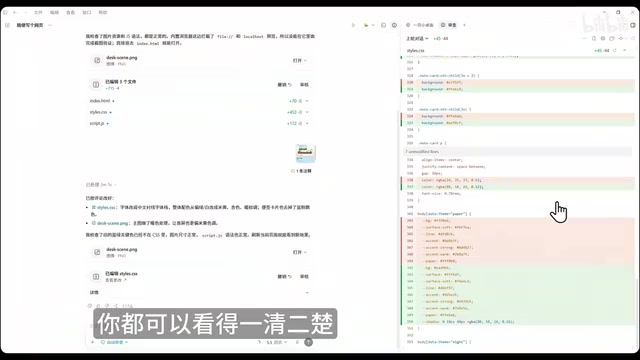
Additionally, Codex supports direct previews of generated web pages, documents, and PPTs. The annotation feature in the top-right corner is particularly useful—just select the parts you're not satisfied with and write down your thoughts, and Codex will make precise edits. The modified code is highlighted with green (additions) and red (deletions) for a clear side-by-side comparison.
Skills and Plugins: The Source of Capabilities
Many people confuse "skills" and "plugins," but the distinction is actually simple:
- Skills: A set of pre-written execution steps packaged into a Markdown file—essentially an instruction manual. The most commonly used built-in skill is
image_gen(which calls the GPT image model to generate images). - Plugins: One level larger than skills. A plugin contains multiple skills as well as the ability to connect with external applications. For example, the
computer useplugin includes several skills such as operating apps, screen recording, and keyboard control.
The Architectural Logic of Skills and Plugins This design borrows from the relationship between "functions" and "modules" in software engineering. A skill is essentially a structured prompt written in Markdown format, telling the AI how to complete a specific task through clear step-by-step descriptions. Its design philosophy is close to "few-shot prompting"—demonstrating operation patterns in advance to guide the model along an established workflow, effectively planting a "domain expert's operations manual" into the context.
A plugin, by contrast, is a more complete integration unit that establishes connections with external systems through OpenAI's Function Calling mechanism—a core capability OpenAI introduced in June 2023, which allows developers to describe the signature of callable functions (function name, parameter types, return value format) in JSON Schema format. The model will generate structured function-call requests at appropriate times, rather than relying solely on "imagination" to complete tasks, thereby seamlessly bridging the AI's language capabilities with real-world API systems. For example: without Function Calling, an AI querying the weather could only "make up" an answer; with Function Calling, it generates a structured request like
get_weather(city="Beijing", date="today"), actually calls the weather API, and then integrates the result into its answer—this is the fundamental difference between "hallucination" and "fact."The syntax of
@for calling plugins and$for calling skills also echoes the intuition of module references and function calls in programming languages (similar to Python'simportand function calls), lowering the barrier to understanding for non-technical users.
How to trigger them: type @ to manually call a plugin, and type $ to manually call a skill. Both can be used in a single message, for example: "Use @Documents to analyze the stock and use $ImageGen to generate a cover image."

Real-World Office Scenarios
With the help of the plugin ecosystem, Codex can handle a wide range of daily tasks:
- Generate Word Documents: Use the
@Documentplugin to automatically search the internet for information, organize and analyze it, and generate a report with a table of contents and tables. - Generate Excel: Use the
Spreadsheetplugin to create a stock comparison table with colors marking gains and losses. - Generate PPT: Use the
Presentationplugin, specifying a clean business style with images accompanying the key points on each slide.
You can even request the generation of a Word doc, Excel file, PPT, and cover image all in a single message, all saved to the project folder. For work you repeat every day, you can use the automation feature to create scheduled tasks. But note: first test the instructions in a regular conversation and confirm the results meet expectations before setting them as scheduled tasks—otherwise you may waste quota for nothing.
Advanced Capabilities: Operating Browsers and Computers
Operating browsers and local computers is Codex's most standout capability compared to similar tools. After installing the Browser Use plugin, Codex can open a browser on its own, visit websites, click buttons, fill out forms, take screenshots and record the screen, and scrape information—only requiring your intervention when login is needed.
Going a step further, the computer use plugin (currently only supports Mac) lets Codex operate other applications on your computer. For example: opening Chrome, searching for keywords on Xiaohongshu, downloading watermark-free image-and-text posts, and saving them to a newly created folder on the desktop—all handled autonomously by the AI, with no manual intervention required.
The Fundamental Difference Between Computer Use and Traditional RPA Traditional robotic process automation (RPA) tools like UiPath and Automation Anywhere rely on pre-recorded operation scripts and the precise coordinate positioning of UI elements. They are extremely fragile to interface changes—once a button moves or the software updates, they break, and maintenance costs are extremely high. The industry has a vivid term for this: "fragile automation."
Computer Use based on Vision-Language Models (VLMs) is entirely different: the AI "understands" the semantic content of the current screen through screenshots—not only recognizing pixels but also grasping that "this is a submit button" or "this is a search box, currently empty"—combines this with natural-language instructions to plan the next step, and then executes by simulating mouse and keyboard events. Even when the interface changes, it can adapt through semantic understanding. This capability was first publicly demonstrated by Anthropic in Claude 3.5 Sonnet (October 2024), and subsequently became a direction the industry followed.
Part of the reason it currently prioritizes Mac support is that macOS's Accessibility API provides a more standardized and stable semantic tree of UI elements (the Accessibility Tree) than Windows—this is a structured data object describing all interactive elements on the interface, including each button's role, label, and state (enabled/disabled). Beyond screenshots, the AI can also access this structured metadata, effectively having both "vision" and "touch" as information channels, further improving operational accuracy and making the success rate of complex interactions (such as dropdown menus, pop-ups, and multi-layered nested interfaces) far higher than screenshot-only approaches.
Three Working Environments and the Built-In Terminal
When creating a new conversation, you can choose from three working environments:
- Local Mode: Directly modifies files in your folder, suitable for small changes—but if something breaks, you must undo it manually, so always back up in advance.
- Worktree Mode: Codex creates a parallel copy of the project in the background to work on, without affecting the original files. This avoids conflicts when multiple AIs modify the same file simultaneously. Once done, you can choose to merge, create a new branch, or discard the changes entirely.
- Cloud Mode: Tasks are sent to OpenAI's servers for execution, so your computer doesn't need to stay on—suitable for large, time-consuming tasks. However, it requires linking a GitHub repository and has a more complex setup, so beginners can hold off on it for now.
What Is a Worktree? A worktree is an advanced Git feature introduced in Git version 2.5 (2015), allowing the same repository to check out different branches in multiple directories simultaneously. Each worktree has its own independent working directory and staging area but shares the same underlying object database (the
.gitdirectory), so no redundant full copies of the repository are created, making it far more storage-efficient than simply copying the project folder.To understand its value, consider a parallel universe analogy: the main branch is the "real universe," and each of Codex's modifications happens in a "parallel universe"—an independent worktree branch. This parallel universe shares its history (the Git object database) with the real universe, but their current states are completely isolated. The AI can boldly refactor code in the parallel universe while your real universe (the main branch) always stays in a runnable state. When you're satisfied with the changes in the parallel universe, run
git mergeto "fold it back" into the real universe; if the changes are a mess, rungit worktree removeto destroy the parallel universe entirely, leaving no trace.This is also precisely why best practice emphasizes "committing often"—each commit is a rollback-able safety anchor. Git's version history is essentially a directed acyclic graph (DAG), where any commit node can serve as a destination for the "time machine," letting you return to any historical state.
Codex also has a built-in terminal (invoked with Cmd/Ctrl+J), whose working directory automatically follows the current conversation. Codex can read the terminal output and automatically determine whether the server has thrown any errors. A handy tip: if you also have Claude Code installed, you can type claude in the Codex terminal to launch it, letting the two AIs each play to their strengths (for example, Codex handling backend logic while Claude Code optimizes the frontend visuals).

agents.md: An Onboarding Manual for the AI
By creating an agents.md file in the project's root directory, Codex will automatically read and follow the rules within it every time it starts up. This solves the pain point of "different conversations not sharing memory, requiring notes to be repeatedly restated"—much like writing an onboarding manual for a new colleague.
Context Engineering agents.md embodies an emerging practice in the AI engineering field, reflecting a fundamental limitation of the current Transformer architecture: large language models operate based on the attention mechanism, rebuilding their understanding from scratch within a fixed-length context window each conversation, with no persistent neural state across sessions. Engineers have developed various compensatory solutions for this: RAG (Retrieval-Augmented Generation) dynamically injects external knowledge bases at inference time; Memory modules (such as ChatGPT's memory feature) summarize user preferences into a database and retrieve them in subsequent sessions; and agents.md is a lightweight "system prompt persistence" solution—writing project conventions, coding style, and prohibited operations into a file that the framework automatically loads at the very front of the context window at the start of each session.
This aligns with the "convention over configuration" philosophy in software engineering, replacing repeated verbal agreements in each conversation with a preset written contract, significantly reducing communication overhead. A practical agents.md typically contains three types of content: basic project information (tech stack, directory structure, major dependency versions), operational constraints (which core files must not be modified, which tests must be run before committing), and style conventions (variable naming conventions, comment language, code formatter configuration).
It's recommended to keep the content under 150 lines, otherwise it will consume too much of the AI's context capacity. This is because an overly long system prompt compresses the "attention resources" the model has for processing the user's actual instructions, degrading its ability to follow rules—the industry calls this phenomenon "Lost in the Middle." A 2023 research paper from Stanford University confirmed that LLMs are significantly more sensitive to information at the beginning and end of a context than to information in the middle, and overfilling the context reduces the model's adherence to mid-section rules by 20% to 30%. This finding carries important engineering implications for all AI applications that need to process long documents.
Six Real-World Best Practices
The following six tips are worth bookmarking for future reference:
- Do all file generation within a project for unified management and to avoid losing files.
- One task per conversation—the more focused the conversation, the better the AI performs.
- Get a plan first for complex tasks—use planning mode to have it list the steps, and only execute after confirming they're correct.
- Clearly define "what done means"—give acceptance criteria (such as all tests passing), and Codex will verify itself rather than just handing over after making changes.
- Commit often, so you can quickly roll back if something breaks.
- Have Codex review Codex's code—open a new conversation to have it check for security and performance, which often uncovers issues missed in the first round.
If you run out of quota, simply wait for the 5-hour rolling refresh; if the code breaks, you can discard it via worktree, or run git checkout locally to roll back. If Codex modifies unrelated code, just clearly state in agents.md: "Do not make additional optimizations unless requested."
Conclusion: Not Just for Programmers
Codex has evolved from a pure coding tool into an all-around AI assistant. Whether you're in operations, a designer, or a content creator, you can use it to boost efficiency—setting up automated tasks to generate daily reports, quickly validating interactive prototypes, curating viral topic ideas, and more. You don't need to understand HTML, CSS, or JavaScript—just clearly state your requirements in plain language.
But as the tutorial emphasizes: how much power Codex can unleash ultimately depends on you. The better you understand your project and the more clearly you can describe your requirements, the higher the quality of the tasks it can complete. Vague requirements will only yield vague results.
Related articles

The Hidden Risks of Culvert Failure: An Overlooked Infrastructure Hazard
Culverts are hidden drainage structures buried beneath roads. Their failure can silently hollow out road beds, cause localized flooding, and trigger deadly collapses — yet they remain chronically overlooked.

Naoma AI Demo Agent V2: Turning Website Traffic into Booked Meetings with AI Sales
Naoma AI Demo Agent V2 replaces demo request forms with an AI sales rep that demos products, qualifies leads, and books meetings in real time. 50K+ demos run.
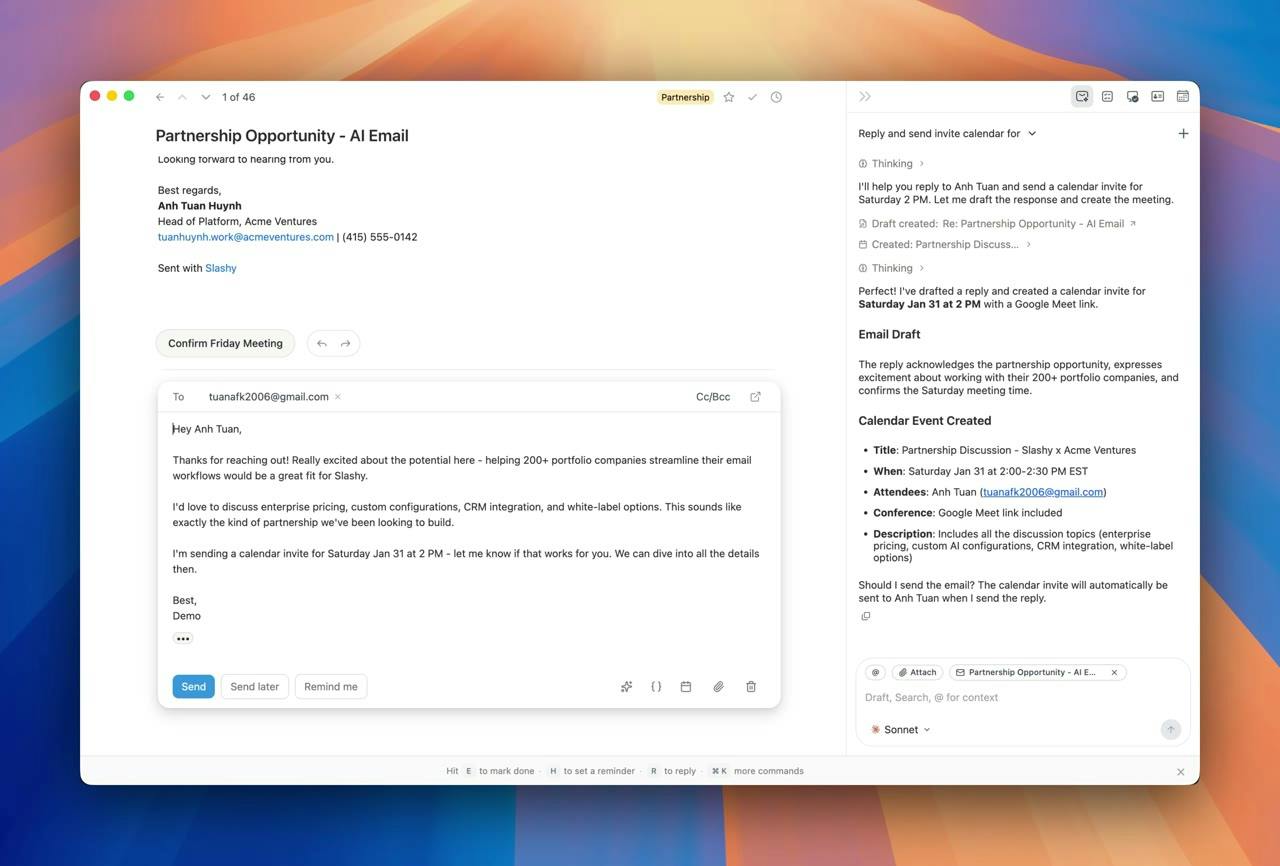
Slashy Assistant: The AI Email Assistant That Handles Your Inbox for You
Slashy Assistant is an AI-native email client with a built-in smart assistant that drafts replies in your voice, organizes email, schedules meetings, and tracks follow-ups. Accessible via iMessage, Slack, and phone — set up in five minutes.