The Complete Codex Guide: From Installation to Real-World Use — An AI Agent Tutorial

A complete hands-on guide to OpenAI's Codex AI agent, from setup to real-world workflows.
Codex is OpenAI's AI agent tool that goes beyond answering questions — it reads and writes files, runs terminal commands, controls browsers, and even commits and deploys code. This guide covers all four versions of Codex (desktop client recommended), account and permission setup, project and conversation management, the skills and plugin ecosystem, workspace and cloud modes, automation scheduling, and how to use AGENTS.md for persistent rules. Six practical principles round out the guide: use projects for files, keep one task per conversation, plan before acting, define done clearly, commit often, and cross-review with Codex.
What Codex Actually Is: From Coding Tool to All-Purpose AI Agent
A lot of people assume Codex is just another ChatGPT. That's a misconception. Codex is an AI agent tool developed by OpenAI, and its defining trait isn't answering questions — it's getting things done.
The original video used a great analogy: imagine you're renovating your kitchen. ChatGPT is like a consultant who only gives advice — you show it a photo of your kitchen, it tells you to shift the stove left and repaint the cabinets cream white, all very convincingly, but you still have to move the stove and do the painting yourself. Codex is more like a full-service contractor: you say "renovate the kitchen," and it measures the space, draws up plans, moves the stove, paints the walls, takes photos when it's done, and can even send multiple "workers" to tackle different tasks simultaneously.
That's the fundamental difference between an agent and a chatbot. Codex can directly open folders on your computer, create files, run programs, search the web, operate a browser, and even commit and deploy code when it's finished. It has evolved from an AI coding tool into a fully capable assistant for writing code, creating presentations, building spreadsheets, drafting Word documents, controlling browsers, and even producing videos.
The core distinction between an AI agent and a traditional conversational AI lies in the ability to act. Traditional large language models (like early ChatGPT) are pure "language processors" — they receive input and generate text output, with the entire process happening at the language level, incapable of proactively interacting with the outside world. Agents layer a "tool-calling" mechanism on top of language capabilities: they can invoke pre-registered tool functions (such as reading/writing files, executing terminal commands, or making HTTP requests), feed the results back into the model, and form a "think → act → observe → think again" loop until the task is complete. This architecture is commonly known as ReAct (Reasoning + Acting) or the Agentic Loop. Codex is built on exactly this foundation: it can continuously execute multi-step operations in a local sandbox or cloud environment, rather than stopping at a chat box waiting for the next prompt. Understanding this explains why Codex can "measure the space, draw up plans, and move the stove" — every step it takes is a real system call, not a simulated description.
Four Versions and Account Setup
Codex currently comes in four forms: a CLI command-line version, a VS Code extension, a desktop client, and a web version. All four offer equivalent performance and largely the same features, but when you weigh ease of use, feature completeness, and beginner-friendliness, the desktop client is the top choice — and that's what this guide focuses on.
Before downloading, you'll need a ChatGPT account, and it's recommended to subscribe to Plus or Pro. Free accounts can technically access Codex now, but the usage quota is extremely limited and runs out quickly. Plus users get 30–150 messages per 5-hour window, which is plenty for everyday use; heavy users or teams may want to consider Pro.
Compared to similar tools (like Claude Code), one of Codex's clear advantages is that it's more generous with quotas, resets more frequently, and has fewer account restrictions. Installation is straightforward — just download the installer for your operating system from the official website.
There are two ways to log in: sign in with your ChatGPT account (recommended — it uses your existing subscription quota, gives you access to the latest models first, and unlocks advanced features like cloud tasks), or log in with an OpenAI API key (slower model updates, no cloud tasks, and potentially more expensive on a pay-per-use basis). Overall, subscribing to Plus and signing in with your ChatGPT account gives you the best value.
Interface Layout and Three Permission Modes
After logging in, the main interface has a left sidebar with four function buttons from top to bottom (new conversation, search, plugins, automation), two core lists (projects and conversations), and settings.
Here's an important distinction to understand: Conversations are for casual tasks like browsing, translating, or answering quick questions; Projects correspond to a folder on your computer, where all generated files (code, presentations, spreadsheets) are saved. Simply put, a project is a top-level folder, and conversations are the work threads inside it — each project can have multiple conversations.
Because Codex can directly modify files on your computer and run commands, it introduces a "permission" concept with three modes:
- Default: The safest option. Codex can only make changes within the current project folder. Internet access, running terminal commands, and accessing files outside the folder all require your approval first. Best for beginners.
- Auto-review: Codex first self-assesses risk. Low-risk operations (like creating a new file) are automatically approved; higher-risk ones (like deleting a file) trigger a confirmation prompt. Think of it as having a built-in approval reviewer.
- Full access: Maximum permissions — Codex can do anything without asking. Most efficient, but carries risk (it might accidentally delete files or install the wrong dependencies).
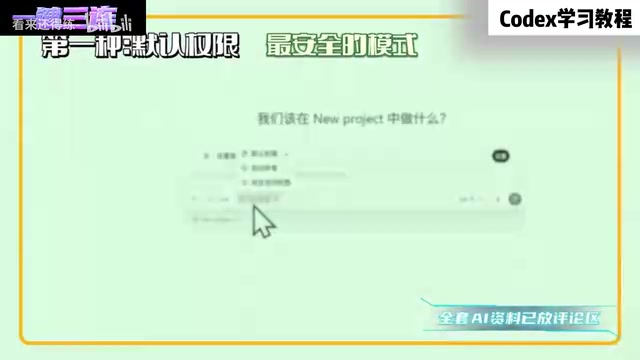
The original video gave practical advice: use default permissions for the first week, switch to auto-review in the second week, and only consider full access once you're very familiar with the tool and have Git backups in place.
Models and Thinking Intensity
The bottom-right of the input box lets you switch models and thinking intensity. For models, GPT 5.5 is currently the most capable and recommended as the default; 5.4 covers the vast majority of use cases; mini versions are faster and use fewer credits, suitable for simple tasks. Thinking intensity has four levels — low, medium, high, and ultra-high. Use low for simple questions, medium for everyday tasks, high for complex feature development, and ultra-high only for mysterious bugs or large-scale refactoring. There are also standard and fast speed modes; fast is roughly 1.5× the speed of standard but consumes more quota.
The three permission modes reflect a tradeoff in AI safety between Human-in-the-Loop (HITL) and full automation. Default mode requires human confirmation for every high-risk operation, representing the strongest HITL principle. Auto-review introduces a self-critique mechanism where the AI first scores the potential destructiveness of an operation before deciding whether human intervention is needed — reducing unnecessary interruptions while maintaining a check on dangerous actions. Full access removes human oversight entirely, entering a fully automated execution mode. Choosing a mode is fundamentally a tradeoff between efficiency and controllability. For scenarios involving production files or irreversible operations (like deletion or deployment), even experienced users are advised to maintain at least auto-review level permissions, paired with Git version control as a final safety net.
Hands-On Workflow: From Creating a Project to Reviewing Changes
Actual use starts with creating a project. Click the add button in the projects section of the left sidebar, then choose "Create blank project" (starting from scratch) or "Use existing folder" (for working with existing code or files). After creation, you can rename the project, and clicking "Open folder" opens the corresponding directory in your file manager.
Type your request in Chinese (or English) in the input box and send it. Codex will display its thinking process, then begin modifying files or running commands. In non-full-access modes, it will prompt you for each operation, offering "Approve once / Approve all for this conversation / Deny" options.
Once a webpage, Word document, presentation, or spreadsheet is generated, you can click the filename to preview it directly. The original video especially highlighted the annotation feature in the top-right corner: select any part of the preview you're not happy with, add your comment to the input box, and Codex will make precise changes to that specific detail.
After edits are complete, clicking the "Review" button expands a diff panel, clearly marking each line change in green (additions) and red (deletions). If you're satisfied and the project uses Git, you can commit and push directly to GitHub right inside Codex.
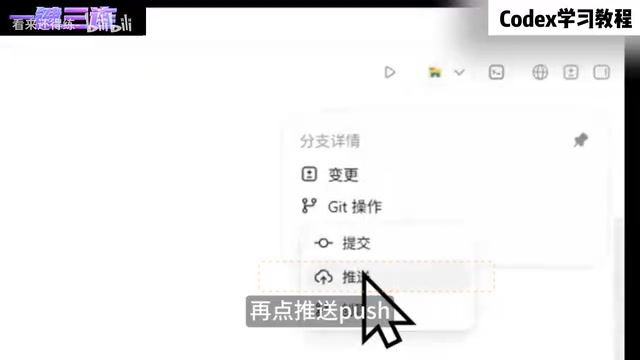
You don't need to know Git — these are all graphical buttons, and the process is about as simple as saving a file.
Queueing, Interrupting, and Parallel Tasks
These three operations come up constantly: queuing means sending task B while Codex is still working on task A — it will execute them in order; interrupting means clicking the guidance button next to a message to inject a new requirement into the currently running task; parallel execution means opening a new conversation to run multiple tasks simultaneously, even across different projects. Note that separate conversations don't share memory, but they can all see the files in the same project folder.
Skills and Plugins: Expanding Codex's Capabilities
Skills and plugins are two concepts that are easy to confuse. Skills are a set of pre-written execution steps packaged into a Markdown file — essentially an instruction manual. For example, the built-in image gen skill can generate images directly. Plugins are a level above skills, often containing multiple skills plus the ability to connect with external applications — for instance, the computer use plugin takes control of your computer and internally includes skills like operating apps, screen recording, and keyboard input.
In terms of triggering, Codex typically decides on its own whether to invoke a skill or plugin, but you can also specify manually: type @ to call a plugin, type $ to trigger a skill. You can use multiple in a single message — for example: "Analyze AAPL stock @documents and summarize into a Word report, then $image generate a cover photo."
With the plugin ecosystem, Codex can handle a huge range of everyday office tasks: the documents plugin generates Word reports, SuperSheets generates Excel spreadsheets, Presentation generates slides, and you can even produce Word, Excel, PowerPoint, and a cover image all in a single instruction. Worth noting: some plugins (like computer use) currently only support Mac; Windows users may not find them.
Automation, Workspaces, and Browser Control
If you have repetitive daily tasks (like generating a daily stock analysis report), you can set up scheduled automation tasks using natural language. Codex will create a scheduled job and execute it automatically at the specified time. The original video's advice: before setting up automation, always run the instruction in a regular conversation first to confirm the output meets expectations — otherwise you risk burning through quota on a broken task.

When creating a new conversation, you can choose from three working environments: Local mode directly modifies real files on your computer — good for small changes, but be careful about backups; Workspace mode creates a parallel copy for Codex to work on, leaving your original files untouched — ideal for parallel tasks or major changes, with the option to merge, create a new branch, or discard when done; Cloud mode sends the task to a server for execution — suited for time-consuming tasks, but configuration is more complex and not needed for beginners.
Browser and computer control is one of Codex's standout capabilities compared to similar tools. With the BrowserUse plugin installed, it can open a browser on its own, visit websites, click buttons, fill out forms, take screenshots and recordings, and scrape information. The original video demonstrated Codex finding a workplace presentation template in Canva, editing the title, and outputting a screenshot report — with human intervention only needed for the login step. On the computer control side (Mac only), it demonstrated opening Chrome, searching a keyword on Xiaohongshu, and downloading watermark-free posts to a desktop folder.
Workspace mode's underlying mechanism is similar to Git branching or Copy-on-Write in containerization: Codex creates an isolated file system snapshot for the current task, all changes happen on this copy, and the original files remain untouched throughout. When the task is done, users can choose to merge the copy's changes back into the main directory, create a new branch, or discard the entire copy. This design is especially valuable for large-scale refactoring or uncertain experiments — it turns every AI edit into a lossless, reversible trial rather than directly modifying production files. Cloud mode takes this further by moving the execution environment from the local machine to a remote server, suited for tasks requiring significant compute resources or complex local dependencies, at the cost of higher configuration and debugging overhead.
AGENTS.md and the Built-In Terminal
Create an agents.md file in your project's root directory, and Codex will automatically read it at startup and treat it as a set of working rules. The core problem it solves: when you open a new conversation, Codex has no memory of other windows, so important guidelines have to be repeated every time. Writing your rules into this file is like giving a new employee an onboarding handbook. A useful tip: keep the file under 150 lines. Too long, and it starts consuming the AI's context budget.
Press Cmd+J or click the terminal icon in the top-right to open the built-in terminal. It has two special features: the working directory automatically follows the current conversation (so if you're in a workspace, it automatically switches to the workspace directory), and Codex can read terminal output to automatically detect server errors.
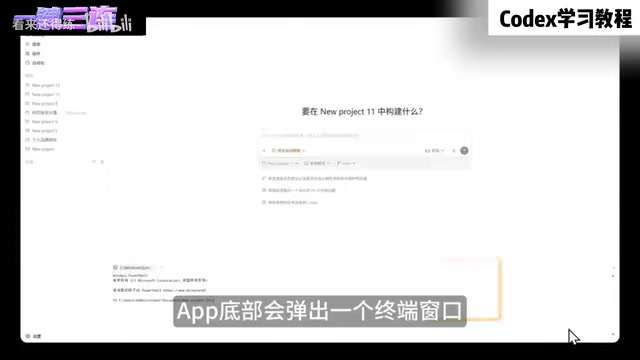
A practical tip: if you also have Claude Code installed, you can type claude in Codex's built-in terminal to launch it. Use Codex for what it does best (browser control, image generation, task management) and Claude Code for what it excels at (front-end visual design).
AGENTS.md(or more broadly, system prompt files) is essentially a persistent context injection mechanism, designed to work around the inherent statelessness of large language models. Every time a new conversation starts, the model knows nothing about what happened before — even in the same project, switching to a new conversation window resets all previously agreed-upon coding conventions, naming styles, and prohibited operations.AGENTS.mdworks around this by automatically injecting the file's contents into the system prompt at the start of each conversation, effectively achieving "cross-session memory." This is the same principle as.cursorrulesor.clinerulesfiles supported by many AI code editor plugins — an industry best practice that's gradually becoming standard. The 150-line limit is recommended because, while modern models have large context windows, research shows that models pay less attention to content in the middle of very long prompts (the "lost in the middle" phenomenon), meaning overly long rule files may actually be ignored.
Six Principles for Getting the Most Out of Codex
The original video wrapped up with a few battle-tested insights worth revisiting:
- Use projects for anything involving files, not conversations — keeps generated files organized and prevents clutter.
- One task, one conversation — the more focused the conversation, the better the AI performs.
- Plan before executing complex tasks — use plan mode or just say "give me an execution plan first, don't start yet."
- Define what "done" means — for example: "the bug fix is complete when all tests pass, a manual test works, and no unrelated files were changed."
- Commit frequently — commit after every small step so you can quickly roll back if something breaks.
- Let Codex review Codex's code — open a new conversation and have it audit the last set of changes; it often catches things it missed the first time.
Common issues have straightforward solutions: if you hit a usage limit, wait for the quota to roll over every 5 hours; if code gets broken, workspace mode lets you discard the copy entirely, and local mode has a revert-all button in the diff panel — which is exactly why building the habit of committing before making changes matters; if Codex casually refactors unrelated code, add a rule to agents.md like "do not make additional optimizations unless I explicitly request them."
Ultimately, how much value you get from Codex depends on you — the better you understand your own project and the more clearly you can describe what you need, the higher the quality of what it delivers. It's no longer a pure coding tool. Whether you're in operations, photography, or content creation, it's worth integrating into your actual workflow sooner rather than later.
Related articles

Random Pruning of the DPO Computation Graph: 1.4x Training Speedup and Lower Peak Memory
DPO training too slow and memory-hungry? This paper proposes a random pruning framework for the DPO computation graph, sampling independently across position, sequence, and branch dimensions; branch pruning achieves a 1.426x step-time speedup and cuts training time by about 30%, with in-depth attribution of memory and time gains.

Why Does JEPA Underperform MLM in Longitudinal EHR Representation Learning?
New study compares JEPA and MLM for longitudinal EHR representation learning on MIMIC-IV: three JEPA variants train stably without collapse but underperform MLM; target size, not heterogeneity, drives prediction error.

Transfer Learning + Visible Light Communication: A New Approach to Energy-Efficient Indoor Positioning
A study proposes a transfer learning-based visible light communication indoor positioning method, achieving 47% accuracy improvement on the BOSCH factory dataset, 67.5% model efficiency under high noise, and introducing the ME composite metric for energy-efficient positioning in energy-constrained industrial IoT scenarios.