The Complete Workflow for Delivering SaaS Projects to Clients with Zero Code Using Google AI Studio

How to professionally deliver a no-code AI-generated app to clients, from GitHub to payment to ownership transfer.
This article walks independent developers through the full delivery workflow after building an app with Google AI Studio — from pushing code to a private GitHub repository, to demoing the app and collecting 70% payment, to transferring repository ownership and deploying via Vercel. The core lesson: retain control until payment is secured, guide clients to own their own hosting, and follow a disciplined handover sequence. Reliable client work depends on this process, not just AI-generation skills.
Many independent developers and freelancers who want to use AI tools to land clients get stuck at the same stage: the app is built, but they have no idea how to deliver it professionally. Where does the code go? Who buys the domain and hosting? When do you collect payment? How do you transfer GitHub ownership?
This article is based on a hands-on YouTube tutorial and walks through the entire process — from generating a no-code app with Google AI Studio to formally handing over project ownership to the client. The focus isn't on the app's complexity, but on the proper mechanics of delivery — which is exactly where most beginners make mistakes and lose deals.
Generating an App with Zero Code in Google AI Studio
The tutorial uses a real-world mini app as an example: users paste their YouTube channel link and fill in channel details, and the app suggests video topic ideas based on that data.
The approach starts by generating a clear Problem Statement using a tool, then pasting the full prompt into Google AI Studio's input field. This particular example doesn't connect to a database or implement user authentication — since it only needs to suggest topics based on channel info without multi-user data isolation, keeping it lightweight makes sense.

It's worth understanding how Google AI Studio generates apps: it interprets the problem statement, breaks the big problem into smaller ones, builds solutions for each, and then assembles them into a complete SaaS app or website. Once generated, the author moves into testing — entering a channel name and goal (e.g., "grow subscribers") — and the app outputs a batch of topic ideas with explanations.
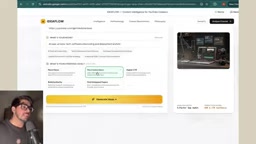
The author notes a key caveat: since this is a very raw prompt, the output won't be perfect. A production-ready product requires multiple rounds of iteration. But for this tutorial, the app just needs to "work" — the delivery process is the real focus.
Pushing Code to GitHub: Use Your Own Account First
Once the app is confirmed working, the first step is pushing the code to GitHub. Google AI Studio has built-in GitHub integration — find the GitHub option in the settings, sync your account, and create a new repository.
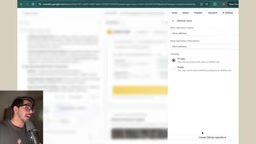
Two critical details here:
First, set the repository to Private. You're building a product for a client, and the codebase is their private asset. Unless the client explicitly requests otherwise, never make it public.
Second, do everything under your own account at this stage. Whether it's Google AI Studio, GitHub, or any other tool — all work during this phase should happen under your account, not the client's. The reason: you may need to use the client's account later, but before the official handover, all work should remain in your hands. This is a protective mechanism — as long as the code hasn't been transferred, you retain leverage.
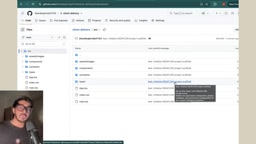
Once pushed, open GitHub to verify the client-delivery repository contains all AI-generated images, components, and code files, confirming everything is safely saved.
Before Delivery: Demo the App and Collect 70% of the Payment
With the app built and the code in a private repository, don't rush to deploy. The author emphasizes the most important business principle in the entire delivery workflow.
The right move is: get the client on a video call, demo how the app works, and walk through each feature as clearly as possible — if there's an admin panel, explain what's in it; if it's a website, walk through how each section works. If possible, record a tutorial video and send it to the client.
After the demo, collect 70% of the remaining payment before transferring GitHub ownership. This order is non-negotiable: once ownership is transferred, the code fully belongs to the client, and if payment isn't locked in beforehand, you lose all leverage. This is the single most important business lesson in the entire tutorial — the timing of technical delivery is inherently tied to the timing of payment collection.
Transferring GitHub Repository Ownership
Once payment is received, proceed with the ownership transfer. Navigate to the repository's Settings page, scroll to the very bottom — the Danger Zone — find Transfer ownership, and click Transfer.
You'll need the client's GitHub username. Enter it, type the confirmation text as prompted, then click "I understand and transfer this repository." After the transfer is initiated, the client receives an email and must actively click Accept to complete the request.
One easily overlooked pitfall: this request email is only valid for 24 hours. The client must accept within that window, or the transfer expires and you'll need to initiate it again. Once accepted, the repository officially appears under the client's GitHub account.
GitHub's Transfer Ownership operation is irreversible — once the client accepts, the original account loses all administrative rights to the repository, including Settings, Secrets, and deployment keys. Before clicking transfer, it's strongly recommended to back up the code locally or in another private repository, so you have a copy in case of future disputes. Additionally, after the transfer, the client's repository retains Actions, Webhooks, and other CI/CD configurations, but third-party integrations tied to the original account (such as a Vercel deployment connection) will disconnect and need to be re-authorized under the client's account — which is exactly why the deployment step should happen after the ownership transfer.
Deployment and Domain Hosting: Weighing Two Approaches
After ownership transfer, it's time to deploy. The author presents two approaches and clearly favors one.
Option 1 (Not Recommended): Deploy the entire site under your own hosting and charge the client an annual maintenance fee. The author is direct: this isn't a good choice — bearing the hosting responsibility under your own account just for maintenance creates unnecessary liability and cost.
Option 2 (Recommended): Have the client pay for their own domain and hosting. Domains (.com, .org, .in, .io, etc.) can be purchased on platforms like Hostinger or GoDaddy, and ownership stays with the client. Hosting should also be purchased by the client — the tutorial uses Hostinger as an example, showing plans ranging from ₹69 to ₹149/month (low-tier plans require a two-year commitment upfront, around ₹7,152 total).
The author's reasoning is pragmatic: if you don't ask the client to make a minimum investment in hosting, they may actually be less likely to commit to the project — and you could lose the deal entirely. Rather than fronting extra costs yourself, guide the client to purchase their own domain and hosting, keeping both ownership and responsibility on their side.
Deployment itself is done via Vercel: open Vercel → Projects → Add New → Project, and the repository under the client's GitHub will appear in the list. Make sure to log into Vercel with the same email linked to the client's GitHub account, then import the private repository and click Deploy.
If you're using Antigravity, Google IDE, or any other tool, the logic is the same: push to GitHub first, then purchase a domain and configure deployment.
Vercel is one of the most popular frontend hosting platforms today, optimized for modern frameworks like Next.js, React, and Vue. It supports one-click imports from GitHub repositories and automatically triggers CI/CD deployments (rebuilding and republishing on every code push). The free Hobby Plan is sufficient for personal projects but has bandwidth and concurrency limits; for commercial projects, clients should upgrade to the Pro plan (approximately $20/month). Vercel also supports custom domains: go to the project's Settings → Domains, add the purchased domain, and follow the prompts to configure a CNAME or A record at your domain registrar pointing to Vercel's servers — typically takes anywhere from a few minutes to a few hours to propagate. No manual server configuration is required, significantly reducing post-delivery maintenance overhead.
Takeaway: Beyond the Tech, Delivery Is What Wins Clients
The real value of this tutorial isn't in showing how AI generates apps — that bar is already low. It's in thoroughly unpacking the delivery phase, which is consistently overlooked. What actually determines whether you can reliably land clients with AI tools comes down to a few key checkpoints: push code to a private repository first, use your own accounts throughout, collect 70% before transferring ownership, guide clients to purchase their own domain and hosting, and make sure they accept the repository transfer within 24 hours.
For anyone looking to run a freelance business with no-code tools, mastering this structured delivery and payment workflow is far more commercially valuable than learning any flashy new feature.
Related articles

Random Pruning of the DPO Computation Graph: 1.4x Training Speedup and Lower Peak Memory
DPO training too slow and memory-hungry? This paper proposes a random pruning framework for the DPO computation graph, sampling independently across position, sequence, and branch dimensions; branch pruning achieves a 1.426x step-time speedup and cuts training time by about 30%, with in-depth attribution of memory and time gains.

Why Does JEPA Underperform MLM in Longitudinal EHR Representation Learning?
New study compares JEPA and MLM for longitudinal EHR representation learning on MIMIC-IV: three JEPA variants train stably without collapse but underperform MLM; target size, not heterogeneity, drives prediction error.

Transfer Learning + Visible Light Communication: A New Approach to Energy-Efficient Indoor Positioning
A study proposes a transfer learning-based visible light communication indoor positioning method, achieving 47% accuracy improvement on the BOSCH factory dataset, 67.5% model efficiency under high noise, and introducing the ME composite metric for energy-efficient positioning in energy-constrained industrial IoT scenarios.