The Most Detailed Codex Guide on Bilibili: From Installation to Real-World Use, Let AI Operate Your Computer

A Bilibili creator uses coffee shop data to demo how Codex directly operates a computer to organize files and build a dashboard.
Based on Bilibili creator "Computer Monogatari"'s hands-on Codex App tutorial, this article introduces the AI assistant that can directly operate your computer. Unlike Doubao and DeepSeek, which can only chat, Codex can read project folders, organize files, extract PDF invoice data, generate reports, and even build visual dashboards. The article covers key tips such as switching to "Everyday work" mode after installation to lower the barrier, using project folders as the workbench, and enabling Plan mode for complex tasks, and demonstrates through two hands-on cases how Codex analyzes files, detects data anomalies, and modifies front-end themes on demand. It argues this reflects AI assistants' leap from "conversation" to "execution," while noting the demo uses simulated data and real scenarios still face challenges in file standardization and permission management.
AI assistants are nothing new, but have you ever used an AI that can directly operate your computer, organize files, create reports, or even write code? Bilibili creator "Computer Monogatari" released what they call the "most detailed on all of Bilibili" hands-on tutorial for the Codex App, using real data from a fictional coffee shop to walk through everything from installation and configuration to complex task planning. This article breaks down Codex's core usage and differentiating capabilities based on that video.
What Is Codex? How Is It Different from Doubao and DeepSeek
According to the creator, Codex also provides a chat-style interface where you can type to communicate with it. But the key difference is: Doubao can only chat, while Codex can directly operate your computer and get work done on it — organizing files, creating reports, reading work content, writing weekly reports, even making PPTs, operating a browser to build complex software, and setting scheduled tasks to run automatically while you sleep.
In other words, Codex isn't positioned as a "Q&A assistant" but as "an executor that can take action." The creator emphasizes that using it doesn't require any technical knowledge — a few sentences can produce something cool.
Installation and Initial Setup: The First Setting You Should Change
Codex is available in the Microsoft and Apple app stores — just search and install. Once opened, the interface resembles the web version of Doubao: an input box in the center and a sidebar on the left, but the sidebar includes extra features Doubao doesn't have, such as plugins and automated workflows.
The creator suggests changing one setting right after opening Codex — the work mode. This configures how much technical detail Codex shows you. He prefers switching to "Everyday work" mode: Codex is still powerful, but it won't display a ton of incomprehensible technical details, making for a much better experience. This tip is especially friendly to non-technical users and significantly lowers the barrier to entry.
Core Concept: The Project Folder Is Codex's Workbench
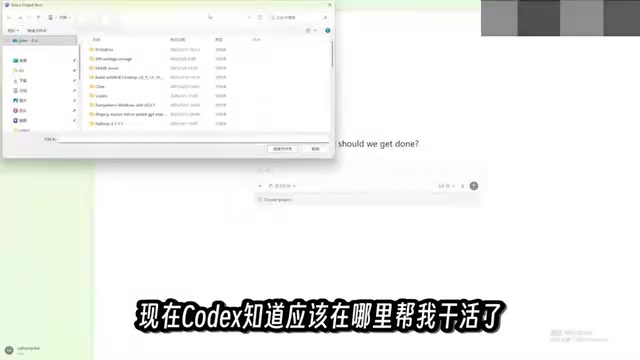
Since Codex works directly on your computer, it needs a working folder, which Codex calls a "project" and displays in the sidebar. The creator categorizes different tasks into different folders so he can find the corresponding content at a glance. Below the input box, you can select the project for the current conversation, and Codex can directly read all the files inside to complete the task.
He prepared a real folder named "Computer Monogatari Coffee Shop" filled with messy data — sales records, invoices, inventory lists — in formats including spreadsheets, PDFs, and images.
Hands-On 1: File Organization and Data Aggregation
The task the creator sent was: tidy up these messy files and extract the information and data into an Excel file so the shop's detailed data is easy to look up.
This entry-level task isn't actually easy to do. Codex demonstrated multiple capabilities: analyzing files, moving files, modifying file contents, and creating new files. More importantly, the creator deliberately planted some traps in the files, and Codex caught the problems — it flagged missing transaction records and found anomalies in two invoices.
A few minutes later the task was done: the folder was organized by purpose, detailed data tables were generated, sales data and product rankings were categorized, and line items were extracted from PDF invoices. The creator notes that tasks like organizing reports and writing daily summaries — which require reading computer files and summarizing them — are easy for Codex.

These tasks rely on Codex's ability to parse multiple file formats. Spreadsheet files (such as Excel, CSV) can be read as structured data for aggregation, statistics, and sorting; PDF invoices typically require text extraction or layout recognition first to restore fields like invoice number, amount, and date into table rows; image files may require OCR to extract text. The reason Codex can "find missing transaction records" and "invoice anomalies" is essentially that it unifies data from different sources into structured tables, then performs consistency checks and comparisons by fields such as amount, date, and number to locate missing, duplicate, or mismatched records.
Hands-On 2: Plan Mode and a Visual Dashboard
Next, the creator raised the difficulty: using the command line to add a summary table Codex had just generated, and asking it to use the data in the table to build a visual dashboard for the coffee shop — for querying sales, expenses, costs, inventory, and other business conditions, and analyzing items that need attention.
Because the task was complex, the creator switched to "Plan mode." In this mode, Codex doesn't execute directly; it first plans out a detailed checklist and confirms task details before executing. In the video, Codex indeed asked the creator questions and proceeded after he made selections. The creator suggests: for relatively complex tasks, turn on Plan mode.
Additionally, typing a slash in the input box reveals a "pet" feature. Clicking it makes a little pet appear on the desktop; besides being cute, it shows all currently running tasks — click one to jump to it. The pet's appearance can also be changed in settings.

Eventually the dashboard was complete, and the creator called it "very professional-looking," containing everything he asked for, with suggestions and key items listed below. He admitted he isn't a sales professional and can't judge its practical value, but invited people in the field to evaluate it. He then asked for a more modern, intuitive theme, "like Apple's," and Codex completed the change smoothly.
The video's mention of "using the command line to add a summary table" refers to explicitly adding a file to the current conversation context via a slash command or the command line, so Codex knows exactly which file to work from and doesn't guess or read the wrong file. A visual dashboard is a front-end page that turns table data into charts and metric cards — commonly implemented by generating a local HTML file with a charting library (such as ECharts or Chart.js) and opening it in a browser. The so-called "like Apple's" theme change is actually a request to adjust visual variables such as color scheme, fonts, whitespace, and card corner radius — a front-end style change — so Codex can directly swap styles on the existing page structure without redoing the data logic.
What This Means for Ordinary Users
The value of this video is that it shows the leap of AI assistants from "conversation" to "execution." Codex compresses the file system, data extraction, and visualization development — steps that originally required multiple tools working together — into a single natural-language interaction. The introduction of Plan mode and slash commands notably improves the controllability of complex tasks.
It's worth noting that the creator's demo is based on simulated coffee shop data; real business scenarios may bring additional challenges in file standardization, data volume, and permission management. But at least in terms of the workflow, Codex has provided a replicable paradigm for "a computer execution assistant anyone can use."
Background
The reason Codex is emphasized as being able to "directly operate the computer" is that it fundamentally differs from ordinary chat-based large models in terms of permissions and execution. Conversational products like Doubao and DeepSeekAd typically run in cloud sandboxes or pure text environments and can only answer based on content the user pastes in — they cannot access the local disk, run scripts, or modify files. In contrast, AI assistants with "computer operation capability" generally obtain file system read/write and command-line invocation permissions through a local client, enabling them to read specified folders, parse PDFs and spreadsheets, generate new files, and save them to disk. This also means users should pay attention to security boundaries: only authorize the necessary working directories, and avoid casually opening folders containing sensitive information to it for reading and writing.
Related articles
Three New Metapunk Skills: Building a Closed Loop for AI Software Development
Metapunk's new version adds Implement Spec, PR, and Retro skills to complete the AI software development loop. This article analyzes each skill's features and workflow to help improve AI Agent development efficiency and code quality.

6 Dark Tales of Terror: TED-Ed Uses Animation to Illustrate Fables of Human Nature
TED-Ed's six horror stories collection includes The Monkey's Paw, the Japanese tale of Oiwa, Death's Godfather, Beowulf, Poe's The Masque of the Red Death, and Hoichi the Earless. This article analyzes how these animated shorts use cross-cultural fables to explore desire, betrayal, and the price of death—and why they suit classroom discussion.
A Practical Guide to Calling Lightweight Ollama Models from Python
A complete hands-on guide to installing Ollama, pulling a 0.8B lightweight model, and calling it from Python—covering service startup, model name matching, first-load delays, and other pitfalls, with a measured 0.23s per call.