The Ultimate Codex Guide: From Installation to Hands-On Computer Control

Codex is an AI agent that directly operates your computer to complete real tasks, enabling office automation without programming skills.
This article covers the core capabilities and usage of the AI tool Codex. Unlike chat-based AIs, Codex directly operates your computer for file organization, report creation, PPT generation, and data extraction, and can schedule tasks to run overnight. It's available on Microsoft and Apple app stores, and switching to "Daily Work" mode lowers the barrier to entry. Users manage tasks via "project folders," and Plan Mode lets the AI plan before executing. A hands-on demo showed Codex extracting data from a messy folder, finding anomalies, and generating a visual dashboard.
What Is Codex? More Than Just a Chatting AI Assistant
According to a comprehensive tutorial shared by a Bilibili creator, the biggest difference between Codex and chat-based AIs like Doubao and DeepSeekAd is this: it's not limited to conversation — it can directly operate your computer and help you get real work done. You can ask it to organize files, create reports, read through work documents, write weekly summaries, or even make PowerPoint presentations and build complex software by controlling a browser. Even more powerful, it can schedule tasks to run automatically while you sleep, so you can check the results when you wake up.
The creator emphasizes that using Codex requires no technical expertise whatsoever. It's available on both the Microsoft and Apple app stores — just search and install. Once opened, the interface looks similar to the web version of Doubao, with an input box in the center, while the left sidebar hides features Doubao doesn't have — plugins, automation, workflows, and more.

What Is an Agent?
Codex is essentially an "AI Agent." Traditional chat-based AIs (like Doubao and DeepSeek) operate on a "you ask, I answer" model — they can only generate text and can't touch your file system or software. An Agent, on top of a large language model, gains an additional tool-calling capability: it can read and write local files, execute command-line instructions, call browsers, and interact with application programming interfaces, thereby translating "ideas" into actual operations on your computer.
The key to this capability lies in the model's ability to decompose tasks and execute them in a loop: first understand the goal, then plan the steps, call tools, observe results, adjust based on feedback, and repeat until the task is complete. Codex packages this capability into a desktop application that ordinary users can pick up, so even without programming knowledge, you can use natural language to drive it through file organization, data extraction, and more.
Installation and Initial Setup: Lowering the Barrier to Entry
After installation, the creator suggests modifying one simple setting: switch the work mode to "Daily Work." This way, Codex remains powerful but won't display a flood of technical details, making the experience much smoother. This tip is especially helpful for non-technical users, preventing unnecessary underlying information from getting in the way.
The Difference Between "Daily Work" Mode and "Technical" Mode
Many AI Agent tools offer two interfaces — one for general users and one for developers. Daily mode hides command-line output, logs, API calls, and other technical details, showing only task progress and final results, which reduces cognitive load. Technical mode exposes the full execution pipeline, making it easier to troubleshoot issues or exercise finer control. For non-technical users, choosing daily mode avoids being distracted by walls of English logs and error messages, keeping focus on "did the task get done or not." This doesn't affect the Agent's underlying capabilities — it just changes how information is presented.
Core Concepts: Project Folders and Task Assignment
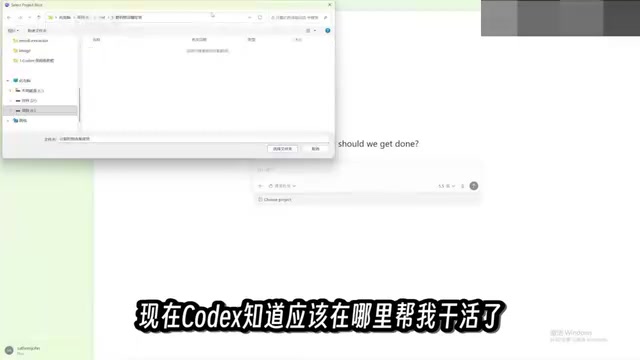
Codex needs a working folder to operate in. These folders are called "projects" and appear in the sidebar. The creator habits organizing different tasks into different folders, selecting the project for the current conversation below the input box, and Codex can then directly read all files within it to complete tasks.
For demonstration, the creator prepared a real folder called "Computers and Coffee Shop" containing sales records, invoices, inventory lists, and various file formats (spreadsheets, PDFs, images). After sending the task, Codex automatically analyzed the files, moved them, modified content, and created new files. The creator deliberately planted some traps (such as missing transaction records and irregular invoices), and Codex not only completed the file organization and Excel data extraction but also successfully discovered these issues.
Why Do You Need "Project Folders"?
A chat-based AI's context typically only contains conversation history, but for an Agent to operate on real files, it must have a clearly defined working directory. Codex calls each working directory a "project," essentially drawing a sandbox boundary for the AI: it can only read and modify content within that folder, which ensures security and keeps the task scope clear and manageable.
Organizing different tasks into different folders also helps the AI locate relevant files faster. For example, sales data goes in a "Sales" project, contracts go in a "Legal" project — when you say "summarize last quarter's invoices," the Agent can efficiently search within the corresponding directory without scanning your entire hard drive. This "project-based" approach mirrors how programmers use an IDE to manage code repositories — Codex just brings it to everyday office scenarios.
From Simple Tasks to Complex Dashboards: Plan Mode in Action
The creator then tested a more complex task: adding a summary table via the command line and asking Codex to create a visual dashboard showing sales, expenses, costs, inventory, and other business metrics. Because the task was complex, the creator switched to "Plan Mode" — Codex doesn't execute directly but first creates an execution checklist, confirms the details, and then proceeds.

After sending, the creator demonstrated an interesting feature: typing a slash in the input box and clicking "Pet" makes a small pet appear on the desktop. It can be placed anywhere and shows all tasks currently being executed. Clicking the pet reveals questions Codex has raised; after the creator answers, Codex continues working and generates a detailed plan, which can be adjusted and then submitted for execution.

The dashboard was eventually completed, containing all requested data and suggestions. The creator noted they're not a sales professional, but those in the field could evaluate its value. The creator then asked to switch to a modern "Apple style" theme, which Codex executed smoothly, and the new theme was well received.
What Is "Plan Mode"? How Is It Different from Direct Execution?
When facing multi-step complex tasks, letting an Agent act directly can easily lead to rework due to misunderstandings. Plan Mode works like this: the Agent first generates an execution checklist based on your requirements, listing which files it plans to read, which operations to perform, and in what order, and proactively raises questions that need clarification. You confirm or modify the plan, and only then does it begin actual execution.
This "plan first, execute later" mechanism borrows from the design review philosophy in software engineering, moving the cost of error correction to before any action is taken. For compound tasks like generating dashboards that involve data cleaning, computation, and chart rendering, Plan Mode can significantly improve success rates and give users a clearer sense of control over the AI's decision-making process.
Summary: What Codex Can Do and Who It's For
According to the creator's tutorial, Codex covers a wide range of tasks from file organization and data extraction to dynamic dashboard generation, and through designs like Plan Mode and pet reminders, it lowers the difficulty of executing complex tasks. No programming background is needed — as long as you can describe your needs in natural language, you can have AI complete real work on your local computer. For everyday office work, data organization, lightweight development, and similar scenarios, Codex offers a highly practical automation solution.
One-line Summary
Codex is an AI agent that can directly operate your computer to complete real tasks, enabling office automation without any programming background.
Paragraph Summary
This article introduces the core capabilities and usage of the AI tool Codex. Unlike chat-based AIs like Doubao and DeepSeek, Codex can directly operate your computer to complete real work such as file organization, report creation, PPT generation, and data extraction — it can even schedule tasks to run automatically overnight. It's available on the Microsoft and Apple app stores, and switching to "Daily Work" mode after installation lowers the barrier to entry. Users can organize tasks through "project folders," and Codex can read various file formats including spreadsheets, PDFs, and images. For complex tasks, "Plan Mode" lets the AI plan before executing, and a desktop pet provides real-time task status. In a hands-on demo, Codex extracted data from a messy folder, discovered anomalies, and successfully generated a visual dashboard — demonstrating the practicality of achieving office automation without any programming background.
Related articles

MCP Security Primer: OWASP Top 10 Risks and the Lethal Trifecta Defense
A systematic breakdown of MCP security risks: from the Postmark backdoor to the OWASP MCP Top 10, how the Lethal Trifecta reveals AI Agent fragility, plus shadow servers and missing audits.

DeepCell: One-Click AI Generation of Documents, Spreadsheets, and Slides
DeepCell tops Product Hunt with one-click generation of documents, spreadsheets, and slides, using the .deepcell format for linked updates, designed for System 2 tasks like modeling and sales reviews.

Doneas: 15-Minute Daily Accountability Calls That Keep Indie Developers From Procrastinating
Doneas is a daily accountability tool for indie developers: plan tasks on Monday, join a 15-minute call with five builders each day, and log deliveries on a public progress page. This article analyzes its core mechanics, effectiveness, and potential issues around retention and matching.