The Ultimate Codex Guide: From Installation to Parallel Multi-Task Workflows

Codex has evolved from an AI coding tool into an Agent that can autonomously operate a computer; this article covers its full workflow.
Based on a Bilibili creator's tutorial and cross-verified against multiple sources, this article systematically covers OpenAI Codex from installation and configuration to advanced usage. It explains that Codex is fundamentally an autonomous AI Agent rather than a pure Q&A tool, offers guidance on desktop client setup with ChatGPT Plus, project vs. conversation mechanics, three permission tiers, model and thinking-effort selection, and high-frequency operations like queuing, queue-jumping, parallel multi-tasking, and worktree mode. It also covers skills and plugins, Agents MD best practices, and a live website deployment demo.
OpenAI's Codex is no longer just an AI coding tool—it's an Agent that can actually do the work itself. According to a comprehensive tutorial from a Bilibili creator, Codex can open folders on your computer, create files, run programs, operate a browser, and even produce Word documents, Excel spreadsheets, PowerPoints, and videos. This article is based on that video and cross-referenced with multiple sources to lay out the complete path from installation and configuration to parallel multi-tasking.
What Codex Is: From Q&A to Hands-On Agent
To understand the fundamental difference between Codex and ChatGPT, consider the analogy used in the video: ChatGPT is like a renovation consultant who looks at a photo of your kitchen and tells you the stove should move 20 cm to the left and the upper cabinets should be cream white—but it doesn't do any of the work. Codex is like a renovation crew: you say "redo the kitchen," and it measures, draws blueprints, moves the stove, paints, and finally takes photos for you to sign off on.
According to the Bilibili creator and several YouTube channels, Codex currently offers four forms: CLI (command line), IDE plugin, desktop client, and web version. All four perform identically and overlap heavily in features, but weighing ease of use, feature completeness, and beginner-friendliness, the desktop client is the top choice.
Codex's core positioning is as an Agent—an AI that can do the work itself. It can have multiple "workers" tackling different jobs at once—one redos the kitchen, one installs the bathroom, one fixes the living room light—all without interfering with each other, running in the background.
Agent is the most important conceptual shift in AI over the past two years. Traditional chatbots like ChatGPT are essentially "Q&A"—you ask, it answers, and the output stays at the text level. An Agent, by contrast, is an AI system with the ability to autonomously plan, invoke tools, take actions, observe results, and loop through adjustments. It's like an employee with hands and feet: after receiving a goal, it breaks down the steps itself, opens files, writes code, runs tests, and fixes errors until the task is done. Typical traits include: can use external tools (terminal, browser, file system), can maintain state across long tasks, and can change strategy based on intermediate results. Codex is precisely OpenAI's packaging of GPT models into this "hands-on" form, similar to Anthropic's Claude Code and the open-source AutoGPT. Understanding Agents is the foundation for understanding everything about Codex—projects, permissions, worktrees, parallel multi-tasking.
Installation and Login: Account Prep and Two Approaches
Before downloading and installing Codex, you'll need a ChatGPT account—ideally with a Plus or Pro subscription. Free accounts work but have very limited quota. Based on feedback from the creator and community users, Plus users can send 30 to 150 messages every 5 hours, which is enough for a normal day's use; heavy or enterprise users may want to consider Pro.
Installing the desktop client is no different from any ordinary app—just go to the official Codex website and download the version for your OS. There are two login methods:
- ChatGPT account login: Message quota draws directly from your ChatGPT subscription, you get immediate access to the strongest models, and advanced features like cloud tasks are fully unlocked.
- API Key login: If you don't want a Plus subscription, you can use an API Key, but model updates are slower, cloud tasks aren't available, and you pay by usage—running a big task could cost tens of RMB.
Per the video's advice, unless you have a specific reason, subscribing to Plus and logging in with a ChatGPT account is the most cost-effective option.
Interface and Core Mechanics: Projects, Conversations, and Permissions
The top of Codex's left sidebar has four function buttons: New Chat, Search, Plugins, and Automation. In the middle are two key lists—Projects and Conversations—concepts many people confuse.
Conversations are like chatting with ChatGPT inside the desktop app, suited to miscellaneous work such as gathering information, writing copy, or translating. Projects correspond to a folder on your computer; everything done in a project—and every file generated—is saved in that folder. In short: if files will be generated, use a Project; if you're just asking questions, use a Conversation.
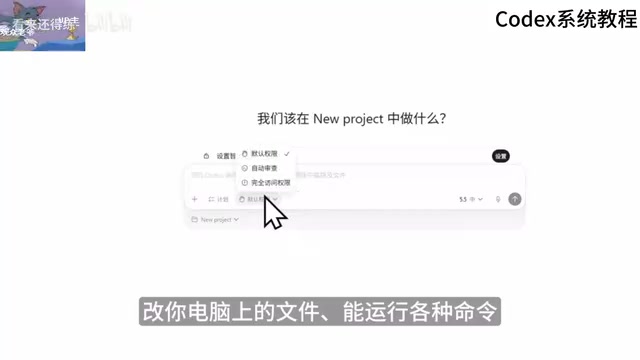
Because Codex can directly modify your computer's files and run commands, there's the concept of "delegating authority." Permission modes come in three tiers:
- Default permissions: The safest—Codex can only modify files inside the current project folder, and anything involving networking or terminal commands must be approved by you. Best for beginners.
- Auto-review: Codex first assesses risk itself; safe operations pass automatically, and only risky ones trigger a prompt.
- Full access permissions: The highest level—no prompts at all, maximum efficiency but risky; it might delete files you didn't want deleted.
The video suggests: use default permissions for your first week, try auto-review in the second week, and only consider full access once you're very familiar and have confirmed the project has a Git backup.
Git is a version control system widely used by programmers—think of it as taking snapshots of a folder: each "commit" saves the current state of all files as a snapshot, and you can roll back to any historical version at any time. The article repeatedly advises "only enable full access after confirming the project has a Git backup" precisely because: in full access mode, Codex might mistakenly delete or modify files—if the project is under Git, a single rollback command restores everything; without Git, the loss may be irreversible. Beginners don't need to master Git—just let Codex initialize it in the project itself (git init) and build the habit of "having it commit often." Likewise, a "branch" is a copy that diverges from the mainline for independent development in Git; the "create a new branch" mentioned in the article means having Codex put changes on a branch rather than the mainline, so you can review before deciding whether to merge.
Models and Thinking Effort: How to Choose What Fits Best
The bottom-right of the input box shows the current AI model and thinking effort. Per the video's analysis, among selectable models GPT 5.5 performs best on complex code writing and refactoring/debugging; GPT 5.4 covers the vast majority of programming scenarios; GPT 5.4 mini is smaller and faster, suited to simple tasks; GPT 5.3 Codex is a veteran model optimized specifically for coding. Thinking effort has four tiers—low, medium, high, and ultra—with medium being the default recommendation, balancing speed and quality; ultra is for stubborn bugs that resist repeated attempts or large-scale refactors.
Speed options come in Standard and Fast, with Fast roughly 1.5× the speed of Standard but consuming more quota. For everyday tasks, Standard mode is sufficient.
Parallel Multi-Tasking: Queuing, Jumping the Queue, and Worktrees
This is the highest-frequency operation in day-to-day use of the Codex desktop app. Per the video's analysis, queuing, jumping the queue, and parallelizing are three distinct concepts:
- Task queuing: While Codex is working on Task A, if you send a new message directly, it queues behind A and executes automatically afterward.
- Task queue-jumping: Click the steer button next to a message, and it skips the queue and injects directly into the current task—the AI building your website will immediately factor in the new requirement.
- Parallel multi-tasking: Just open a new conversation. In the left sidebar you'll see multiple conversation entries each with a spinning icon, indicating they're executing simultaneously.
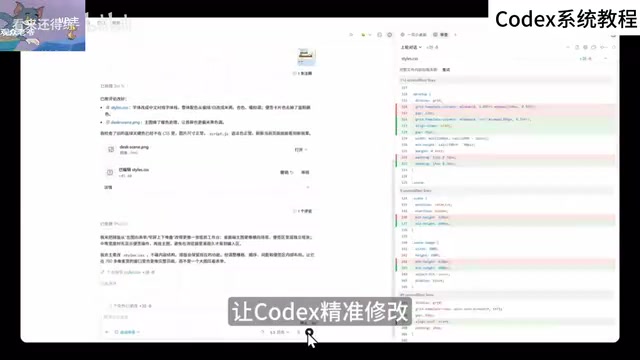
Note that chat memory and context are not shared between different conversations, but all of them can see every file in the current project folder, since the folder is the same.
Worktree mode solves the conflict problem of modifying the same file in parallel. When you select worktree mode, Codex creates a parallel copy of the project in the background and works on that copy without touching the original project files at all. When the work is done, the diff panel shows the changes, and you can choose to merge to local, create a new branch, or just discard them.
Plugins and Skills: Extending Codex's Capability Boundaries
Per consistent analysis from the Bilibili creator and YouTube creators, the difference between skills and plugins is where many people get confused. Skills are a pre-written set of execution steps—for example, the pipeline for generating an image: determine the scene description, choose a style, call the image-generation model, output the image—packaged as a markdown file, that's a skill. Plugins are one level above skills, containing multiple skills plus connection capabilities to external applications.
To generate a Word document, install the document plugin and send the instruction: "Help me write an analysis report on AI industry trends, use document to save it as a Word document, with a table of contents, a table comparing major models, and a conclusion." Codex will automatically gather information online, organize the analysis, and generate a well-formatted Word document.
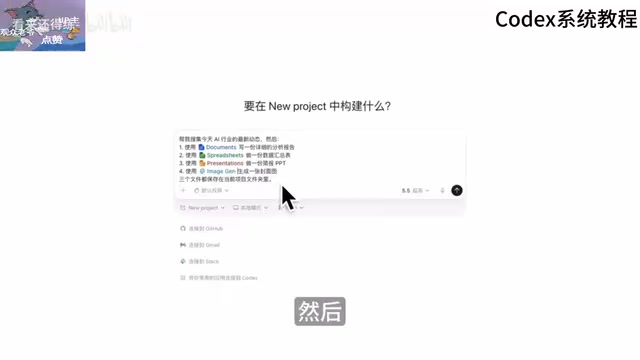
For Excel spreadsheets, use the spreadsheets plugin; for PowerPoint, use the presentation plugin. You can even request Word, Excel, and PowerPoint simultaneously in one message—all three files are saved in the current project folder. For image generation, use the built-in imagegen skill, triggered by typing $ in the input box; plugins are triggered with @.
Agents MD: Giving Codex a Code of Conduct
Create an agents.md file in the project root, and Codex will automatically read the rules inside and follow them as a working code of conduct every time it starts. Per the video's advice, this file solves the problem of repeating reminders in every new conversation.
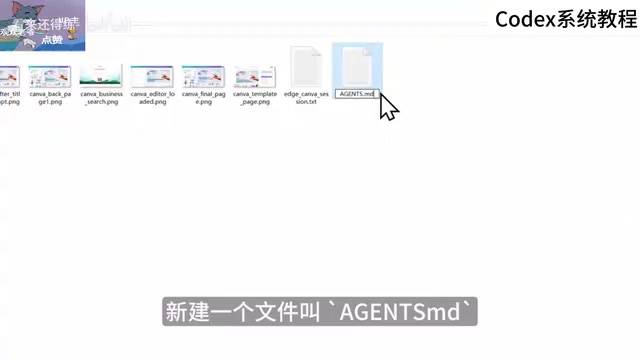
It's best to keep Agents MD under 150 lines—writing it too long eats up a large chunk of the AI's memory capacity and actually hurts its understanding of specific requirements.
Context window is the key to understanding why Agents MD should be limited to 150 lines. The total amount of text a large model can "see" in each response is limited, and that cap is called the context window, usually measured in tokens (roughly equivalent to an English word or a portion of a Chinese character). When Codex works, the full text of Agents MD, the current conversation history, the contents of involved files, terminal output, and more all squeeze into this window. The fuller the window, the more diluted the model's attention to the newest and most critical requirements—making it prone to "forgetting instructions" or "answering the wrong question." This is also why the article emphasizes keeping Agents MD concise, why it recommends "one task per conversation" (to avoid dragging historical baggage), and why very large projects need new conversations or worktree mode to isolate context. A related concept is "context compression," where certain Agents automatically summarize old content to free up space as they approach the limit.
Hands-On Workflow: Building a Website and Deploying It Live
The video demonstrates a complete workflow: create a new project "Personal Brand Website," enter requirements, and let Codex write code from scratch and run a local development server. After previewing in the browser, you give revision feedback directly, and Codex modifies things in real time. Once adjustments are done, install the Vercel plugin and have Codex deploy the website live, ending up with a public URL.
Six Core Tips and Common Questions
Per the creator's summary, there are six key principles for using Codex: use Projects when files are involved; one task per conversation; for complex tasks, have Codex produce a plan first; write clearly what "done" means; commit often; and have Codex review its own code.
Common questions include: don't panic when your quota runs out (ChatGPT quota refreshes on a rolling 5-hour cycle); if code gets broken, in worktree mode just discard it, in local mode click Undo All; under full access permissions Codex might do things you don't want, so beginners shouldn't enable it right away; when Codex modifies unrelated code, explicitly write in Agents MD "don't make extra optimizations without my request."
Codex has evolved from a pure coding tool into an all-purpose assistant. Per the video's viewpoint, whether or not you're a programmer, it's worth learning to use Codex early and applying it to boost efficiency in your own work—operations people can set up automated tasks to search for information and produce reports daily, designers can quickly mock up interactive prototypes, and self-media bloggers can search, organize, and analyze viral topic ideas. The better you understand your own project and the more clearly you can describe requirements, the higher-quality results Codex will deliver.
One-line Summary
Codex has evolved from an AI coding tool into an Agent that can autonomously operate a computer; this article walks through its full installation, configuration, and usage workflow.
Paragraph Summary
Based on a Bilibili creator's tutorial video and cross-verified against multiple sources, this article systematically lays out the complete path for OpenAI Codex from installation and configuration to advanced usage. It points out that Codex is fundamentally an autonomously acting AI Agent rather than a ChatGPT-style pure Q&A tool, offering four forms—CLI, IDE plugin, desktop client, and web version—and recommends beginners use the desktop client with a ChatGPT Plus account. The core mechanics section details the difference between Projects and Conversations, the three permission tiers (default/auto-review/full access), strategies for choosing models and thinking effort, and high-frequency operations like queuing, queue-jumping, parallel multi-tasking, and worktree mode. It also introduces skills and plugins (document, spreadsheets, presentation, etc.) for extending capability boundaries, how to write the Agents MD working code of conduct, and ties the full workflow together with a hands-on "build a website and deploy it live" demo, ending with six core tips and answers to common questions.
Related articles

How Big Can Stars Really Get? The Physical Limits of the Largest Stars
Red supergiants are the largest stars by volume, with radii up to 2,000 times the Sun, engulfing the inner solar system. But there is no precise upper limit on stellar size—models predict up to 15,000 solar radii. The most massive blue stars are far smaller than red supergiants—biggest and heaviest are two different things.

Apple HomeView Smart Display Full Feature Breakdown: Wall-Mount or Desktop, $299
Apple launches HomeView, a $299 smart display with wall-mount and desktop options, 12MP camera for facial recognition, smart home control, music playback, and recipe step-by-step cooking. Full breakdown of watch faces, apps, privacy, and cooking integration.

Where Did the Promised New Studio Go? Craft Computing Answers After Five Years
Craft Computing's host responds to viewer questions: the new studio promised five years ago was shelved as construction costs soared from $30,000 to $75,000, and was replaced by a 168-square-foot garage conversion.