The Ultimate Codex Guide: From Installation to Real-World Practice — Master the AI Desktop Assistant in One Read

The most detailed Codex tutorial on Bilibili: from installation to practice, learn to use AI to directly operate your computer
This article is based on Bilibili creator "Computer Story's" Codex hands-on tutorial, systematically outlining the complete path from installation to advanced usage of this AI tool. The fundamental difference between Codex and Doubao/DeepSeek is that it can directly operate your computer to complete file organization, report creation, PPT generation, and other practical tasks, rather than merely chatting. The article details core features like the "project" folder mechanism, Plan Mode, and scheduled tasks, and through two hands-on cases — organizing café business data and generating a visual dashboard — demonstrates Codex's capabilities in cross-format information extraction, data validation, and complex task planning. It concludes that Codex is especially suitable for knowledge workers who need to handle multi-format files and create reports, with a lower barrier to entry than expected.
AI tools are evolving from "chat boxes" into "digital employees." Doubao and DeepSeek can chat with you and answer questions, but Codex takes a completely different path — it directly operates your computer and gets work done for you. Bilibili creator "Computer Story" (计算机物语) released a Codex hands-on tutorial that viewers have called "the most detailed on all of Bilibili," demonstrating everything from installation to advanced usage. This article is based on that video's content, combined with AI Agent development trends, to outline Codex's core capabilities and getting-started path.
What's the fundamental difference between Codex, Doubao, and DeepSeek?
Codex's interface looks similar to Doubao — an input box where you type to communicate. But the underlying logic is completely different: Doubao can only "talk," while Codex can "do."
It can help you organize files, create reports, read through work content, write weekly summaries, and even directly make PPTs, operate browsers, and build complex software. The creator emphasized in the video that virtually any computer operation you can think of, Codex can almost certainly complete — and you don't need any technical knowledge.
More critically, Codex supports scheduled tasks — set up work before you go to sleep, and it's already done when you wake up. This "asynchronous work" model transforms AI from an instant conversation tool into a true automation assistant.

What is an AI Agent?
An AI Agent refers to an AI system capable of autonomously perceiving its environment, making decisions, and taking actions to accomplish goals. Unlike traditional chatbots (such as the conversational modes of Doubao and DeepSeekAd), Agents possess three core characteristics: first, tool-calling ability — they can operate file systems, browsers, APIs, and other external resources; second, task-planning ability — they can break down complex goals into executable step sequences; third, autonomous execution ability — they can continuously complete multi-step operations without step-by-step user instructions. Codex is a typical Agent form: it doesn't just generate text replies, but directly reads files, organizes data, and generates reports on your computer. The industry generally views this shift from "conversational AI" to "execution-oriented AI" as the next major paradigm shift in AI applications.
Installation and Basic Setup: Done in Three Minutes
Codex is already available on the Microsoft and Apple app stores — just search and install directly, with no complex deployment process.
Once opened, you'll see an interface extremely similar to the web version of Doubao: an input box in the center, a sidebar on the left. The sidebar hides features Doubao doesn't have — plugins, automated workflows, and more, which we'll explore later.
The creator suggests beginners first change one setting: switch the work mode to "Daily Work." In default mode, Codex displays a large amount of technical detail, which is information overload for non-technical users. "Daily Work" mode retains all capabilities but hides the technical noise, noticeably improving the experience.
This design philosophy is worth noting: AI Agents are learning to adjust output granularity based on user profiles, rather than dumping all underlying information at once.
Core Concept: "Projects" Are Codex's Workbench
Since Codex works directly on your computer, it needs a working folder. These folders are called "Projects" in Codex and appear in the sidebar.
The creator's approach is to categorize different matters into different folders — each project corresponds to a work scenario, making it easy to find the relevant content at a glance. After selecting the project for this conversation below the input box, Codex can directly read all files in the folder to complete tasks.
This design actually answers a key question about AI Agent deployment: how do you define the boundaries of AI's operations? Through "project" folders, users both grant AI read access and limit its work scope, achieving a balance between convenience and security.

AI Agent Permission Sandbox Mechanism
The "project" folder design is essentially a permission sandbox mechanism. In the AI Agent field, how to safely grant AI access to local resources is a core challenge — too much permission could lead to errors or data leaks, while too little makes it unable to complete real tasks. By limiting operations to user-specified project folders, Codex implements the "least privilege" principle: AI can only read and modify files under that project, unable to touch system content outside the folder. Similar designs exist in development tools, such as VS Code's workspace concept and Docker's container isolation. For regular users, understanding this helps establish proper usage habits — don't put sensitive files in project folders, and use different projects to isolate different matters.
Practice Case 1: Organizing Messy Café Business Data
The creator prepared a real folder called "Computer Story Café," stuffed with sales records, invoices, inventory lists, and other files in formats ranging from spreadsheets to PDFs to images — in a state of complete chaos.
The task was simple: organize the files and extract key information into an Excel spreadsheet.
Codex's performance exceeded entry-level expectations. Not only did it organize files by purpose, it also generated a detailed data table, categorizing sales data and product rankings clearly. One detail worth mentioning: it read and extracted line items from PDF invoices — this involves cross-format information extraction.
The creator deliberately planted some "traps" in the files to test whether Codex could detect anomalies. The result: Codex proactively flagged missing transaction records and identified problems with two invoices. This means it doesn't just passively execute instructions — it also possesses a certain degree of data validation capability.
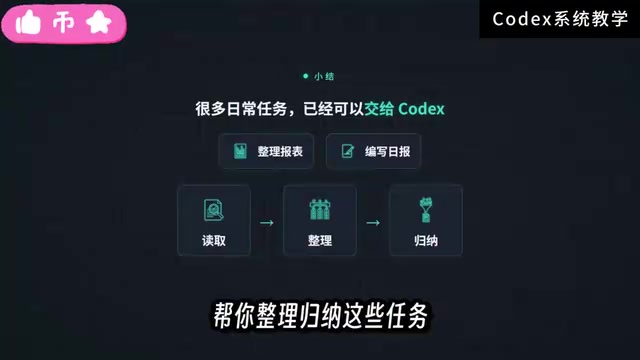
For daily report organization, daily summary writing, and similar tasks, Codex is already fully capable.
Practice Case 2: Generating a Visual Dashboard with Plan Mode
The second task was noticeably harder: the creator added a summary table via command line and asked Codex to create a visual dashboard showing sales, expenses, costs, inventory, and other business conditions, along with analysis of items requiring attention.
Facing a complex task, the creator switched to "Plan Mode." The core logic of this mode: Codex doesn't execute directly, but first plans out a detailed execution checklist based on requirements, confirms the details, then gets to work.
During actual operation, Codex proactively asked the creator questions to confirm some uncertain points, then provided a complete plan. The creator could adjust the plan content, and after confirming and clicking submit, Codex began actual execution.
This "plan first, confirm, then execute" workflow is a key mechanism for AI Agents handling complex tasks. It transforms AI from "black-box execution" into "transparent collaboration," with users always retaining control.
The final dashboard included all requested metrics, plus business recommendations and key items. The creator admitted he's not a sales professional and couldn't judge how practical the recommendations were, but the dashboard's completeness was already quite high. He then requested switching to a modern "Apple style" theme, which Codex also completed successfully.
What is "Plan Mode"?
Plan Mode is an important human-AI collaboration paradigm in the AI Agent field, sometimes called a "Human-in-the-Loop" execution strategy in academia. Its core idea: when facing multi-step complex tasks, the Agent doesn't start executing directly, but first generates a structured execution plan for user review and modification, then implements it step by step after confirmation. This solves two problems: first, AI may misunderstand user intent in complex tasks, and early confirmation can avoid large amounts of wasted operations; second, when irreversible operations like file modifications are involved, users need to retain veto power. Currently, mainstream AI Agent products (such as Devin, AutoGPT, etc.) are exploring similar mechanisms, but with different implementation approaches — some emphasize automated execution efficiency, others emphasize user control. Codex's Plan Mode leans toward the latter, making it more suitable for non-technical users.
Bonus Feature: Desktop Pet and Task Visualization
The video also demonstrated an interesting feature. Typing a slash in the input box brings up a "pet" option — clicking it makes a small pet appear on your desktop.
Besides being cute, it also displays all currently executing tasks. Clicking the pet jumps to the progress interface for the corresponding task. The creator also demonstrated changing the pet's appearance in settings.
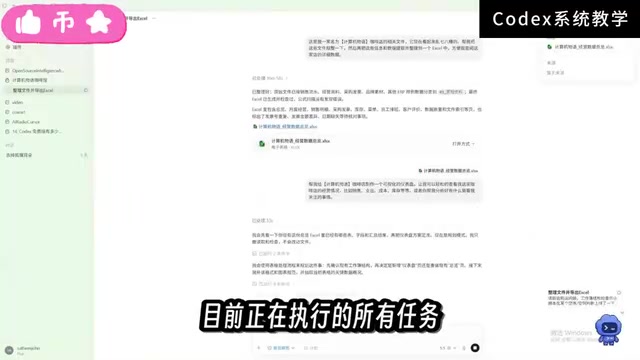
This seemingly entertainment-focused feature actually solves a pain point in the AI Agent experience: when AI works asynchronously in the background, users need a lightweight way to sense task status, rather than repeatedly switching to the main interface to check.
Conclusion: Who Is Codex For?
From this tutorial, it's clear that Codex's barrier to entry is lower than you'd think. No programming background needed — a few sentences can produce practical results. But its real value lies in handling tasks like "read local files → organize and summarize → generate new content" — which is exactly the kind of work knowledge workers do repeatedly every day but struggle to automate.
If you frequently need to handle multi-format files, create reports, or organize data, Codex is worth your time. We recommend starting with simple file organization tasks, getting familiar with the "project" concept and basic interactions, then gradually trying Plan Mode and complex tasks.
Related articles

How Big Can Stars Really Get? The Physical Limits of the Largest Stars
Red supergiants are the largest stars by volume, with radii up to 2,000 times the Sun, engulfing the inner solar system. But there is no precise upper limit on stellar size—models predict up to 15,000 solar radii. The most massive blue stars are far smaller than red supergiants—biggest and heaviest are two different things.

Apple HomeView Smart Display Full Feature Breakdown: Wall-Mount or Desktop, $299
Apple launches HomeView, a $299 smart display with wall-mount and desktop options, 12MP camera for facial recognition, smart home control, music playback, and recipe step-by-step cooking. Full breakdown of watch faces, apps, privacy, and cooking integration.

Where Did the Promised New Studio Go? Craft Computing Answers After Five Years
Craft Computing's host responds to viewer questions: the new studio promised five years ago was shelved as construction costs soared from $30,000 to $75,000, and was replaced by a 168-square-foot garage conversion.