TIA Portal and Factory IO in Practice: Stacker Crane PLC Address Symbol Table Configuration Tutorial

Steps and key notes for configuring the stacker crane PLC address symbol table in TIA Portal and Factory IO joint debugging.
This article details the complete process of configuring the PLC address symbol table for a stacker crane project in TIA Portal for joint debugging with Factory IO simulation software. It first emphasizes that a project template containing the FC9000 communication interface must be used; otherwise, no connection can be established. It then explains how to add input signals (such as pallet detection, buttons, and simulation switches) and output signals (motors, cylinders, and indicator lights), including address assignment for Boolean and INT variables. It also covers enabling system clock memory and troubleshooting simulation connection issues (such as running Factory IO as administrator). Finally, it summarizes key notes to help readers complete the basic configuration smoothly.
TIA Portal and Factory IO in Practice: Stacker Crane PLC Address Symbol Table Configuration Tutorial
In industrial automation simulation projects, joint debugging between TIA Portal and Factory IO is a common requirement. Based on a practical tutorial from Bilibili, this article details the process of adding an address symbol table in stacker crane programming, helping readers quickly build the communication bridge between the PLC and the simulation software.
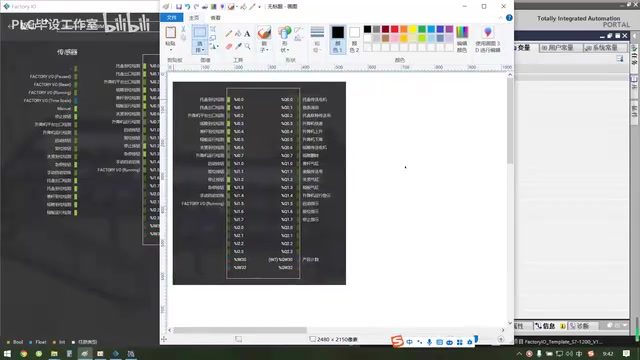
1. Project Template and Preparation
The tutorial first emphasizes that a pre-prepared project template must be used (containing both 1200 and 1500 PLC models); otherwise, there will be no blocks available in the TIA Portal project and no connection can be established with Factory IO. After opening the template, enter the project view, click on the PLC device, and in the program blocks you will see the main program Main as well as the key FC9000 block—this FC block is precisely the interface for communication with Factory IO.
In practice, launching TIA Portal may be slow, so patience is required. After entering the project, it is recommended to maximize the program block editing area for easier operation. If the project template is not used, creating a new project directly will lack the necessary communication modules, causing subsequent simulation failures.
The FC9000 block is a special function block in Siemens TIA Portal, designed specifically for data exchange with the Factory IO simulation software. Factory IO establishes communication with the PLC through its driver interface, and FC9000 encapsulates address mapping and communication protocol handling logic internally, so that the PLC's input and output variables can correspond one-to-one with the sensors and actuators in the Factory IO scene. Without this block, the PLC program cannot recognize Factory IO signals, resulting in communication failure.
TIA Portal is Siemens' fully integrated automation engineering software platform, supporting programming, configuration, and debugging of S7-1200, S7-1500, and other PLC series. In simulation projects, TIA Portal serves as the PLC programming environment and is used together with Factory IO (a 3D industrial simulation software) to simulate the control logic of real production lines.
2. Adding Input Signal Variables
In the "PLC variables" table in TIA Portal, select "Show all variables" to edit the symbol table. The tutorial demonstrates first deleting the default variables, keeping a few placeholders, and then adding the input signals required by the stacker crane one by one.
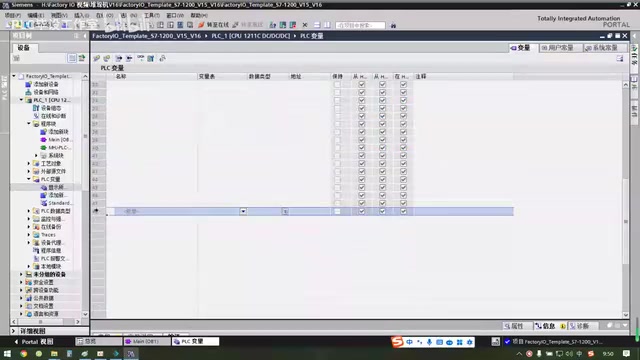
Key input signals include:
- Pallet in-position detection (Boolean)
- Exit detection (Boolean)
- Lift platform exit detection
- Pointing in-position detection
- Pusher in-position detection
- Partition running detection
- Clamping in-position detection
- Lift running detection
- Start button, reset button, stop button, emergency stop button
- Manual/auto switch
- Factory IO Running simulation switch (corresponding to I1.5)
Among them, the lift platform exit detection signal is triggered when the pallet descends and moves out; although the pallet also passes this detection point when entering, the naming is based on the functional definition. The simulation switch is connected to I1.5 and is used to control simulation start/stop in the Factory IO interface; the PLC side can read the status of this signal.
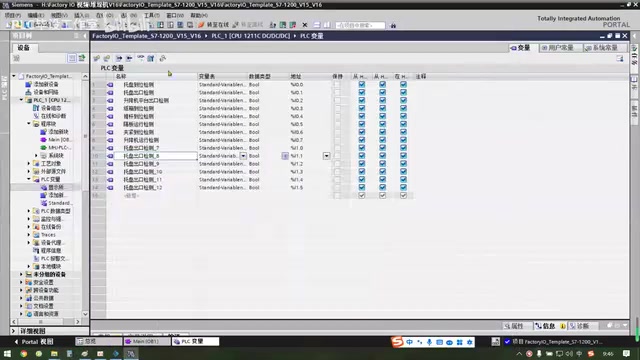
When adding variables, you can directly modify the name and address in the table; Boolean variables use bit addresses by default. For scenarios requiring screenshots, you can open Paint and place a screenshot of the Factory IO driver interface beside it for easy reference to signal names and to avoid frequently switching software.
A Boolean variable in a PLC represents a switching quantity and contains only two states: 0 (False) and 1 (True). It is commonly used for digital signals such as buttons and sensors. In the TIA Portal variable table, Boolean variables are addressed by bit, for example, I0.0 represents bit 0 of input byte 0.
The Factory IO Running simulation switch is a special signal provided by the Factory IO driver, usually mapped to a PLC input point (such as I1.5), and is used to control the start and stop of the simulation in the simulation interface. By reading the status of this signal, the PLC can determine whether the simulation is in running mode and adjust the control logic accordingly.
3. Configuring Output Signals and Data Variables
Output variables are assigned starting from Q0.0. The output signals listed in the tutorial include:
- Pallet conveyor motor (Q0.0)
- Chain rolling
- Pallet removal conveyor motor
- Lift fast rise, lift descend
- Pointing conveyor motor, pointing flip
- Pusher cylinder (Q1.0)
- Loading conveyor belt
- Clamping cylinder (Q1.3 is the partition cylinder, Q1.4 is the lift running warning)
- Start indicator (Q1.6), reset indicator, stop indicator (Q1.7)
In addition, an integer variable must be added for product counting; the recommended address is QW30, and the data type should be changed to INT. In the variable table, right-click to insert a row to add a new entry, and delete excess rows.
After completing the symbol table, be sure to save the project to avoid losing the configuration.
The INT data type is a 16-bit signed integer with a value range of -32768 to 32767, suitable for numerical processing such as counting and length. In TIA Portal, integer variables usually use word addresses, such as QW30 for output word 30. Unlike Boolean variables, INT variables occupy 16 consecutive bits and require explicitly changing the data type in the variable table.
Output address assignment follows the PLC's I/O mapping rules; Q0.0, Q1.0, etc. correspond to bit 0 of output byte 0, bit 0 of output byte 1, respectively. Each output point can be connected to an actuator (such as a motor or cylinder), and the address must strictly match the configuration in the Factory IO driver; otherwise, the control signal cannot be transmitted correctly.
4. System Clock and Simulation Connection
In the PLC properties, find the "System and clock memory" option and check it to enable it. The system memory provides signals such as the first-cycle pulse (initialization pulse), while the clock memory generates periodic square waves for use in programming. The tutorial notes that, unlike the older S7-200, TIA Portal does not require special restrictions before the program and allows logic to be written directly.
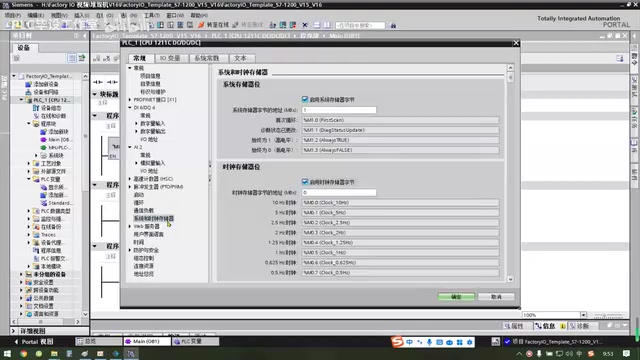
After configuration is complete, click the simulation start button, download the program (even if Main is empty), load and start the module so that the PLC enters the running state. Then open Factory IO and click the connect button in the driver. If the connection fails, try running the Factory IO software as administrator (right-click and select "Run as administrator"); this can resolve some system permission issues.
Once the connection is successful, you can begin writing the control program. The tutorial suggests that if readers are already familiar with adding variables, they can skip this section and proceed directly to subsequent content.
The system and clock memory is a built-in feature of S7-1200/1500 PLCs; once enabled, specific memory bits are allocated in the CPU. The system memory provides a first-scan pulse (such as M1.0) for program initialization, while the clock memory generates square waves of different frequencies (such as 1 Hz and 2 Hz) that can be used for flashing indicator lights or timing logic. In the PLC properties in TIA Portal, check "Enable system memory" and "Enable clock memory" and set the corresponding memory byte (such as MB0) to use these resources in the program.
5. Key Notes
- The FC9000 block in the project template must be used; otherwise, communication is impossible.
- Input and output addresses must match the Factory IO driver configuration; the simulation switch corresponds to I1.5.
- Boolean variables use bit addresses directly, while counting variables must be changed to the INT type.
- Enabling the system clock memory simplifies initialization and pulse logic.
- When simulation connection is abnormal, check administrator privileges first.
Through the above steps, the basic symbol table configuration for the stacker crane project can be completed, laying the foundation for subsequent logic programming and joint simulation.
Related articles

Building an AI Agent with Claude Code from Scratch: From Workspace to Cloud Autonomy
No coding required: build an AI Agent in four steps with the Claude Code desktop app—from workspace setup and Agent Designer to Skills, Memory, and cloud autonomy.

No Python Required: How Cursor AI Coding Is Reshaping Automated Testing and Test Development
Test engineers can do automated testing without learning Python? This article examines how Cursor and other AI coding tools empower functional testing, automation scripts, test platform development, and performance tuning, compares the cost and access restrictions of mainstream domestic and foreign tools, and offers capability transformation advice for testers.

Nearly 5,000 Affected! AI Coding Plugin Found with Backdoor, Officials Urgently Remove It
Claude Code's VS Code extension version 2.1.313 was maliciously tampered with, implanting a backdoor for remote login and persistent control, potentially affecting up to 5,000 users. Officials have removed the malicious version; this article details the attack method and cleanup steps.