VBE Direct Connect Assistant Desktop Edition Released: Complete Guide to AI IDE and Agent Terminal Configuration

VBE Direct Connect Assistant launches a standalone desktop edition that centrally manages MCP configuration for multiple IDEs and Agents.
The VBE Direct Connect Assistant standalone desktop edition addresses the problem that the VSIX sidebar cannot load in Agent-type editors, running as an independent program that centrally manages MCP registration and mode switching. Since it no longer bundles the Node.js runtime, the installer shrinks from tens of MB to about 5MB. The desktop app includes eight built-in client configurations, so one registration makes the same set of tools available in both IDE and Agent windows. VBA mode provides 27 tools and Excel mode 11, and switching modes requires starting a new conversation to refresh the tool list.
VBE Direct Connect Assistant Desktop Edition Released: Complete Guide to AI IDE and Agent Terminal Configuration
The VBE Direct Connect Assistant has recently launched a standalone desktop edition, solving the pain point where the previous VSIX sidebar mode could not be configured in Agent-type editors. Based on a hands-on demonstration by a Bilibili content creator, this article walks through the complete workflow—from installation, environment detection, authorization, and adding workbooks to registering MCP across multiple clients—and compares how it's invoked in IDE versus Agent windows.
Why a Standalone Desktop Edition Is Needed
Previously, the VBE Direct Connect Assistant ran as a VSIX plugin, relying on the sidebar of traditional IDEs like VS Code. Such IDEs have a file tree on the left, making it easy to view and open code files. However, tools like WorkBuddyAd are task-oriented, with an interface resembling an Agent window—the left side shows project folders rather than code files—and they simply don't support sidebar loading. In these environments, users typically extend capabilities through connectors, custom connectors, or MCP configuration, and since the sidebar approach can't be embedded, configuration becomes impossible.
The standalone desktop edition is designed precisely for this. It no longer depends on a specific editor but runs as an independent program that centrally manages MCP registration and mode switching, allowing both AI IDEs and Agent terminals to call the same set of VBE tools.
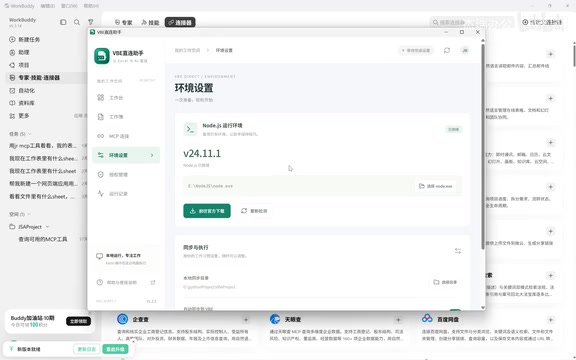
MCP (Model Context Protocol) is an open protocol proposed by Anthropic that enables AI applications to call external tools and data sources in a standardized way. In the MCP architecture, the party providing tools is called the MCP server, such as the VBE Direct Connect Assistant in this article; the party consuming tools is called the MCP client, such as Chat, Cursor, WorkBuddy, etc. Clients must first "register" the server information (startup command, transport method, etc.) before they can list and call its tools in a conversation. What this article calls "registering and syncing MCP" essentially means writing the desktop app as the MCP server's startup entry into each client's configuration file, so you only need to configure it once and multiple clients can share the same set of tools.
Installation and Environment Preparation: Why the Installer Shrank from Tens of MB to 5MB
The new desktop edition's installer is only about 5MB, whereas the old version was often tens of MB. The difference comes from the Node.js runtime: the old version bundled the Node environment into the installer for "foolproof" installation, at the cost of bloated size—and since each MCP carried its own runtime, memory usage stacked up. The new version instead detects the local Node environment, and the installer contains only the tools and scripts.
To install, double-click the installer, choose an installation path (the demo installs to an empty directory on the D drive), and wait for completion. If prompted that MCP hasn't exited, close the corresponding application first; if the environment is missing, the installer will guide you through installation. After entering the workbench, first detect the Node.js environment—if it's missing, click "Go to Official Download" to install it yourself, or simply hand the download link to the AI to install on your behalf, then click "Re-detect" to recognize it.
Node.js is a JavaScript runtime based on the Chrome V8 engine. Many MCP servers and development tools are distributed as Node scripts and require a local Node environment to run. The old version bundled the Node runtime with the installer, forming a self-contained "green" distribution; the new version relies on the system-installed Node, which greatly slims down the installer but requires users to prepare the environment themselves. When detecting the Node.js environment, the installer typically checks whether node -v returns a version number; if the command doesn't exist or the version is too low, it prompts installation. Handing the official download link to the AI to install actually means having the AI call the terminal to execute download and installation commands, which requires the AI client to have command execution permission.
Activation and Workbook Configuration: From Authorization to Exporting VBA Code
Once the environment is ready, follow the workbench workflow: first activate the license (same as the old version), then add workbooks and sync directories. There is one sync directory by default, which can be changed to your own project path. In the demo, a VBA project directory is specified, and upon entering, the MCP list is empty.
Click "Add" and select the test data workbook, and the workbook is brought under management. At this point the interface shows an empty folder, and the contents update in real time. When you need to work with files, click "VBA to Local" and then "Export to Local"; after confirmation, a progress bar appears and the VBA code is exported locally, with forms, modules, and other structures matching the old version.
Client Registration: Configure Once, Works for Both IDE and Agent
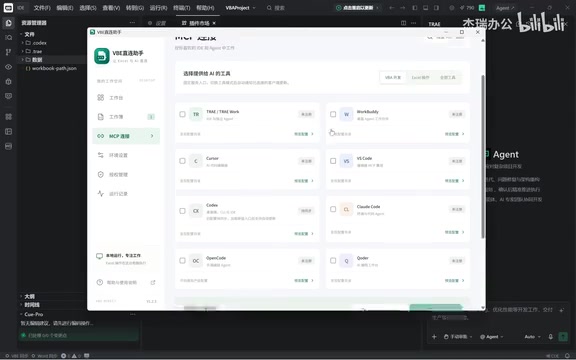
With the preparatory work done, the key step is choosing which AI IDE or Agent to use for file operations. In the client selection area, eight configurations are built in, including Chat, WorkBuddy, Cursor, VS Code, etc., each configurable separately. There is also a mode switch at the top of the interface, corresponding to the old version's mode selection.
To avoid configuration conflicts between the two ends, the author recommends uninstalling the old sidebar plugin and letting the desktop app manage everything. In the demo, Chat is opened and "Register and Sync MCP" is clicked; after confirming the configuration is written, "JerryVBAHelper" immediately appears in Chat's MCP list. On the MCP page in settings, you can see the list of registered tools—27 tools in VBA mode.
Then a new window is created for a connectivity test: the AI is asked to write "Hello" into cell A1 of the first worksheet. The AI calls the MCP tools, first getting the worksheet name and data, then calling the write tool; when done, the cell content becomes "Hello". The same takes effect when opened in WPS.
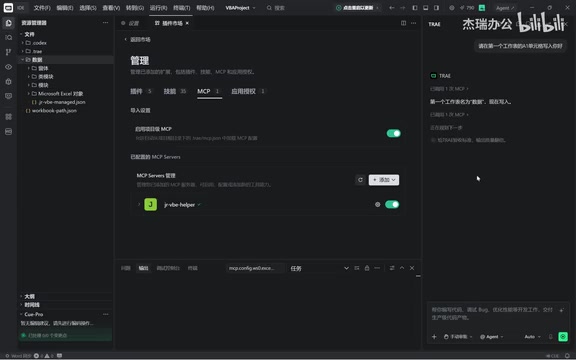
The "27 tools" and "11 tools" in the tool list correspond respectively to the capability sets exposed to the AI in VBA mode and Excel operation mode. A tool is a function in MCP that can be called by the model; each tool has a name, description, and parameter structure, and the model decides when to call it and what parameters to pass based on the description. The reason mode switching changes the tool count is that the two modes register different tool subsets: VBA mode covers finer-grained capabilities such as reading/writing code and manipulating projects, while Excel mode focuses on workbook- and cell-level operations. The client pulls the tool list once when establishing a connection and caches it in the current session, so old conversations won't refresh automatically after switching modes—you must start a new conversation to re-handshake.
Agent Window Test: Works the Same in WorkBuddy
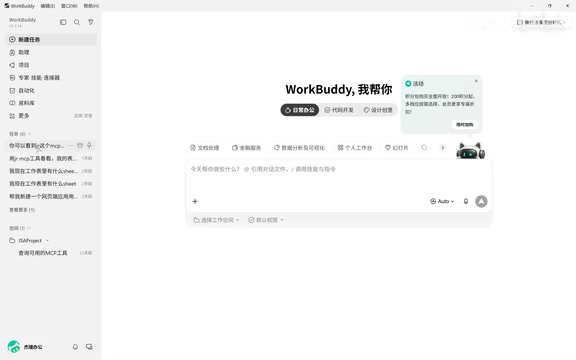
Agent-type tools have no sidebar, but the desktop edition fills this gap through custom connectors. In WorkBuddy, open "Custom Connectors"; the first activation requires authorization confirmation, after which you can see the Jerry MCP and its tools. After creating a new task, the AI can read the full tool list; in the demo, 27 tools were mounted and categorized.
Mode switching is also managed centrally on the desktop side. After switching from VBA mode to Excel operation mode, the three registered clients switch in sync, and the tool count goes from 27 to 11; the tool names stay the same but the internal list has been updated. The author reminds: after switching modes, start a new conversation, because each conversation reloads MCP, and old conversations still hold the old tool list.
Key Details and Usage Tips
When operating in an Agent window, it's best to enter the corresponding working directory, because Agents have a workspace concept, and matching the directory makes operations more accurate. In the demo, the AI is asked to change cell A1 of the first sheet in "Tools.xls" from "Hello" to "Hello there"; the AI gets the data, calls the write tool, reads it back for verification, and completes the change.
All call logs can be viewed in "Run History" for troubleshooting and auditing. Overall, the desktop edition consolidates MCP configuration for multiple IDEs and Agents into one place, and switching modes requires just one operation—the workflow is much smoother than in the sidebar era. Note that this tutorial is based on a video demonstration, and interface details may differ slightly across clients; pay attention to the authorization confirmation prompts on each end during initial configuration.
One-line Summary
VBE Direct Connect Assistant launches a standalone desktop edition that centrally manages MCP configuration for multiple IDEs and Agents.
Paragraph Summary
The VBE Direct Connect Assistant standalone desktop edition addresses the problem that the VSIX sidebar cannot load in Agent-type editors, running as an independent program that centrally manages MCP registration and mode switching. Since it no longer bundles the Node.js runtime, the installer shrinks from tens of MB to about 5MB; after installation, you need to detect or install the Node environment, then complete the preparatory steps of authorization, adding workbooks and sync directories, and exporting VBA code. The desktop app includes eight built-in client configurations such as Chat, WorkBuddy, Cursor, and VS Code—register once and the same set of tools is available in both IDE and Agent windows. VBA mode provides 27 tools, Excel mode 11, and after switching modes you need to start a new conversation to refresh the tool list. When operating in an Agent window, it's recommended to enter the corresponding working directory; call logs can be viewed in Run History.
Related articles

DeepCell: One-Click AI Generation of Documents, Spreadsheets, and Slides
DeepCell tops Product Hunt with one-click generation of documents, spreadsheets, and slides, using the .deepcell format for linked updates, designed for System 2 tasks like modeling and sales reviews.

Doneas: 15-Minute Daily Accountability Calls That Keep Indie Developers From Procrastinating
Doneas is a daily accountability tool for indie developers: plan tasks on Monday, join a 15-minute call with five builders each day, and log deliveries on a public progress page. This article analyzes its core mechanics, effectiveness, and potential issues around retention and matching.

Fastlane 2.0: Fully Automated AI Ad Campaigns, From Creative to Optimization
Fastlane 2.0 is an AI ad automation tool: enter your website and it learns your brand, generates video and image ads, and runs and optimizes them on Meta, TikTok, Instagram, and YouTube.