Vim Search and Replace in Practice: 3 Techniques to Boost Ops Efficiency
A rundown of the core Vim operations for search-and-replace, delimiter-based replacement, and line-number display, plus key points for ops practice.
Based on Bilibili creator "Feige"'s cloud computing operations course, this article systematically covers the high-frequency uses of Vim text processing. It covers three replacement scopes—single-line `:s`, specific line or range `:5s`/`:1,5s`, and whole-file `:%s` or `:1,$s`—and emphasizes that the `g` flag determines whether all matches on a line are replaced. For syntax errors caused by slashes in content, it offers the solution of switching to `#`, `@`, or `%` as delimiters. It also covers `:set number` for showing line numbers, `5G` for quick jumps, and `:set list` to visualize trailing spaces and delete them with `x`.
In the daily work of cloud computing operations, text processing is an unavoidable task. Whether modifying configuration files or batch-updating variable names in code, efficient search and replace can significantly boost productivity. Bilibili creator "Feige" dedicated a lesson in his series One Hour a Day: Understanding the Cloud Computing Operations Behind AI Projects to Vim's search-and-replace and line-number settings, covering practical content that hits real pain points. This article is based on that video, combined with ops experience from multiple sources, to walk you through the core usage of Vim search and replace.
Basic Replacement: From a Single Line to a Specified Range
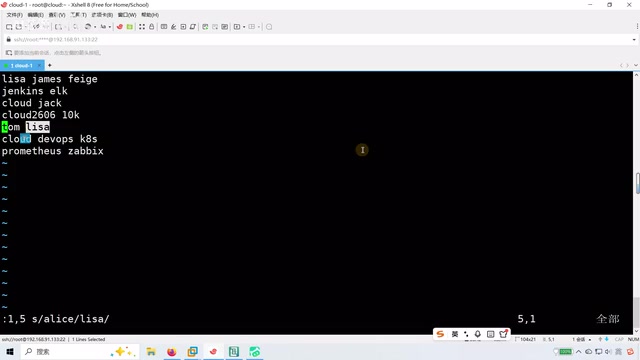
Vim's search-and-replace command runs in command-line mode (entered by pressing colon). The basic syntax is :s/old/new/, which replaces only the first match on the line where the cursor sits. For example, to replace "Alice" with "Lisa" on the current line, type :s/Alice/Lisa/.
If you need to replace a specific line, prefix the command with a line number. To replace only line 5, use :5s/Alice/Lisa/. To replace a continuous range, such as lines 1 through 5, use :1,5s/Alice/Lisa/. Note here that the comma means "from…to…", not "line 1 and line 5". The creator specifically highlighted this common mistake in the video and reminded viewers that the u key can undo an erroneous operation.
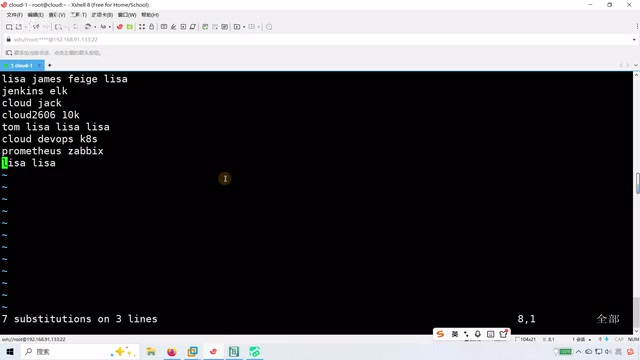
For the entire file, use :%s/old/new/, where % represents all lines, or equivalently :1,$s/old/new/, where $ denotes the last line. These two forms are equivalent, and after execution Vim reports how many substitutions were made.
Vim's "command-line mode" is different from entering commands in normal mode: pressing :, /, or ? in normal mode enters command-line mode, where an input area appears at the bottom of the screen, and it automatically returns to normal mode once the command finishes. The substitute command :s is an Ex command in this mode, whose name derives from the substitute command of the early Unix line editor ed. Understanding this helps distinguish :s from the normal-mode s (delete character and enter insert mode), avoiding confusion for beginners. In addition, the scope of :s defaults to the "current line", and Vim's "current line" is determined by the cursor position, so before running a ranged replacement, entering command-line mode with : and observing the address prefix (such as ., $, %) is a common way to troubleshoot replacements that don't take effect.
Global Replacement and Handling Special Characters
By default, the :s command replaces only the first match on each line. If a line contains multiple occurrences, you need to add the g flag (Global), i.e., :s/old/new/g, to replace all matches on that line. For a global replacement across the entire file, combine them: :%s/old/new/g.
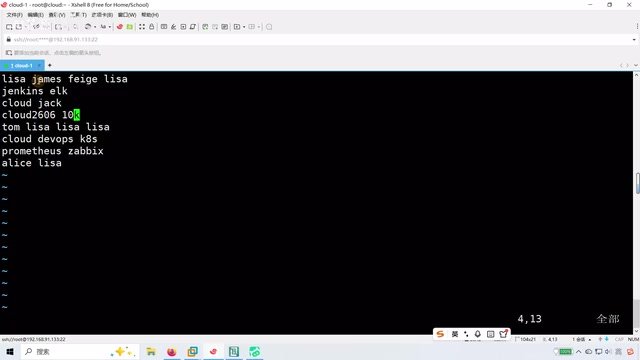
When the content to find or replace itself contains a slash /, using it directly causes a syntax error. For example, to replace "/Lisa" with "Alice", writing :%s//Lisa/Alice/ confuses Vim's delimiter. The creator demonstrated this error in the video and offered the solution: switch to another delimiter, such as #, @, or %. For example, :%s#/Lisa#Alice#. The most commonly used is #, but @ and % work equally well. If the content contains both slashes and hash marks, you can switch to a percent sign as the delimiter—choose flexibly.
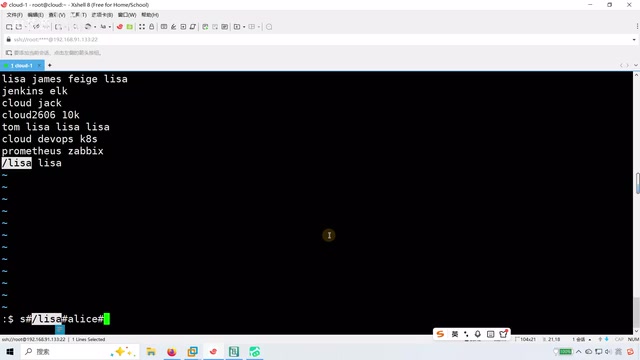
This technique is especially useful when editing configuration files, since paths frequently contain slashes. Experience from multiple ops communities also confirms that custom delimiters are one of the must-have skills for Vim users.
The "flags" at the end of a substitute command can be stacked, and g is just the most common one. For example, in :s/old/new/gc, the c stands for confirm: Vim asks about each match one by one whether to replace it, which is suitable for interactive confirmation when the scope of impact is uncertain; i means ignore case; without g only the first match is replaced, while with g all matches on the line are replaced. Note that the "global" meaning of g is "global within the line", not "global across the whole file"—cross-file replacement still requires the % range. Flags can be combined in any order, and this mechanism lets a single command balance efficiency and safety.
Showing Line Numbers and Checking Trailing Spaces
Vim does not show line numbers by default, which makes locating and jumping inconvenient. In command-line mode, type :set number (abbreviated :set nu) to show line numbers, and :set nonumber (:set nonu) to hide them. With line numbers displayed, you can quickly jump to a specific line using 5G or 6G without manually counting lines.
Another common need is checking for extra spaces at the end of lines. The configuration files of some services do not allow trailing spaces, but they are hard to spot with the naked eye. The creator demonstrated the :set list command, which displays spaces as special characters (such as $), making it easy to see whether there are trailing spaces. If you find one, move the cursor there and press x to delete it. When done, use :set nolist to turn the display off.
Manually dragging to check for spaces only works when there are very few lines; with many lines, set list is the more reliable method. According to the creator and some ops bloggers, this is an essential check before modifying configuration files.
The :set family of commands configures Vim "options", which fall into boolean types (such as number, list) and value types (such as tabstop). Boolean options are turned off with the no prefix, so :set number and :set nonumber come in pairs, and the abbreviations nu / nonu are just shorthand forms. If you want line-number settings to persist, write them into the ~/.vimrc configuration file in your home directory rather than typing them each time. A lighter-weight alternative is to add vim -c 'set nu' filename at startup. In addition, after showing line numbers, you can jump directly with :line_number, use G to go to the end and gg to go to the beginning, forming a complete set of positioning tools together with the 5G mentioned in the article.
Practical Advice and Learning Path
The creator noted at the end of the course that these Vim operations are the foundation of cloud computing operations, and that once mastered, handling daily work "shouldn't be too difficult a problem". He advised learners to practice the covered content until proficient rather than blindly expanding into new knowledge. Feedback from multiple sources shows that Vim search-and-replace and line-number settings are indeed high-frequency topics in ops interviews and hands-on work.
For the cloud computing operations behind AI projects, text processing is just one part, but it is a skill used every day. Spending an hour to understand these commands can save a great deal of repetitive work in the long run. If you are just getting started with Linux, try practicing these few commands first, then gradually delve into other advanced usages.
One-line Summary
A rundown of the core Vim operations for search-and-replace, delimiter-based replacement, and line-number display, plus key points for ops practice.
Paragraph Summary
Based on Bilibili creator "Feige"'s cloud computing operations course, this article systematically covers the high-frequency uses of Vim text processing. It covers three replacement scopes—single-line :s, specific line or range :5s/:1,5s, and whole-file :%s or :1,$s—and emphasizes that the g flag determines whether all matches on a line are replaced. For syntax errors caused by slashes in content, it offers the solution of switching to #, @, or % as delimiters. On line numbers, it introduces :set number to show line numbers, 5G for quick jumps, and :set list to visualize trailing spaces and delete them with x. It concludes by advising beginners to practice these commands until proficient, considering them foundational skills for ops interviews and daily hands-on work.
Related articles
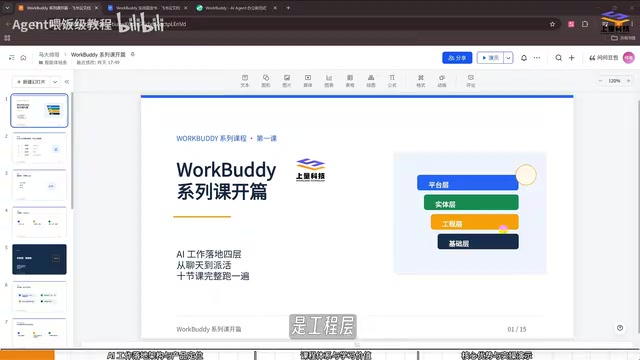
WorkBuddy Practical Tutorial: Building a Personal Office Automation Workbench from Zero
Based on a Bilibili WorkBuddy tutorial, this article breaks down the four-layer structure from large models to agent workbenches, compares the essential difference between Doubao and WorkBuddy in task execution, and offers a zero-basis learning path and rational usage advice for building personal office automation.
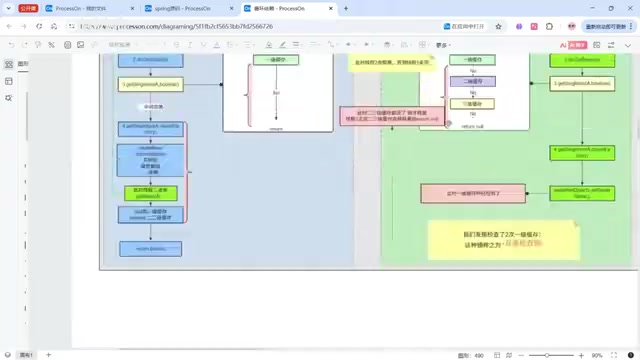
Advanced AI Development for Java Backends: From Spring Source Code to Spring AI RAG in Practice
An advanced AI development tutorial for Java backends: from Spring IOC/AOP source code and Spring Boot auto-configuration to Spring AI multi-model switching, SSE streaming, and RAG enterprise knowledge bases, covering production-level essentials like chunking strategies, TopK bottlenecks, and answer traceability.

Tsinghua Expert Breaks Down the Five-Layer Architecture of AI Large Models: From Applications to Energy Across the Full Chain
From application layer to energy layer, a breakdown of the five-layer AI large model industry chain: wrappers vs. native apps, Token and API business models, Agent trends, training and inference costs, GPU and CUDA ecosystems, liquid-cooled data centers, and AI's electricity bottleneck.