VSCode + Claude Code for Writing TIA Portal PLC Programs: Environment Setup Tutorial

Set up VSCode + Claude Code + TIA Portal Import to let AI write Siemens PLC programs.
This tutorial walks through setting up an AI-assisted PLC programming environment by combining VSCode, Claude Code, and the TIA Portal Import plugin. Claude Code serves as the AI engine that can understand and modify project files, while TIA Portal Import acts as a translation bridge between Siemens' proprietary format and AI-readable text. Together, they allow engineers to use natural language to generate and edit TIA Portal PLC programs.
When AI Programming Meets Industrial Automation
In the field of industrial automation, writing PLC programs has always been heavily dependent on human experience. PLCs (Programmable Logic Controllers) are the core devices of industrial automation, responsible for controlling the operational logic of motors, valves, sensors, and other equipment on production lines. Engineers need to manually drag-and-drop ladder diagrams, configure data blocks, and debug logic in TIA Portal, with efficiency limited by the speed of manual operations. Siemens' TIA Portal (Totally Integrated Automation Portal) is one of the highest market-share PLC programming platforms globally, supporting programming, configuration, and debugging for S7-1200, S7-1500, and other controller series. TIA Portal project files contain structured programming units such as OBs (Organization Blocks, program entry points), FCs (Functions), FBs (Function Blocks), and DBs (Data Blocks), written in languages like Ladder Diagram (LAD), Function Block Diagram (FBD), or Structured Text (SCT/ST) — these files are stored in Siemens' proprietary format and cannot be directly parsed by general-purpose text editors.
As AI programming assistants mature, a bold idea is becoming reality: letting AI directly read and write your TIA Portal projects to help generate PLC programs.
Based on a hands-on tutorial from a Bilibili creator, this article introduces how to set up an AI-assisted TIA Portal programming environment using the combination of VSCode + Claude Code + TIA Portal Import plugin. The core concept is straightforward: use Claude Code as the AI brain, use the TIA Portal Import plugin as the "translation bridge," and let AI truly enter the world of Siemens TIA Portal.
Why This Combination Deserves Attention
In the past, our impression of AI programming mostly stayed at the "chat-style" Q&A level — you ask it for a piece of code, it gives you text, and then you manually copy-paste it into your project. But this approach is virtually useless for industrial automation because TIA Portal projects are Siemens proprietary engineering files containing program blocks, data blocks, configuration information, and more — ordinary AI simply cannot understand them.
The key breakthrough of the solution presented here is: AI is no longer a bystander but can truly "enter" your project, understand existing program structures, and then help you write code, modify logic, and troubleshoot errors.
Installing the VSCode Development Environment
VSCode (Visual Studio Code) is a free code editor from Microsoft and serves as the foundation platform for this entire solution. Thanks to its lightweight architecture and powerful extension ecosystem, it has become one of the most widely used code editors among developers worldwide. More importantly, VSCode's extension mechanism allows third-party developers to add virtually unlimited functionality — it's precisely this feature that enables us to integrate PLC programming and AI assistants into the same working environment through plugin installation. The installation process is fairly straightforward:
- Open the installation package included with the tutorial, double-click to run
- Click "Agree" to accept the license agreement
- Wait for self-extraction to complete, then install using the default path
There's an easily overlooked detail here: during installation, make sure to check "Create desktop shortcut," otherwise you might not be able to find the program icon after installation, causing inconvenience for subsequent operations.
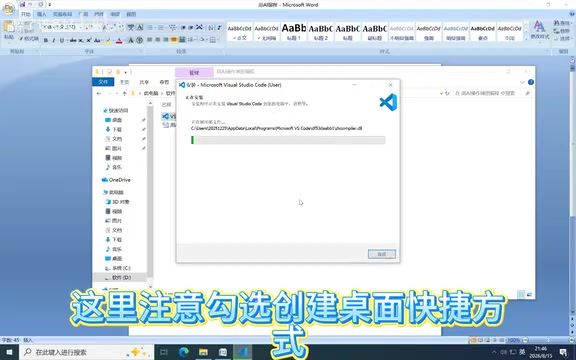
After completing the installation wizard, check "Run VSCode" and click Finish — the editor will launch automatically. At this point, the basic environment is ready.
Installing the Core Engine: Claude Code
Claude Code is the star of this entire solution and the engine that truly makes AI "hands-on program." Developed by Anthropic and built on the Claude large language model, it differs from ordinary chat-style AI or simple code completion tools (like GitHub Copilot's line-level completion). Claude Code has "agentic coding" capabilities — it can not only generate code snippets but also understand an entire project's file structure, dependencies, and contextual logic, directly creating, modifying, and deleting files within the project. This capability makes it closer to an AI engineer that can independently execute complex programming tasks.
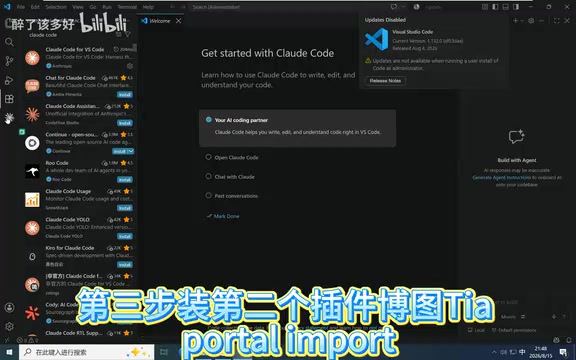
Install through the VSCode extension marketplace:
- Click the square-shaped extension icon on the left sidebar (Extension Marketplace)
- Type "Claude Code" in the search box
- Select the first search result and click Install
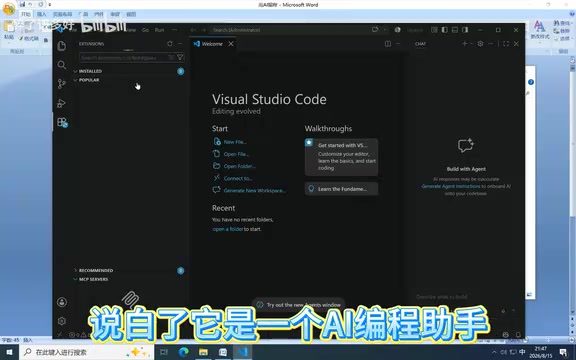
What Can Claude Code Actually Do
Simply put, Claude Code is an AI programming assistant. Traditional coding requires engineers to type line by line, but with it, you can describe requirements directly in plain language — for example, "I want to write a motor start-stop program" — and it can understand your intent, generate code, and help you modify and troubleshoot errors.
The fundamental difference from ordinary chat-style AI is: it can truly enter your project, understand existing program structures, and then directly make modifications. It integrates into the development environment through a VSCode extension, can access all files in the workspace, and understands the calling relationships and data flow between files. This is also the prerequisite for it to handle TIA Portal PLC programs.
After installation, a Claude Code icon will appear in the VSCode left toolbar — seeing it confirms successful installation.
Installing the Translation Bridge: TIA Portal Import
Claude Code alone isn't enough. TIA Portal projects use Siemens' proprietary format that AI cannot understand by default. This is where the second critical plugin comes in — TIA Portal Import.
The installation method is the same as Claude Code: search for the plugin name in the Extension Marketplace, select the first result, and click Install.
Why This Plugin Is Essential
Here we need to clarify a key issue: no matter how smart Claude Code is, it's helpless when facing TIA Portal project files. TIA Portal projects contain program blocks (OB, FC, FB), data blocks (DB), and other Siemens-specific structures — content that general-purpose AI would never normally encounter. TIA Portal projects are typically stored in .ap16 or .zap16 format, containing XML-structured data internally to describe program logic. This format is essentially incomprehensible to AI that hasn't been specifically trained on it.
The TIA Portal Import plugin serves as a translation bridge. Its core function is to convert TIA Portal's proprietary format into an AI-readable intermediate representation — parsing the XML structures within the project and presenting program blocks, data blocks, variable tables, and other content in a text-based manner within the VSCode workspace, enabling Claude Code to understand PLC program logic structures just as it would read ordinary code files. Conversely, AI-generated code also needs to be converted back into a TIA Portal-importable format through a similar mechanism, completing the closed loop from AI generation to engineering deployment. With this bridge in place, AI has truly entered your TIA Portal world.
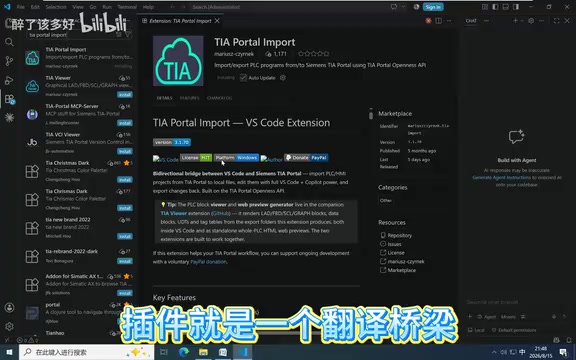
After installation, a TIA Portal plugin icon will also appear in the left toolbar, indicating that the bridge has been successfully built.
Verifying the Environment Is Ready
After all plugins are installed, restart VSCode to apply the configuration. After restarting, verify with the following steps:
- Click to open the Claude Code panel
- Wait for it to display a "Ready" status
- Type "Hello" to test
If the AI responds normally, it means the entire environment has been successfully set up, and you can start having AI help you write TIA Portal PLC programs.
Summary and Reflections
This solution represents a noteworthy trend: AI programming is penetrating from the pure software domain into industrial automation. Through the combination of VSCode + Claude Code + TIA Portal Import, PLC engineers have the opportunity for the first time to let AI directly participate in TIA Portal project development, rather than being limited to the traditional mode of manually dragging ladder diagrams.
Of course, it's important to be realistic about this solution's limitations. AI-generated PLC programs still require line-by-line review by engineers, especially in industrial field environments where any logic error could pose safety risks. Industrial control systems are fundamentally different from IT software: PLC programs directly control physical equipment, and logic errors can lead to equipment damage, production line shutdowns, or even personal safety incidents. The IEC 61508 functional safety standard has strict requirements for software development in safety-related systems, including code review and test coverage. Therefore, AI-generated PLC programs must undergo rigorous simulation verification (such as using Siemens PLCSIM Advanced for virtual commissioning) and manual review before being downloaded to actual controllers for operation. For programs involving safety functions (such as emergency stop circuits, light curtain protection, safety door monitoring), directly using AI-generated code is currently not recommended. AI is better suited here as an efficiency tool and assistive means, rather than a complete replacement for engineers' professional judgment.
Regardless, when AI can "understand" and "work on" professional engineering files, the efficiency ceiling of industrial software development is being redefined. For automation engineers looking to improve their productivity, this environment setup tutorial provides a worthwhile starting point to explore.
Related articles

Gaussian Process Bandit Optimization: Exploration Strategies and Inference Regret Guarantees
Cumulative regret guarantees in Bayesian optimization fail to reflect final recommendation quality. This article examines a new study that provides inference regret guarantees for Gaussian process bandit optimization through exploration query strategies and fill distance analysis, validated on hyperparameter optimization and control tasks.
The Most Detailed Codex Guide on Bilibili: From Installation to Real-World Practice
The most detailed Codex guide on Bilibili: from app store installation to daily work mode configuration, with a real coffee shop project demonstrating file organization, data extraction, dashboard creation, and other practical tasks. Learn to use Plan Mode and desktop pets to leverage Codex efficiently.

Appearance Compensation in Volume Rendering: Why RGB Accuracy Cannot Guarantee Density Correctness
Volume rendering research reveals that volumetric data perfectly reproducing external RGB views may still contain density errors: appearance compensation can double central density and keep external rays unchanged even when L2 error exceeds 14.52%. Density recovery depends on appearance capacity, spatial resolution, and measurement design.