WorkBuddy Desktop AI Agent Beginner's Guide: Installation & Key Configuration

Five essential setup steps for WorkBuddy: installation path, storage, privacy, personalization, and memory.
This guide covers the essential initial configurations for WorkBuddy, a desktop AI agent tool, across five areas: installation, storage, privacy, personalization, and memory. Key recommendations include redirecting both the install directory and workspace storage path to a non-system drive, disabling the Experience Optimization Program to protect conversation data, selecting a concise communication style and using custom instructions to reduce sycophantic filler, and enabling conversation memory so the AI builds a personalized understanding over time. These steps are simple but significantly improve the experience for advanced use.
WorkBuddy is a domestically developed desktop AI agent tool designed around task orchestration, tool calling, and multi-expert collaboration. For new users, getting the software installed is just the first step — the configurations that truly shape your long-term experience are often the ones that get overlooked. In this hands-on tutorial from Bilibili creator Pange, the entire process from installation to initial setup is covered in full. This article distills the core steps to help beginners get up to speed without the usual trial and error.
Installation: Keep It Off the C Drive
WorkBuddyAd is a domestically developed application with a low barrier to entry — just follow the installer wizard and you're done. Download the appropriate version for your operating system from the official website. The site offers builds for Windows, Mac, HarmonyOS, and mobile platforms (Android and iOS), covering all mainstream platforms.
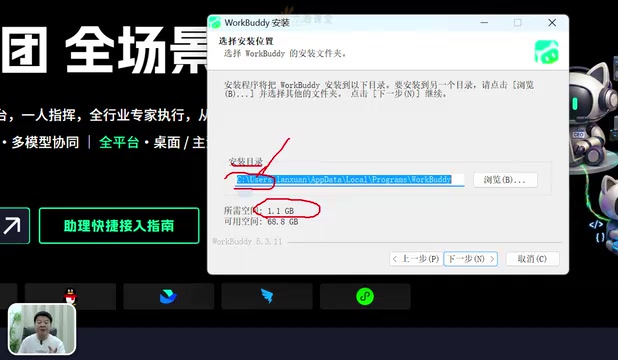
The one thing to pay attention to during installation is the installation directory. The default path points to the C drive, and WorkBuddy takes up a fair amount of space. Since the C drive is your system drive with limited capacity, installing large applications there will crowd out the space your OS needs to run smoothly. The tutorial recommends clicking "Browse" during installation and switching the directory to your D drive or another non-system drive — for example, a dedicated Tool folder you create in advance. This habit applies not just to WorkBuddy, but to most large applications.
When you launch the app for the first time after installation, a login window will appear — just follow the prompts to sign in. Your account information will appear in the bottom-left corner after logging in, and new users can also claim free credits. The tutorial specifically notes that the platform's built-in HY3 membership model is currently available for free, so beginners can dive right in without any additional cost.
Storage Path: Reserve Space for Task Output
The first thing to do after logging in is to change the default workspace storage path. This is easy to overlook, but it has a direct impact on how smoothly things run over time.
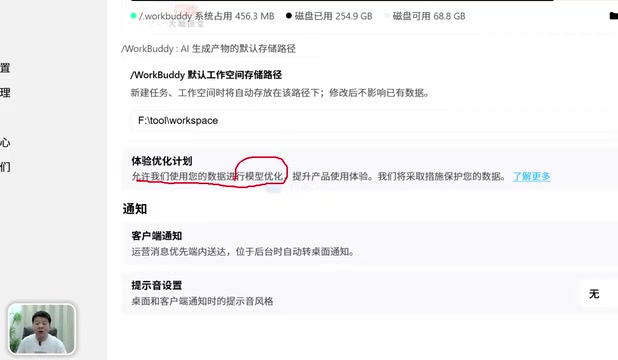
When WorkBuddy executes tasks, it generates various output files — documents, images, videos, and more — all stored in the workspace directory by default. If that path is still on the C drive, these files will accumulate over time and gradually fill up your system drive, eventually slowing down your entire computer. The tutorial recommends going into System Settings, finding "WorkBuddy Default Workspace Storage Path," clicking "Change," and pointing it to a dedicated directory on a non-system drive (for example, F:/Tool/Workspace). The official documentation notes that changing this path won't affect existing data, so there's no risk in making the switch.
Privacy & Personalization: Take Control of Your Own Settings
The settings in this section directly affect both your user experience and data security, so it's worth understanding each one.
Turn Off the Experience Improvement Program
There's an option in System Settings called "Experience Optimization Program" that is enabled by default. When enabled, it allows the platform to use your data for model optimization — meaning your conversation data gets submitted to the developer for training purposes. For privacy reasons, the tutorial recommends turning this off. This is a classic user data authorization toggle, and whether to enable it comes down entirely to your personal stance on data privacy.
The "Experience Optimization Program" is similar to what many software products call a "Customer Experience Improvement Program" (CEIP) — a common mechanism vendors use to collect user behavior data for product improvement. For AI tools, this type of data is especially sensitive, since conversation logs may contain work content, business information, or personal details. Under China's Personal Information Protection Law (PIPL), this kind of data collection requires explicit user consent, which is exactly why the opt-out option exists. Before deciding whether to enable it, users should review the privacy policy for details on data storage, scope of use, and third-party sharing — rather than simply accepting the default.
Adjust Tone and Communication Style
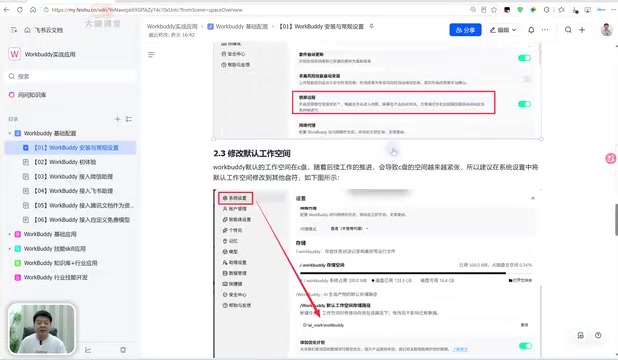
Under "Personalization" settings, you can adjust the AI's basic response style and tone. This setting is more useful than it might seem. Large language models tend to exhibit "sycophantic" behavior in conversation — padding responses with pleasantries, preambles, and filler phrases that waste tokens.
The tutorial recommends avoiding the most verbose default style and instead choosing either "Frank" or "Efficient & Practical" — the former cuts out flattering responses and gets straight to the point, while the latter prioritizes delivering maximum information with minimum words. For users focused on productivity, either option can significantly reduce unnecessary content.
Custom Instructions: Set the Rules for Your AI
The "Custom Instructions" feature under Personalization lets you define rules and preferences the AI should follow. Over extended use, AI tools often "drift" — responses gradually shift away from the direction or format you actually want. By pre-setting rules through custom instructions, you can keep the AI consistently on track.
The tutorial shares a reusable instruction template built around two types of constraints: response style (concise answers, no filler phrases like "That's a great question," avoid constructions like "not A but B") and task execution rules (specific constraints based on your actual needs). Users can simply swap out the content while reusing the overall framework.
Custom instructions correspond under the hood to the large language model's "System Prompt" mechanism. System prompts are injected by the platform before a conversation begins, invisible to the user but with the highest priority — they effectively define the boundaries of the model's behavior. "Sycophancy" is a known flaw in today's leading large language models, a byproduct of RLHF (Reinforcement Learning from Human Feedback) training — models tend to give responses that make users feel good rather than responses that are most accurate. Using custom instructions to explicitly ban pleasantries and constrain response formats is essentially prompt engineering as a countermeasure against this training bias. It's one of the most practical mitigation techniques available right now, and it doesn't require waiting for the model itself to be updated.
Enable Memory: Let the AI Learn You Over Time
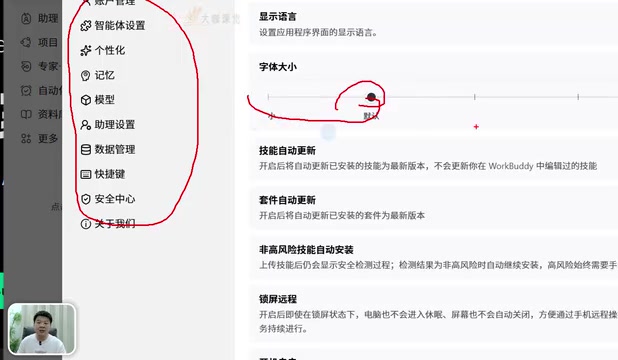
The final setting is found under "Memory." By default, the AI has no memory — each conversation is relatively isolated. Once you enable "Generate Conversation Memory," WorkBuddy will automatically organize and record context from your sessions. Over time, its understanding of your preferences and habits deepens, making interactions progressively smoother.
For users who plan to use WorkBuddy as a long-term office assistant, this setting is essentially a must-enable. It's the key switch that transforms a generic AI into something increasingly tailored to you personally.
On the technical side, AI memory features are typically implemented in one of two ways: injecting summarized conversation history into the System Prompt at the start of each new session, or building an external memory store (such as a vector database) and retrieving relevant memory fragments via Retrieval-Augmented Generation (RAG) as needed. WorkBuddy's "Generate Conversation Memory" feature is a variant of the former — automatically organizing context and storing it in a structured format. One thing to keep in mind: memory functionality consumes additional tokens, since stored memory occupies space in the context window. For users on pay-per-use models, an accumulating set of memory entries could slightly increase the cost of each conversation over time. New users with limited free credits should be aware of this.
Summary: Five Steps to Make the Tool Work for You
Based on the core steps covered in this tutorial, here's what new users should configure before diving into WorkBuddy:
- During installation, set the directory to a dedicated folder on a non-C drive;
- In System Settings, change the default workspace storage path to prevent task output from filling up the system drive;
- Turn off the Experience Optimization Program to protect the privacy of your conversation data;
- Under Personalization, select "Efficient & Practical" or "Frank" as your communication style, and use Custom Instructions to lock in response formatting rules;
- Enable the Memory feature so the AI continuously accumulates context over time.
None of these settings are particularly complex, but they have a direct impact on the experience of using WorkBuddy's more advanced capabilities — task orchestration, tool calling, and multi-expert collaboration. Getting the foundation right is what allows the desktop AI agent's automation potential to fully shine.
Related articles

Random Pruning of the DPO Computation Graph: 1.4x Training Speedup and Lower Peak Memory
DPO training too slow and memory-hungry? This paper proposes a random pruning framework for the DPO computation graph, sampling independently across position, sequence, and branch dimensions; branch pruning achieves a 1.426x step-time speedup and cuts training time by about 30%, with in-depth attribution of memory and time gains.

Why Does JEPA Underperform MLM in Longitudinal EHR Representation Learning?
New study compares JEPA and MLM for longitudinal EHR representation learning on MIMIC-IV: three JEPA variants train stably without collapse but underperform MLM; target size, not heterogeneity, drives prediction error.

Transfer Learning + Visible Light Communication: A New Approach to Energy-Efficient Indoor Positioning
A study proposes a transfer learning-based visible light communication indoor positioning method, achieving 47% accuracy improvement on the BOSCH factory dataset, 67.5% model efficiency under high noise, and introducing the ME composite metric for energy-efficient positioning in energy-constrained industrial IoT scenarios.