WorkBuddy Installation and Configuration Guide: Building an Efficient AI Workflow from Scratch

WorkBuddy tutorial: four initial settings determine whether the tool is genuinely useful.
Based on Bilibili creator Pan Ge's WorkBuddy tutorial, this article covers installation and configuration of this multi-platform, currently free AI automation tool with a built-in Hunyuan HY3 model. It recommends avoiding the C drive, changing the workspace storage path, disabling the default-on experience improvement program to protect data privacy, choosing an efficient writing style with custom instructions to cut token waste, and enabling conversation memory—four settings that take the tool from usable to genuinely good.
WorkBuddy is an AI tool built around automated task execution, with multi-platform support (Windows, Mac, HarmonyOS, Android, iOS), a built-in Hunyuan HY3 model, and it's currently free. In a hands-on tutorial, Bilibili creator Pan Ge walks through the full process from download and installation to basic configuration, emphasizing that a few post-installation settings directly determine the tool's ongoing smoothness and data security.
Installation: Avoid the C Drive and Choose the Right Path
According to Pan Ge's demo, WorkBuddyAd has a very low barrier to installation—the official site offers versions for each operating system, and a single click starts the download. One thing worth noting is the choice of installation directory: the default path is on the C drive, which, as the system drive, usually has limited space. The tutorial recommends changing the install location to a custom directory on the D or F drive (such as Tool/WorkBuddy) to avoid system slowdowns later on.
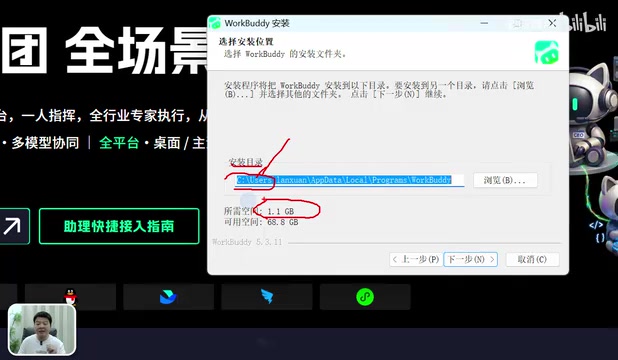
The installation itself is simple—just wait for it to finish. On first launch, a login window appears; after logging in as prompted, your account info is visible in the lower-left corner, and new users can claim credits.
System Settings: Two Key Actions
After logging in, go to "Settings" → "System Settings", where Pan Ge highlights two points:
First, change the default workspace storage path. All task outputs (files, images, videos, etc.) are stored in this path by default. If left on the C drive, the system drive will gradually fill up as projects grow. The tutorial recommends switching to a directory on a non-system drive; changing it won't affect existing data.
Second, turn off the experience improvement program. This option is enabled by default, meaning you allow the vendor to use your data to train models. Pan Ge explicitly recommends turning this switch off to prevent your data from being submitted.
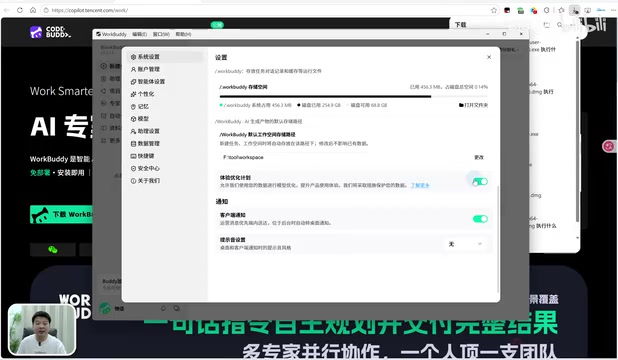
The "experience improvement program" is an option that many AI products check by default on first launch, with terms usually phrased as "help us improve the product experience"—in essence, authorizing the vendor to use your inputs, generated results, and usage behavior for model training or performance evaluation. Once such data enters a training set, it often cannot be withdrawn or individually deleted, posing risks for use cases involving commercial information or personal privacy. Turning off this option generally does not affect the tool's core functionality or normal use—it simply stops sending trainable data back to the vendor. For users who use WorkBuddy for work output, it's advisable to confirm this switch is off during initial setup.
Personalization: Cut the Fluff, Boost Efficiency
In the "Personalization" settings, Pan Ge recommends adjusting two items:
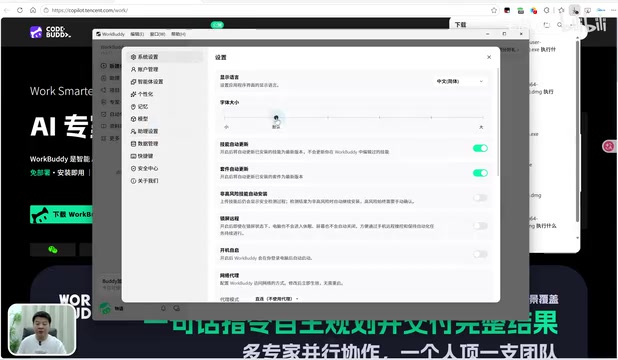
- Writing style and tone: Large models often reply with flattering language, wasting tokens. The tutorial recommends choosing "Efficient and Pragmatic" or "Blunt and Direct" to pursue minimal words and maximum information.
- Custom instructions: Here you can set response style and task execution rules. Pan Ge shares his own template, such as banning pleasantries like "great question" and avoiding the "not A but B" sentence pattern; users can modify it as needed.
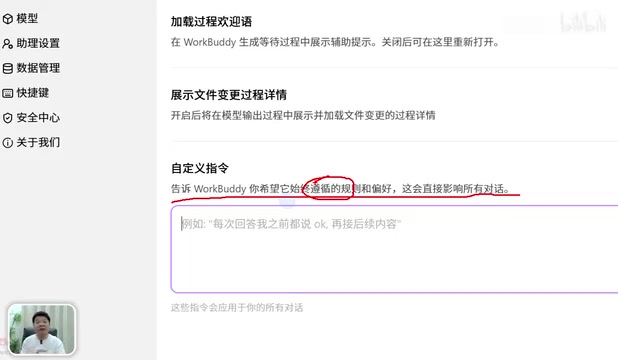
The reason "writing style and tone" affects efficiency is directly tied to token billing and the context window mechanism. Large models measure input and output in tokens (roughly, word fragments)—the longer the output, the more is consumed; at the same time, the context window has limited capacity, and lengthy pleasantries or repeated restatements crowd out space that could be used for task information, causing earlier content to be truncated in long conversations. Having the model answer in an "efficient and pragmatic" style essentially compresses ineffective output and reserves the budget for substantive content. "Custom instructions," meanwhile, are system-level prompts that get injected with priority in every round of conversation, making them suitable for long-term rules—such as output format, forbidden wording, default execution steps—which are more stable than reminding the model ad hoc each time.
Memory: Making the Tool Understand You Better Over Time
The final step is enabling the conversation memory feature under "Memory." By default, AI has no long-term memory; once enabled, the tool organizes and records context, and as usage increases, replies become increasingly tailored to your personal habits. Pan Ge sums up these four settings—changing the storage path, disabling data training, adjusting writing style, and enabling memory—as the key to taking WorkBuddy from "usable" to "genuinely good."
This article is based on Bilibili creator Pan Ge's WorkBuddy hands-on tutorial; all steps and views come from the original video.
The "stateless" nature of large models means each request is an independent computation, and the model itself does not retain information beyond the previous round of conversation—the so-called "context" is simply the text sent along with the current request. Therefore, "conversation memory" is not the model learning on its own; rather, the tool extracts and stores summaries of past conversations at the application layer and automatically appends them to the prompt in subsequent requests, creating the effect of "remembering you." This also means memory content is usually stored as text locally or in the cloud; for sensitive information, you can view and delete entries in the memory list. Too many memory entries also consume context space, so periodically clearing outdated entries helps maintain response quality.
One-line Summary
WorkBuddy hands-on tutorial: four initial settings determine whether the tool is genuinely useful.
Paragraph Summary
Based on Bilibili creator Pan Ge's WorkBuddy hands-on tutorial, this article covers the complete process—from download to configuration—of this AI automation tool, which supports multi-platform installation, has a built-in Hunyuan HY3 model, and is currently free. It notes that during installation you should avoid the C drive and move the directory to a non-system drive; after logging in, change the default workspace storage path in system settings and turn off the default-on "experience improvement program" to protect data privacy; in personalization, choose an "Efficient and Pragmatic" or "Blunt and Direct" style and configure custom instructions to reduce pleasantries and token waste; finally, enable conversation memory so the tool gradually adapts to your habits. Together, these four settings form the key to going from "usable" to "genuinely good."
Related articles

T3 Code: The Open-Source AI Coding Assistant's Comeback Story
T3 Code is an open-source AI coding assistant that unifies subscriptions like Codex and Claude, with powerful remote control and parallel task management.

Never Elected, Yet Ruled New York for 30 Years: The Ultimate Case Study in the Mechanics of Power
Robert Caro's biographies reveal how unelected Robert Moses ruled New York for 30 years through legal drafting and public authorities, and how Lyndon Johnson built leverage as a "powerless" Senate Majority Leader. Unpacking the underlying logic of accumulating and sustaining power.

The CPython 3.10 Recursion Trap and Synthetic Recovery in TokenGuard, an LLM Circuit Breaker
TokenGuard's author recounts a recursion crash caused by OrderedDict.pop in CPython 3.10 and introduces v0.3.0's Loop Nudge synthetic recovery, inline DLP scanning, and other new LLM agent circuit-breaker capabilities.