10 Practical Gemini Tips: A Tiered Guide from Beginner to Power User

10 tiered Gemini techniques that turn Google's AI from a chat tab into a real productivity system.
Based on a demonstration by Spanish AI practitioner Martín Toledo, this article breaks down 10 Gemini techniques across three tiers. Beginner tips cover the desktop app shortcut, Personal Instructions, and Gems for persistent context. Intermediate tips address Canvas vs. AI Studio, voice and screen sharing, scheduled tasks, and native Gmail/Sheets integration. Advanced tips cover Google Flow for image/video generation, Deep Research paired with Gemini Notebook for knowledge synthesis, and a YouTube-to-Notebook Chrome extension for competitive research. EU-unavailable features (Gemini Spark, Personal Intelligence, etc.) are listed with practical workarounds.
Most people use Google Gemini the same way: open a tab, ask a question, close it. As Martín Toledo — CTO and co-founder of DEI and a Spanish AI practitioner — puts it, that's only 2% to 5% of what Gemini can actually do. The real productivity gains come from the other 90%.
This article compiles 10 techniques he demonstrated in a video, organized into three tiers — beginner, intermediate, and advanced — along with a clear breakdown of which features are not yet available in the EU (including Spain). One important caveat: everything here is built on the Google ecosystem. If your work environment runs on Outlook or Excel, some of these features won't apply.
Why Gemini: The Ecosystem Is the Moat
Gemini's core advantage over ChatGPT or Claude isn't that it's "smarter" — it's the Google ecosystem behind it. Your inbox, calendar, documents, even the platform you watch videos on all belong to Google. No other AI is as deeply embedded in everyday workflows as Gemini, and that's where its real value lies.
There's one detail that's easy to miss: some Gemini features are currently only available in the US and select regions. The EU — including Spain — hasn't gotten them yet, with no official timeline. This article focuses on features you can use directly, without a VPN or proxy.
Beginner Tier: Bringing Gemini Into Your Workflow
Tip 1: Desktop App — Two-Key Activation
Google has released a Gemini desktop app for both Windows and Mac, available for download at Gemini.com and accessible globally. Once installed, you can summon it with Option + Space on Mac or Space + Command on Windows.
The value is simple: it removes one step. You no longer need to open a browser and navigate to Google. Stuck on an email, confused by a client reply, or need to distill a 10-page call transcript into five bullet points? Two keys and you're there. As the author puts it bluntly: "An AI you don't use can't help you with anything." Every reduction in friction between a question and an answer increases how often you'll actually reach for it.
Tip 2: Personal Instructions + Gems (The Most Important Step)

This is what the author considers the single most critical technique. Start by going into "Personal Instructions" and telling Gemini once how you want it to treat you — for example: "Be concise and direct, don't default to agreeing with me, tell me when a plan is weak and explain why, and if you don't have enough information, ask before answering." This takes ten minutes to set up and saves you from restating your preferences in every conversation.
The more advanced move is Gems — a dedicated Gemini conversation that comes with its own instructions and files. You give it a name, write a description, define its instructions, and attach a knowledge base (files, Drive, code, or a Notebook). Think of it as an employee who only needs to be trained once and never forgets how you work.
The author recommends writing instructions in four parts:
- Role: Who it is and who it works for
- Business context: What you sell, who you sell to, what tone to use
- Task steps: What to do first, what to do next, where to look things up
- Output format and constraints: How to deliver results and what boundaries to respect (this last part matters most)
His advice: one Gem per task, not one all-purpose Gem — one for quotes, one for client replies, one for social media content.
Gems are essentially a "persistent system prompt" mechanism. In a regular conversation, the AI "forgets" everything when you start a new session, forcing you to re-establish context each time. Gems lock in role definitions, business knowledge, and behavioral rules as a reusable session template. This is the same design philosophy behind OpenAI's "GPTs" and Anthropic's "Projects" — every major AI platform is evolving toward dedicated agents. Because Gems support Google Drive files and Notebooks as a knowledge base, they don't just remember how to work — they can also look up what the work is based on. For small and medium businesses, a Gem configured with quoting logic, product manuals, and client communication guidelines effectively functions as a lightweight knowledge management system, at far lower maintenance cost than a traditional CRM or internal wiki.
Tip 3: Pick the Right Model — Don't Burn Through Your Quota
The model selector has three tiers: 3.6 Flash (fast processing for summaries, organization, short writing), 3.6 Thinking (complex reasoning), and 3.1 Pro (tasks requiring multi-layered thinking). Quotas refresh every five hours with a weekly cap, and Pro and Thinking consume the most. The author's rule of thumb: default to Flash, switch to Thinking when you need reasoning, and only go to Pro for extremely large or complex content.
Intermediate Tier: From Chatting to Building
Tip 4: Canvas and Google AI Studio
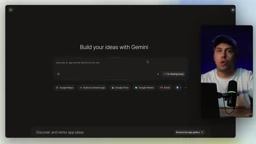
Gemini's Canvas lets you build while you chat: write code, create slides, and see changes update in real time on the right-hand panel — no copying and pasting required. It's well-suited for personal tools like documents or quote calculators, and outputs can be exported to Google Slides.
But Canvas has a ceiling. When you need a real application you can hand off to a client or team, the right tool is Google AI Studio. Its "Build" mode generates complete project code (web or Android) from a description — downloadable, uploadable to GitHub, or publishable directly. The author showed his own lead tracking board and sales dashboard built this way, with live syncing to Google Sheets.
The rule is clear: Canvas for personal tools, AI Studio for apps you deliver to others. Just note that deploying to Google Cloud or using paid models may incur costs — check the bill before handing anything to a client.
Google AI Studio is Google's developer-facing platform for experimenting with the Gemini API and building prototypes. Free accounts can access the Gemini 1.5/2.0 series and use the "Build" mode to generate functional frontend or Android project scaffolding. The fundamental difference from Canvas: Canvas output stays within the Gemini conversation environment, while AI Studio generates real code files that can be downloaded, deployed to any host, or pushed to GitHub. For non-technical business users, AI Studio offers a shortcut from "describe what you need" to "deliverable prototype" — but be aware that generated code quality varies, complex business logic still needs developer review, and Gemini API usage beyond the free tier is billed per token.
Tip 5: Gemini Live — Voice and Screen Sharing
Gemini Live lets you talk to it like a phone call, and you can turn on your camera or share your screen so it can see exactly what you're looking at — completely free. Confused by a vendor invoice or a program error? Open your camera or share your screen, ask out loud "why doesn't this total add up?" and get a real-time answer without typing a word.
Tip 6: Scheduled Tasks
You can tell Gemini to automatically run and repeat tasks at a specified time. Just say in the conversation: "Every morning at 9 AM, check my inbox and give me a summary of important emails." It will create a scheduled task and push a notification to your mobile device. You can view, edit the frequency, and adjust instructions anytime under Settings → Scheduled Tasks, and there are ready-made templates to get you started.
Tip 7: Native Integration with Google Tools
Gemini is already built into Gmail (one-click summaries of long email threads) and Google Sheets (for example, automatically categorizing 200 customer reviews as positive, neutral, or negative and filling them into the corresponding column, or generating a tracking table).
The author offers an honest caveat: this only works for people in the Google ecosystem. Also, if you're already paying for Google Workspace, Gemini Pro is likely already included — many people don't realize they've already unlocked Pro.
Advanced Tier: Images, Research, and Knowledge Integration
Tip 8: Imagen and Google Flow

For image generation, Gemini includes Imagen 2 (available across all plans). But for serious content work — consistent character faces, unified scene aesthetics, complete ad campaigns — the author recommends Google Flow. It supports Imagen Pro/2/2 Lite (free), and free accounts get 50 video credits per day with options across VEO 3.1 Lite/Fast/Quality models and resolution settings.
Flow also offers character consistency tools, scene libraries, Storyboard, and Shot Explorer, and has launched a mobile app (iOS and Android in beta) — snap a photo on your phone, create content, and sync with your desktop. Video burns through credits fast: free accounts get 50 per day, and if you need more, you can create an additional account.
Tip 9: Deep Research + Gemini Notebook
Before running Deep Research, the author shares a key trick: make it ask you questions first — "Before you start researching, ask me everything you need to know to make this report genuinely useful." This single prompt significantly changes the quality of the output.
Once the research is done, import the report into Gemini Notebook (formerly NotebookLM — same product, new name). It can ingest massive amounts of material, do web searches, and generate audio summaries, presentations, mind maps, quizzes, infographics, or data tables in the right-hand "Study" panel. What used to take hours of gathering, sorting, and reading can now be turned into an audio summary you digest on your commute like a podcast.
Gemini Notebook (formerly NotebookLM) was launched by Google in 2023 as an AI note-taking and knowledge integration tool. Its core capability is building a private knowledge base from documents you upload (PDFs, web pages, YouTube videos, Google Docs, etc.) — all answers and generated content are strictly grounded in those sources, not the model's general training data. This makes it more reliable than a general chat interface for "deep analysis of specific materials," since it won't fabricate content beyond the sources and can cite exact passages. The "audio summary" feature converts your material into a podcast-style dialogue between two AI hosts — ideal for commutes or catching up on long reports in fragmented time. One thing to note: Notebook currently has limits on the number of sources and total character count per notebook, so very large research projects may need to be split across multiple notebooks.
Tip 10: YouTube to Notebook Extension

This is a Chrome extension called "YouTube to Gemini Notebook," with over 500,000 users. Once installed, a button appears next to any YouTube video — click it to add the video to a notebook with a full transcript. You can aggregate multiple videos from the same domain and use the audio summary to compress hours of content into 15 minutes.
Applied to business: build one notebook per competitor, load in all their videos, then ask Gemini what each one promises and what needs nobody is covering — that's an AI-generated market research report.
The author includes an important security warning: this extension is not an official Google product. It's built by an independent developer and requests permission to read all pages you open and sends usage data to analytics tools. His recommendation: only install it in a dedicated Chrome profile used for research, never in an environment where you're also logged into your bank or client email.
What's Not Yet Available in the EU
The author is explicit: the following features are currently only available in the US and select regions. The EU (including Spain) doesn't have access yet, with no official timeline. He offers current workarounds for each:
- Gemini Spark: A personal agent that runs autonomously in the background, handling up to 15 tasks simultaneously. Workaround: Scheduled Tasks.
- Skills: Repeatable processes you teach once, which only exist within Spark. Workaround: Build one Gem per task.
- Gemini in Chrome: A sidebar that can simultaneously read, summarize, and compare multiple open tabs. Workaround: Alt+Space with the desktop app.
- Personal Intelligence: Connects to your email, photos, and YouTube to provide personal context. Workaround: Personal Instructions.
- The "Ask" button inside YouTube: Workaround: Paste the link into Gemini and ask for a summary.
- Memory Import: Importing memory from ChatGPT or Claude. Workaround: Spend ten minutes writing solid Personal Instructions.
If you see someone in Spain demonstrating these features, they're almost certainly using a VPN.
Three Things to Do This Week
The author's closing advice is refreshingly practical: if you can only remember three things, make them install the desktop app and try those two keyboard shortcuts, build one Gem per task (start with quotes), and default to the Flash model.
His final core insight is worth holding onto: the AI that actually helps you isn't the smartest one — it's the one that's already inside your work environment and already knows your business. Drop a client email into a quote Gem and get a draft back, use scheduled tasks for a Monday morning summary, use Notebook for competitive research — together, these save meaningful time every week. But "teaching it your business" is something Google can't do for you. That's a one-afternoon investment only you can make.
Related articles

Apple HomeView Hands-On Review: Is the $300 Smart Home Hub Worth It?
Apple HomeView hands-on: a $300 smart home hub with facial recognition for quick account switching, but no App Store or voice recognition. Is the wall-mounted version worth it? Should you buy the first generation?

Meta Muse Wonder Launch: What It Means for Meta's Return to the Frontier AI Race
Meta releases Muse Wonder and WonderFull, benchmarks reach the frontier, community feedback is polarized. An in-depth look at Meta's return to the frontier AI race, its personal agent strategy, and Zuckerberg's different path.

Apple Home Smart Home Lineup Leaked: LG and Schneider Team Up, UWB Door Lock on Board
Apple Home ecosystem gains new LG and Schneider devices: UWB smart lock with proximity unlock, 2.5K dual-camera doorbell, privacy indoor camera, and AirPods-like seamless pairing.