7 AI Design Tools Tested on Their Free Tiers: Who Wins the Same Batch of Tasks

7 AI design tools tested on 5 tasks: getting the letter effect right is the real dividing line.
The author ran a controlled experiment with five progressively harder design tasks and identical prompts across seven AI design tools, scoring each image on readability, design execution, typography, and appeal. Averages were close—FontVibe 8.8 vs Leonardo 8.7—but Leonardo won two tasks. The real differentiator was producing the specific requested letter effect (pastry, ice, balloon, graffiti, molten fire). Text errors were the main point-loser, with Ideogram failing three of five images. Recraft was the only tool to return vector files, but none generate installable fonts; only Mixfont exports TTF. The author, a FontVibe developer, discloses his own tool's routing issue.
Most "best AI font generator" lists are copied from product pages, and few show what the tools actually produced. So I ran a controlled experiment: pick five ordinary design tasks, feed identical prompts to seven tools, take the first result, and score each one. All prompts and raw outputs are below so you can reproduce it yourself.
One concept needs clearing up first: most people searching for an "AI font generator" don't actually want a .ttf file. They want a specific word to look a certain way on a finished piece—a thumbnail, an invitation, a T-shirt. That's a text effect for design, and it's exactly what these seven tools are good at. If you need an installable font file, skip ahead to the "Font Files" section.
Test Results Overview
| Rank | Tool | Average Score | Text Errors | Free Quota (as seen during testing) |
|---|---|---|---|---|
| 1 | FontVibe | 8.8 | 0 | 30 credits/day, 200/month cap |
| 2 | Leonardo | 8.7 | 0 | 150 tokens/day (8 per image in my test) |
| 3 | Recraft | 8.3 | 0 | 30 credits/day, 100/month |
| 4 | Adobe Firefly | 8.0 | 1 | 3 images/day on the default model |
| 4 | Microsoft Designer | 8.0 | 1 | 15 credits/month (1 per image) |
| 6 | Canva | 7.8 | 0 | 5 designs used 77% of the month |
| 7 | Ideogram | 7.5 | 3 | 30 credits (3 per low-quality image) |
"Text errors" means broken letters, obscured text, or garbled characters appearing in the final image. Scores are out of ten.
Short version: the gap at the top is tiny. Leonardo trails FontVibe by just 0.1, and scored higher on two of the five tasks. Where the tools actually separate is whether they produced the specific letter effect the prompt asked for.
How I Tested
Five tasks, easy to hard. Difficulty depends on how much information the whole design has to carry and how many typographic rules it has to follow.
- Bakery Instagram post (easy): a square post announcing "Fresh Croissants Every Saturday," warm and cozy, golden flaky-pastry lettering, with a basket of croissants.
- YouTube thumbnail (easy): a survival challenge video, title "100 DAYS ALONE" in huge ice-crack lettering, snow-forest cabin in the background, right third left empty for a face.
- Kid's birthday invitation (medium): "Mia's 7th Birthday" in glossy balloon letters, with date, location, RSVP, bright and playful, portrait card.
- T-shirt chest print (medium): "NIGHTSHIFT" in wild graffiti lettering with drips, smaller text below reading "AFTER DARK CLUB · EST. 2026," crescent moon graphic, pure white background for easy printing.
- Concert poster (hard): band name in molten-fire letters as the hero visual, with support act, date, venue, ticket price and other multi-line info, gritty rock atmosphere.
Rules: free-tier features only, default model and settings, only adjust the aspect ratio closest to the task; one image per task, if a tool always returns multiple images take the best and note it; no manually selecting fonts or styles in any tool.
Scoring Criteria
Each image is scored 1–10 on four dimensions, with the reason written down before deducting points:
| Criterion | Weight | What to look at |
|---|---|---|
| Readability | 20% | Check hard errors first: garbled text, truncation, obscuring, broken glyphs. No hard errors = 7–10; hard errors = 1–4 |
| Design execution & style match | 35% | Did it produce the texture the prompt asked for (pastry, ice, balloon, graffiti, fire), and how complete is it |
| Typography & completeness | 25% | Can the main message be read at a glance, is every line from the prompt present, is the order clear, are formatting rules respected |
| Appeal | 20% | An ordinary person couldn't make this themselves, and it looks like a designer made it |
The total is computed, not subjectively judged: 0.20×readability + 0.35×design execution + 0.25×typography + 0.20×appeal, rounded to one decimal. This standard is what we use internally at FontVibe to evaluate designs, and it was written before testing.
"Weighted scoring" means the four dimensions aren't counted equally—each is multiplied by a coefficient before summing. The weights here come from one judgment: for these design tasks, getting the letter effect right (design execution, 35%) matters more than how good the overall image looks (appeal, 20%) in determining whether the output is usable. Readability is 20% because it's a hard threshold—garbled or truncated text directly ruins the piece, so when there's a hard error that item is capped at 1–4, dragging the total down. Setting weights first and testing products afterward is meant to avoid reverse-engineering standards from results; it's the common "pre-registration" approach in evaluations.
Per-Task Scores
| Tool | Bakery | Thumbnail | Invitation | T-shirt | Poster | Average |
|---|---|---|---|---|---|---|
| FontVibe | 9.0 | 9.0 | 8.6 | 8.6 | 8.8 | 8.8 |
| Leonardo | 8.7 | 9.0 | 9.0 | 7.7 | 9.0 | 8.7 |
| Recraft | 7.9 | 8.5 | 8.6 | 8.1 | 8.5 | 8.3 |
| Adobe Firefly | 7.5 | 8.1 | 7.1 | 8.1 | 9.0 | 8.0 |
| Microsoft Designer | 8.2 | 7.2 | 8.8 | 7.1 | 8.5 | 8.0 |
| Canva | 7.5 | 7.2 | 7.8 | 8.6 | 8.0 | 7.8 |
| Ideogram | 8.0 | 7.3 | 8.0 | 6.1 | 8.0 | 7.5 |
Testing was done on October 12 and 13. These tools change every few weeks, and trying each task only once means luck plays a role too. Treat the scores as a snapshot, not a final verdict.
In design, "text effect" and "font file" (like .ttf/.otf) are two concepts often confused. A text effect renders a specific set of words into a bitmap or vector image; the letter shapes, textures, and lighting are baked into the image, and you can't edit the text content afterward. It serves single-use, visually-driven finished pieces, like a poster's main headline. A font file is an installable character set; once installed on your system you can type any text in any software, with glyph shapes and kerning defined by the font itself—it serves typographic freedom and reuse. The former can't be used as a font, and the latter can't produce one-off visuals like molten fire or balloons. Most people searching for an "AI font generator" actually want the former.
Task-by-Task Breakdown
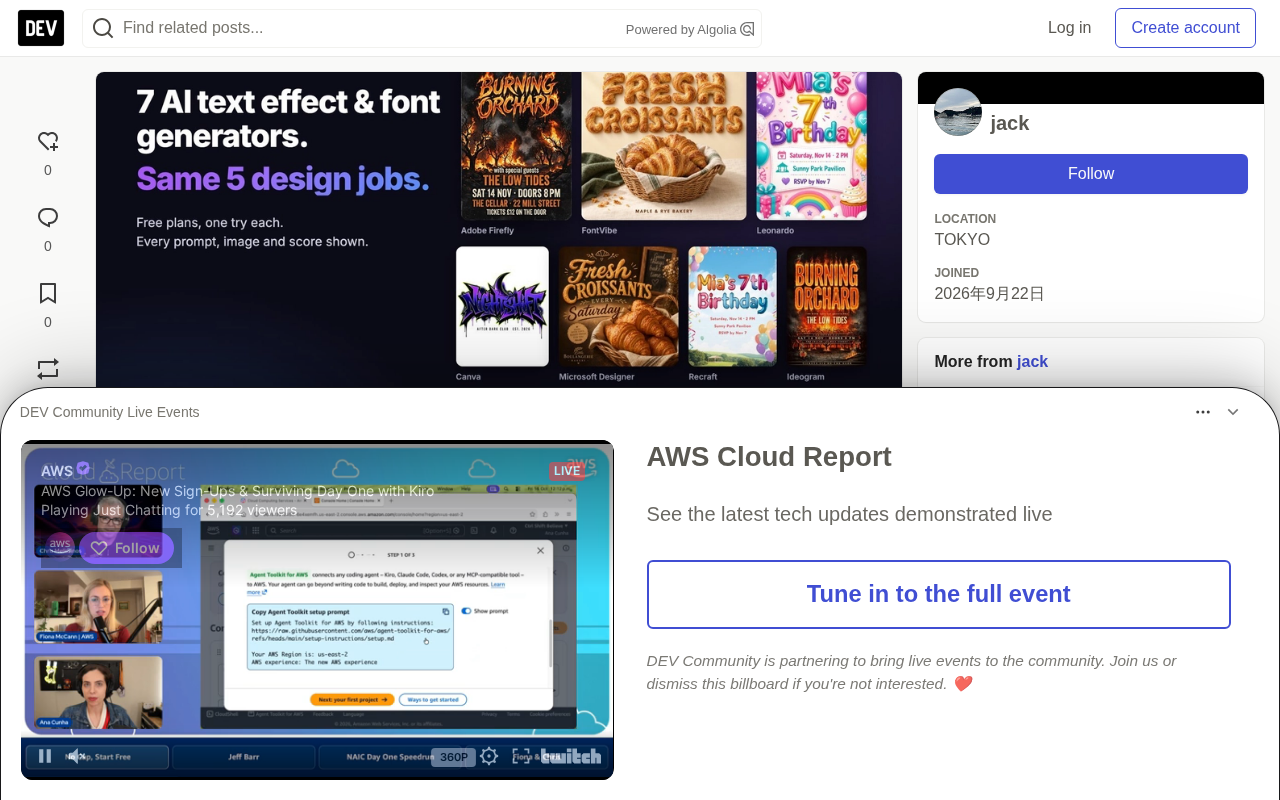
Task 1: Bakery Instagram Post
The prompt asked for "golden flaky-pastry lettering." Only FontVibe produced letters that look like baked pastry; Microsoft Designer came close; Leonardo used a script face with a slight pastry texture and added its own shop name and tagline. Ideogram, Canva, and Firefly all used ordinary gold fonts—looks fine but ignores the requirement. Recraft's agent generated four images at once, one of which spelled Saturday as "Savrdary"; the agent spotted it and discarded it itself.
Task 2: YouTube Thumbnail
This task had only one layout rule: leave the right third empty for a face. FontVibe, Leonardo, and Recraft all followed it and produced convincing ice. Firefly made the best-looking ice of the whole set but put the cabin in the right third. Canva and Designer left the space but used white distressed letters with no ice at all. Ideogram's ice was decent, but the L in ALONE almost blended into the background and reads like "A ONE" at thumbnail size.
Task 3: Kid's Birthday Invitation
Leonardo won this one. It put the date, location, and RSVP on the card with small icons—exactly what a parent would actually print. Designer came close behind. FontVibe's balloon letters were strong, but the date sat at the top and the venue at the bottom, separated by a giant balloon "7." Firefly wrote the date as "SATOV, 14" and made up an address, phone number, and email. Canva used glitter letters instead of balloons.
Task 4: T-shirt Chest Print
The hardest part here was "pure white background for easy printing." Recraft was the only tool to return a vector file a print shop could use directly. Canva and FontVibe produced the correct wild graffiti lettering with drips and the crescent moon. Firefly's letters were excellent, but it drew the design on a T-shirt mockup, so it isn't a print file. Designer's wild graffiti tangled so badly that NIGHTSHIFT was hard to read. Ideogram's drips overwhelmed the "AFTER DARK CLUB" line.
One thing needs disclosing about FontVibe, since it's the tool I make. My first request got routed to its single-image template mode, which generated a graffiti wall and missed the white background and the moon. I then asked for design concepts in the same conversation and scored that result. Template mode isn't the design flow, so I didn't count it, but you should know it happened. We're adjusting routing so this kind of request goes to design concepts first.
Task 5: Concert Poster
The hardest task, and the tightest spread. Leonardo and Firefly both nailed the molten-fire letters, the burning tree, and six lines of clear, ordered information. FontVibe was close, but its secondary text was all the same size and the support-act line didn't stand out enough. Ideogram's typography was among the best, but it printed a garbled word "SSCIDU" above the date. Canva's band name was red outlined letters, not fire.
Brief Review of Each Tool
1. FontVibe (8.8)
FontVibe reads the brief first and gives you three design concepts: typography, letters, color palette, and the text lines it plans to use. You pick one, fill in missing info (like a shop name), and it renders. It was the only tool to produce the requested letter effect on all five tasks with no text errors.
Where it lost points: the invitation layout split the information apart, the poster's secondary text lacked hierarchy, and the T-shirt request initially went to the wrong mode. It's also not the fastest: roughly two minutes from prompt to image (including the concept step). One design cost me 33 credits (6 for the concept, 27 for the render), or 23 credits with the cheapest image model. The free tier is 30 credits/day with a 200/month cap. All plans (including free) allow commercial use.
Good for: people who care whether the letter effect matches the brief exactly.
2. Leonardo (8.7)
Leonardo's "Auto" model picked GPT Image 2 on all five tasks, available on the free tier. Each image took 30 to 40 seconds and cost 8 tokens, so 150 tokens/day goes a long way. It won the invitation and tied for first on the poster. It stumbled on the T-shirt, drawing a simple black tag instead of wild graffiti. Free-tier images are public; private generation is a paid feature. The invitation's first attempt got blocked by a content filter (I suspect the word "daughter"); tokens were refunded and the same prompt passed on retry.
Good for: people who want high-quality single images and can accept less control over letter style.
3. Recraft (8.3)
Recraft's conversational agent runs one or two rounds on its own, checks spelling and typography, and tells you which image it thinks is best and why. It flagged two misspelled images itself and told me not to use them. It was also the only tool that gave me a vector file for the T-shirt. The cost is credits: each task used 6 to 13 credits, because the agent decides how many rounds to run and the free tier doesn't let you choose the number of images. Recraft's own pricing page says free-tier images belong to Recraft, are publicly displayed, and aren't licensed for commercial use.
Good for: logos and print work that need vector files, if you're on a paid plan.
4 (tie). Adobe Firefly (8.0)
Firefly's homepage defaults to Google's Gemini 3.1 model (Nano Banana 2), not Adobe's own model; you have to switch in a menu to get what Adobe calls its "commercially safe" model. I kept the default settings. It produced the best ice and one of the best posters, but it added information nobody asked for and broke the invitation date. The free tier gave me three images per day on this model. Adobe doesn't publish that number.
Good for: polished, photographic scenes. Check every line of text.
Google's Gemini image model (known in the community as "Nano Banana," officially the image capability of Gemini 3.1) is known for strong instruction following and multi-turn editing, so quite a few platforms call it as the underlying engine. This means what a user sees in one product's interface may not come from that product's own model. For users, this has two implications: first, the same prompt may perform similarly on different platforms because it's the same model behind them; second, a platform's "commercially safe" promise and data retention policy depend on the model actually being called, not just the product brand. It's worth confirming which model a tool routes to by default before choosing it.
4 (tie). Microsoft Designer (8.0)
The simplest interface here: describe, pick a palette, choose one of three sizes. It's also the slowest, 1.5 to 2 minutes per image, and only offers square, 2:3, and 3:2—no true 16:9 thumbnail. Its invitation was the second-best of the set; the T-shirt letters were hard to read. The free tier is 15 credits/month, 1 credit per image.
Good for: occasional use when you don't want to learn anything.
6. Canva (7.8)
Canva AI returns an editable Canva design rather than a flat image, which is a real advantage if you want to change a word later. Typography and information were solid on every task, with no text errors. But it used ordinary fonts from its asset library and ignored the letter effect on four of the five tasks (pastry, ice, balloon, fire). It made good wild graffiti for the T-shirt. On the free tier, five designs used 77% of my monthly AI quota.
Good for: people already designing in Canva who will edit the result by hand.
7. Ideogram (7.5)
Ideogram is the fastest, 20 to 30 seconds, and its typography often looks the most professional. But three of five images had text problems: a disappearing letter, drips covering a line of text, a garbled word. Its "Magic Prompt" is on by default and adds details on its own—helpful for the bakery post, but it also changed the letter effect I asked for. The account showed 30 free credits, 3 per low-quality image.
Good for: quick drafts where you'll check and fix the text yourself.
If You Need Actual Font Files
None of the seven tools above generate installable fonts. If you need that, I tried Mixfont, which does.
I asked for a bold, rounded display font for the same birthday invitation. Two minutes and 20 of my 50 free credits later, it gave me an installable TTF file. Uppercase, lowercase, and numeral glyphs were consistent, and long words like "Extraordinary" set cleanly. The standard tier has 72 glyphs, so some symbols are missing (no & or £). The 319-glyph extended set costs 50 credits.
Font files and text effects solve different problems. Fonts are for typing many words repeatedly; text effects are for when one word has to look a specific way on a specific design.
A glyph is every typesettable unit in a font file—a letter, a numeral, a punctuation mark each counts as a glyph. The glyph count directly determines a font's usable range: 72 glyphs usually only cover uppercase, lowercase, and basic numerals, missing &, £, accents, ligatures, and many punctuation marks; when a character is missing, software falls back to another font, causing a style break. A 319-glyph extended set covers the common symbols of most Western European languages. So before using a free or low-tier font on a real project, it's best to test-set actual copy with symbols, numerals, and both short and long words to confirm nothing is missing.
What a Template Tool Gives You
For comparison, I also tried TextStudio, an old-school non-AI template text-effect site. You pick an effect and type your words. The free "Frosty" template turned "100 DAYS ALONE" into clean ice letters on a snowy scene. That's all it does: one line, one style, no cabin, no typography. The fire template is paid, covered in "PREMIUM" watermarks, and the page is heavy with ads.
Free Quota Comparison
| Tool | Free quota | Time per image | Testing notes |
|---|---|---|---|
| FontVibe | 20 credits without an account; 30/day with an account, 200/month cap. One design costs 23–33 credits | ~2 min including concept | All plans including free allow commercial use |
| Leonardo | 150 tokens/day; Auto costs 8 each | 30–40 sec | Free images are public |
| Recraft | 30 credits/day, 100/month, plus 30 bonus | 30–60 sec | Free images belong to Recraft, public, non-commercial |
| Adobe Firefly | Daily free images; my test got 3/day on Gemini 3.1 | 20–30 sec | Daily cap not published |
| Microsoft Designer | 15 credits/month; 1 per image | 1.5–2 min | Only three sizes |
| Canva | Officially up to 20 AI uses/month; 5 designs used 77% | 30–40 sec | Output is an editable design |
| Ideogram | Account showed 30 credits; 3 per low-quality image | 20–30 sec | Magic Prompt on by default |
| Mixfont | 50 credits; 20 per standard font | ~2 min | Exports TTF files |
What I'm Bringing Back to FontVibe
Two things from this test went straight onto our list. A request with print rules (like "white background" and "moon graphic") should go to design concepts, not the single-image template. And our secondary text needs clearer hierarchy on information-dense designs like posters and invitations.
Appendix: Full Score Table
Format is readability/design execution/typography/appeal, then the weighted total.
| Tool | Bakery | Thumbnail | Invitation | T-shirt | Poster |
|---|---|---|---|---|---|
| FontVibe | 9/9/9/9 = 9.0 | 9/9/9/9 = 9.0 | 9/9/8/8 = 8.6 | 7/9/9/9 = 8.6 | 9/9/8/9 = 8.8 |
| Leonardo | 9/8/9/9 = 8.7 | 9/9/9/9 = 9.0 | 9/9/9/9 = 9.0 | 7/7/9/8 = 7.7 | 9/9/9/9 = 9.0 |
| Recraft | 9/7/8/8 = 7.9 | 9/8/9/8 = 8.5 | 9/9/8/8 = 8.6 | 7/8/9/8 = 8.1 | 9/8/9/8 = 8.5 |
| Adobe Firefly | 9/6/8/8 = 7.5 | 9/9/6/8 = 8.1 | 3/9/7/8 = 7.1 | 7/9/7/9 = 8.1 | 9/9/9/9 = 9.0 |
| Microsoft Designer | 9/8/8/8 = 8.2 | 9/5/9/7 = 7.2 | 9/9/9/8 = 8.8 | 3/8/9/7 = 7.1 | 9/8/9/8 = 8.5 |
| Canva | 9/6/8/8 = 7.5 | 9/5/8/8 = 7.2 | 9/6/9/8 = 7.8 | 7/9/9/9 = 8.6 | 9/6/9/9 = 8.0 |
| Ideogram | 9/6/9/9 = 8.0 | 3/8/9/8 = 7.3 | 9/8/8/7 = 8.0 | 3/6/8/7 = 6.1 | 4/9/9/9 = 8.0 |
Raw images, input screenshots, and written deduction reasons for every score are on file. If you run one of these prompts and get very different results, write in and I'll add it to this article.
Related articles

Cursor AI Programming in Practice: Build a Student Management System from Scratch in 30 Minutes
A Bilibili creator demonstrates Cursor AI programming: generating a student management system in 30 minutes with natural language. Details on Agent mode, Claude selection, prompt techniques, and thresholds.

Top 20 AI Coding Tools Ranking: From Rock-Solid to Lackluster, a Scored Matrix
Bilibili creator releases top 20 AI coding tools ranking, tiered T0–T4 from rock-solid to lackluster, with Claude Code and Codex tied at T0. This article details the scoring dimensions (capability, reliability, robustness, durability, cost, domestic availability) and tool performances to help developers choose the right AI coding assistant.

Vibe Coding Systematic Tutorial: Master AI-Assisted Programming from Zero
A three-month Vibe Coding tutorial from a Bilibili creator covering Codex, ClaudeCode, and Cursor, from core logic to commercial project practice for beginners.