A Must-Read Safety Guide Before Using Claude Code to Clean Up Bloated TV Apps

A safety guide and risk boundaries for using Claude Code to clean up preinstalled apps on Android TVs.
The article addresses the community craze of using Claude Code to delete preinstalled TV apps and summarizes a safe workflow. The core principle: let AI execute commands while humans keep control of permissions and risk judgment—use manual permission mode to approve adb commands, back up the package list and launcher state, use pm disable-user instead of uninstalling, maintain a never-touch list, write specific prompts, handle in-app ads with Private DNS, and close debug ports afterward. Only applies to Android TV/Google TV, partially to Fire TV; Samsung, LG, Roku, and Vizio have no adb access.
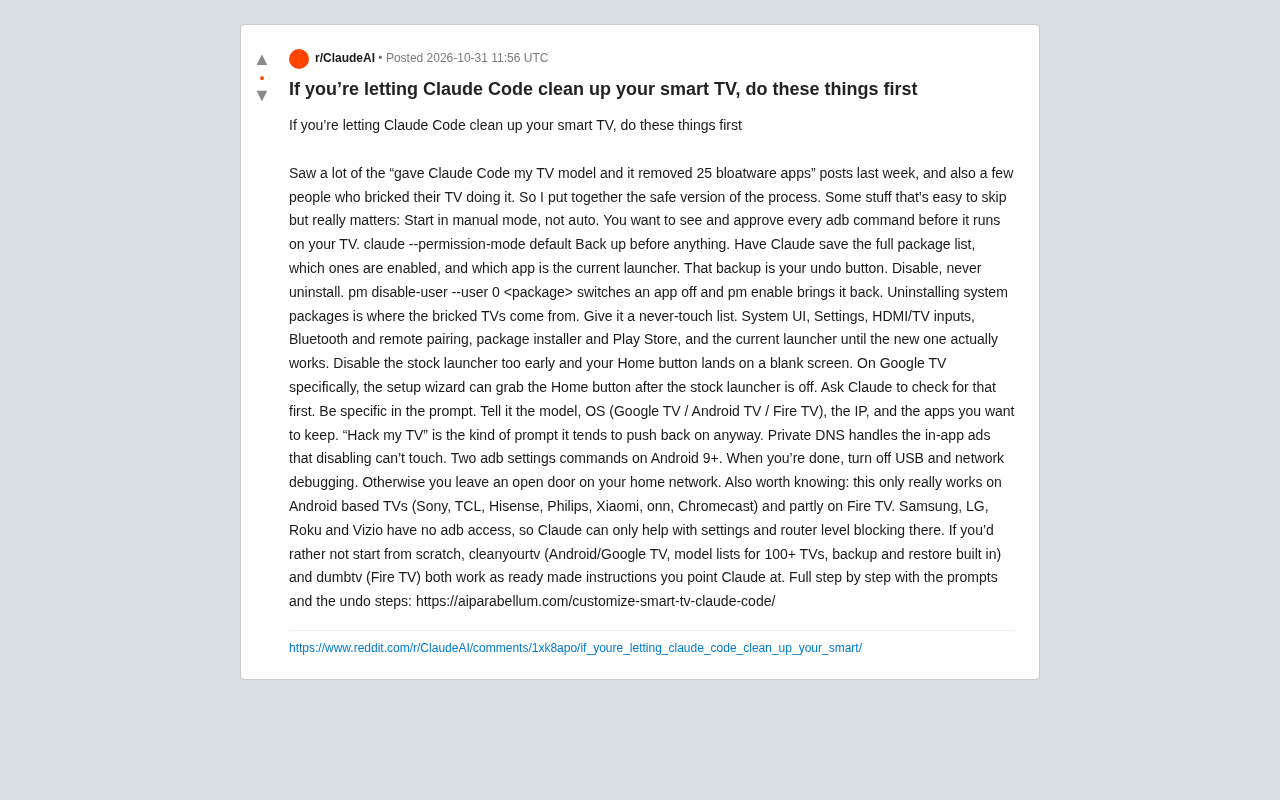
A Must-Read Safety Guide Before Using Claude Code to Clean Up Bloated TV Apps
Last week, Reddit and various communities saw a flood of posts like "give Claude Code a TV model and it'll delete 25 preinstalled apps for you," but some people also bricked their TVs in the process. Someone summarized a safe version of this workflow, and the core idea is: let AI do the work, but don't let it take the risks for you.
Start in manual mode, not auto
This is the most important rule. Claude Code has permission modes; by default it asks you to confirm every operation. When running adb commands on a TV, you must see and approve every instruction. Launch with claude --permission-mode default to make the AI seek your consent for each step. Auto mode on a TV is like handing the wheel to a driver who isn't watching the road.
adb (Android Debug Bridge) is a command-line tool provided by the Android SDK that allows a computer to communicate with Android devices (including TVs) over USB or Wi-Fi, to install/uninstall apps, modify system settings, view logs, and more. The TV must enable "USB debugging" or "network debugging" in developer options before the computer can establish a connection. Claude Code itself doesn't have built-in adb capabilities; it generates and executes adb commands—which is exactly why each one needs approval: a single wrong pm uninstall could remove a system dependency package. Understanding adb's permission boundaries (regular shell user vs. root) also helps determine which commands can be safely executed and which require additional authorization.
Back up first—this is your undo button
Before disabling any app, have Claude save the complete package list, the enabled state of each app, and which launcher is currently active. This backup is your "undo button." If something goes wrong, you can restore against the list. Starting without a backup is like defusing a bomb blindfolded.
Disable rather than uninstall
pm disable-user --user 0 <package> can turn off an app, and pm enable can turn it back on. Uninstalling system packages is exactly what causes bricking. Many people think uninstalling is more thorough, but system apps may have dependencies on each other, and recovery after uninstalling is difficult. Disabling is safe and reversible at any time.
pm (Package Manager) is Android's package management service. pm disable-user --user 0 <package> marks an app as disabled for the current user (user 0, i.e., the primary user), so the system no longer starts it, but the APK remains in the partition, so pm enable can restore it at any time. By contrast, pm uninstall for preinstalled system apps often only "uninstalls updates" or removes the app for the current user; truly deleting an app from the system partition requires root and remounting the partition, which is extremely risky. Some manufacturer TVs get stuck on the boot animation or in a recovery loop after uninstalling critical packages, and without an adb entry point, the only fix is a factory reset or reflashing. Therefore "disable" is a reversible operation, while "uninstall" may be irreversible.
Give Claude a "never touch" list
System UI, Settings, HDMI/TV input, Bluetooth and remote pairing, the package installer and Play Store, and the current launcher—none of these can be touched until the new launcher works properly. If you disable the stock launcher too early, the Home button will land on a blank screen. This is especially important on Google TV: after disabling the stock launcher, the setup wizard may hijack the Home button. Have Claude check for this issue first.
Make prompts specific—don't let it guess
Tell Claude the TV model, the OS (Google TV / Android TV / Fire TV), the IP address, and which apps you want to keep. Vague prompts like "hack my TV" not only work poorly, but Claude itself tends to refuse to execute them. Specific information lets the AI produce precise commands and reduces misjudgments.
Handling in-app ads requires extra measures
Disabling apps won't stop in-app ads. On Android 9 and above, you can enable Private DNS via two adb settings commands to block some ads. This requires Claude to help you modify DNS settings, not just simple app management.
Private DNS is a system-level feature introduced in Android 9. Through the two commands adb shell settings put global private_dns_mode hostname and private_dns_specifier <domain>, you can force the device to use a specified DNS-over-TLS server (such as AdGuard DNS or NextDNS). It can block some ad and tracking domains at the domain resolution layer, with some effect on in-app embedded ads, but it cannot block ads distributed from the same domain as content, and it may also break legitimate services. Before modifying, record the original DNS settings so you can roll back at any time with settings put global private_dns_mode off.
Final step: close the debugging ports
When everything is done, be sure to turn off USB and network debugging. Otherwise you'll leave an open backdoor on your home network, and anyone who can access that network can send adb commands to the TV.
Limited applicability—don't expect a universal solution
This method only works on Android-based TVs (Sony, TCL, Hisense, Philips, Xiaomi, onn, Chromecast), and partially on Fire TV. Samsung, LG, Roku, and Vizio have no adb access, so Claude can only help you block at the settings and router level. If your TV isn't an Android system, having Claude help adjust settings or plan router-level blocking is the more realistic choice.
Fire TV is based on Android, but Amazon has heavily customized it and limited some adb capabilities: pm disable-user doesn't work on certain Amazon system apps, and system updates may re-enable disabled components. Samsung Tizen, LG webOS, Roku OS, and Vizio SmartCast are all non-Android systems that don't provide an adb interface, so you can only limit telemetry and ad domains through router-level measures (such as DNS filtering or firewall rules) or the TV's built-in settings. To determine your TV's system type, check the "About" page in Settings, or confirm whether you can enable "Developer options → USB debugging."
Ready-made solutions can save you from starting from scratch
If you don't want to start from zero, cleanyourtv (for Android/Google TV, with a model list of over 100 TVs and built-in backup and restore) and dumbtv (for Fire TV) can serve as ready-made instruction sets to hand directly to Claude for execution. The original article provides complete steps, prompts, and rollback methods.
The core logic of this workflow is simple: AI can help you execute tedious command-line operations, but permission control and risk judgment must remain in human hands. A TV is not a development machine, and the cost of bricking it far outweighs the time you save.
One-line Summary
A safety guide and risk boundaries for using Claude Code to clean up preinstalled apps on Android TVs.
Paragraph Summary
The article addresses the community craze of "using Claude Code to delete preinstalled TV apps" and summarizes a safe workflow. The core principle is to let AI execute commands while humans retain control over permissions and risk judgment: always use manual permission mode to approve adb commands one by one; back up the package list and launcher state before operating; use pm disable-user to disable rather than uninstall system apps to preserve reversibility; establish a "never touch" list of System UI, Settings, launcher, etc.; prompts must include specific information such as TV model, system, and IP; in-app ads require extra measures like Private DNS; and close debugging ports afterward to prevent backdoors. The method only applies to Android TV/Google TV and partially to Fire TV; Samsung, LG, Roku, and Vizio have no adb access.
Related articles

WorkBuddy Beginner's Guide: Build AI Workflows from Scratch
A detailed breakdown of the WorkBuddy tutorial: this local AI tool billed as a domestic Codex alternative focuses on zero-config automation, covering documents, spreadsheets, code, and browser control. We analyze its positioning, capability boundaries, and the learning path of the 720-minute tutorial to help beginners decide rationally whether it's worth the investment.

Monzo's In-House AI Coding Agent: 1,800 Tasks a Day and Over 10% of Merged Code
Monzo's in-house Slack AI coding agent Agent Chip handles 1,800+ tasks daily and contributes over 10% of merged PRs. We break down its MCP gateway, sandboxed architecture, and platform strategy.

WorkBuddy Advanced Features Explained: A Hands-On Tutorial from Zero to AI Efficiency Master
A deep dive into WorkBuddy's advanced features, based on a 720-minute Bilibili tutorial covering local AI workbench capabilities, real-world scenarios, and learning paths.