APTV + Local LLM: Zero-Cost Real-Time AI Chinese Subtitle Translation for Live TV

APTV + Ollama enables zero-cost real-time Chinese subtitle translation for foreign live streams.
APTV's new real-time AI subtitle feature uses a speech recognition + local LLM pipeline to transcribe and translate foreign live broadcasts into Chinese. The setup runs Qwen 2.5 7B via Ollama on an Apple Silicon device like the Mac mini M4, with APTV calling the local API over LAN — no paid cloud services needed. Server setup involves installing Ollama, enabling LAN access, and configuring auto-start; client setup just requires pointing APTV to the local API. Subtitle sync quality depends mainly on stream stability and audio clarity.
The live stream player APTV has added a real-time AI subtitle translation feature. Paired with a locally deployed large language model, it can transcribe and translate foreign-language TV broadcasts into Chinese subtitles on the fly. The entire setup requires no paid cloud translation APIs — for users with devices like the Mac mini M4 (referred to as "MarkMini N4" in the video), it's essentially a zero-cost local solution.
As demonstrated by Bilibili creator Dean, the core of this workflow is: using Ollama to spin up an LLM service on the local machine, then having APTV call that API over the local network to perform translations. Here's a breakdown of how it works and how to configure the full setup.
How Real-Time Translation Works
APTV's live AI subtitle feature is a "speech recognition + LLM translation" pipeline. While streaming a live broadcast, a speech recognition model first generates real-time subtitles in the source language from the audio. APTV then sends that text via API to the Mac mini running the LLM for translation. Once translated, the Chinese text is sent back to APTV and rendered on screen.
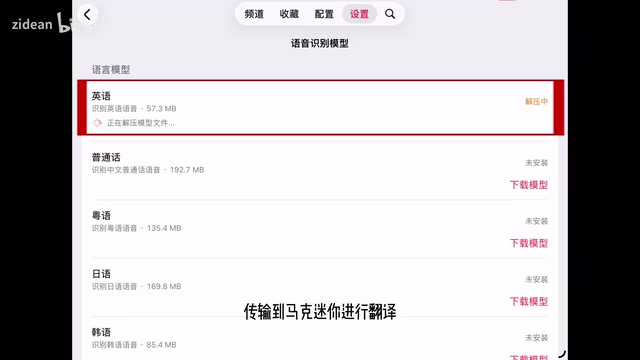
The advantage of this architecture is that it distributes the computational load to local devices, with speech recognition and translation each handling their own role. The downside is equally apparent: how well subtitles sync with the video depends heavily on the network quality of the live stream source and the clarity of the audio. In other words, the bottleneck is usually not the model — it's the stability of the stream itself.
Model Selection and Hardware Considerations
Based on the Mac mini's hardware capabilities, the video recommends using the Qwen2.5-VL 7B (vision variant) as the translation engine. For Apple Silicon devices with a Unified Memory Architecture, the 7B scale strikes a reasonable balance — delivering solid translation quality without introducing enough inference latency to break real-time performance.
The creator explicitly states that Qwen 2.5's 7B model "is fully capable of handling the translation workload." This is worth taking seriously: live translation involves streaming, short-sentence, high-frequency tasks where instant responsiveness matters more than deep comprehension of long passages. A 7B model is genuinely sufficient for this use case. If your device has more memory to spare, you can experiment with larger models to improve accuracy on technical terminology and complex sentences.
Apple Silicon's Unified Memory Architecture (UMA) is fundamentally different from traditional CPU + discrete GPU designs with separate memory pools. The CPU, GPU, and Neural Engine all share the same physical memory, eliminating the need to copy data between memory spaces and achieving extremely high bandwidth utilization. This means that when running large language models, the memory capacity directly determines how many model parameters can be loaded. A Mac mini M4 with 16GB unified memory can run 7B-scale models smoothly, without the VRAM bottleneck concerns of a typical PC setup. A 7B model takes roughly 4–5GB after 4-bit quantization, leaving ample headroom for the OS and speech recognition model — which is exactly why this model size was chosen in the video.
Server-Side Setup: Running a Local Model with Ollama
The server setup revolves around Ollama and involves three main steps:
1. Install Ollama and Pull the Model
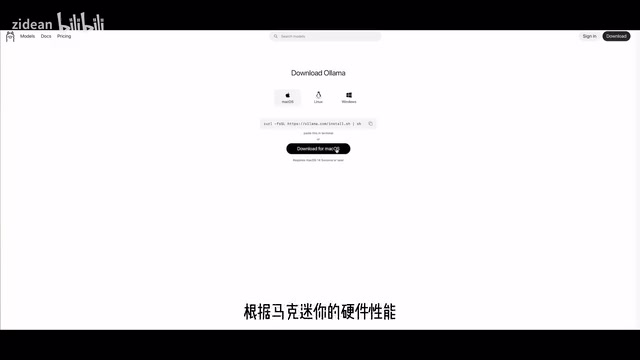
Download the Ollama client from the official website and complete the installation. Then open a terminal and run the pull command to download the Qwen model locally. The model file is large, so the initial download will take some time.
2. Enable LAN Access
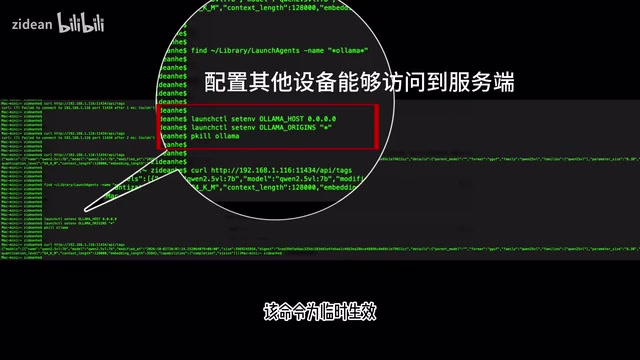
By default, Ollama only listens on localhost, making it inaccessible from other devices. You'll need to set an environment variable (e.g., OLLAMA_HOST) so that other devices on the local network running APTV can reach Ollama's API port.
3. Configure Auto-Start on Boot
The creator notes that the command to open the port is typically temporary and will reset after a reboot. It's recommended to write it as a script that runs automatically every time the device starts, saving the hassle of manual reconfiguration. This step is especially useful if you plan to use the Mac mini as a long-running "translation server."
Ollama is a runtime framework designed specifically for locally deploying open-source large language models. It wraps model downloading, quantization format management, and OpenAI-compatible API serving into a single tool, so users don't have to deal with complex model weight conversion or inference environment setup manually. Its HTTP API is highly compatible with OpenAI's interface format, meaning any application that supports a custom API endpoint (like APTV) can connect to Ollama directly without any special adaptation. By default, Ollama listens on port
11434on localhost. Setting theOLLAMA_HOSTenvironment variable to0.0.0.0:11434makes the service accessible to other devices on the same local network — which is exactly what enables APTV to call the model on the Mac mini from another device.
APTV Client Configuration
Once the server is ready, head back to APTV to configure the integration. The process is split into two parts: subtitle recognition and translation.
Under "Live Subtitles," tap the speech recognition model option and download the appropriate recognition model for the source language you want to translate. Then configure the subtitle display style and tap to enable auto-subtitles.
For the translation step, go to "Live Subtitle Translation," enter the translation service settings, select "LLM Translation," and enter the Ollama API address and port.
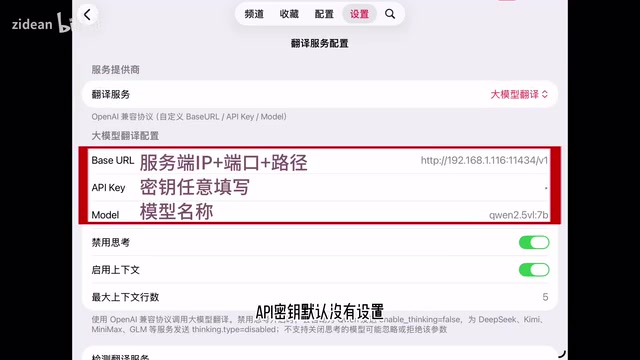
For the API key field — since Ollama doesn't require authentication by default — you can enter anything. Finally, tap "Enable Context" to complete the full configuration. Enabling context helps the model incorporate surrounding sentence meaning, reducing the disjointed feel that can come from translating sentence by sentence.
Once configured, enable the live AI subtitle translation feature for your stream, and translated subtitles will start appearing automatically.
Real-World Experience and Who This Is For
The biggest highlight of this setup is zero API costs. Most real-time translation solutions rely on paid cloud APIs, which can add up quickly for regular viewers of foreign-language live streams. A local LLM solution — deploy once, run indefinitely on local compute — is a compelling proposition for anyone who regularly watches foreign sports events, news, or other live broadcasts.
That said, it's worth being honest about the barriers and limitations. First, you need a capable Apple Silicon device running continuously as a local server. Second, real-time performance depends on stream quality — network jitter or muffled audio will degrade subtitle sync. Third, the full workflow involves terminal commands, environment variables, and startup scripts, which may be daunting for users with no technical background.
Overall, this is a fun and practical demonstration of bringing local LLMs into everyday entertainment use cases. It showcases the viability of Ollama + open-source models for handling real-time tasks on edge devices, and is well worth trying for anyone interested in tinkering with local AI.
Related articles

WorkBuddy Full Tutorial: Build an AI Office Automation Agent from Scratch
A complete WorkBuddy tutorial: installation, three working modes, multimodal picture book video practice, expert team agent building, and workflow configuration for low-cost AI office automation.

WorkBuddy Agent Complete Guide: From Beginner to Automation in 7 Days
Based on Bilibili's 256-episode WorkBuddy masterclass, this systematically breaks down Tencent's AI office workbench core capabilities: Agent principles, Skill encapsulation, cross-platform connectors, scheduled automation, knowledge bases, and zero-code development, with learning path recommendations.

8 AI Accounts, 7 Failed: An Honest Review of Using AI to Get Work Done
Only 1 of 8 AI-run Bilibili accounts succeeded. We break down the real difference between "performing AI" and "using AI to get work done."