basename Command Explained: Practical Tips for Extracting Filenames from Paths
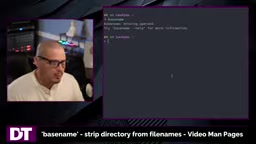
The basename command extracts filenames from full paths and optionally strips extensions — a shell scripting essential.
`basename` is a lightweight GNU coreutils command that strips the directory portion from a full file path, returning just the trailing filename or directory name. It supports three key use cases: extracting a filename, retrieving the last directory in a path, and stripping a specified file extension by appending a suffix argument. With virtually no learning curve, `basename` is widely used in shell scripts for batch file processing, dynamic path building, and format conversion — and pairs naturally with `dirname` for complete path manipulation.
In Linux/Unix systems, working with file paths is a common requirement in everyday operations and shell scripting. The basename command, part of the GNU Core Utilities (coreutils), is designed specifically to strip the directory portion from a full path, leaving only the filename or the last directory segment. It may seem simple, but it plays an indispensable role in automation scripts.
What Does basename Do?
The core function of basename is to "strip the directory and optional suffix from a filename," returning a clean file name. It's a standard component of GNU coreutils and comes pre-installed on virtually all Linux distributions.
Note that basename cannot run without arguments. If you type basename in the terminal and press Enter without any arguments, it will return an error — it requires at least one file or directory path as input.
basename and dirname are complementary commands: dirname returns the directory portion of a path, while basename returns the trailing filename or directory name. Both are part of the POSIX standard, meaning they work not just on Linux but also on macOS, BSD, and other Unix-like systems — though macOS's BSD version differs slightly from the GNU version in certain options (such as the -a flag for batch processing). Additionally, Bash and Zsh have equivalent built-in parameter expansion syntax — ${path##*/} achieves the same result as basename, which can avoid spawning a subshell in performance-sensitive loops, though it's less readable than basename.
Basic Usage: Extracting a Filename
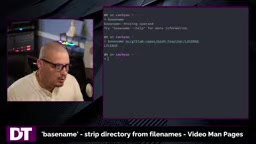
The most common use case is extracting just the filename from a long path. For example, passing basename the full path to a license file deep inside a GitLab repository:
basename /home/dt/repos/project/license
This strips all directory levels and returns just license.
This capability is especially useful in scripting. When writing scripts, you often receive a list of files with full paths, but the actual processing logic only needs the filename itself — not the long directory prefix. basename efficiently handles this "trimming" job.
Works on Directory Paths Too
basename isn't limited to files — it also works on directory paths. If you pass in a chain of directories, it returns the rightmost directory name, stripping all parent directories.
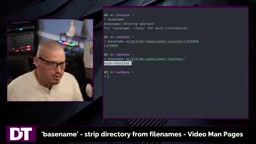
For example:
basename directory1/directory2/directory3
The result is directory3. The logic is straightforward: regardless of whether the end of the path points to a file or a directory, basename always returns the last segment.
Removing File Extensions
basename has a very handy advanced feature — stripping the file extension while extracting the filename.
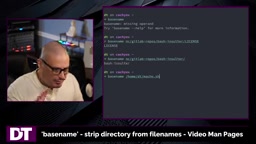
Suppose you have a shell script called macho.sh in your home directory. A basic extraction looks like this:
basename /home/dt/macho.sh
This returns macho.sh with the extension intact. But if you only want the filename without the extension, add a space after the path followed by the suffix you want to strip:
basename /home/dt/macho.sh .sh
This returns macho — the .sh part is cleanly removed.
This feature is particularly convenient for batch renaming, generating log filenames, or building output paths — you can derive a target filename from the source filename, swapping out the extension as needed.
When to Use basename
basename is a focused, single-purpose tool with very few flags and options, making the learning curve minimal. It delivers the most value in these scenarios:
- Shell script automation: Batch-extracting plain filenames from a list of paths
- Dynamic path construction: Flexibly assembling paths in combination with commands like
dirname - File renaming and conversion: Stripping an old extension before appending a new one
To explore its full usage and available options, run man basename in your terminal.
In practice, basename is often used inside loops to process files in bulk. For example, to convert all .mp4 files in a directory to .mp3, you might write: for f in /videos/*.mp4; do name=$(basename "$f" .mp4); ffmpeg -i "$f" "$name.mp3"; done. One important note: when paths or filenames contain spaces, always wrap variables in double quotes (e.g., "$f"). Otherwise, the shell will interpret spaces as argument separators, causing the script to fail — this is one of the most common pitfalls when using basename.
Summary
Despite its simplicity, basename is a reliable building block in any command-line workflow. Mastering its three typical use cases — extracting a filename, getting the last directory segment, and stripping an extension — can save you a lot of tedious string manipulation when writing scripts. For developers and sysadmins who work regularly in the terminal, it's a practical command well worth keeping in your toolkit.
Related articles

9 AI Subscription Plans Compared: The Real Cost Per 100M Tokens Revealed
Bilibili creator tests 9 AI subscription plans from Volcano, Alibaba, Tencent, Baidu, Zhipu, Xiaomi, MiniMax and more, converting them all to real cost per 100M tokens, breaking down fixed-quota vs. three-tier coefficient billing and how caching, time-of-day discounts, and window limits affect actual quota.

Vibe Coding for Beginners: Expressing Intent Instead of Handwriting Code
What is Vibe Coding? A 137-episode Bilibili course defines it: the core is expressing intent, not writing code. This article analyzes Vibe Coding's productivity logic, target audience, and entry expectations to help beginners decide if it's worth learning.

LangChain Beginner's Guide: An Agent Development Roadmap from LangGraph to Deep Agents
Clarify the encapsulation relationship among LangChain, LangGraph, and Deep Agents, and master the learning path and selection logic for agent development frameworks—suitable for beginners in large model development.